Can You Use Home Theater Speakers With a Computer? The Short Answer
Yes, you absolutely can use home theater speakers with a computer, and it’s one of the best upgrades you can make for immersive gaming, movie-watching, and music listening. However, you cannot connect them directly. You need an intermediary device called an Audio/Video (AV) Receiver or a stereo amplifier to power the speakers and process the audio signal from your PC.
Tired of the weak, tinny sound from your monitor or cheap desktop speakers? You have this amazing set of home theater speakers sitting in your living room, and you’re wondering if you can unlock that same powerful, cinematic audio for your PC. The good news is that it’s not only possible but also relatively straightforward with the right components. This guide will walk you through everything you need to know, from the required hardware to the exact steps for connecting and configuring your system for incredible desktop sound.
Key Takeaways (TL;DR)
- Amplifier is a Must: Passive home theater speakers require an AV receiver or stereo amplifier to function. You cannot plug them directly into your computer’s 3.5mm audio jack.
- Connection is Key: The best way to connect your computer to the receiver is with an HDMI cable, which supports high-resolution, multi-channel surround sound like DTS-HD and Dolby TrueHD.
- Alternative Connections: If HDMI isn’t an option, you can use a Digital Optical (S/PDIF) cable for compressed 5.1 surround sound or analog RCA cables for a simple stereo setup.
- PC Configuration: After connecting the hardware, you must configure your computer’s sound settings to recognize the receiver and output audio in the correct format (e.g., Stereo, 5.1, or 7.1 Surround).
Why Bother Using Home Theater Speakers for Your PC?
You might be thinking, “Is it worth the effort?” As someone who has used a dedicated 5.1 home theater setup with my PC for years, I can tell you the difference is night and day. Standard computer speakers are designed for convenience and a small footprint, not audio fidelity.
Home theater speakers offer a massive leap in quality for several reasons:
- Superior Sound Quality: They use larger drivers, better-built cabinets, and separate components (tweeters, woofers) to produce a richer, more detailed, and dynamic soundstage. You’ll hear details in games and music you never knew existed.
- Immersive Surround Sound: For gaming and movies, nothing beats a true surround sound experience. Hearing footsteps behind you in a game or feeling a starship fly overhead in a film is something a simple stereo setup can’t replicate.
- Powerful Bass: When paired with a subwoofer (the “.1” in a 5.1 setup), you get deep, impactful bass that you can feel. Explosions in games and bass drops in music have a physical presence.
- Versatility & Value: You might already own a great set of speakers. Repurposing them for your computer is a cost-effective way to get premium audio without buying a whole new high-end PC speaker system.
Understanding the Core Components: What You’ll Need
Before we dive into the “how-to,” let’s break down the essential gear. Getting this right is 90% of the battle.
Passive Home Theater Speakers
These are the standard speakers you’d buy for a living room setup. The key term here is “passive,” which means they don’t have built-in amplifiers and require external power. They connect using speaker wire. This includes:
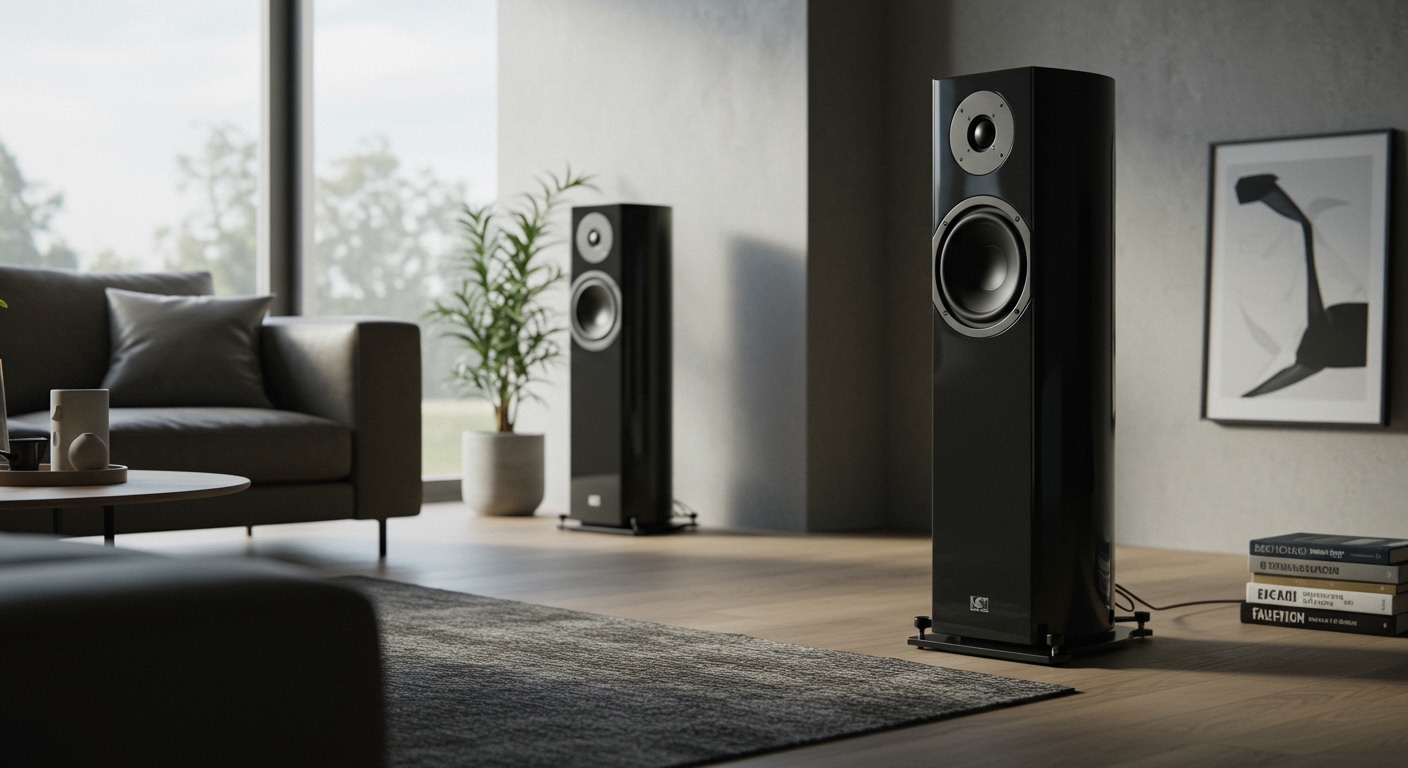
- Bookshelf or Tower Speakers: For your front left and right channels.
- Center Channel Speaker: Crucial for clear dialogue in movies and games.
- Surround Speakers: For side or rear channels in a 5.1 or 7.1 setup.
- Subwoofer: For low-frequency effects (bass). Most home theater subwoofers are “active,” meaning they have their own built-in amplifier and just need an audio signal from the receiver.
An AV Receiver or Stereo Amplifier
This is the heart of your new PC audio system. It performs two critical jobs: it decodes the audio signal from your computer and sends amplified power to your passive speakers.
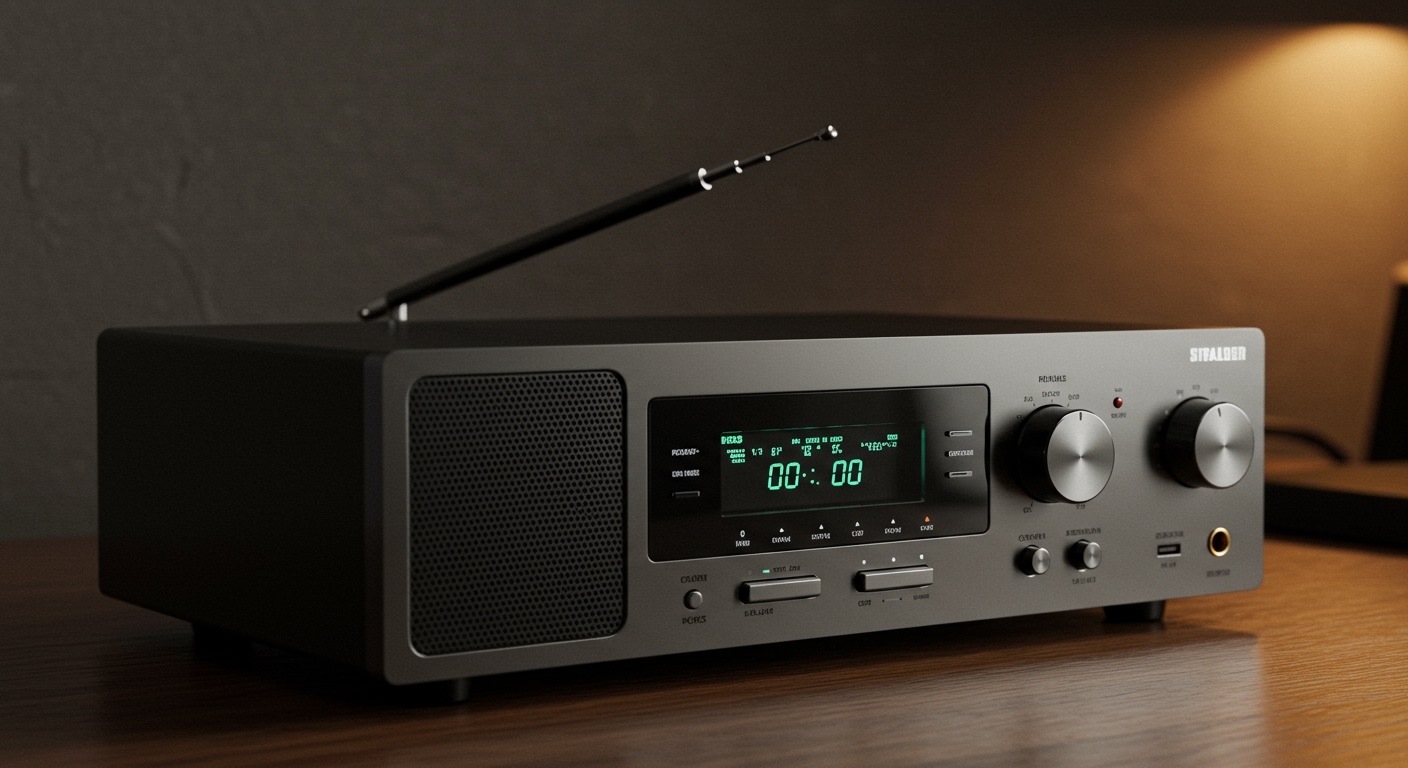
- AV Receiver: The best choice for a multi-channel (5.1 or 7.1) surround sound setup. It has inputs for multiple sources (like your PC, a gaming console, etc.) and processing for formats like Dolby and DTS.
- Stereo Amplifier/Receiver: A simpler, often smaller option if you only plan to use two speakers (a 2.0 or 2.1 setup). It’s perfect for high-quality music listening.
Your Computer (PC or Mac)
You need to check what kind of audio outputs your computer has. These are typically found on the back of the motherboard’s I/O panel or on your dedicated graphics card.
- HDMI Out: The most common and best option on modern PCs, usually on the graphics card (NVIDIA GeForce or AMD Radeon).
- Digital Optical Out (S/PDIF or TOSLINK): A small, square-ish port with a red light inside, found on many motherboards.
- Analog Out: The standard 3.5mm jacks (usually green for stereo out).
The Right Cables
Don’t overlook the cables! The type you use will determine the quality and type of audio you can send.
- HDMI Cable: For connecting your PC’s graphics card to the AV receiver.
- Digital Optical (TOSLINK) Cable: For connecting your PC’s motherboard to the receiver.
- Speaker Wire: To connect the passive speakers to the spring clips or binding posts on the back of your receiver.
- RCA Subwoofer Cable: A single RCA cable to connect the receiver’s “Sub Out” to the subwoofer’s “LFE In.”
Step-by-Step Guide: How to Use Home Theater Speakers for Your Computer
Ready to get everything connected? Follow these steps carefully. We’ll assume you’re setting up a common 5.1 surround sound system with an AV receiver.
Step 1: Position Your Speakers
Proper placement is crucial for a convincing surround sound experience.
- Front Left & Right: Place these on either side of your monitor, angled slightly inward towards your listening position (your chair).
- Center Channel: Place this directly below or above your monitor, aimed at your head.
- Subwoofer: This can go almost anywhere, but a corner of the room or next to your desk often works best.
- Surround Left & Right: Place these to your sides or slightly behind you, a couple of feet above ear level.
Step 2: Connect the Speakers to the AV Receiver
Now it’s time to run the speaker wire.
- Cut the Wire: Measure and cut lengths of speaker wire for each speaker, leaving a little slack.
- Strip the Ends: Carefully strip about half an inch of insulation from both ends of each wire.
- Observe Polarity: Speaker wire has two sides, often marked with a stripe, text, or a different color. This is for polarity. You must connect positive (+, usually red) on the receiver to positive (+, red) on the speaker, and negative (-, usually black) to negative (-, black).
- Connect to Receiver: Unscrew the binding posts or open the spring clips on the back of the receiver for the “Front L,” “Front R,” “Center,” etc., channels. Insert the correct wire and tighten the post or release the clip.
- Connect to Speakers: Do the same on the back of each corresponding speaker. Double-check your polarity!
Step 3: Connect Your PC to the AV Receiver
This is the most important connection. We’ll focus on HDMI, as it’s the superior method.
- Locate Ports: Find an HDMI Out port on your computer’s graphics card and an HDMI In port on your AV receiver (it might be labeled “PC,” “Game,” or “Blu-ray”).
- Connect PC to Receiver: Run an HDMI cable from your PC’s graphics card to one of the receiver’s HDMI inputs.
- Connect Receiver to Monitor: Run a second HDMI cable from the HDMI Out (ARC/eARC) port on your receiver to your computer monitor’s HDMI input.
Why this way? This setup sends both audio and video from your PC to the receiver. The receiver strips out the audio to play through the speakers and passes the video signal along to your monitor. Your PC will see the receiver as a display device.
Step 4: Power On and Select the Correct Input
- Plug in and turn on your AV receiver and your subwoofer.
- Turn on your computer and monitor.
- Using the receiver’s remote, select the HDMI input you connected your PC to (e.g., “HDMI 1,” “PC,” etc.). You should now see your computer’s desktop on your monitor.
If you see your desktop, you’re in great shape! Now we just need to configure the audio on the PC side.
Choosing the Right Connection Method for Your Setup
While HDMI is the best for most, it’s not the only