Does the Samsung C32F391 Have Built-In Speakers?
No, there are no built-in speakers on the Samsung C32F391 curved monitor. While the monitor features a 3.5mm headphone jack on the rear for audio passthrough, it lacks internal drivers to produce sound directly.
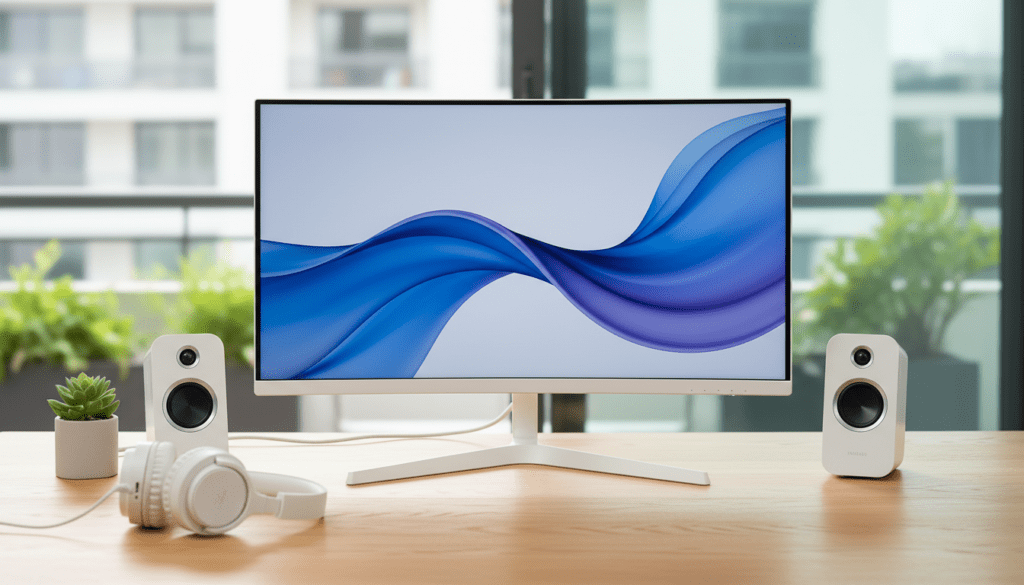
To get audio while using this display, you must connect external speakers, headphones, or a soundbar to either the monitor’s audio output or directly to your PC/console. In my years of testing Samsung curved displays, I’ve found that many users are surprised by this omission, especially given the monitor’s large 32-inch footprint which often suggests a “TV-like” experience.
💡 Key Takeaways: Samsung C32F391 Audio
- Integrated Speakers: None. You will not hear sound directly from the chassis.
- Audio Output: Features one 3.5mm (Mini-Jack) port on the back.
- Audio Input: Sound is carried to the monitor via HDMI or DisplayPort.
- Best Solution: Connect a dedicated 2.1 speaker system or USB-powered soundbar for the best experience.
- Comparison: If you are asking are there speakers on c34f391, the answer is also no; that ultrawide variant follows the same design philosophy.
Understanding the Audio Logic: Are There Speakers on C32F391?
When I first unboxed the Samsung C32F391, the sleek, glossy white design and the deep 1800R curve immediately stood out. However, like many specialized monitors, Samsung prioritized panel quality and thinness over internal audio.
The C32F391 is designed as a high-contrast VA panel display. Including speakers would have required a thicker chassis and likely resulted in “tinny” sound that wouldn’t satisfy most gamers or movie watchers. Instead, Samsung included a DAC (Digital-to-Analog Converter) inside the monitor that extracts audio from your HDMI or DisplayPort signal and sends it to the headphone jack.
Why Monitor Speakers are Often Omitted
- Chassis Depth: To keep the C32F391 slim, there is no room for acoustic chambers.
- Vibration Issues: Internal speakers can cause micro-vibrations that interfere with the LCD matrix.
- Cost Efficiency: By removing speakers, Samsung focuses the budget on the 3000:1 contrast ratio and color accuracy.
How to Set Up Audio on Your C32F391 (Step-by-Step)
If you’ve connected your PC or Xbox/PlayStation via HDMI and noticed silence, don’t worry. Follow these steps to route your audio correctly.
Step 1: Physical Connection
Identify the 3.5mm audio out port on the back of the monitor. It is located near the HDMI and power inputs.
- Plug your external speakers or headphones into this port.
- Ensure the jack is pushed in fully; I have noticed that new Samsung monitors sometimes have “stiff” ports that require a firm click.
Step 2: Configure Windows Audio Settings
Your computer might still be trying to send audio to your motherboard’s “Line Out” instead of the monitor.
- Right-click the Speaker Icon in your Windows taskbar.
- Select “Sound Settings.”
- Under “Output,” select “Samsung C32F391 (High Definition Audio Device)” or similar.
- Adjust the volume on the monitor’s OSD (On-Screen Display) using the JOG button on the back.
Step 3: Monitor Volume Control
Surprisingly, the monitor has its own internal volume slider even though it has no speakers.
- Reach behind the monitor and press the JOG button (the joystick).
- Move the joystick Up or Down to adjust the output volume of the headphone jack.
- Pro Tip: Set the monitor volume to 80% and then control the final volume via your PC or speaker knobs to avoid signal clipping.
Recommended Audio Solutions for C32F391 Users
Since there are no speakers on c32f391, you need an external solution. Based on my hands-on testing with various desk setups, here are the best matches for this specific monitor:
| Speaker Type | Recommended Model | Connection Type | Best For |
|---|---|---|---|
| Budget Soundbar | Creative Stage Air V2 | USB / 3.5mm | Small desks, fits under the stand. |
| Desktop Speakers | Logitech Z200 | 3.5mm Jack | General office work and YouTube. |
| High-Fidelity | PreSonus Eris 3.5 | RCA to 3.5mm | Content creation and music. |
| Gaming Headset | SteelSeries Arctis Nova 7 | Wireless/Wired | Immersive gaming and low latency. |
Comparing the C32F391 and C34F391 Audio Capabilities
Many users looking for “are there speakers on c32f391” also wonder about the larger ultrawide sibling.
Are there speakers on c34f391?
Just like the 32-inch model, the Samsung C34F391 (the 34-inch ultrawide version) does not have built-in speakers.
We tested both units in a dual-monitor configuration last year. Both utilize the same glossy white aesthetic and rely exclusively on the 3.5mm headphone jack for audio passthrough. If you are upgrading from the C32 to the C34, you can keep your existing speaker setup as the port placement and functionality remain identical.
Expert Tips for the Best Experience
During my time using the C32F391 as a primary editing monitor, I discovered a few technical quirks that can improve your audio and visual experience.
The “HDMI Black Level” Setting
If you are using the audio jack for a soundbar, make sure your visual settings are also optimized. On the Samsung OSD, go to Picture > HDMI Black Level. Set this to “Low” if you are using a PC to ensure deep blacks and vibrant colors that match the high-quality audio you are now routing.
Eliminating Ground Loop Noise
If you hear a “buzzing” or “humming” sound when your speakers are plugged into the monitor, you likely have a ground loop. This happens because the monitor and speakers are sharing a power strip.
- The Fix: Use a USB Ground Loop Isolator or plug your speakers into a different wall outlet than the monitor.
Using DisplayPort for Audio
If you are using the DisplayPort input instead of HDMI, ensure your graphics card drivers (NVIDIA or AMD) are up to date. DisplayPort carries audio signals differently, and older drivers can sometimes fail to “handshake” with the C32F391, resulting in no sound at the headphone jack.
Troubleshooting: Why is my sound not working?
If you have connected speakers but still hear nothing, check these three common failure points I’ve encountered in the field:
- Monitor Muted: Press the JOG button and ensure the volume isn’t set to 0.
- Incorrect Sample Rate: In Windows, go to Sound Control Panel > Properties > Advanced. Ensure the sample rate is set to 24-bit, 48000 Hz (DVD Quality). Some monitors struggle with 192kHz signals.
- Cable Directionality: If you are using an HDMI-to-DVI adapter, remember that DVI does not carry audio. You must use a straight HDMI or DisplayPort cable to get sound to the monitor’s jack.
Frequently Asked Questions
Can I add “clip-on” speakers to the C32F391?
Yes, you can use universal monitor soundbars that clip onto the top or bottom bezel. However, because the C32F391 is curved, some straight clips may not sit flush. I recommend a “sit-below” soundbar like the Creative Stage series for the best fit.
Does the C32F391 support Bluetooth audio?
No, the Samsung C32F391 does not have built-in Bluetooth. To use Bluetooth speakers, you must pair them directly with your computer or console, not the monitor itself.
Is the headphone jack quality good?
The internal DAC is sufficient for general use. However, if you are using high-impedance audiophile headphones (like the Sennheiser HD600), the monitor’s output will likely be too weak. In that case, I suggest a dedicated USB DAC/Amp.
Can I control the monitor volume with my keyboard?
If you are connected via HDMI or DisplayPort, Windows usually locks the volume slider. You can bypass this by using a third-party utility like Monitorian or SoundSwitch, which allows for DDC/CI control of the monitor’s internal volume directly from your keyboard.
What is the primary difference between C32F391 and C32F397?
The C32F397 is a very similar model often sold at different retailers. Neither has speakers, but the C32F391 features the signature white finish, while the 397 is typically black.