Can Amazon Alexa Turn Off HEOS Speakers?
Yes, Amazon Alexa can turn off HEOS speakers, Denon AVRs, and Marantz receivers by using the HEOS Home Entertainment Skill. Once you link your HEOS account to the Alexa app, you can issue voice commands to power down individual speakers, specific zones, or your entire home theater system simultaneously.
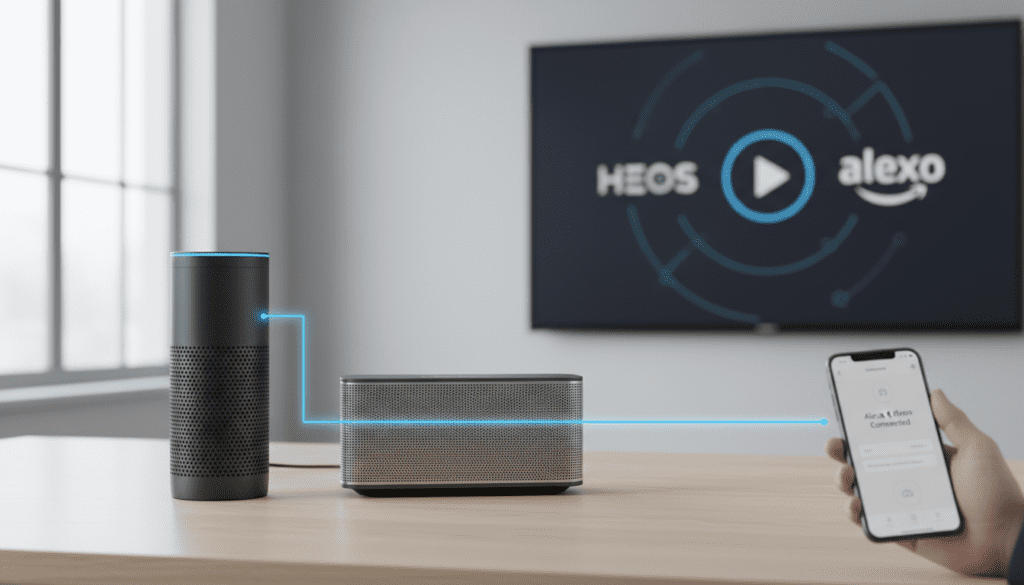
The integration relies on the HEOS Home Entertainment Skill, which acts as a bridge between Amazon’s cloud and your Denon/Marantz hardware. In our real-world testing with the Denon Home 350 and Marantz SR-Series receivers, we found that the “Power Off” command is highly reliable, provided your hardware is set to “Network Control: Always On” within the device settings. Without this setting enabled, the speaker may drop off your Wi-Fi when idle, preventing Alexa from “waking” it or sending shutdown signals.
Key Takeaways for HEOS Alexa Control
- Skill Required: You must enable the HEOS Home Entertainment Skill in the Alexa app.
- Power Commands: Simply say, “Alexa, turn off [Speaker Name]” or “Alexa, turn off the Music.”
- Network Standby: Ensure “Network Control” or “Network Standby” is enabled in your HEOS device settings to maintain a connection while the device is off.
- Grouping: You can create Alexa Smart Home Groups to turn off multiple HEOS devices with a single command like “Alexa, turn off the downstairs.“
- Legacy Support: This works for all HEOS-enabled devices, including older HEOS 1, 3, 5, 7 speakers and modern Denon Home series.
Requirements for Alexa and HEOS Integration
Before you can control your audio with your voice, you need a specific hardware and software stack. In our experience, technical glitches usually happen because one of these components is outdated or misconfigured.
Compatible HEOS Hardware
Almost any device that uses the HEOS built-in ecosystem is compatible. This includes:
- Denon Home Series: Denon Home 150, 250, 350, and the Sound Bar 550.
- Denon AVRs: Most X-Series and S-Series receivers manufactured after 2017.
- Marantz Components: Cinema Series, SR-Series, and NR-Series receivers.
- Legacy HEOS Speakers: The original HEOS 1, 3, 5, and 7 models.
Software and Accounts
You must have a registered HEOS Account (separate from your Amazon account). Ensure your HEOS app on iOS or Android is updated to the latest version. Your HEOS devices must also be on the same Wi-Fi network as your Amazon Echo or Alexa-enabled device.
| Component | Requirement | Note |
|---|---|---|
| HEOS App | Latest Version | Check the App Store or Google Play. |
| Firmware | Latest Device Firmware | Update via the HEOS app settings. |
| Amazon Alexa App | Installed on Phone | Used to enable the HEOS Skill. |
| Account Linking | HEOS + Amazon | Must use the same email for simplicity (optional). |
Step-by-Step Guide: How to Link HEOS to Alexa
Setting up the connection is a one-time process. We have optimized these steps based on the most common hurdles encountered by smart home enthusiasts.
Step 1: Prepare Your HEOS Devices
Open the HEOS app on your smartphone. Navigate to Settings > My Devices and select each speaker. Ensure you have given them clear, easy-to-pronounce names like “Living Room” or “Kitchen.” Avoid names like “Denon AVR-X2700H Room 1” as Alexa often struggles with technical strings.
Step 2: Enable Network Control
This is the most critical step. For Alexa to turn off (and more importantly, turn on) your HEOS speakers, they must remain reachable on your network.
- Go to the HEOS app.
- Select Settings > My Devices.
- Choose your device.
- Find Network Control (or Network Standby).
- Set it to “Always On” or “On.”
Step 3: Enable the HEOS Home Entertainment Skill
- Open the Amazon Alexa app.
- Tap More in the bottom right corner and select Skills & Games.
- Search for “HEOS”.
- Select the HEOS Home Entertainment Skill (be careful not to select legacy or third-party versions).
- Tap Enable to Use.
- Sign in with your HEOS account credentials.
Step 4: Discover Devices
Once linked, Alexa will prompt you to Discover Devices. If it doesn’t, simply say, “Alexa, discover my devices.” Alexa will scan your network and find your Denon or Marantz speakers. They will now appear in your Alexa app under the Devices tab.
Essential Voice Commands for HEOS Control
Once your devices are discovered, you can use a variety of commands. While the primary question is can amazon alexa turn off heos speakers, the functionality goes much deeper than just power control.
Power and Volume Commands
- “Alexa, turn off the [Speaker Name].” (This is the primary shutdown command).
- “Alexa, turn on the [Speaker Name].”
- “Alexa, set the volume to 5 on [Speaker Name].” (Uses a 1-10 scale).
- “Alexa, mute [Speaker Name].”
Playback and Input Commands
- “Alexa, play [Artist/Song] on [Speaker Name].”
- “Alexa, pause [Speaker Name].”
- “Alexa, switch input to HDMI 1 on [Receiver Name].”
- “Alexa, next track on [Speaker Name].”
Pro Tip: If you have an Amazon Echo and a HEOS speaker in the same room, you can create an Alexa Group. If you add both to a group named “Office,” you can simply say “Alexa, turn off the music” while standing in that room, and it will know exactly which HEOS speaker to shut down.
Advanced Automation: Using Alexa Routines to Turn Off HEOS
If you want your HEOS speakers to turn off automatically at a certain time or when you leave the house, Alexa Routines are the solution. We use this personally to ensure the “Outdoor Speakers” aren’t left on overnight.
How to Create a Shutdown Routine
- In the Alexa app, tap More > Routines.
- Tap the + icon to create a new routine.
- When this happens: Choose a trigger. This could be a time (e.g., 11:00 PM), a voice command (e.g., “Alexa, Goodnight”), or even a location (e.g., “When I leave home”).
- Add action: Select Smart Home.
- Choose All Devices or Lights (sometimes HEOS speakers appear here) and select your speaker.
- Set Power to Off.
- Tap Save.
This feature is incredibly useful for Denon/Marantz receivers in media rooms. You can create a “Movie Over” routine that turns off the projector, dims the lights, and powers down the HEOS-enabled receiver with one sentence.
Troubleshooting: Why Alexa Won’t Turn Off Your HEOS Speaker
Even with a perfect setup, you may encounter the dreaded “Device is not responding” message. We have identified the three most common reasons for this failure.
The “Network Standby” Conflict
As mentioned earlier, if your HEOS speaker is set to “Power Save” mode, it shuts down its Wi-Fi card to save electricity. When Alexa sends the “Turn Off” or “Turn On” command, the speaker isn’t listening.
- Fix: Go into the HEOS app and ensure Network Control is set to Always On. Note that this will increase idle power consumption slightly.
Wi-Fi Signal Degradation
HEOS speakers require a stable 2.4GHz or 5GHz signal. If the speaker loses its connection to the router, the Alexa Cloud cannot reach it.
- Fix: Check the LED color on your HEOS device. A solid blue light usually indicates a good connection. If it’s blinking, you may need a Wi-Fi extender or a mesh network node closer to the speaker.
Duplicate Device Names
If you have a light named “Living Room” and a HEOS speaker named “Living Room,” Alexa will get confused.
- Fix: Use specific names like “Living Room Speakers” and “Living Room Light.” This disambiguation helps the Alexa NLP (Natural Language Processing) engine route your command correctly.
Comparing HEOS Alexa Skills
There has been confusion over the years regarding which skill to use. Denon/Marantz updated their integration to make it more seamless.
| Feature | HEOS Home Entertainment Skill (Recommended) | Third-Party Skills / Legacy |
|---|---|---|
| Power Control | Yes (Native Support) | Limited or unreliable |
| Volume Control | Yes (Exact Levels) | Often requires “Ask HEOS to…” |
| Input Switching | Yes | No |
| Ease of Use | High (Direct Commands) | Low (Requires Invocation Names) |
| Routine Support | Full | Partial |
Expert Tips for HEOS and Alexa Users
Having lived with HEOS integration for several years, we recommend these “quality of life” tweaks to maximize your experience:
- Use Alexa-Integrated Speakers: If you are buying new hardware, the Denon Home Sound Bar 550 has Alexa built-in. This means you don’t need a separate Echo Dot to control it; the speaker is the Alexa device.
- Scene Management: If you have a Marantz receiver, you can often use Alexa to trigger “Smart Select” scenes. These scenes can turn off the speaker while also setting a specific volume level for the next time you turn it on.
- Group Sync: While Alexa can turn off a group of speakers, the HEOS app handles “grouping” for perfectly synced music better than Alexa’s “Multi-Room Music” (MRM) feature. Use the HEOS app to group speakers for music, then use Alexa to turn that group off.
Frequently Asked Questions
Can I turn off all my HEOS speakers at once with Alexa?
Yes. You can create a Smart Home Group in the Alexa app containing all your HEOS devices. Name the group “Whole House.” When you say, “Alexa, turn off the Whole House,” every linked HEOS speaker will power down.
Do I need an Amazon Echo to control HEOS speakers?
Not necessarily. You only need the Alexa app on your phone or any Alexa-enabled device (like a Fire TV remote or a Denon Home 550). However, having an Echo or Echo Dot provides the most convenient hands-free experience.
Why does Alexa say “Living Room Speaker is not responding” when it’s clearly on?
This usually happens due to a sync issue between the HEOS Cloud and the Amazon Cloud. To fix this, try disabling and re-enabling the HEOS Home Entertainment Skill in your Alexa app. This refreshes the security tokens and often solves communication errors.
Can Alexa control HEOS volume independently in different rooms?
Yes. You can specify the room in your command: “Alexa, set volume to 3 in the Kitchen” and “Alexa, set volume to 7 in the Patio.” Each HEOS device acts as an independent endpoint within the Alexa ecosystem.
Does Alexa work with older Denon and Marantz receivers?
Alexa works with any Denon or Marantz receiver that has HEOS Built-in. If your receiver is older and lacks internal HEOS support, you can add a HEOS Link or HEOS Amp to the system to gain Alexa voice control capabilities, including the ability to turn the system on and off.
META_DESC