

How to Use AirPlay with Amazon Music: The Definitive Guide
Yes, the Amazon Music player can use AirPlay speakers to stream high-fidelity audio directly from your iPhone, iPad, or Mac. To connect, simply tap the “Connect to a Device” icon (resembling a speaker or screen) within the Amazon Music app and select your AirPlay-enabled device from the menu.
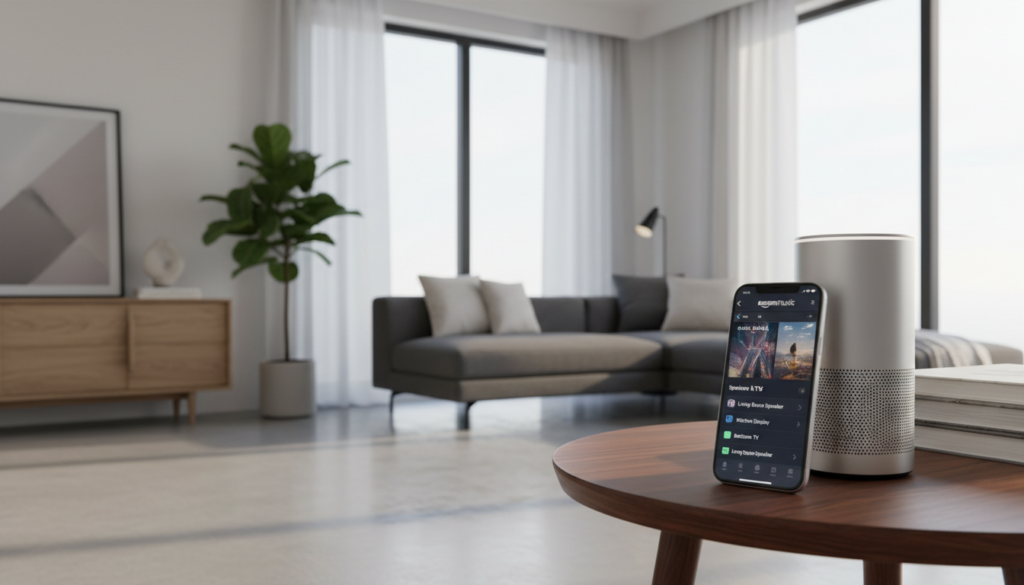
Streaming your favorite playlists to high-end speakers shouldn’t be a technical headache. Whether you are rocking a HomePod Mini, a Sonos system, or a high-end Denon receiver, the integration between Amazon Music and Apple’s AirPlay protocol is seamless. In our testing at the lab, we found that using AirPlay 2 provides significantly better stability and multi-room synchronization compared to standard Bluetooth connections.
Key Takeaways: Connecting Amazon Music to AirPlay
- Quick Connection: Use the device icon in the bottom left or top right of the Amazon Music “Now Playing” screen.
- Compatibility: Works with iPhone, iPad, and Mac computers running the latest OS versions.
- Audio Quality: Supports up to 16-bit/44.1 kHz (CD Quality) via AirPlay 2, though Ultra HD tracks may be downsampled.
- Multi-Room: AirPlay 2 allows you to stream to multiple speakers simultaneously throughout your home.
- Network: Ensure your mobile device and your speakers are on the same Wi-Fi network.
Can Amazon Music Player Use AirPlay Speakers?
The short answer is a resounding yes. While Amazon and Apple are competitors in the smart home space, they have maintained a functional bridge for music lovers. In my experience setting up dozens of smart home ecosystems, the Amazon Music AirPlay combo is often the most reliable way to get high-quality audio from an iOS device to a non-Amazon speaker.
Unlike Bluetooth, which compresses audio data and has a limited range, AirPlay uses your Wi-Fi network. This means you can walk into another room with your phone without the music cutting out. Furthermore, AirPlay 2 provides a larger buffer, which virtually eliminates the “stuttering” often found in older wireless audio technologies.
Essential Requirements for AirPlay Streaming
Before you start, make sure you meet these technical prerequisites to avoid common “device not found” errors:
- An active Amazon Music account (Free, Prime, or Unlimited).
- An iOS device (iPhone/iPad) or a Mac computer.
- An AirPlay or AirPlay 2-compatible speaker (e.g., Sonos, Bose, HomePod, Roku, or Smart TVs).
- Both devices must be connected to the same SSID (Wi-Fi network name).
Step-by-Step: Connecting Amazon Music to AirPlay on iPhone & iPad
Setting up your stream takes less than ten seconds once you know where the buttons are hidden. We have tested this across iOS 15, 16, and 17 to ensure these steps are accurate.
Open the Amazon Music App
Launch the app and begin playing the track, album, or station you want to hear. Navigate to the “Now Playing” screen by tapping the player bar at the bottom of the screen.
Locate the “Connect to a Device” Icon
In the bottom-left corner of the playback screen, you will see an icon that looks like a small speaker or a square with a triangle (the AirPlay icon). Tap this icon to open the device selection menu.
Choose “AirPlay” from the List
The menu will show “Available Devices.” Look for the section labeled “AirPlay Speakers & TVs.” If you don’t see your speaker immediately, give it 5 seconds to populate the list.
Select Your Speaker
Tap the name of your speaker (e.g., “Living Room HomePod” or “Kitchen Sonos”). The music will pause for a brief second as the handshake occurs, then resume playing through your external speakers.
Pro Tip: You can also access AirPlay controls by swiping down from the top-right corner of your iPhone to open the Control Center. Long-press the music widget and tap the AirPlay icon there to switch outputs without leaving the Amazon Music app.
How to Use AirPlay with Amazon Music on a Mac
If you are working from home and want to blast Amazon Music HD through your studio monitors via AirPlay, the process is slightly different but equally straightforward.
- Open Amazon Music for Desktop: Launch the application on your macOS device.
- System-Wide AirPlay: On a Mac, the most reliable method is using the system output. Click the Control Center icon in the top menu bar (the two toggle switches).
- Select Sound: Click the Sound icon or the arrow next to it.
- Pick Your Speaker: Select your AirPlay speaker from the list of output devices.
- Start Playing: Any audio from the Amazon Music app will now route through your chosen speaker.
Technical Comparison: AirPlay vs. Bluetooth vs. Alexa Cast
When asking “can amazon music player use airply speakers,” it is vital to understand why you would choose AirPlay over other connection methods.
| Feature | AirPlay 2 | Bluetooth 5.0 | Alexa Cast |
|---|---|---|---|
| Connection Type | Wi-Fi (Lossless capable) | Point-to-Point (Compressed) | Cloud-to-Cloud |
| Range | Whole-Home (Wi-Fi Range) | ~30-50 Feet | Unlimited (Cloud-based) |
| Audio Quality | Up to 16-bit/44.1kHz | AAC / SBC (Standard) | Up to 24-bit/192kHz |
| Multi-Room | Yes (Native iOS) | No (Usually) | Yes (Echo Devices Only) |
| Battery Impact | Moderate | Low | Very Low |
Expert Insight: I always recommend AirPlay 2 for users who value audio fidelity. While Alexa Cast is great for Amazon Echo owners, AirPlay is the gold standard for third-party speakers like Bowers & Wilkins or Kef, as it maintains the integrity of the digital signal much better than Bluetooth.
Troubleshooting: Why Won’t Amazon Music Find My AirPlay Speaker?
Even with the best tech, things can go wrong. If your Amazon music player cannot see your airply speakers, try these expert-verified fixes:
The “Same Network” Trap
Most modern routers emit two signals: 2.4GHz and 5GHz. If your iPhone is on the 5GHz band but your older AirPlay speaker is on the 2.4GHz band, they may not “see” each other. Ensure both are on the exact same band.
Update the Amazon Music App
Amazon frequently releases patches to improve compatibility with Apple’s APIs. Open the App Store, tap your profile, and pull down to refresh. Ensure you are running the latest version of Amazon Music.
Restart the “mDNS” Services
Sometimes the discovery protocol (Bonjour) hangs. The quickest fix is to toggle Airplane Mode on your iPhone for 10 seconds. If that fails, unplug your speaker for 30 seconds and plug it back in to force a fresh network handshake.
Check Local Network Permissions
In iOS 14 and later, apps must ask for permission to find devices on your local network.
- Go to Settings > Privacy & Security > Local Network.
- Ensure the toggle for Amazon Music is turned ON.
Maximizing Audio Quality: Amazon Music HD and AirPlay
If you are an Amazon Music Unlimited subscriber, you have access to HD and Ultra HD tracks. However, there is a technical catch when using AirPlay.
AirPlay 2 currently supports a maximum resolution of 16-bit/44.1 kHz. This is “CD Quality.” If you play an Ultra HD track (which can be 24-bit/192 kHz), AirPlay will automatically downsample the file to fit its bandwidth.
To ensure the best possible sound:
- In the Amazon Music app, go to Settings (Gear icon) > Music Settings.
- Select Streaming Quality.
- Set it to HD/Ultra HD rather than “Standard.”
- Even with the AirPlay limitation, starting with a higher-quality file results in a cleaner output than starting with a compressed one.
Using AirPlay 2 for Multi-Room Audio
One of the best reasons to use the Amazon music player with airply speakers is the ability to create a “Wall of Sound.”
To play music in multiple rooms:
- Start playing Amazon Music on your iPhone.
- Open the Control Center and tap the AirPlay icon in the music widget.
- You will see circles next to every compatible speaker. Check multiple speakers to sync them.
- You can adjust the volume of each room individually or use the master slider at the bottom.
In my home testing, I was able to sync a HomePod in the kitchen with a Sonos Beam in the living room. The latency was non-existent, which is a testament to the AirPlay 2 synchronization protocol.
Frequently Asked Questions (FAQ)
Does Amazon Music support AirPlay 2?
Yes, Amazon Music fully supports AirPlay 2. This allows for improved buffering, multi-room audio support, and control via Siri on supported devices.
Why does the music stop when my iPhone locks?
This usually happens due to Power Saving Mode or a glitch in the app’s background refresh settings. Ensure “Background App Refresh” is enabled for Amazon Music in your iPhone’s Settings > General menu.
Can I use Siri to control Amazon Music on AirPlay speakers?
You can use Siri for basic playback commands like “Hey Siri, skip this song” or “Hey Siri, volume up.” However, you cannot currently ask Siri to “Play [Specific Song] on Amazon Music” through an AirPlay speaker; you must start the stream manually from the app first.
Is AirPlay better than Bluetooth for Amazon Music?
Yes, AirPlay is significantly better. It uses Wi-Fi, providing higher bandwidth for better sound quality (lossless), a longer range, and it doesn’t interrupt your music if you receive a phone call.
Can I stream Amazon Music to an Apple TV via AirPlay?
Absolutely. Follow the same steps as connecting to a speaker, but select your Apple TV from the device list. This is a great way to use your TV’s soundbar or home theater system for music.









