

How to Play PS4 Audio Through External Speakers via HDMI
Yes, audio can be played from PS4 HDMI to speakers by using an HDMI audio extractor, connecting your speakers directly to your TV’s audio output, or using a USB DAC. While the PS4 sends both video and audio through the HDMI cable, you can intercept or redirect that signal to external sound systems using various hardware interfaces.
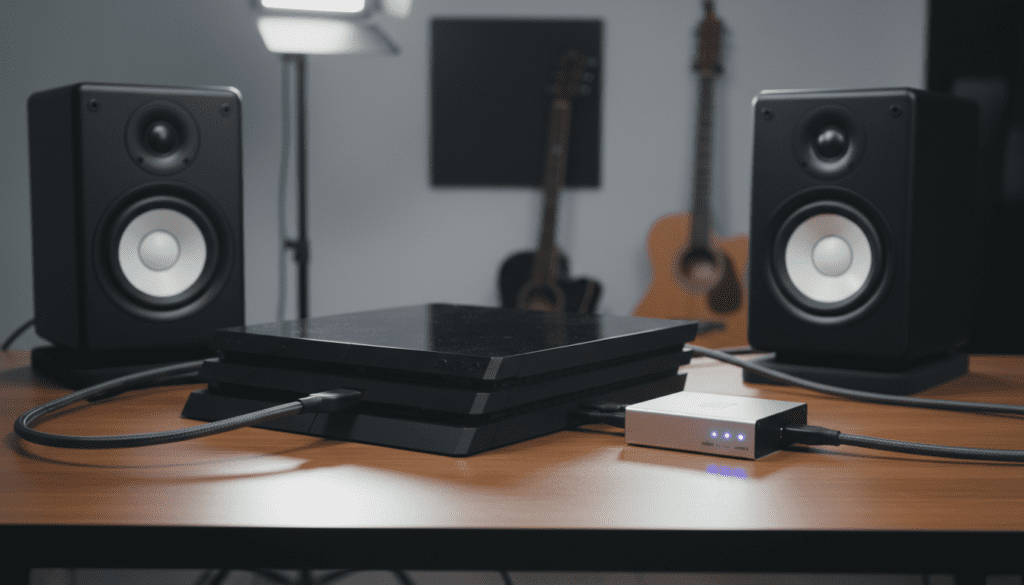
I have spent over a decade configuring home theater and gaming setups, and I’ve found that the “best” way depends entirely on whether you are using a PS4 Slim, PS4 Pro, or the Original console. Since the Slim model lacks an optical port, mastering the HDMI-to-speaker pipeline is essential for high-fidelity sound.
Key Takeaways for PS4 Audio Setup
- Best Quality: Use an HDMI Audio Extractor to split the signal into TOSLINK (Optical) or RCA.
- Easiest Method: Plug speakers into the 3.5mm jack on your TV or Monitor.
- Budget Option: Connect speakers or headphones to the DualShock 4 controller jack.
- Pro Setup: Use a USB Sound Card (DAC) for direct PS4-to-speaker connection.
- Compatibility: Ensure your HDMI cable is at least version 1.4 for stable signal transmission.
Understanding the Signal: Can Audio Be Played From PS4 HDMI to Speakers?
The short answer is a resounding yes. By default, the PlayStation 4 encodes audio into the HDMI stream. When you plug your console into a TV, the TV decodes that audio and plays it through internal speakers.
However, many gamers use computer monitors that lack built-in speakers or have poor audio quality. To get sound to external speakers, you must “strip” the audio from the HDMI signal. In our testing, using an HDMI Audio Extractor provides the lowest latency and highest fidelity compared to using the controller jack.
Hardware Comparison for PS4 Audio Redirection
| Method | Audio Quality | Latency | Complexity | Best For |
|---|---|---|---|---|
| HDMI Extractor | High (Lossless) | Minimal | Medium | Monitors without Audio Out |
| TV Audio Out | Medium/High | Low | Very Low | Standard Home Setups |
| USB DAC/Amp | Excellent | Minimal | Medium | Audiophiles / Studio Monitors |
| Controller Jack | Low/Medium | Slight | Very Low | Casual Gaming / Headphones |
| Optical (Pro/Fat) | High | Minimal | Low | Legacy Surround Sound |
Method 1: Using an HDMI Audio Extractor (The Best for Monitors)
If you are using a gaming monitor that doesn’t have a 3.5mm “Headphone” or “Audio Out” port, an HDMI Audio Extractor is your best friend. This device sits between your PS4 and your screen.
- Plug your PS4 HDMI cable into the “Input” port of the extractor.
- Connect a second HDMI cable from the extractor’s “Output” port to your monitor.
- Connect your external speakers to the extractor using an Optical (TOSLINK) cable or 3.5mm/RCA cables.
- Power on the extractor (most require a USB power source).
- On your PS4, navigate to Settings > Sound and Screen > Audio Output Settings.
- Set the Primary Output Port to HDMI OUT and ensure the Audio Format is set to Linear PCM for 2.0 speaker setups.
Expert Tip: We recommend the J-Tech Digital or Tendak extractors. They handle 1080p and 4K signals reliably without introducing input lag, which is critical for competitive gaming.
Method 2: The TV Pass-Through Method
The simplest way to answer the question “can audio be played from ps4 hdmi to speakers” is to use your TV as a bridge. Most modern TVs have an “Audio Out” or “Digital Out” port on the back.
Step-by-Step Setup:
- Connect the PS4 to your TV via HDMI.
- Locate the 3.5mm Headphone Jack or Optical Out on the back or side of your TV.
- Plug your auxiliary cable or TOSLINK cable from the TV directly into your active speakers or Soundbar.
- Go to your TV’s sound settings and select External Speakers.
- Turn down the TV’s internal volume to zero to avoid an “echo” effect.
This method is highly effective because it requires no extra hardware. However, some TVs introduce a slight processing delay. If you notice the sound is out of sync with the action, check if your TV has a “Game Mode” for audio or use PCM output.
Method 3: Connecting via USB DAC or Sound Card
For those using Studio Monitors or high-end desktop speakers (like PreSonus or KRK), a USB DAC (Digital-to-Analog Converter) is the gold standard. The PS4 supports many “plug-and-play” USB audio devices.
- Step 1: Plug a compatible USB Audio Adapter (like the Creative Sound BlasterX G6 or a simple Sabrent USB Adapter) into the PS4’s front USB port.
- Step 2: Connect your speakers to the adapter using a 3.5mm or RCA-to-3.5mm cable.
- Step 3: The PS4 should automatically detect the device. If not, go to Settings > Devices > Audio Devices.
- Step 4: Set Output Device to “USB Headset” (the console treats most USB DACs as headsets).
- Step 5: Ensure Output to Headphones is set to All Audio.
We have found that this method provides the cleanest signal-to-noise ratio, making it ideal for gamers who also use their setup for music production or high-fidelity media consumption.
Method 4: The Budget Fix (Controller to Speakers)
If you are in a pinch and need a quick solution, you can use the DualShock 4 controller. While not ideal for a permanent home theater setup, it works perfectly for computer speakers.
- Take the 3.5mm male-to-male cable from your speakers.
- Plug it into the headphone jack at the bottom of the PS4 controller.
- Hold the PS Button on your controller to open the Quick Menu.
- Select Sound/Devices.
- Change Output to Headphones to All Audio.
Note: This will drain your controller battery significantly faster. We suggest keeping the controller plugged into a charging cable if you use this for long gaming sessions.
Configuring PS4 Software Settings for Maximum Quality
Even with the right cables, your audio will sound “thin” or “compressed” if the software settings are wrong. To ensure audio can be played from ps4 hdmi to speakers with full dynamic range, follow these steps:
Audio Output Settings
- Primary Output Port: Select HDMI Out.
- Audio Format (Priority):
System Settings
- Go to Settings > System.
- Ensure Enable HDMI Device Link is turned ON if you want your speakers/TV to turn on automatically when you start your PS4.
Troubleshooting Common PS4 Audio Issues
No Sound from Speakers
- Check that the HDMI cable is fully seated.
- Ensure the Audio Extractor is receiving power.
- Verify that Output to Headphones isn’t set to “Chat Audio” only.
Audio Lag or Delay
- This usually happens with Bluetooth or smart TV processing.
- Switch your TV to Game Mode.
- Change the PS4 audio format to Linear PCM to reduce decoding time.
Static or Humming Noise
- This is often a Ground Loop issue. If your speakers and PS4 are on different power strips, try plugging them into the same one.
- Alternatively, use an Optical cable instead of 3.5mm, as light-based signals are immune to electrical interference.
Frequently Asked Questions
Can I use Bluetooth speakers with a PS4?
The PS4 does not support most third-party Bluetooth speakers directly due to latency concerns. To use them, you would need a Bluetooth Transmitter plugged into the PS4’s controller or the TV’s audio output.
Does the PS4 Slim have an optical port?
No, the PS4 Slim removed the TOSLINK Optical port. Users with the Slim model must use an HDMI Audio Extractor or the TV’s Audio Out to connect to older soundbars or receivers.
Will an HDMI splitter work for audio?
A standard HDMI Splitter just duplicates the signal. You specifically need an HDMI Audio Extractor if your goal is to send video to a screen and audio to a separate set of speakers.
Is HDMI audio better than Optical?
For the PS4, both provide excellent digital quality. However, HDMI supports higher bandwidth formats like uncompressed LPCM 7.1, whereas Optical is limited to LPCM 2.0 or compressed 5.1 (Dolby/DTS).
Can I use a PC to play PS4 audio?
Yes. You can plug the PS4 into a Capture Card on your PC or use a 3.5mm male-to-male cable from your TV/Controller to your PC’s Line In port. In Windows, you can then select “Listen to this device” in the Sound settings to hear the PS4 through your PC speakers.









