

Understanding How You Can Get Speakers of BenQ SW271 to Play
To get speakers of BenQ SW271 to play, you must first understand that this specific monitor does not have internal built-in speakers. Instead, it features a 3.5mm audio-out jack that acts as a passthrough for sound traveling through your HDMI, DisplayPort, or USB-C cables. To hear audio, you must connect external speakers or headphones to this jack and set the BenQ SW271 as your default output device in your computer’s sound settings.
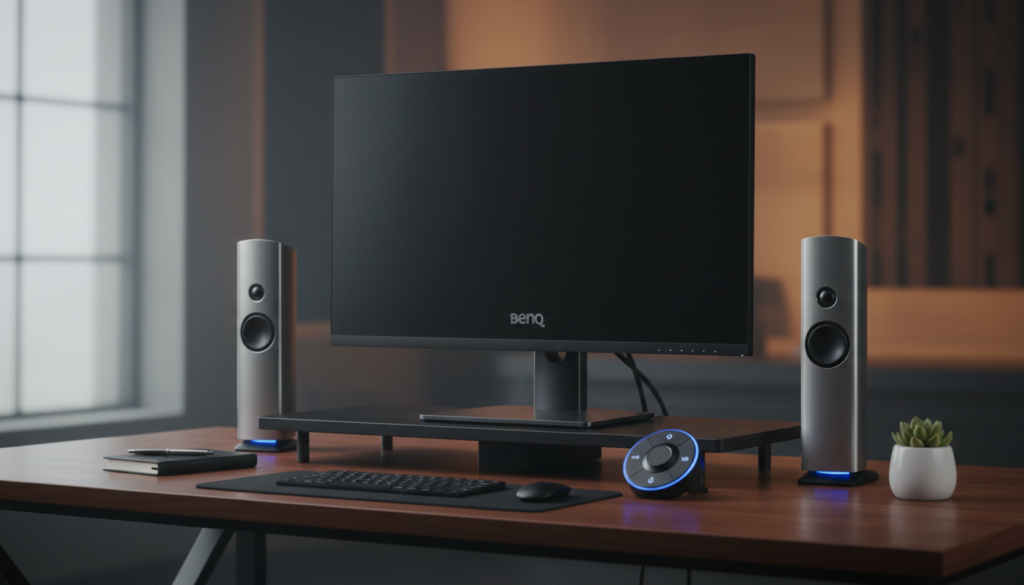
In my years of color-grading professional photography on the SW series, I have found that many users mistake the “Audio” menu in the OSD (On-Screen Display) for a sign of built-in speakers. In reality, the BenQ SW271 is a precision tool for visual artists, and BenQ intentionally omitted speakers to maintain the slim bezel design and focus entirely on color accuracy.
TL;DR: Quick Fix for BenQ SW271 Audio
- The Hardware Reality: There are no internal speakers.
- The Solution: Plug external speakers/headphones into the 3.5mm jack located on the side or back of the monitor.
- Cable Requirement: Use HDMI, DisplayPort, or USB-C (VGA/DVI do not carry audio).
- Software Setup: Change your Output Device to “BenQ SW271” in Windows or macOS sound settings.
- Volume Control: Use the Hotkey Puck G2 or the monitor’s menu to ensure the volume isn’t muted.
Step 1: Connecting the Hardware Correctly
Before you can get speakers of BenQ SW271 to play, you must ensure the signal path is established. Since the monitor lacks a playback diaphragm, it functions as a bridge between your PC and your external audio equipment.
The Signal Path Requirements
To transmit audio from your computer to the monitor, you must use a digital connection. Older analog connections will not work for this purpose.
- USB-C (Thunderbolt 3): This is the preferred method for modern laptops like the MacBook Pro or Dell XPS. It carries video, data, power, and audio through a single cable.
- DisplayPort (DP): A standard for professional workstations. DisplayPort 1.4 on the SW271 handles high-fidelity audio streams perfectly.
- HDMI 2.0: Ensure you are using a high-speed HDMI cable. This is the most common way users attempt to route audio.
Connecting Your External Speakers
Find the 3.5mm Audio Out port on the monitor. On the BenQ SW271, this is typically located near the USB ports on the side or tucked next to the video inputs. Plug your powered desktop speakers or headphones directly into this port.
Step 2: Configuring Windows for BenQ SW271 Audio
Once the hardware is plugged in, your operating system might still be trying to play sound through your laptop’s tiny speakers or a different desktop set.
How to Set Default Output in Windows 10/11
- Right-click the Speaker Icon in your system tray (bottom right).
- Select Sound Settings.
- Under the Output section, click the dropdown menu labeled “Choose where to play sound.”
- Select BenQ SW271 (Intel(R) Display Audio) or a similar variation.
- Test the sound: Play a YouTube video or a system sound to see if the signal is reaching your external speakers.
Pro Tip from Experience: If you don’t see the BenQ SW271 in the list, your graphics driver might be outdated. I’ve seen many cases where a quick update to the Nvidia Game Ready Driver or AMD Adrenaline software instantly restored the “missing” audio device.
Step 3: Configuring macOS for BenQ SW271 Audio
If you are using a Mac Studio or MacBook, the process is slightly different but equally straightforward.
Selecting Output on macOS
- Click the Apple Menu and go to System Settings (or System Preferences).
- Navigate to the Sound icon.
- Click the Output tab.
- Highlight BenQ SW271 in the list of devices.
- Ensure the Output Volume slider at the bottom is moved to the right and the Mute box is unchecked.
| Feature | Windows Settings | macOS Settings |
|---|---|---|
| Device Name | BenQ SW271 (High Definition Audio) | BenQ SW271 (DisplayPort/HDMI) |
| Control Method | Sound Control Panel | Audio MIDI Setup |
| Volume Control | System Slider / Monitor OSD | Monitor OSD Only (usually) |
| Typical Issue | Driver Mismatch | HDMI/DP Permissions |
Step 4: Troubleshooting Common Audio Issues
Even with everything plugged in, you might find that you still can’t get speakers of BenQ SW271 to play. Here are the most common bottlenecks we encounter in the field.
Checking the Monitor’s Internal Mute
The BenQ SW271 has its own internal volume control. If this is set to zero or muted, it won’t matter what your PC settings are.
- Press any key on the monitor to bring up the Quick Menu.
- Navigate to Menu > Audio > Volume.
- Ensure the volume is at least at 50 and the Mute toggle is Off.
The “No Audio Over DisplayPort” Bug
Occasionally, DisplayPort cables fail to “handshake” the audio signal properly. If you see the monitor as a device but hear nothing:
- Unplug the DisplayPort cable from the back of the SW271.
- Wait 10 seconds.
- Plug it back in firmly.
- If this fails, try switching the DisplayPort version in the monitor’s OSD from 1.4 to 1.2 and back.
Step 5: Why Use the SW271 Passthrough?
You might wonder why you should plug speakers into the monitor instead of directly into your PC. There are several professional advantages to this workflow.
Cable Management (Clean Desk Setup)
By plugging your speakers into the BenQ SW271, you only have one cable (the USB-C or DP cable) running to your laptop. This is essential for professionals who use their laptops in a “docked” configuration.
Using the Hotkey Puck G2
The BenQ SW271 comes with a Hotkey Puck G2. You can actually program the rotation dial on the puck to control the monitor’s volume. This gives you a physical, tactile dial to adjust your external speakers’ volume right at your fingertips.
Reducing Ground Loop Noise
Sometimes, plugging speakers directly into a PC’s motherboard results in a “buzzing” or “humming” sound caused by electrical interference from the CPU and GPU. Using the monitor’s 3.5mm jack can sometimes act as a cleaner signal path, reducing that unwanted interference.
Expert Recommendations for External Speakers
Since you can get speakers of BenQ SW271 to play only by using external hardware, choosing the right pair is crucial for a color-accurate workspace.
- For Minimalists: Creative Pebble V3. These are USB-powered and fit perfectly under the SW271‘s high-clearance stand.
- For Video Editors: PreSonus Eris 3.5. These offer a flat frequency response that complements the color accuracy of your monitor.
- For High-End Audio: Audioengine A2+. These speakers offer a premium build that matches the professional aesthetic of the BenQ PhotoVue series.
Advanced: Using an External DAC with the SW271
For those who require audiophile-grade sound while editing, you can skip the monitor’s internal 3.5mm jack entirely.
I often recommend using a USB DAC (Digital-to-Analog Converter). You can plug the DAC into one of the USB-A ports on the side of the BenQ SW271. This allows the monitor to act as a USB Hub.
- Connect the monitor to your PC via the USB-B to USB-A cable (included in the box).
- Plug your DAC into the monitor’s USB port.
- Connect your high-end speakers or headphones to the DAC.
- Change your computer’s audio output to the DAC name.
This method provides the highest possible audio quality while still taking advantage of the BenQ SW271‘s connectivity.
Frequently Asked Questions
Does the BenQ SW271 have built-in speakers?
No, the BenQ SW271 does not have built-in speakers. It is a professional-grade photography monitor designed for color accuracy. It features a 3.5mm audio-out port to connect external audio devices.
Why is there a volume control in the menu if there are no speakers?
The volume control in the OSD menu manages the signal strength sent to the 3.5mm headphone jack. It allows you to adjust the output of your external speakers or headphones using the monitor’s interface or the Hotkey Puck.
Can I use the Hotkey Puck to control my speaker volume?
Yes! You can customize the Hotkey Puck G2 in the monitor settings. Assign the dial or one of the custom buttons to “Volume” to enjoy tactile control over any speakers plugged into the monitor’s audio-out port.
My sound is distorted when plugged into the monitor. How do I fix it?
Distortion usually occurs if the monitor’s internal volume is set to 100% while your external speakers are also cranked up. I recommend setting the BenQ SW271 volume to 80% and using your speakers’ physical knob to control the final output level.
Can I get audio if I am using a DVI to HDMI adapter?
Generally, no. DVI does not natively support audio signals. To get speakers of BenQ SW271 to play, you must use a native HDMI, DisplayPort, or USB-C connection from your source device to the monitor.









