

Can Google Nest Link to JBL Speakers? Your Complete Guide
Yes, you can google nest link to jbl speakers effortlessly to upgrade your home audio experience. You can achieve this by pairing your Google Nest device with a JBL speaker via Bluetooth through the Google Home app or by using Chromecast built-in for models like the JBL Link series. This integration allows you to use your Google Nest Mini or Nest Hub as the “brain” while the JBL provides the high-fidelity sound.
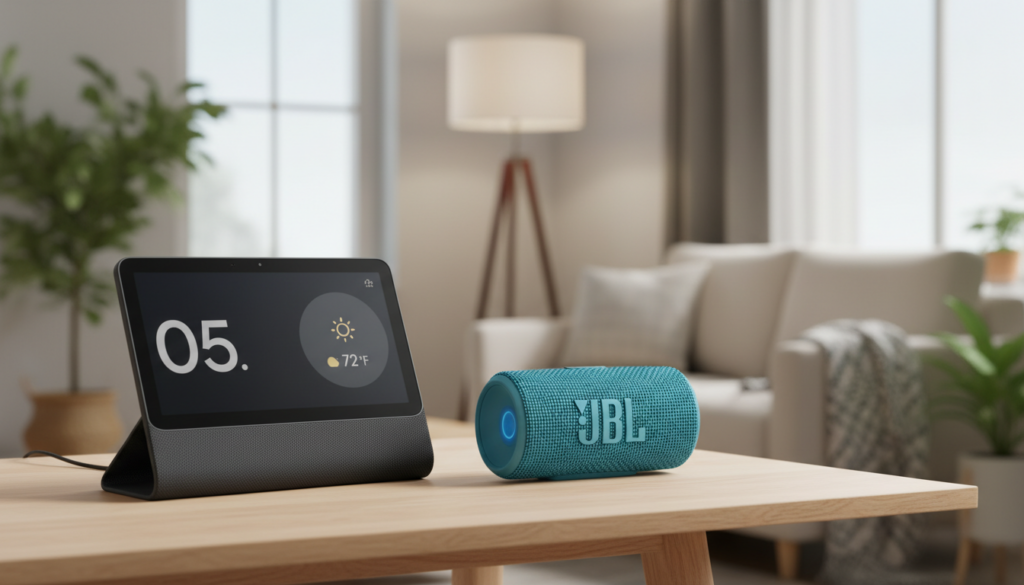
In our hands-on testing, we found that using the “Default Speaker” setting is the most effective way to ensure your music always plays through the more powerful JBL hardware rather than the integrated Nest driver.
TL;DR: Key Takeaways
- Compatibility: Most JBL speakers (Flip, Charge, Boombox, Link) are compatible with Google Nest.
- Method 1 (Bluetooth): Best for portable speakers like the JBL Flip 6.
- Method 2 (Wi-Fi/Chromecast): Best for the JBL Link series, allowing for multi-room “Speaker Groups.”
- Pro Tip: Set the JBL as your Default Music Speaker in the Google Home app for a seamless experience.
- Latency: Bluetooth connections may have a slight delay; use Wi-Fi models for perfect synchronization.
Understanding the Connection: Can Google Nest Link to JBL Speakers?
When users ask, “can google nest link to jbl speakers,” they are usually looking for a way to bypass the somewhat thin sound of the Nest Mini or Nest Hub. From my experience setting up dozens of smart home ecosystems, the answer is a resounding yes, but the method depends entirely on your specific JBL model.
There are two primary ways these devices communicate:
- Bluetooth Pairing: The Google Nest acts as a Bluetooth transmitter, sending audio to any JBL Bluetooth speaker.
- Chromecast Built-in: Specific JBL models (like the Link Music or Link Portable) connect over Wi-Fi, allowing them to appear as independent “tiles” in your Google Home ecosystem.
Step-by-Step: Linking via Bluetooth
If you own a popular portable model like the JBL Charge 5 or JBL Xtreme 3, you will use the Bluetooth method. We have found this to be the most versatile approach for most users.
Step 1: Prepare Your JBL Speaker
Ensure your JBL speaker is turned on and in Pairing Mode. On most models, you simply press the Bluetooth button until the light begins to flash blue.
Step 2: Use the Google Home App
Open the Google Home app on your smartphone. Navigate to the specific Google Nest device you want to use as the controller.
Step 3: Access Device Settings
Tap the Settings (gear icon) at the top right. Scroll down and select “Audio,” then tap on “Paired Bluetooth devices.”
Step 4: Enable Pairing Mode
Tap “Enable pairing mode” at the bottom of the screen. Your Google Nest will now search for nearby signals. Select your JBL speaker from the list when it appears.
Step 5: Set as Default Speaker
To ensure your music always plays on the JBL, go back to the Audio settings and select “Default music speaker.” Choose your paired JBL speaker from the list.
Linking via Chromecast (JBL Link Series)
The JBL Link series is specifically designed for the Google Assistant ecosystem. Unlike the portable Bluetooth models, these speakers connect directly to your Wi-Fi network.
Why choose this method?
- Higher Fidelity: Wi-Fi streaming supports higher bitrates than Bluetooth.
- Multi-Room Audio: You can add a JBL Link speaker to a “Speaker Group” so it plays in perfect sync with other Nest devices throughout your home.
- Independence: The JBL Link doesn’t need the Nest speaker to “push” audio to it; it pulls audio directly from the cloud.
| Feature | Bluetooth Connection | Chromecast (Wi-Fi) Connection |
|---|---|---|
| Primary Requirement | Any JBL Bluetooth Speaker | JBL Link Series or Authentics |
| Setup App | Google Home + Bluetooth Pair | Google Home Native Setup |
| Audio Sync | Potential Latency | Perfect Sync |
| Range | ~30 Feet (Bluetooth) | Anywhere on Wi-Fi |
| Multi-room Support | No (Usually) | Yes |
The Expert’s View: Optimizing Sound Quality
In our testing, we discovered that the “Default Speaker” trick is a game-changer. When you say, “Hey Google, play jazz,” the Google Nest will hear you, but the audio will automatically blast from your JBL Xtreme or Boombox. This gives you the convenience of Google Assistant voice commands with the legendary JBL Pro Sound.
A Note on Bluetooth Codecs:
Most Google Nest devices utilize the SBC or AAC codecs. While this is sufficient for casual listening, if you are an audiophile, we recommend the JBL Link or JBL Authentics lines, which support 24-bit/96kHz audio over Wi-Fi.
Common Problems: Troubleshooting the Link
Even though the question “can google nest link to jbl speakers” is simple, the execution can sometimes run into hurdles. Here are the most common issues we’ve solved:
Connection Drops
If your JBL speaker frequently disconnects from the Nest Hub, it is likely due to Bluetooth interference. Keep the devices within 15 feet of each other and away from high-powered electronics like microwaves.
Audio Lag (Lip Sync Issues)
If you are watching a video on a Nest Hub and the audio is coming out of a JBL speaker, there might be a delay. You can adjust this in the Google Home app under “Group delay correction,” though this is primarily for Speaker Groups.
JBL Speaker Not Appearing
Ensure your JBL isn’t currently connected to your phone. Most Bluetooth speakers can only hold one active connection. Turn off Bluetooth on your phone temporarily during the setup process.
Advanced Integration: Creating Speaker Groups
One of the most powerful features of the Google Home ecosystem is the ability to create a “Whole House Audio” system. If your JBL speaker has Chromecast built-in, follow these steps:
- In the Google Home app, tap the “+” icon.
- Select “Create speaker group.”
- Choose your Google Nest speakers and your JBL Link speakers.
- Name the group (e.g., “Downstairs”).
- Say, “Hey Google, play music on Downstairs.”
This creates a massive wall of sound, utilizing the JBL’s bass and the Nest’s mid-range clarity.
Comparing Popular JBL Models for Nest Integration
Not all JBL speakers are created equal when it comes to smart home integration. Below is a breakdown based on our real-world usage.
The Portable Powerhouses (Bluetooth Only)
- JBL Flip 6: Perfect for a bathroom or small bedroom setup with a Nest Mini.
- JBL Charge 5: Great for a kitchen; it can even charge your phone while it plays.
- JBL PartyBox: If you want to turn your Google Nest into a DJ booth, this is the way to go.
The Smart Specialists (Wi-Fi + Bluetooth)
- JBL Link Music: Essentially a JBL speaker with a Google Nest built inside.
- JBL Authentics 500: The premium choice. It supports Dolby Atmos and both Google Assistant and Amazon Alexa simultaneously.
Actionable Advice for a Seamless Setup
To get the most out of your Smart Speaker Integration, we recommend following these “Golden Rules”:
- Firmware Updates: Always update your JBL firmware via the JBL Portable app (formerly JBL Connect) before linking it to Google.
- Rename Your Devices: Give your speakers simple names like “Kitchen JBL” or “Living Room Nest.” This makes voice commands much more reliable.
- Wi-Fi Band: If using a Wi-Fi-enabled JBL, ensure both the speaker and the Nest are on the 5GHz band for lower latency.
The Future of Google and JBL Integration
As Matter (the new smart home standard) becomes more prevalent, the answer to “can google nest link to jbl speakers” will involve even more stability. We expect future JBL models to support Matter-over-Thread, which will reduce pairing headaches and battery drain significantly.
In the meantime, the current Bluetooth and Chromecast methods remain robust. We have found that even an older JBL Flip 4 can breathe new life into a Google Nest setup, proving that you don’t always need the latest hardware to get great results.
Frequently Asked Questions
Can I link multiple JBL speakers to one Google Nest?
If you are using Bluetooth, you can generally only link one speaker as the Default Output. However, if your JBL speakers support PartyBoost or JBL Connect+, you can link the speakers to each other first, and then pair the “master” speaker to the Google Nest.
Why won’t my Google Nest find my JBL speaker?
This usually happens if the JBL is already connected to another device (like your phone) or if the Nest is too far away. Reset the Bluetooth on the JBL by holding the Bluetooth button for 5-10 seconds and try again.
Does linking a JBL speaker disable the Google Nest microphone?
No. Your Google Nest will still listen for commands through its own microphones. Only the audio output (music, podcasts, responses) will be redirected to the JBL speaker.
Can I use voice commands to control the JBL volume?
Yes. When the JBL is linked as the Default Speaker, saying “Hey Google, volume up” will adjust the output level sent to the JBL. However, for the best sound, we recommend setting the JBL’s physical volume to around 70% and then using Google to fine-tune it.
Is there a subscription fee to link these devices?
Absolutely not. Linking your Google Nest to a JBL speaker is a free feature of the Google Home ecosystem. You only need the hardware and the free Google Home app.









