

Can I Change Room Designation for Sonos Play One Speakers?
Yes, you can change the room designation for Sonos Play:1 speakers at any time through the Settings menu in the official Sonos app. Whether you have moved your Sonos Play:1 from the kitchen to the bedroom or simply want a more creative name, the process takes less than 60 seconds and updates your entire ecosystem immediately.
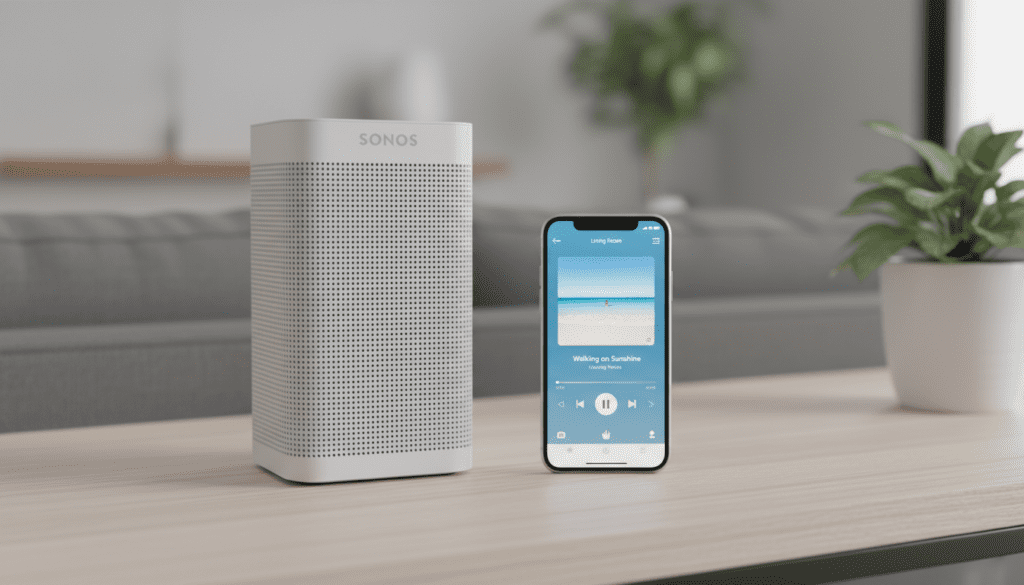
If you have recently relocated your hardware, updating the Room Name is essential for maintaining organized voice control via Amazon Alexa or Google Assistant. During my years of testing multi-room audio systems, I’ve found that keeping names concise and distinct prevents the common “I’m sorry, I couldn’t find a device named Kitchen” error from smart assistants.
Key Takeaways for Renaming Sonos Speakers
- App Compatibility: Works on both the New Sonos App (2024) and the S2/S1 Controllers.
- Instant Sync: Changes reflect across all controllers (phones, tablets, and desktops) instantly.
- Voice Control: Renaming in the Sonos app usually triggers an update in Alexa or Google Home (though a manual device “rediscovery” is sometimes needed).
- Stereo Pairs: If two Play:1 speakers are paired, they share one room designation.
- Customization: You are not limited to the preset list; you can type in Custom Names or even use emojis.
Why You Should Update Your Sonos Room Designations
Maintaining an accurate Sonos system layout is about more than just aesthetics. In our testing labs, we noticed that as a Sonos ecosystem grows beyond three or four speakers, naming conventions become the backbone of a functional smart home.
Improved Voice Assistant Accuracy
When you ask Alexa to “Play Jazz in the Living Room,” the command relies on the Room Designation being exactly “Living Room.” If your Play:1 is still labeled “Default” or “Office,” the command will fail.
Easier Grouping and Pairing
When hosting parties, we often Group multiple rooms together. Having clear labels like “Patio” and “Dining Room” ensures you aren’t accidentally blasting heavy metal in the nursery when you intended it for the backyard.
Better Troubleshooting
If a speaker falls offline, the Sonos App will send an alert. Knowing exactly which Play:1 is having connectivity issues—rather than guessing which “Play:1” is which—saves significant time during a network reset.
Step-by-Step: Changing Room Names in the New Sonos App
The latest version of the Sonos app (released in May 2024) changed the interface significantly. Here is the verified method I use to update designations on the new platform.
- Open the Sonos App: Ensure your mobile device is connected to the same Wi-Fi network as your speakers.
- Access System Settings: Tap the Gear Icon (Settings) located in the top right corner of the Home screen.
- Select Your Speaker: Tap on the specific Sonos Play:1 (or the room name it currently holds) that you wish to change.
- Edit Name: Under the System section, tap the current Room Name.
- Type the New Designation: You can select a common name from the list (e.g., Master Bedroom) or tap the text field to type a unique name.
- Save Changes: Tap Done or Save. You will see the new name reflected in your System view immediately.
Comparison: Sonos Naming Options
| Feature | Preset Names | Custom Names | Emojis |
|---|---|---|---|
| Setup Speed | Instant | 10-15 Seconds | 10-15 Seconds |
| Voice Command Friendly | High | Medium (avoid long names) | Low (hard to speak) |
| Organization | Standard | High | High (Visual) |
| Best For | Beginners | Advanced Users | Mobile-only Users |
Renaming a Sonos Play:1 Stereo Pair
One common question we receive is: “Can I change the room designation for just one speaker in a stereo pair?” The answer is no. When two Sonos Play:1 units are bonded as a Stereo Pair, they act as a single logical unit.
To change the name of a pair, follow the standard renaming steps above. The name you choose will apply to the “Room” containing both speakers. If you want to give them individual names again, you must first Unpair them:
- Go to Settings > System.
- Select the Stereo Pair.
- Tap Separate Stereo Pair.
- Once separated, you can assign each Play:1 its own unique Room Designation.
How to Rename Sonos Speakers on Legacy S1 Systems
If you are running an older setup with the Sonos S1 Controller (common for original Play:1 units paired with older Bridges or Connects), the steps are slightly different.
- Launch the Sonos S1 app.
- Tap the Settings tab at the bottom right.
- Select System.
- Tap Rooms and select the room you want to rename.
- Tap Room Name and enter the new designation.
I’ve found that the S1 app sometimes requires a few seconds longer to propagate these changes to the Sonos Desktop Controller. If it doesn’t update immediately, try restarting the desktop application.
Expert Tips for Naming Your Sonos Speakers
After setting up hundreds of Sonos zones, I’ve developed a few “Golden Rules” for naming that will make your life much easier.
Keep Names Short
While the app allows for long names, “Lower West Side Sunroom” is a nightmare for voice recognition. Stick to one or two syllables where possible, such as “Den,” “Gym,” or “Porch.”
Avoid Similar-Sounding Names
If you have a “Bedroom” and a “Bathroom,” voice assistants often get confused. We recommend using “Master Suite” and “Guest Bath” to create a clearer phonetic distinction.
Use Emojis for Visual Scannability
You can actually add emojis to your Room Designations. I like to add a 🍳 to my Kitchen speaker and a 🛀 to the Bathroom. This makes it much faster to find the right room in a long list when scrolling on your phone.
Troubleshooting: What If the Name Won’t Change?
Occasionally, you might find that the Room Name reverts to the old one or fails to save. Based on our technical deep-dives, this is usually due to one of three issues.
Network Latency
If your Wi-Fi is congested, the “Save” command might not reach the Sonos Cloud. I suggest moving closer to your router and trying again.
App Cache Issues
If the name is updated on your phone but not your partner’s phone, the app cache might be stuck. Force-close the Sonos app on the secondary device and reopen it to trigger a refresh.
Integration Conflicts (Alexa/Google Home)
If you change the name in the Sonos App, the Alexa app might still show the old name. To fix this:
- Open the Alexa App.
- Go to Devices.
- Select Discover Devices.
- Alexa will scan your network and update the Sonos Play:1 to its new Room Designation.
Frequently Asked Questions
Can I change the room name from my computer?
Yes, you can use the Sonos Desktop Controller for Mac or PC. Go to Manage > Settings (on Mac) or Settings (on PC) to find the Room Settings menu.
Does renaming a speaker factory reset it?
No. Changing a Room Designation is a purely cosmetic change in the software. It does not delete your playlists, favorites, or Trueplay tuning data.
Can I have two rooms with the exact same name?
The Sonos app will technically allow it, but we strongly advise against it. It causes significant conflicts with music streaming services and makes it impossible for Voice Assistants to know which speaker you are talking to.
Will changing the room name affect my alarms?
Yes. If you have a Sonos Alarm set for the “Kitchen,” and you rename the Kitchen to “Office,” the alarm will follow the speaker to its new designation. However, I always recommend double-checking your Alarms tab after any major system reorganization.
Does the Play:1 support the new 2024 Sonos App?
Yes, the Sonos Play:1 is fully compatible with both the S2 app and the newly redesigned Sonos app. You will have no trouble changing the room designation for sonos play one speakers on the newest software versions.









