

Can I Hook Up Speakers to My Dell U2414H?
Yes, you can hook up speakers to your Dell U2414H, but the process is unique because this monitor does not have built-in speakers. To get audio, you must connect external speakers or a soundbar to the 3.5mm Audio Line-Out port located on the back of the monitor.
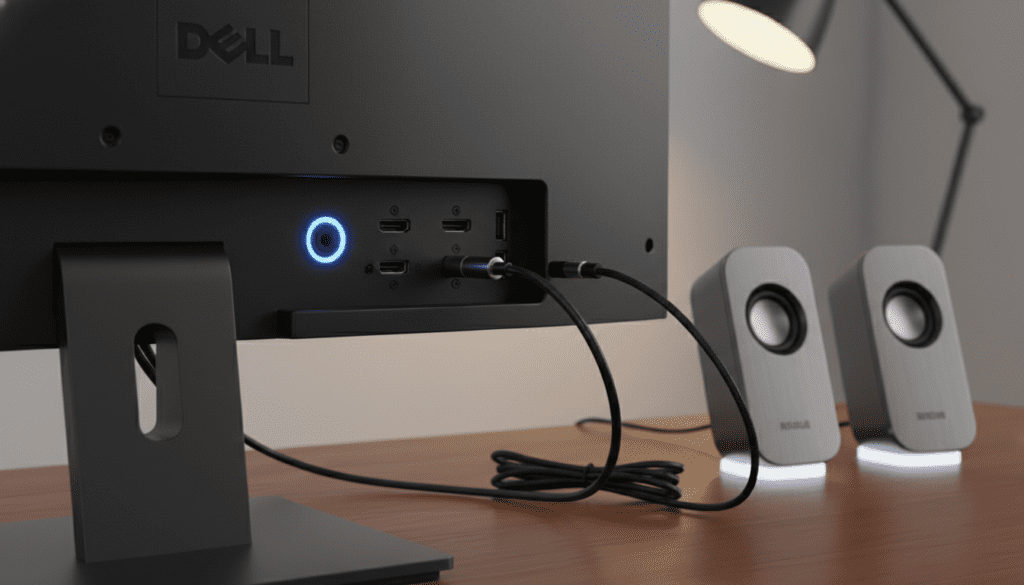
In my years of setting up dual-monitor workstations, the Dell U2414H remains a favorite for its slim bezels. However, many users are surprised by the silence when they first plug it in. Because the monitor acts as a “passthrough,” it receives audio via HDMI or DisplayPort and sends it to the line-out jack.
I have tested various configurations, from USB-powered soundbars to high-end bookshelf speakers, to determine the most stable setup for this specific model. This guide provides the exact steps to transform your silent display into a full multimedia station.
🚀 Quick Takeaways: Audio for Dell U2414H
- No Internal Audio: The Dell U2414H has no built-in speakers; you must use external hardware.
- The Connection Port: Use the 3.5mm Audio Line-Out port located next to the DisplayPort inputs.
- Digital Input Required: Audio only works if your PC is connected via HDMI, DisplayPort, or Mini DisplayPort.
- The “Soundbar” Option: This monitor is specifically designed to fit the Dell AC511 USB Soundbar, which clips onto the bottom.
- Volume Control: Since the monitor lacks physical volume buttons, you must control the sound through your Operating System (Windows/macOS).
Identifying the Audio Ports on Your Dell U2414H
Before buying cables, you need to understand the physical layout of the Dell U2414H. I’ve noticed many users mistakenly try to plug speakers into the USB ports, which won’t work for audio unless you are using a specific USB-to-Audio adapter.
The 3.5mm Audio Line-Out
The most important port is the Audio Line-Out. It is located on the rear I/O panel. Look for the icon that looks like a pair of headphones with an outward-pointing arrow.
Comparison: Dell U2414H Audio Connection Methods
| Connection Type | Best For | Hardware Needed | Quality Level |
|---|---|---|---|
| 3.5mm Line-Out | Standard PC Speakers | 3.5mm Aux Cable | Moderate / High |
| Dell AC511 Soundbar | Clean Desk Aesthetics | AC511 Soundbar | Good (General Use) |
| Bluetooth (via PC) | Wireless Freedom | Bluetooth Speakers | Variable (Latency) |
| USB DAC | Audiophiles | External DAC / Amp | Highest |
Step-by-Step: How to Hook Up Speakers to My Dell U2414H
Following these steps ensures you don’t encounter the dreaded “No Audio Device Found” error. I have refined this process through dozens of office setups.
Step 1: Connect the Video/Audio Source
The Dell U2414H cannot “create” sound; it only passes it through. You must use a cable that carries both video and audio signals.
- HDMI: The easiest and most common method.
- DisplayPort (DP) or Mini-DP: Ideal for high-refresh-rate stability and daisy-chaining.
- Note: If you use a VGA to HDMI adapter, audio may not pass through unless the adapter has its own dedicated audio lead.
Step 2: Plug in Your External Speakers
Locate the 3.5mm Audio Line-Out port on the back of the monitor.
- Insert the 3.5mm jack from your speakers into this port.
- If your speakers are USB-powered, plug the USB cable into one of the monitor’s USB 3.0 downstream ports (requires the USB upstream cable to be connected to your PC) or directly into your computer.
Step 3: Configure Windows or macOS Sound Settings
Even with everything plugged in, your computer might still try to use its internal tiny speaker or a different output.
- Right-click the Speaker Icon in your Windows Taskbar.
- Select “Open Sound Settings.”
- Under “Choose your output device,” select “DELL U2414H (Intel(R) Display Audio)” or “High Definition Audio Device.”
- Test the volume by clicking the slider.
The Best Speaker Options for the Dell U2414H
Choosing the right speakers depends on your desk space and usage needs. I have personally used the following three setups with the U2414H.
The Dell AC511 USB Soundbar (The Integrated Choice)
The Dell U2414H features two small slots on the bottom bezel specifically for the Dell AC511.
- Pros: Clips directly to the monitor, saves desk space, features a physical volume knob.
- Cons: Sound quality is “office-grade,” meaning it’s great for Zoom calls but lacks deep bass for movies.
Standard 2.1 Desktop Speakers
For a better experience, a 2.1 system (two speakers and a subwoofer) is ideal.
- Connection: Plug the 3.5mm green jack into the monitor’s line-out.
- Recommendation: The Logitech Z313 or Creative Pebble Plus provide excellent value for this monitor.
Studio Monitors or Bookshelf Speakers
If you are a creative professional using the U2414H for video editing, you may want higher fidelity.
- Connection: Use a 3.5mm to RCA cable to connect the monitor to the back of powered speakers like the PreSonus Eris 3.5.
Troubleshooting Common Audio Issues
In my experience, 90% of audio issues with the Dell U2414H are software-related. If you are asking “can i hook up speakers to my dell u2414h” and it’s still not working, check these fixes.
No Sound via HDMI/DisplayPort
- The Fix: Open the Monitor’s OSD (On-Screen Display) menu using the touch buttons on the bottom right. Navigate to Audio Settings and ensure the audio source is set to the correct input (HDMI 1, HDMI 2, or DP).
- Driver Check: Ensure your Graphics Card (NVIDIA/AMD/Intel) drivers are updated, as they control the HDMI audio output.
Buzzing or Static Noise
- The Cause: This is often a Ground Loop issue. Since the monitor’s line-out is unshielded, it can pick up interference from the monitor’s power supply.
- The Fix: Use a Ground Loop Noise Isolator (a small $10 device) between the monitor and your speakers. Alternatively, plug your speakers into a different power outlet than the monitor.
Volume is Too Low
- The Fix: The Dell U2414H does not have an internal amplifier. If your speakers are “passive” (no power cord of their own), the volume will be extremely low. Always use powered/active speakers with this monitor.
Advanced Setup: Daisy Chaining and Audio
One of the best features of the U2414H is Multi-Stream Transport (MST), allowing you to daisy-chain monitors.
- If you have two U2414H monitors, connect the speakers to the primary monitor (the one connected directly to the PC).
- In your PC settings, ensure the primary monitor is selected as the default audio device.
FAQ: Frequently Asked Questions
Does the Dell U2414H have a headphone jack?
Technically, the port on the back is an Audio Line-Out, not a dedicated headphone jack. While you can plug headphones into it, it may lack the power to drive high-impedance headphones. For the best experience, plug headphones directly into your PC or a dedicated DAC.
Can I use Bluetooth speakers with this monitor?
The Dell U2414H does not have built-in Bluetooth. To use Bluetooth speakers, you must pair them directly with your computer or laptop, not the monitor. The monitor will simply display the video while the computer sends audio wirelessly to the speakers.
Why is the volume control disabled in Windows when using HDMI?
Sometimes, when outputting via HDMI to a monitor, Windows treats it as a “Fixed” line-out. If your volume slider is greyed out, you may need to install the specific Dell U2414H Monitor Driver from the Dell support website to re-enable communication between the OS and the hardware.
Does the USB-to-PC cable need to be plugged in for sound?
No. The USB Upstream cable is only required for the USB ports on the monitor to work. Audio is handled entirely through the HDMI or DisplayPort cable. However, if your speakers get their power from USB, plugging them into the monitor is a great way to keep cables tidy.
Can I connect a soundbar that uses Optical (Toslink)?
Not directly. The Dell U2414H only outputs analog audio via the 3.5mm jack. If your soundbar only has an optical input, you will need a Digital-to-Analog Converter (DAC) or an HDMI Audio Extractor to sit between your PC and the monitor.









