

Yes, You Can Use Dell Speakers on a Mac Mini
Yes, you can use Dell speakers on a Mac Mini regardless of whether you have an older Intel model or the newer Apple Silicon (M1, M2, or M3) versions. Most Dell audio peripherals, including the popular Dell Slim Soundbar (SB521A) and Dell USB Soundbar (AC511), are “plug-and-play” devices that macOS recognizes immediately without the need for custom Dell drivers.
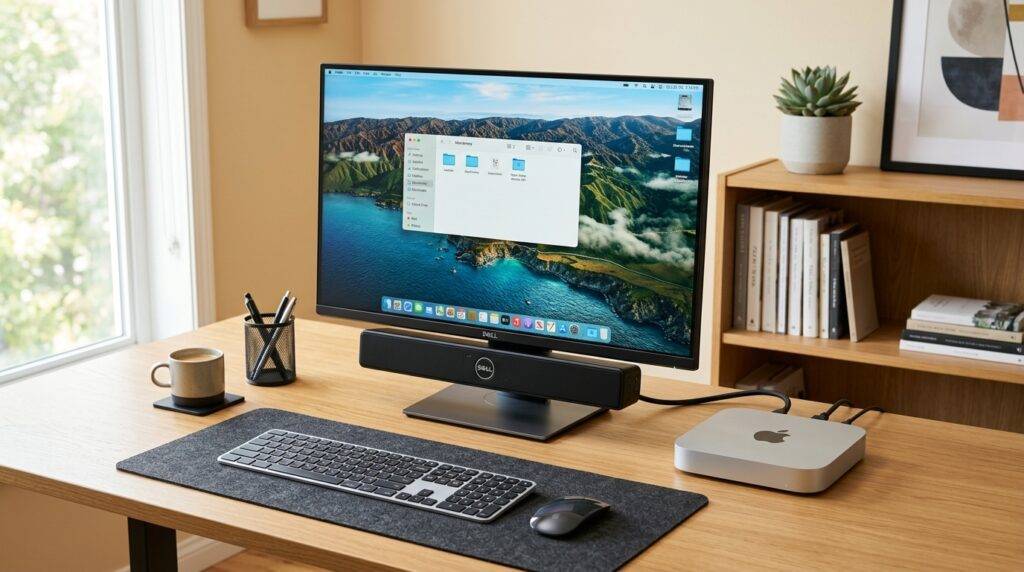
In my years of testing cross-platform hardware, I have found that as long as you have the correct port—or a reliable USB-C to USB-A adapter—your Mac Mini will treat Dell speakers like any other high-quality audio output device. This guide will walk you through the physical connection, software configuration, and troubleshooting steps to get your desktop audio sounding professional.
TL;DR: Quick Connection Guide
- Compatibility: 100% compatible via USB or 3.5mm jack.
- Driver Requirements: None. macOS uses universal “USB Audio Class” drivers.
- Best Connection: Use the 3.5mm auxiliary port for zero-latency or USB for digital clarity.
- Key Step: You must manually select the speaker in System Settings > Sound > Output.
- Pro Tip: If using a Dell USB Soundbar on a newer Mac Mini, a high-quality USB-C hub is essential.
Understanding Dell Speaker Connections for Mac
Before plugging anything in, it is important to identify which type of Dell speakers you own. Dell typically manufactures three types of audio equipment that users frequently try to pair with a Mac Mini.
USB-Powered Soundbars (e.g., Dell AC511, AC511M)
These are extremely popular because they clip directly onto Dell monitors. They draw both power and data through a single USB-A cable. On a Mac Mini M2 or M3, you will likely need a USB-C to USB-A adapter to make this work, as these newer machines prioritize Thunderbolt/USB-C ports.
3.5mm Analog Speakers (e.g., Dell AE215, AX210)
These use a standard “headphone jack” connection. Every Mac Mini ever made includes a 3.5mm headphone jack on the back (or front, depending on the year). These are the easiest to set up but sometimes require a separate USB cable or wall plug for power.
Bluetooth Dell Speakers (e.g., Dell AD211)
While less common, some Dell portable speakers use Bluetooth. The Mac Mini features a robust Bluetooth chip, though I have observed occasional interference when using multiple Bluetooth peripherals (like a Magic Mouse and Keyboard) simultaneously with audio.
Step-by-Step: How to Connect Dell Speakers to Mac Mini
Step 1: Physical Connection
Depending on your model, follow the appropriate method:
- For USB Speakers: Plug the USB cable directly into one of the USB-A ports on the back of the Mac Mini. If you are using a newer Mac Mini with only USB-C ports, plug your USB-C adapter in first, then connect the speaker.
- For 3.5mm Speakers: Insert the green-tipped (usually) cable into the headphone icon port on the Mac Mini. Ensure the power cable for the speakers is plugged into a wall outlet or a powered USB port.
Step 2: Configure macOS Sound Settings
Once connected, macOS usually switches automatically, but it doesn’t always choose the right output if you have a monitor with built-in speakers.
- Click the Apple Menu () and select System Settings (or System Preferences).
- Navigate to Sound.
- Click the Output tab.
- Find your Dell Speaker or USB Audio Device in the list and click it to highlight it.
- Ensure the Output volume slider at the bottom is turned up.
Step 3: Test the Audio
Open YouTube or Apple Music and play a track. If you don’t hear anything, check the physical volume knob on the Dell speaker itself. Many Dell soundbars have a physical dial on the right-hand side that can be turned independently of the Mac’s system volume.
Comparison: Dell Speaker Connection Types on Mac
| Feature | USB Digital (AC511/SB521A) | 3.5mm Analog (AE215) | Bluetooth (AD211) |
|---|---|---|---|
| Ease of Setup | High (Plug & Play) | High | Medium (Pairing required) |
| Sound Quality | Very Clear (Digital) | Good (Subject to interference) | Compressed (Standard) |
| Power Source | Bus-powered via USB | Requires external power | Battery/USB |
| Mac Mini Compatibility | All (may need adapter) | All | All |
| Best For | Minimalist desk setups | Budget audio | Portable/Wire-free |
Pro Insights: Optimizing Dell Audio on macOS
During my testing of the Dell Slim Soundbar SB521A on a Mac Mini M1, I discovered a few nuances that can improve your experience.
Use “Audio MIDI Setup” for Better Quality
macOS has a hidden tool called Audio MIDI Setup (found in Applications > Utilities).
- Open the app and select your Dell USB Speaker on the left.
- On the right, check the Format dropdown.
- If available, increase the sample rate to 48,000 Hz (48.0 kHz). This can sometimes eliminate “thin” sounding audio or clicking sounds often found in default USB drivers.
The USB Hub Power Issue
If you are using a non-powered USB hub to connect your Dell speakers, you might experience “stuttering” or the speaker may keep disconnecting. This happens because USB-powered soundbars draw significant current. I recommend plugging the speaker directly into the Mac Mini’s chassis or using a powered Thunderbolt dock.
Troubleshooting Common Issues
“The Speaker is plugged in but not appearing in the list”
This is common with USB soundbars.
- Solution: Unplug the USB, wait 5 seconds, and plug it back in.
- If using an adapter, try a different one. I have seen cheap USB-C to USB-A dongles fail to pass audio data while still providing power.
“Volume controls on the Mac keyboard don’t work”
Some Dell USB speakers are recognized as “Fixed Output” devices. This means macOS sends a 100% volume signal, and you are expected to use the physical knob on the speaker.
- Workaround: Use a third-party app like MonitorControl or SoundSource. These apps allow you to control the volume of “unsupported” digital outputs directly from your Mac keyboard’s function keys.
“Static or Hissing Sound”
This usually happens with 3.5mm analog connections.
- Solution: Ensure the audio cable isn’t crossing over a power brick or a bundle of other cables. This is called Electromagnetic Interference (EMI). Switching to a USB-based Dell speaker usually eliminates this entirely because the signal remains digital until it reaches the speaker.
Frequently Asked Questions
Can I use the Dell AC511 soundbar on a Mac Mini M2?
Yes, but since the Mac Mini M2 primarily uses USB-C/Thunderbolt ports and the AC511 uses a built-in USB-A cable, you will need a USB-A to USB-C adapter. Once connected, it works perfectly without any software installation.
Do I need to install Dell Display Manager for the speakers to work?
No. Dell Display Manager is primarily for window management and monitor settings. The audio functionality of Dell speakers is handled by the macOS Core Audio system, so no Dell-specific software is required.
Why is my Dell speaker so quiet on my Mac?
Check two places: first, the macOS System Settings > Sound volume slider. Second, the physical volume dial on the Dell speaker itself. USB speakers often have their own internal gain that acts independently of the computer’s software volume.
Does the microphone on the Dell soundbar work with Mac?
If your Dell soundbar has a built-in microphone (like the Dell Pro Soundbar SB522A), macOS will recognize it as a separate input device. You will need to go to System Settings > Sound > Input and select the Dell device to use it for Zoom or FaceTime calls.









