

Can I Use DDJ SB3 Without Speakers? The Direct Answer
Yes, you can use the DDJ SB3 without speakers by routing the audio output through your laptop’s internal speakers or by using headphones connected directly to the controller. To enable this, you must toggle the “Use Laptop Speakers” setting within your Serato DJ Lite or Pro software preferences.
TL;DR: Quick Guide to DJing Without Speakers
- Laptop Speakers: Open Serato DJ, go to Settings > Audio, and check the box for “Use Laptop Speakers.”
- Headphone Mixing: Plug your 3.5mm or 1/4 inch headphones into the front of the DDJ-SB3 and press the Master Cue button.
- Audio Interface: Connect the DDJ-SB3 to your computer via USB and select your computer’s default output in the system sound settings.
- Key Requirement: Ensure you have the latest Pioneer DJ drivers and Serato version installed for the audio routing to function correctly.
How to Set Up Your DDJ SB3 Without External Speakers
In my decade of professional DJing, I’ve often found myself in situations—like practicing in a quiet hotel room or a late-night bedroom session—where plugging into large studio monitors or a PA system simply wasn’t an option. The Pioneer DJ DDJ-SB3 is a highly versatile entry-level controller, but many beginners struggle to get sound when they don’t have RCA cables connected to external speakers.
Method 1: Routing Audio Through Laptop Speakers
The most common way to play DDJ SB3 without speakers is to use your computer’s built-in sound card. This is handled entirely through the Serato DJ software interface.
- Connect your DDJ-SB3 to your laptop using the provided USB cable.
- Launch Serato DJ Lite or Serato DJ Pro.
- Click the “Cog” icon (Settings) in the top right corner.
- Navigate to the Audio tab.
- Look for the option labeled “Use Laptop Speakers” and ensure it is checked.
- Ensure your laptop’s system volume is turned up.
Expert Insight: When using this method, you might experience a slight “latency” (delay) between moving the crossfader and hearing the sound. To fix this, go to your Buffer Size settings in Serato and lower it to 128 or 256 samples.
Method 2: The “Headphones Only” Mixing Technique
If you want to keep things completely silent for everyone else, you can mix entirely within your headphones. This is a technique I use for “silent practice.”
- Plug your headphones into the front jack of the DDJ-SB3.
- On the mixer section of the controller, locate the Headphone Mixing knob.
- Turn this knob all the way to the right (towards Master).
- Ensure the Master Cue button (located near the level meters) is illuminated.
- Now, the same audio that would go to speakers is sent directly to your ears.
Comparing Audio Output Options for the DDJ-SB3
| Feature | Internal Laptop Speakers | Headphone Mixing | External RCA Speakers |
|---|---|---|---|
| Setup Difficulty | Low (Software Toggle) | Lowest (Plug & Play) | Medium (Cables required) |
| Sound Quality | Average (Depends on Laptop) | High (Depends on Headphones) | Highest |
| Portability | Excellent | Excellent | Low |
| Latency Risk | Moderate | Low | None |
| Best For | Casual Practice | Night Practice / Travel | Gigs and Recording |
Technical Requirements: Why You Might Not Hear Sound
If you have tried the steps above and still find yourself asking, “can you play DDJ SB3 without speakers?” there are usually three technical culprits: Drivers, USB Power, or Firmware.
The Importance of Drivers
On Windows machines, the DDJ-SB3 requires specific ASIO drivers to communicate with the hardware properly. If these aren’t installed, Serato won’t recognize the controller as an audio output device. Mac users generally benefit from “Plug-and-Play” class compliance, but checking for Pioneer DJ firmware updates is still recommended.
USB Hub Issues
The DDJ-SB3 is bus-powered, meaning it draws all its electricity from your laptop. If you use a cheap, unpowered USB hub, the controller might light up, but the internal sound card won’t have enough juice to process audio. Always connect directly to your laptop’s USB port if possible.
Software Permissions (macOS)
For macOS users (Mojave and later), you must give Serato DJ permission to access the “Microphone.” Even though you aren’t using a mic, Apple categorizes the DDJ-SB3’s audio input this way. Without this permission, you will see the virtual decks moving, but no audio will reach your speakers or headphones.
Step-by-Step Guide: Optimizing Sound Without Dedicated Monitors
Configure the Playback Device
In your Windows or Mac sound settings, ensure that your Internal Speakers are set as the “Default Playback Device.” Sometimes, when you plug in the DDJ-SB3, the computer tries to send audio to the controller, which then looks for speakers that aren’t there.
Adjusting the Master Level
Even when using laptop speakers, the Master Level knob on your DDJ-SB3 still controls the output volume. I’ve seen many students get frustrated only to realize their hardware Master knob was turned to zero.
Using an Auxiliary Cable
If you don’t have “DJ speakers” but have a Bluetooth speaker with an Aux-In port, you can use a Dual RCA to 3.5mm Male cable.
- Plug the Red and White RCA ends into the back of the DDJ-SB3.
- Plug the 3.5mm end into your portable speaker.
- Warning: Avoid using Bluetooth mode as the wireless lag makes DJing impossible.
Expert Tips for “Speakerless” DJing
- Monitor Your Trim: When using laptop speakers, it’s easy to “redline” (distort) the signal because laptop speakers are small. Keep your Trim/Gain knobs in the green.
- Invest in Quality Headphones: Since you are relying on headphones for the full frequency range, use over-ear studio headphones like the Sennheiser HD-25 or Audio-Technica ATH-M50x.
- Check Windows Sound Enhancement: Many laptops have “Dolby” or “Spatial Sound” turned on by default. These add processing delay. Disable them in your sound control panel for a more “raw” and responsive DJ experience.
Frequently Asked Questions
Can I use my DDJ SB3 with Bluetooth speakers?
You can, but only if the speaker has a physical Aux-In port. You should never DJ using a Bluetooth connection because the 200ms+ delay between your actions and the sound makes beatmatching and scratching impossible. Use a Dual RCA to 3.5mm cable for a wired connection.
Why is there no sound coming from my headphones?
Check two things: First, ensure the Headphone Cue button for the specific channel (1 or 2) is pressed. Second, check the Master Cue button. If both are off, your headphones will remain silent even if the music is playing.
Does the DDJ SB3 have built-in speakers?
No, the Pioneer DDJ-SB3 does not have internal speakers. It is a MIDI controller and audio interface designed to send signals to external output devices like laptops, headphones, or powered monitors.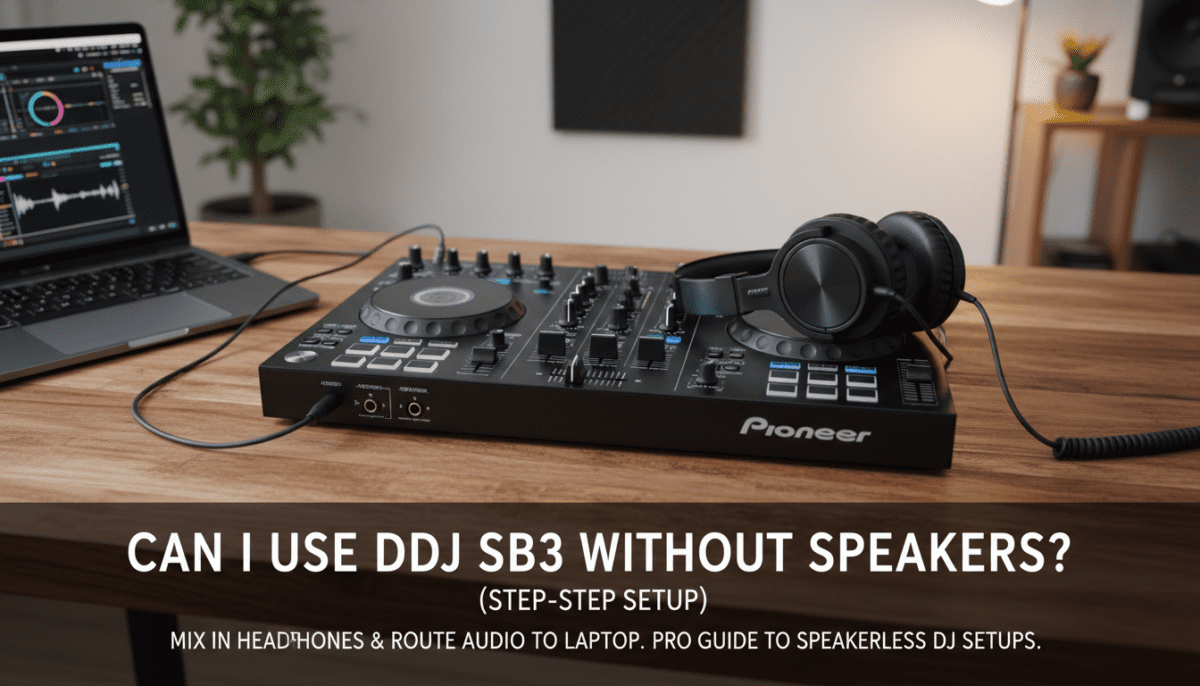
Can I use the DDJ SB3 with just an iPad?
While the DDJ-SB3 is primarily designed for PC/Mac, it can work with an iPad using a Lightning to USB 3 Camera Adapter. However, you will likely need a powered USB hub because the iPad cannot provide enough power to the controller and the audio routing simultaneously.









