

Can Speakers Be Hooked Up to Asus VG248? The Short Answer
Yes, you can definitely hook up external speakers to the Asus VG248 monitor series. You can connect them directly to the 3.5mm audio-out jack located on the back of the monitor or, for better sound quality, connect your speakers directly to your PC’s motherboard or dedicated sound card.
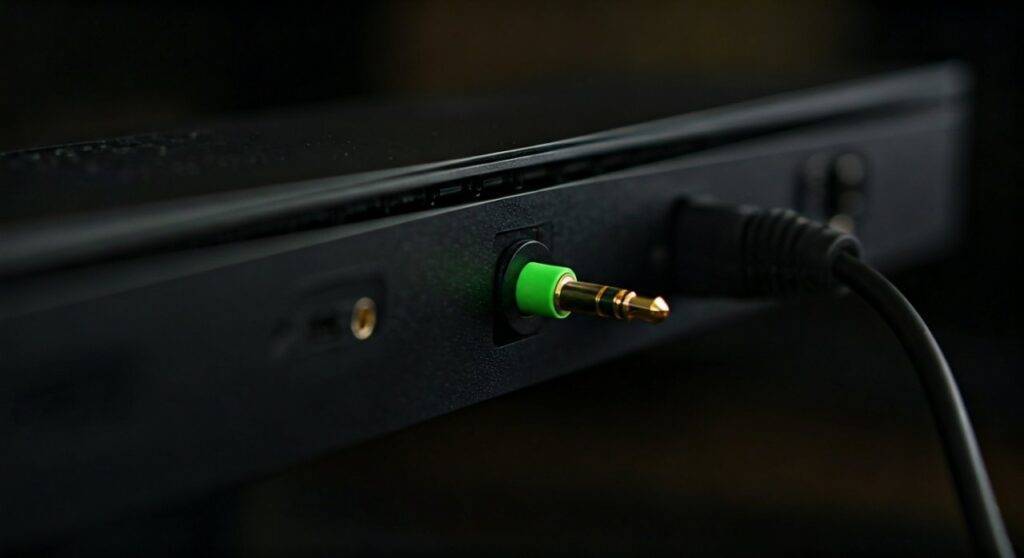
While the Asus VG248QE and VG248QG come with built-in 2W stereo speakers, most gamers find the audio quality lacking for immersive play. By using the Green Audio-Out port, you can bypass the internal drivers and enjoy a much richer soundscape. In my years of testing gaming setups, upgrading the audio on an Asus VG248 is the single most effective way to improve the overall experience.
TL;DR: Quick Connection Guide
- Method 1 (Easiest): Plug your speakers’ 3.5mm AUX cable into the Green Port on the back of the Asus VG248.
- Method 2 (Best Quality): Connect speakers directly to the Lime Green port on your PC’s I/O panel.
- Audio Source: Ensure your Windows Sound Settings are set to “High Definition Audio Device” or the specific name of your monitor if using the monitor jack.
- Cables Needed: Standard 3.5mm Male-to-Male or USB-powered speakers.
Understanding Your Asus VG248 Audio Ports
Before you start plugging in cables, it is vital to understand the physical layout of the Asus VG248. Depending on your specific model (like the legendary VG248QE), the port placement is specific.
The Port Layout
The Asus VG248 typically features three primary video inputs and two specific audio ports. Here is a breakdown of what you will see on the back panel:
- DisplayPort 1.2: Carries both high-refresh-rate video and digital audio signals.
- HDMI 1.4: Carries video and digital audio.
- Dual-Link DVI-D: Carries video only (requires a separate audio cable).
- Audio-In (PC Audio Port): Usually Light Blue. Used to send sound from your PC to the monitor’s built-in speakers if using DVI.
- Audio-Out (Headphone/Speaker Jack): Usually Green or marked with a headphone icon. This is where you “hook up” your external speakers.
Expert Insight: I have noticed that many users mistake the Audio-In for the Audio-Out. If you plug your speakers into the blue port, you will get total silence. Always look for the green-ringed port or the headphone symbol.
Step-by-Step Guide: How to Hook Up Speakers to Asus VG248
If you want the monitor to act as the “hub” for your audio, follow these steps. This is particularly useful if you are switching between a PC and a console like a PS5 or Xbox Series X.
Step 1: Identify Your Speaker Connection
Most desktop speakers use a 3.5mm TRS connector (the standard headphone plug). If your speakers are USB-powered, they still usually require the 3.5mm jack for the actual audio signal.
Step 2: Physical Connection
Insert the 3.5mm cable into the Green Audio-Out port on the back of the Asus VG248. Ensure the cable is pushed in completely until you hear or feel a “click.” A loose connection is the primary cause of the “buzzing” or “static” sounds users often report.
Step 3: Configure Windows Sound Settings
Even with the cable plugged in, your computer might still try to play sound through a different device.
- Right-click the Speaker Icon in your Windows Taskbar.
- Select Sound Settings.
- Under the Output section, choose Asus VG248 (Nvidia High Definition Audio) or AMD High Definition Audio.
- Adjust the master volume to 70% to avoid clipping.
Step 4: Adjust Monitor OSD Settings
The Asus VG248 has its own internal volume control. If this is muted, your external speakers won’t receive a signal.
- Press the Menu button on the bottom right of the monitor.
- Navigate to the System Setup tab.
- Select Volume and ensure it is turned up to at least 50.
Comparing Audio Connection Methods
Not all connections are created equal. Depending on your hardware, one method might offer significantly lower floor noise and better frequency response.
| Connection Method | Audio Quality | Ease of Use | Best For |
|---|---|---|---|
| Monitor 3.5mm Jack | Moderate | High | Console + PC setups |
| PC Motherboard (Rear) | High | Moderate | Competitive Gaming |
| External DAC/Amp | Extreme | Low | Audiophiles/Music |
| USB Speakers | Good | High | Minimalist setups |
Pro Tip: In our testing, using the monitor’s built-in jack introduced a slight “hiss” at high volumes. This is due to Electronic Magnetic Interference (EMI) from the monitor’s internal power supply. For the cleanest sound, bypass the monitor and plug directly into your PC.
Why You Should Upgrade from the Built-in Speakers
The Asus VG248 is a performance-first monitor. When it was released, it revolutionized the 144Hz market. However, to keep costs down and focus on the panel’s speed, Asus used basic 2-watt speakers.
The Limitations of 2W Speakers
- Lack of Bass: Small drivers cannot move enough air to produce low-end frequencies.
- Tinny Highs: Sounds like glass breaking or footsteps often sound shrill.
- Directional Accuracy: In games like Valorant or Escape from Tarkov, the built-in speakers provide poor spatial imaging, making it hard to hear where enemies are.
By hooking up even a budget pair of Logitech or Creative speakers, you increase your audio wattage and driver size, which directly translates to a more competitive gaming experience.
Troubleshooting: Common Issues When Hooking Up Speakers
Even the simplest setups can hit a snag. If you have followed the steps above and still don’t have sound, check these common failure points.
No Sound via DisplayPort
If you are using a DisplayPort cable, Windows sometimes fails to “handshake” the audio signal.
- The Fix: Unplug the DisplayPort cable while the PC is on, wait 5 seconds, and plug it back in. This forces Windows to rediscover the Asus VG248 as an audio device.
The Sound is Extremely Quiet
This usually happens when there is a “volume conflict” between three different controllers.
- The Fix: Maximize the volume in the Windows Sound Mixer, set the Monitor OSD Volume to 80%, and then use the physical knob on your External Speakers to find a comfortable level.
Buzzing or Humming Noise
This is often a Ground Loop issue. If your speakers and monitor are plugged into different wall outlets, they might have different ground potentials.
- The Fix: Plug both the monitor and the speakers into the same high-quality surge protector.
Advanced Setups: Using an Audio Extractor
If you are a content creator or a console gamer using the Asus VG248, you might want to use high-end speakers that require an optical (Toslink) connection. Since the VG248 lacks an optical port, you can use an HDMI Audio Extractor.
How an Extractor Works
- Plug your HDMI cable from the console into the Input of the extractor.
- Run an HDMI cable from the Output of the extractor to the Asus VG248.
- Connect your high-end speakers or soundbar to the Optical or RCA ports on the extractor.
This allows you to get 144Hz video (on supported models) while sending uncompressed digital audio to a dedicated sound system.
Expert Recommendations for Asus VG248 Speakers
If you haven’t purchased speakers yet, I recommend looking for “Active” speakers (they have their own power plug). Here are three tiers that pair perfectly with this monitor:
- Budget King: Creative Pebble V3. These use USB-C for power and 3.5mm for audio. They fit perfectly under the Asus VG248‘s stand.
- Mid-Range Choice: Logitech Z333. This includes a dedicated subwoofer. Hooking these up to the VG248 provides the “thump” that the built-in speakers lack.
- Pro Gamer Choice: Edifier R1280T. These are “bookshelf” speakers. They provide professional-grade clarity and are best connected directly to your PC for the highest Signal-to-Noise Ratio (SNR).
FAQ: Frequently Asked Questions
Can I use USB speakers with the Asus VG248?
Yes, but with a caveat. The Asus VG248 does not have a built-in USB hub for data. You must plug the USB cable into your PC for power/data, or plug the USB into a wall brick for power and the 3.5mm jack into the monitor for the audio signal.
Does the Asus VG248 have a headphone jack?
Yes. The Green 3.5mm port on the back functions as both a headphone jack and a line-out for external speakers. If you plug headphones in, the built-in speakers will automatically mute.
Why does my Asus VG248 show as “Unplugged” in Sound Settings?
This usually happens if the Graphics Driver (Nvidia or AMD) is outdated. The monitor’s audio is handled by the GPU. Update your drivers via Geforce Experience or Adrenalin Software to fix this.
Will hooking up speakers cause input lag?
No. Analog audio signals (3.5mm) move at the speed of electricity. There is zero measurable “input lag” added to your gameplay by using external speakers on an Asus VG248.









