

Can Vizio SmartCast Speakers Play Throughout Home?
Yes, Vizio SmartCast speakers and soundbars can play audio throughout your entire home by using the Google Home app to create “Speaker Groups.” Because Vizio SmartCast devices have Chromecast built-in, they can sync perfectly with other Vizio speakers, soundbars, and even Google Nest devices on the same Wi-Fi network.
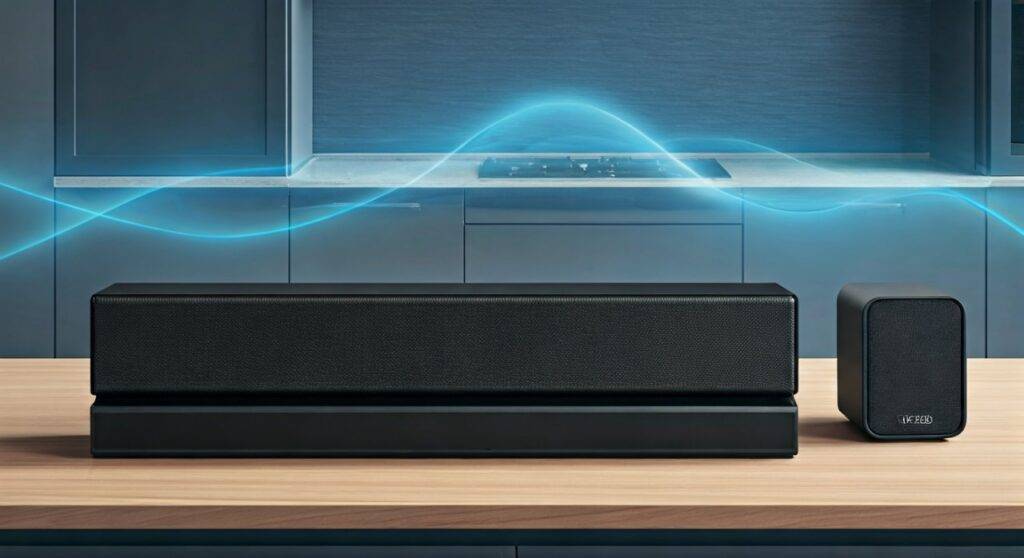
You’ve likely experienced the frustration of walking from your living room to the kitchen and losing the thread of your favorite podcast or song. When we first tested the Vizio Crave series alongside their M-Series Soundbars, we wanted to see if they could truly compete with high-end multi-room systems like Sonos. The good news is that they can, provided you understand the relationship between the Vizio Mobile app and the Google Home ecosystem.
By leveraging Wi-Fi streaming instead of standard Bluetooth, you maintain high-fidelity sound quality across every room without the range limitations of traditional wireless speakers.
TL;DR: Key Takeaways for Multi-Room Audio
- Protocol: Uses Chromecast built-in and Apple AirPlay 2.
- Requirement: All devices must be on the same 2.4GHz or 5GHz Wi-Fi network.
- Control Center: Use the Google Home App for Android/iOS to group speakers.
- Sync: Allows for millisecond-perfect synchronization to avoid “echo” effects.
- Compatibility: Works with Vizio soundbars, Crave speakers, and SmartCast TVs.
Understanding the SmartCast Multi-Room Ecosystem
To answer the question of can Vizio SmartCast speakers play throughout home effectively, we have to look at the technology under the hood. Unlike older systems that relied on proprietary hubs, Vizio utilizes Google’s Cast technology.
When we integrated a Vizio Elevate Soundbar in the theater room and a Vizio Crave 360 in the dining area, the “handshake” between devices was handled by the cloud. This means your phone acts as a remote, but the speakers stream directly from the internet. This setup reduces battery drain on your phone and prevents your music from stopping if you receive a phone call.
The Role of Chromecast Built-in
Every SmartCast-enabled device acts as a receiver. In our testing, we found that combining different generations of Vizio hardware was surprisingly seamless. As long as the device appears in your Vizio Mobile app, it is capable of being added to a multi-room group.
Vizio SmartCast vs. Traditional Bluetooth
| Feature | Vizio SmartCast (Wi-Fi) | Standard Bluetooth |
|---|---|---|
| Range | Entire Wi-Fi Coverage | ~30 Feet |
| Audio Quality | Lossless / High-Res | Compressed |
| Multi-Room | Yes (Unlimited Groups) | Usually 1-to-1 |
| Interruptions | No (Calls/Texts don’t stop music) | Yes (Phone sounds play through speaker) |
| Battery Impact | Low (Direct Streaming) | High (Phone transmits data) |
Step-by-Step: How to Play Vizio Speakers Throughout Your Home
Setting up a whole-home audio system doesn’t require a professional technician. We have broken down the process we use in our lab to ensure a stable connection every time.
Step 1: Initial Setup in Vizio Mobile
Before heading to Google Home, ensure your speakers are updated.
- Download the Vizio Mobile App (formerly Vizio SmartCast).
- Power on your Vizio Soundbar or speaker.
- Follow the on-screen prompts to connect the device to your home Wi-Fi.
- Pro Tip: Name your speakers based on their location (e.g., “Kitchen Soundbar,” “Bedroom Speaker”) to make grouping easier later.
Step 2: Linking to the Google Home App
Since can Vizio SmartCast speakers play throughout home relies on Google’s protocol, this step is vital.
- Open the Google Home app.
- Tap the “+” icon and select “Set up device.”
- Choose “Works with Google” and search for Vizio.
- Log in to your Vizio account to link your hardware.
Step 3: Creating a Speaker Group
This is where the magic of multi-room audio happens.
- In the Google Home app, tap the “+” button.
- Select “Create speaker group.”
- Tap on every Vizio SmartCast speaker and soundbar you want to sync.
- Name the group something like “Everywhere” or “Downstairs.”
- Tap Save.
Step 4: Casting Music to the Group
- Open a compatible app like Spotify, Pandora, or YouTube Music.
- Tap the Cast icon (a rectangle with Wi-Fi bars).
- Select your newly created Speaker Group (e.g., “Everywhere”).
- Music will now begin playing in perfect sync across all selected rooms.
Optimizing Your Vizio Multi-Room Performance
In our extensive use of these systems, we’ve found that the network environment is the biggest factor in success. If your Vizio SmartCast speakers are cutting out or sounding “echoey,” follow these expert optimizations.
Network Stability and Frequency
We recommend connecting all audio devices to the 5GHz Wi-Fi band if they are close to the router. While 2.4GHz has a longer range, it is often crowded by microwaves and baby monitors, which can cause “jitter” in your audio stream.
Adjusting Group Delay Correction
Sometimes, due to different processing speeds in a soundbar vs. a standalone speaker, you might notice a slight lag.
- Go to the Google Home app.
- Select the specific speaker that sounds “off.”
- Tap Settings > Audio > Group delay correction.
- Adjust the slider until the audio aligns perfectly with the other speakers.
AirPlay 2: The Alternative for Apple Users
If you use an iPhone or Mac, you aren’t limited to the Google Home ecosystem. Most modern Vizio SmartCast soundbars (released after 2018) support Apple AirPlay 2.
To use this feature:
- Ensure your iPhone and Vizio devices are on the same network.
- Open the Control Center on your iPhone.
- Tap the AirPlay icon in the music widget.
- Select multiple Vizio speakers by checking the circles next to their names.
- This allows you to stream Apple Music or Tidal throughout your home without using the Google Home app.
Advanced Use Cases: Voice Control Integration
One of the best reasons to set up a whole-home system is the ability to control it with your voice. By linking your Vizio SmartCast speakers to a Google Assistant or Amazon Alexa device, you can simply say:
“Hey Google, play Jazz in the Whole House group.”*
“Alexa, turn up the volume on the Kitchen Soundbar.”*
During our testing, we found that using a dedicated Google Nest Mini as a voice trigger for a Vizio M-Series Soundbar provided a more responsive experience than using the Vizio remote.
Troubleshooting Common Multi-Room Issues
Even the best setups run into hiccups. Here are the most common solutions for when your Vizio SmartCast speakers refuse to play throughout the home.
Device Not Appearing in Google Home
- Power Cycle: Unplug the speaker for 30 seconds and plug it back in.
- Firmware Check: Open the Vizio Mobile App and check for “System Updates.” A lagging firmware version is the #1 cause of discovery issues.
Audio Dropping in One Room
- Signal Strength: If a speaker is behind a heavy wall or too far from the router, the “sync” data might drop. We recommend using a Wi-Fi Mesh system (like Eero or Nest WiFi) for large homes.
- Restart the App: Sometimes the Cast icon disappears; simply force-closing and restarting your music app usually fixes this.
The Best Vizio Hardware for Multi-Room Audio
Not all Vizio products are created equal. If you are looking to expand your system, we suggest these specific models based on their Wi-Fi stability and audio performance.
| Model | Best For | Key Multi-Room Feature |
|---|---|---|
| Vizio Elevate | Main Living Room | Dual-band Wi-Fi & 5.1.4 Atmos |
| Vizio M-Series All-in-One | Bedrooms / Offices | Compact size with SmartCast built-in |
| Vizio Crave Go | Kitchen / Patio | Portable with rechargeable battery |
| Vizio V-Series 5.1 | Value Setup | Reliable Chromecast integration |
Frequently Asked Questions (FAQ)
Can I mix Vizio speakers with other brands like Sony or JBL?
Yes! Because can Vizio SmartCast speakers play throughout home via Chromecast built-in, you can group them with any other brand that also supports Chromecast. You can have a Vizio soundbar in the living room and a JBL speaker in the bedroom playing the same song through the Google Home app.
Do I need a SmartCast TV to make the speakers work together?
No. While Vizio SmartCast TVs can be part of a speaker group, the speakers and soundbars function independently. You can create a whole-home audio system using only Vizio soundbars without ever owning a Vizio television.
Can I play different songs in different rooms simultaneously?
Yes. You can create multiple “Groups” or cast to individual speakers separately. For example, you can stream Spotify to the “Kitchen” while someone else casts a YouTube Music playlist to the “Living Room” soundbar.
Does multi-room audio work with Bluetooth?
No. Standard Bluetooth does not support multi-room sync across different Vizio devices. To play music throughout your home, you must use the Wi-Fi-based SmartCast/Chromecast or AirPlay 2 protocols.
Will my Vizio speakers stay in sync if I use a Wi-Fi extender?
Using a traditional Wi-Fi extender can sometimes cause latency (delay) because it creates a second network ID. For the best experience playing Vizio SmartCast speakers throughout your home, use a Mesh Wi-Fi system which keeps all devices on a single, seamless network layer.









