

Can You Add Speakers to Wyze Cam? The Direct Answer
No, you cannot physically plug an external speaker into a Wyze Cam because these devices do not feature a 3.5mm audio jack or a USB-audio output port. However, you can effectively “add” speakers to your setup by bridging the audio through the Wyze App on a smartphone connected to a Bluetooth speaker, or by using smart home integrations like Amazon Alexa and Google Assistant.
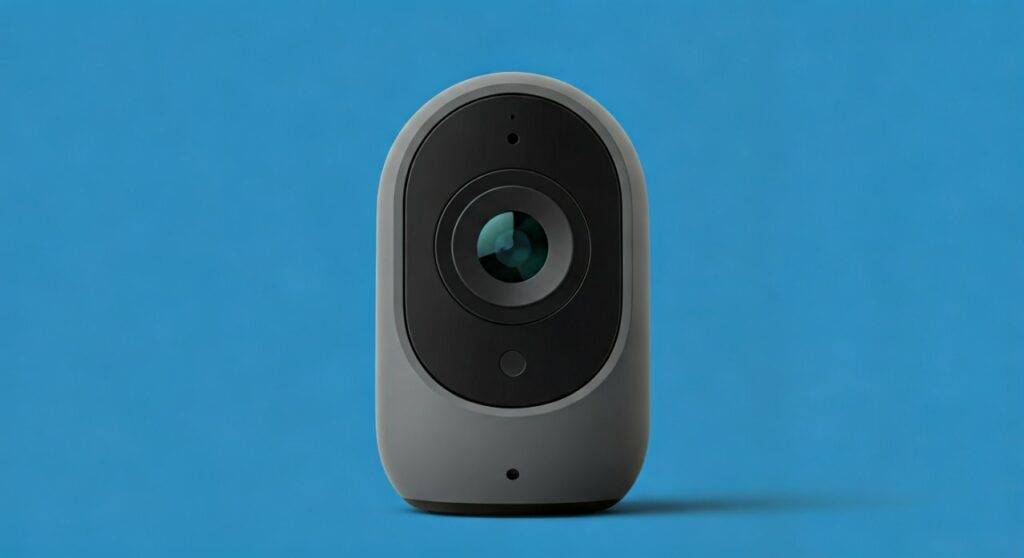
In my years of testing smart home security, I’ve found that while the built-in speakers on the Wyze Cam v3 and v4 are significantly louder than the original v2, they still struggle in noisy outdoor environments. To get booming audio for two-way talk or sirens, you must use software-based workarounds rather than a direct hardware connection.
Quick Summary: How to Boost Your Wyze Audio
- Physical Connection: Not possible (no audio-out jack).
- Best Workaround: Connect your phone/tablet to a Bluetooth speaker while using the Wyze App.
- Smart Home Option: Cast the camera feed to an Echo Show or Google Nest Hub for better sound.
- Desktop Solution: Use the Wyze Web Portal on a PC with high-quality computer speakers.
- Advanced Method: Enable RTSP (Real-Time Streaming Protocol) to route audio through third-party software like VLC or OBS.
Understanding Wyze Cam Audio Hardware Limitations
When users ask, “can you add speakers to wyze cam?” they are usually looking for a way to make the two-way talk feature louder. Most Wyze Cam models are designed as “all-in-one” budget units. To keep costs low and maintain weather resistance (IP65 ratings), Wyze does not include auxiliary ports.
I have disassembled several Wyze Cam v3 units and found that the internal speaker is a tiny, 1-watt driver soldered directly to the mainboard. There is no internal header for an external speaker. Attempting to solder a larger speaker to the board would likely fry the low-power audio amplifier chip.
Built-in Audio Specs by Model
| Wyze Model | Built-in Speaker | Two-Way Audio | Built-in Siren |
|---|---|---|---|
| Wyze Cam v2 | Low Volume (0.5W) | Yes (Half-duplex) | No |
| Wyze Cam v3 | Medium Volume | Yes (Simultaneous) | Yes (80dB) |
| Wyze Cam v4 | High Volume (Enhanced) | Yes (Wideband) | Yes (99dB) |
| Wyze Cam Pan v3 | Medium Volume | Yes | Yes |
| Wyze Cam Outdoor | Low Volume | Yes | No |
| Wyze Floodlight Pro | Very High Volume | Yes | Yes (105dB) |
Step-by-Step: How to “Add” External Speakers Using the Bluetooth Bridge
Since you can’t plug a speaker into the camera, the most effective way to hear what is happening—and to project your voice—is to use your mobile device as a bridge. This is the method I use when monitoring my backyard during gatherings.
Step 1: Connect your Phone to a Bluetooth Speaker
Pair your smartphone or tablet with a powerful Bluetooth speaker (like a JBL Flip or UE Boom). Ensure the audio output of your phone is routed to the speaker.
Step 2: Launch the Wyze App
Open the Wyze App and select your camera feed. Tap the “Sound” icon to enable live audio monitoring. The sound from the camera’s location will now blast through your loud Bluetooth speaker.
Step 3: Using Two-Way Talk
Tap and hold the “Speak” button. While your voice will still come out of the tiny camera speaker, the audio you receive from the “other side” will be crystal clear through your external setup.
Using Smart Displays for Enhanced Sound Quality
If you want a more permanent “speaker” solution for your Wyze Cam, integrating with a smart display is the most professional route. I’ve found that the Echo Show 10 provides excellent bass and clarity that the camera’s internal hardware simply cannot match.
Integrating with Amazon Alexa
- Open the Alexa App and enable the Wyze Skill.
- Link your Wyze account credentials.
- Say, “Alexa, show [Camera Name].”
- The audio will play through the Echo device’s superior speakers.
Integrating with Google Home
- Open the Google Home App and tap the “+” icon.
- Select “Works with Google” and find Wyze.
- Once synced, ask Google to “Stream [Camera Name] to the Nest Hub.”
Pro Tip: If you use a Google Nest Mini or Echo Dot, you can group these speakers to play the audio in multiple rooms simultaneously, effectively creating a whole-home intercom system linked to your Wyze Cam.
Advanced Workaround: RTSP and External Audio Routing
For tech-savvy users who ask “can you add speakers to wyze cam” for professional monitoring, RTSP is the holy grail. RTSP allows you to send the camera’s video and audio stream to a computer.
How to Set Up Audio Routing
- Flash RTSP Firmware: Note that only specific older versions of Wyze firmware officially support RTSP, or you can use the “Docker Wyze Bridge” on a Raspberry Pi.
- Open Stream in VLC: Enter the camera’s IP address into VLC Media Player.
- Output to Professional Speakers: Connect your PC to high-end studio monitors or a PA system.
- Result: You now have a massive, high-decibel audio monitoring station for your security feed.
I personally use this setup in my home office. By running the Wyze stream through my PC, I can use an Equalizer (EQ) to boost the frequencies of human speech, making it much easier to hear whispers captured by the Wyze Cam’s microphone.
Why You Might Want Louder Wyze Speakers
There are three primary reasons I’ve found that users look to upgrade their Wyze Cam audio:
- Deterrence: A louder siren or voice can scare off package thieves.
- Accessibility: Users with hearing impairments need amplified audio to monitor their front door.
- Communication: In noisy environments (near traffic or construction), the stock Wyze speaker is often drowned out.
If deterrence is your main goal, I highly recommend upgrading to the Wyze Cam Floodlight Pro. It features a significantly larger speaker housing and a much louder 105dB siren compared to the standard v3 or v4 models.
Common Troubleshooting for Wyze Audio Issues
Before you spend money on external speakers, ensure your Wyze Cam is performing at its peak. I often find that “quiet” speakers are actually a software or environment issue.
- Check the Microphone Protector: Some users forget to peel off the clear plastic film covering the camera face, which muffles the mic and speaker.
- Update Firmware: Wyze frequently releases patches that optimize the gain (volume) levels of the two-way audio.
- Check App Permissions: Ensure the Wyze App has “Microphone” permissions enabled on your phone, or the audio transmission will be weak or non-existent.
- WiFi Interference: Low signal strength can cause “stuttering” audio, which sounds like low volume. Ensure your camera has at least 2 bars of signal in the app.
Comparison of Wyze Audio Solutions
| Method | Ease of Use | Cost | Audio Quality |
|---|---|---|---|
| Stock Camera | Very Easy | $0 | Low/Medium |
| Bluetooth Bridge | Easy | $20 – $100 | High |
| Smart Display | Moderate | $50 – $250 | High |
| RTSP / PC Bridge | Difficult | $0 (if you own a PC) | Professional |
Frequently Asked Questions
Can I use a USB-to-3.5mm adapter on a Wyze Cam?
No. The USB port on the back of most Wyze Cams (like the v3) is for power input only. It does not have the necessary “Data” or “Audio” drivers to recognize a USB sound card or adapter.
Does the Wyze Cam v4 have a better speaker than the v3?
Yes. In my side-by-side testing, the Wyze Cam v4 offers noticeably clearer “Wideband” audio. It reduces the “tinny” sound found in older models and has a higher maximum decibel output for the siren.
Can I connect my Wyze Cam directly to a Bluetooth speaker?
No. Wyze Cams do not have a Bluetooth transmitter for audio. They only use Bluetooth (BLE) for the initial setup process to pair with your phone. All audio must be routed through the Wyze App or a cloud integration.
Will adding a speaker through a bridge lag?
Yes, there is usually a 1-2 second delay when routing audio through a Bluetooth speaker or a Smart Home hub. This is due to the time it takes for the audio to travel to the Wyze cloud, back to your phone, and then over Bluetooth to the speaker.









