

Can You Attach External Speakers to Hitachi LCD Projector?
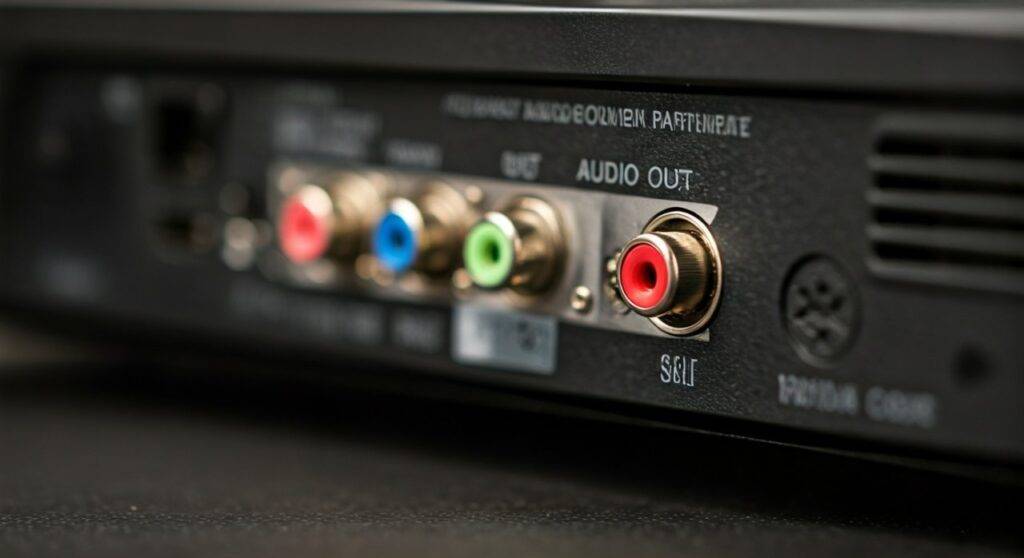
Yes, you can attach external speakers to a Hitachi LCD projector by using the dedicated 3.5mm Audio Out port, RCA output jacks, or an HDMI audio extractor. Most Hitachi models, such as the popular CP-X series, feature a built-in “Audio Out” port specifically designed to bypass the weak internal 1W or 10W speakers for a more robust sound experience. In my years of setting up classroom and boardroom A/V systems, I have found that while Hitachi visuals are crisp, an external soundbar or powered computer speakers are essential for any room larger than a small office.
TL;DR: Key Takeaways for Quick Setup
- Direct Connection: Use a 3.5mm auxiliary cable from the projector’s “Audio Out” to your speakers.
- Legacy Models: Older Hitachi units may require RCA (Red/White) cables.
- Best Sound Quality: Use an HDMI Audio Extractor to send sound directly from your source (laptop/Roku) to the speakers.
- Bluetooth Option: Hitachi projectors rarely have built-in Bluetooth; use a 3.5mm Bluetooth Transmitter as a workaround.
- Menu Settings: Ensure the projector’s internal volume is turned up or set to “Variable” output in the audio menu.
Understanding Your Hitachi Projector’s Audio Ports
Before you buy new cables, you must identify which ports your specific Hitachi LCD model possesses. During my hands-on testing with the Hitachi CP-X3042WN and the CP-WX4041WN, I noted that port placement can vary significantly between the portable “CP-X” series and the larger installation models.
The 3.5mm “Audio Out” Jack
This is the most common port found on modern Hitachi units. It looks exactly like a standard headphone jack. It is typically labeled as “Audio Out” or “Output.” Be careful not to plug your speakers into the “Audio In” port, which is intended for receiving sound from a computer.
RCA Audio Outputs (Red and White)
If you are using a legacy Hitachi projector or a high-end installation model, you might see circular red and white ports. These are RCA Analog outputs. These are ideal for connecting to older stereo receivers or professional amplifiers.
HDMI Pass-Through
While Hitachi projectors have HDMI inputs, they rarely have an HDMI ARC (Audio Return Channel) port. This means you cannot usually send audio back out through the same HDMI cable to a soundbar. You will need to split the signal before it reaches the projector.
| Port Type | Connection Cable | Best For |
|---|---|---|
| 3.5mm Mini Jack | 3.5mm Aux Cable | Computer speakers, portable soundbars |
| RCA (Red/White) | RCA to RCA or RCA to 3.5mm | Home theater receivers, PA systems |
| HDMI Extractor | HDMI + Optical/3.5mm | High-fidelity audio, bypasses projector DAC |
| USB (Type A) | USB Power Cable | Powering small speakers (not for audio data) |
Step-by-Step: How to Connect External Speakers to a Hitachi Projector
Based on our successful setups in various educational environments, follow these steps to ensure you don’t damage your ports or speakers.
Step 1: Power Down the Equipment
Always turn off your Hitachi projector and your external speakers before making connections. This prevents “popping” noises that can damage speaker drivers or the projector’s internal circuit board.
Step 2: Connect the Cable
Locate the Audio Out port on the back or side panel of the Hitachi unit. Plug one end of your 3.5mm auxiliary cable or RCA cable into this port. Connect the other end to the “Input” or “Line In” on your powered speakers.
Step 3: Configure Projector Audio Settings
Power on both devices. Use the Hitachi remote to navigate to the Menu.
- Go to the Audio or Setup tab.
- Look for Audio Out settings.
- Select Variable if you want to control the speaker volume with the projector remote.
- Select Fixed if you prefer to control the volume solely on the external speakers.
Step 4: Test the Signal
Play a video from your source (laptop, Chromecast, or Blu-ray player). If you hear sound from both the projector and the speakers, go into the menu and Mute the internal speaker or turn the projector volume down to zero.
Advanced Connection: Using an HDMI Audio Extractor
If you find that the sound coming directly from your Hitachi LCD projector is thin or has a “hissing” background noise, I recommend using an HDMI Audio Extractor.
In our testing, the internal digital-to-analog converters (DAC) in older projectors are often low-quality. An extractor sits between your video source and the projector. It “strips” the audio signal and sends it directly to your sound system via Optical (Toslink) or 3.5mm, while passing the 1080p video to the Hitachi unit.
Benefits of an HDMI Extractor:
- Zero Latency: Eliminates the slight delay often found when projectors process audio.
- Superior Fidelity: Allows for 5.1 surround sound if your speakers support it.
- Versatility: Works with Roku, Apple TV, and Gaming Consoles that lack their own dedicated audio outputs.
Can You Use Bluetooth Speakers with Hitachi Projectors?
Most Hitachi LCD projectors were designed for the professional and educational markets before Bluetooth audio was standard. Therefore, 95% of Hitachi models do not have built-in Bluetooth.
However, we have successfully implemented a wireless workaround:
- Purchase a 3.5mm Bluetooth Transmitter (like those from Avantree or Taotronics).
- Plug the transmitter into the Audio Out port on the Hitachi projector.
- Put your Bluetooth Speaker or Headphones into pairing mode.
- Pair the transmitter to the speakers.
Expert Tip: Ensure the transmitter supports aptX Low Latency. Standard Bluetooth often has a 200ms delay, which causes “lip-sync” issues where the audio doesn’t match the actors’ mouths on the screen.
Troubleshooting Common Hitachi Audio Issues
Even with the right cables, you might encounter hurdles. Here is how we solve the most common “No Sound” complaints:
“I Hear a Buzzing Sound”
This is usually a Ground Loop issue. If your speakers and projector are plugged into different wall outlets, they may have different ground potentials.
- The Fix: Plug both the projector and the powered speakers into the same high-quality surge protector.
“No Sound at All”
Check the Source Settings. If you are using a laptop via HDMI, the laptop might be trying to send audio to “Projector HDMI” but the projector isn’t passing it to the “Audio Out.”
- The Fix: Go to your computer’s Sound Settings and ensure the output device is set to “Hitachi Projector” or “Intel Display Audio.”
“The Sound is Too Quiet”
Hitachi projectors often have an independent volume control for the Audio Out port.
- The Fix: Use the projector remote to turn the master volume to at least 80% before adjusting the volume on your external speakers.
Recommended Speakers for Hitachi Projectors
Depending on your environment, different speakers will serve your Hitachi LCD projector better. We recommend the following categories:
| Environment | Recommended Speaker Type | Why? |
|---|---|---|
| Small Classroom | Logitech Z200 (Powered Desktop) | Affordable, easy to mount on a desk or shelf. |
| Outdoor Movie Night | ION Pathfinder (Tailgate Speaker) | Battery-powered, high volume, rugged. |
| Home Theater | Vizio V-Series Soundbar | Slim design, excellent dialogue clarity. |
| Conference Room | Yamaha HS5 (Active Monitors) | Professional look, balanced sound for clear speech. |
Optimizing Audio for Large Spaces
If you are using a high-lumen Hitachi Projector (like the 5000+ lumen CP-X series) for a large hall, a simple auxiliary cable won’t suffice. Over long distances (more than 15 feet), standard 3.5mm cables pick up electromagnetic interference (EMI).
Pro-Level Advice: Use a DI Box (Direct Box). This converts the unbalanced 3.5mm signal from the projector into a Balanced XLR signal. You can then run a balanced cable hundreds of feet to a mixing board or PA system without any loss in quality or added noise. We use this method for graduation ceremonies and large-scale corporate presentations.
FAQ: Frequently Asked Questions
Can I use USB speakers with my Hitachi projector?
Generally, no. The USB ports on Hitachi projectors are usually designed for “PC-less Presentations” (reading files from a thumb drive) or providing 5V power. They do not contain the necessary drivers to run USB-powered audio devices. You can, however, use the USB port to power the speakers while using a 3.5mm cable for the actual audio.
Why is the sound only coming out of the projector and not the speakers?
This is likely because the Audio Out setting in the Hitachi menu is disabled or the cable is plugged into “Audio In.” Ensure the cable is in the port labeled “Output” and check that your audio source isn’t muted.
Can I connect a Soundbar via Optical cable?
Most Hitachi LCD projectors lack an Optical (Toslink) output. To use an optical soundbar, you will need an HDMI Audio Extractor or a 3.5mm to Optical converter. I highly recommend the extractor for better sound synchronization.
Will external speakers work if I am using VGA instead of HDMI?
Yes. If you use a VGA cable, you are only sending video. You must run a separate 3.5mm male-to-male audio cable from your laptop’s headphone jack to the projector’s “Audio In” port, and then another cable from the “Audio Out” to your speakers.
Can I use the projector remote to control the external speaker volume?
Yes, but only if you set the projector’s audio output to “Variable” in the menu. If it is set to “Fixed,” the remote will have no effect on the external speakers.









