

Understanding Your Setup: Can You Connect an M-Audio Keyboard Directly to Speakers?
No, you generally cannot connect an M-Audio keyboard directly to speakers because most M-Audio devices are MIDI controllers, not synthesizers. They do not have built-in speakers or internal sound engines, meaning they send data (not audio) to a computer, tablet, or sound module to produce sound.
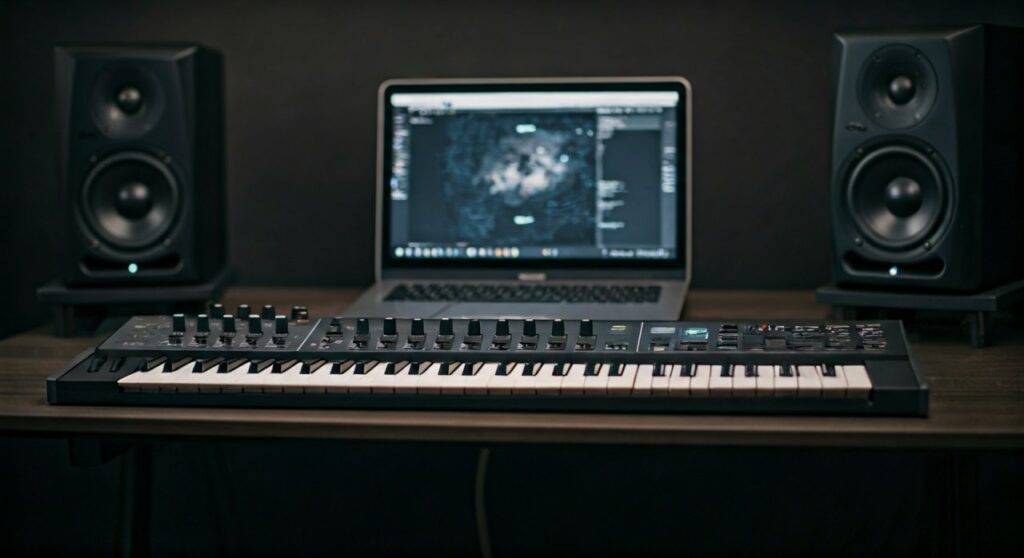
To hear your music, you must route the keyboard through a device that hosts Virtual Instruments (VSTs), such as a laptop or an iPad, and then connect that device to your studio monitors or active speakers. In my decade of setting up home studios, the most common mistake beginners make is buying a USB MIDI keyboard expecting it to work like a standalone digital piano.
🚀 Quick Summary: M-Audio Setup Essentials
- Device Type: Most M-Audio units (Keystation, Oxygen, Hammer) are MIDI Controllers.
- Connection Path: Keyboard → USB Cable → Computer (DAW/Plugin) → Audio Interface → Speakers.
- The “Brain”: You need software (like Ableton Live, MPC Beats, or GarageBand) to generate the sound.
- Direct Connection Exception: Only if you use a standalone MIDI Sound Module can you bypass a computer, but you still need an amplifier or active speakers.
🎹 Why M-Audio Keyboards Need a Middleman
When you press a key on an M-Audio Oxygen Pro or Keystation 49, the hardware sends a digital “Note On” message. It tells the computer which key was pressed and how hard (velocity). It does not send an electrical audio signal.
The Difference Between MIDI and Audio
| Feature | MIDI (M-Audio Controllers) | Audio (Synthesizers/Pianos) |
|---|---|---|
| Output Type | Digital Data (Instructions) | Electrical Signal (Sound Waves) |
| Connection | USB-B or 5-Pin MIDI | 1/4″ TRS or XLR Cables |
| Internal Sounds | None (requires a VST) | Built-in (Grand Piano, Synth, etc.) |
| Direct Speaker Connection | No | Yes (to active speakers) |
If you are asking “can you connect a m audio keyboard directly to speakers” because you want a portable setup, I recommend using an iPad with a USB-to-Camera Connection Kit. This allows the tablet to act as the sound engine while keeping the footprint small.
🛠️ Step-by-Step Guide: How to Connect Your M-Audio Keyboard
To get sound from your keyboard to your speakers, follow this industry-standard workflow that we use in professional recording environments.
Step 1: Physical Connection (Hardware)
- Plug the USB-B end of your cable into the back of the M-Audio keyboard.
- Connect the other end to your computer’s USB port.
- If your keyboard has a power switch (like the Code or Hammer series), turn it on. Most Keystation models are bus-powered and will light up immediately.
Step 2: Audio Routing to Speakers
Since the sound comes from the computer, you need to connect your speakers to the computer’s audio output. For the best quality, use an Audio Interface like the M-Audio M-Track Solo or Duo.
- Connect the Audio Interface to your computer via USB.
- Connect your Active Studio Monitors (like the M-Audio BX5) to the “Main Out” of the interface using Balanced TRS cables.
Step 3: Software Configuration
You must tell your software to listen to the M-Audio device.
- Open your DAW (Digital Audio Workstation) or a standalone plugin.
- Go to Preferences > MIDI.
- Ensure your M-Audio Keyboard is listed and set to “On” or “Track/Remote.”
- Load a virtual instrument (like a piano or synth).
🔊 Choosing the Right Speakers for Your M-Audio Keyboard
When you realize you cannot connect an M-Audio keyboard directly to speakers without a host, you need to choose speakers that handle computer audio accurately.
Active vs. Passive Speakers
- Active Speakers (Recommended): These have built-in amplifiers. You can connect them directly to your Audio Interface. Examples include the M-Audio AV42 or BX8.
- Passive Speakers: These require an external power amplifier. Connecting a computer output directly to these will result in almost no volume.
Connection Cables for Every Scenario
| Setup Goal | Required Cable | Connection Point |
|---|---|---|
| Professional Studio | TRS (Balanced) 1/4″ | Interface to Studio Monitors |
| Budget/Home Office | 3.5mm to RCA | PC Headphone Jack to Bookshelf Speakers |
| Mobile/iPad Setup | USB-C to USB-A Adapter | Keyboard to iPad Pro |
⚠️ Troubleshooting: Why Am I Still Not Hearing Sound?
Even after following the steps, you might face silence. Based on my experience troubleshooting hundreds of MIDI setups, check these three areas:
The “No Sound” Checklist
- Check the Volume Slider: On M-Audio Oxygen keyboards, the physical slider often defaults to zero. Move it up to ensure it isn’t sending a “Volume 0” MIDI message to the software.
- Output Device Settings: In your computer’s Sound Settings, ensure the output is set to your Audio Interface or Speakers, not the “M-Audio Keyboard” (the keyboard is an input, not an output).
- Monitor Button: In your DAW, make sure the “Monitor” or “Record Arm” button is active on the track.
Reducing Latency (Lag)
If there is a delay between pressing a key and hearing a sound, you are experiencing latency. To fix this:
- Install the ASIO4ALL driver (Windows) or use the official M-Audio Drivers.
- Lower your Buffer Size in the DAW settings to 128 or 256 samples.
💡 Expert Pro-Tip: Standalone Mode Without a PC
If you absolutely must know can you connect a m audio keyboard directly to speakers because you hate using computers on stage, there is one workaround. You can purchase a MIDI Sound Module (like the MidiTech Pianobox).
- Connect the 5-Pin MIDI Out of your M-Audio keyboard to the MIDI In of the module.
- Connect the Audio Out of the module directly to your speakers.
- This setup allows the keyboard to “play” the module, which then sends real audio to your speakers.
❓ Frequently Asked Questions (FAQ)
Can I connect my M-Audio keyboard to a guitar amp?
No, not directly. Since the keyboard produces no sound on its own, a guitar amp will have nothing to amplify. You would need to run the keyboard into a computer/laptop first, then run the laptop’s headphone jack into the amp’s “Aux In.”
Does the M-Audio Keystation have built-in sounds?
No. The M-Audio Keystation series consists strictly of MIDI controllers. They are designed to be lightweight and affordable by offloading all sound generation to your computer software.
What is the best free software to use with an M-Audio keyboard?
Most M-Audio keyboards come bundled with MPC Beats or Ableton Live Lite. If you don’t have these, GarageBand (Mac) or Cakewalk (Windows) are excellent free options to get you playing immediately.









