

Can You Have Guest Speakers on Facebook Live?
Yes, you can have guest speakers on Facebook Live by using the built-in “Live With” feature on mobile devices or through third-party streaming software like StreamYard, Restream, or OBS Studio on a desktop. Adding a guest allows you to co-broadcast, conduct interviews, and double your reach by appearing on both your and your guest’s timelines.
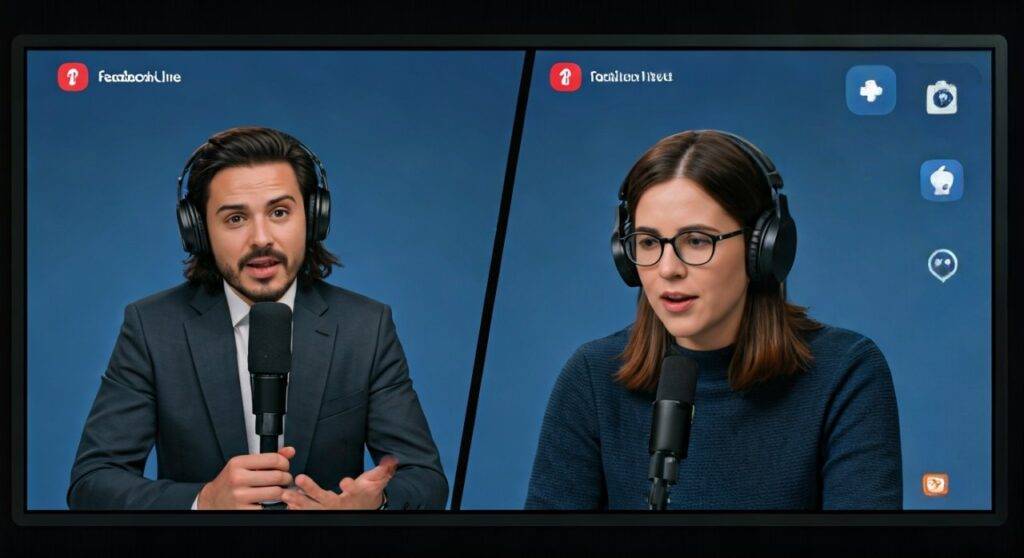
In our experience managing professional broadcasts, choosing the right method depends entirely on your production goals. While the mobile app is great for casual “on-the-go” chats, professional creators almost exclusively use desktop tools to ensure high-definition video and reliable audio.
Quick Guide: Top Methods for Facebook Live Guests
- Mobile App (Built-in): Best for spontaneous, 1-on-1 vertical interviews using the Facebook App.
- Browser-Based Tools (StreamYard/Belive): The gold standard for most users. Easy to use, supports up to 10 guests, and allows for branded overlays.
- Professional Software (OBS/vMix): Best for high-end productions requiring custom graphics and multiple camera angles.
- Zoom Integration: Ideal for panel discussions or webinars that you want to mirror to a Facebook Page or Group.
The Benefits of Adding Guest Speakers to Your Stream
If you are wondering, “can you have guest speakers on facebook live to grow your business?” the answer is a resounding yes. We have found that multi-person streams consistently outperform solo broadcasts in several key areas:
- Increased Reach: When you tag a guest, your video often appears to their followers, effectively tapping into a secondary audience.
- Higher Engagement: Real-time dialogue is more dynamic than a monologue. It keeps viewers watching for longer durations (increased Average Watch Time).
- Authority Building: Partnering with industry experts transfers social proof to your brand.
- Content Variety: Interviews, Q&A sessions, and product demos become much easier when you have a partner to share the load.
How to Invite a Guest on Facebook Live (Mobile)
The easiest way to answer “can you have guest speakers on facebook live” is to look at the mobile app. This is the only way to add a guest natively without paying for extra software.
Step 1: Start Your Live Video
Open the Facebook App on iOS or Android. Navigate to the Page, Group, or Profile where you want to go live. Tap the “Live” button.
Step 2: Access the ‘Live With’ Feature
Before or during your broadcast, look for the “User” icon (it looks like two people) at the bottom of the screen. This is the Live With dashboard.
Step 3: Invite Your Guest
You can invite people who are currently watching your stream. Simply find their name in the viewer list and tap “Invite.” Alternatively, your guest can send a “Request to Join” your broadcast.
Step 4: Managing the Screen
Once the guest accepts, your screen will split. You can choose a Side-by-Side view or a Picture-in-Picture layout. Note that on mobile, you are currently limited to one guest at a time.
Using Desktop Software for Professional Guest Streams
While the mobile app is convenient, it has significant limitations, such as a lack of branding control and unstable connections. For a truly professional look, we recommend using a third-party encoder.
Why Desktop is Superior
In our testing, desktop streaming via Chrome or Safari offers much better stability. You can manage multiple guests, share your screen, and display scrolling tickers or lower-third graphics.
Top Recommended Tools for Guest Interviews
| Tool | Best For | Max Guests | Difficulty |
|---|---|---|---|
| StreamYard | Beginners & Pro Interviews | 10 | Very Easy |
| Restream | Multi-platform (FB + YT + LI) | 9 | Easy |
| Belive.tv | High-engagement FB Features | 4 | Easy |
| OBS Studio | Advanced Tech Users | Unlimited | Hard |
| Zoom | Corporate Webinars | 100+ | Medium |
How to Use StreamYard for Facebook Live Guests
StreamYard is our top recommendation for anyone asking “can you have guest speakers on facebook live” without wanting a technical headache. It runs directly in your browser.
- Connect Your Destination: Log in to StreamYard and link your Facebook Page or Group.
- Create a Broadcast: Click “Create” and enter your title and description.
- Enter the Studio: Before going live, check your mic and camera.
- Invite Guests: Click the “Invite” button at the bottom. Copy the unique link and send it to your guest via email or Messenger.
- Add to Stage: When your guest clicks the link, they appear in your “backstage” area. You must click their video feed to “Add to Stream.”
- Go Live: Once you and your guest are ready, hit the blue “Go Live” button in the top right corner.
Technical Requirements for a Seamless Guest Experience
Nothing kills a live stream faster than a guest who is lagging or has a distorted echo. We’ve developed a Technical Checklist that we send to every guest before they join us.
- Internet Speed: Both the host and guest should have an upload speed of at least 5-10 Mbps. We recommend using a wired Ethernet connection instead of Wi-Fi.
- Audio Quality: Use a dedicated microphone. Even a pair of wired Apple EarPods is better than the built-in laptop mic, as it prevents audio feedback loops.
- Lighting: Ensure the guest has a light source (like a window or a ring light) in front of them, not behind them.
- Browser: For tools like StreamYard or Restream, always use the latest version of Google Chrome.
Advanced Strategy: Using Zoom for Facebook Live
If you are hosting a large panel of 5 or more speakers, Zoom is often the most stable choice. However, you need a Zoom Pro account or higher to enable the “Live Stream” feature.
The Setup Process
- Enable “Allow live streaming meetings” in your Zoom Account Settings.
- Start your meeting and gather all your guest speakers.
- Click the “More” (…) button in the Zoom toolbar.
- Select “Live on Facebook.”
- Choose where you want the stream to post (Page, Group, or Timeline).
Pro Tip: Be aware that there is usually a 15-20 second delay between your Zoom conversation and the Facebook Live feed. Do not try to read Facebook comments in real-time while your guest is speaking, or you may get confused by the lag.
Common Challenges and How to Fix Them
Even the best-prepared hosts run into issues. Here is how we handle the most common “guest” problems.
The “Echo” Effect
This happens when the guest’s microphone picks up the audio from their speakers.
- The Fix: Force all guests to wear headphones. This is the only 100% effective solution.
Guest Connection Drops
If a guest has a weak signal, they may freeze or disappear.
- The Fix: In your software (like StreamYard), have a “Solo” layout ready. If the guest drops, switch to a solo view immediately to keep the audience engaged while the guest reconnects.
Low Video Quality
If the video looks “blocky” or pixelated, it’s usually an upload bandwidth issue.
- The Fix: Ask the guest to close all other tabs and programs (especially Netflix, Dropbox, or VPNs) that might be sucking up bandwidth.
Expert Tips for a Successful Guest Interview
Adding a guest isn’t just about the technology; it’s about the content. Here is how we ensure our guest segments provide maximum value.
- The Pre-Show Green Room: Have your guest join the link 10 minutes early. This allows you to check their levels and calm their nerves.
- Prepare a Script/Outline: Don’t wing it. Send your guest 3-5 bullet points of what you plan to cover so they can prepare thoughtful answers.
- Use Visuals: If your guest mentions a specific product or data point, use a screen share or an overlay image to show the audience what they are talking about.
- Engage Both Audiences: Ask your guest to share the live stream to their own Facebook profile as soon as you go live. This triggers the Facebook Algorithm to show the video to more people.
Frequently Asked Questions
Can you have guest speakers on Facebook Live using a computer?
Yes, but you cannot do this natively through the standard Facebook website. You must use a third-party application like StreamYard, Restream, or OBS Studio to bring guests into your desktop broadcast.
How many guests can I have on Facebook Live?
On the mobile app “Live With” feature, you can have one guest. Using third-party tools like StreamYard, you can have up to 10 people on screen at once, depending on your subscription plan.
Do guests need a Facebook account to join?
If you are using the mobile “Live With” feature, yes, the guest must be logged into Facebook. However, if you use a tool like StreamYard, the guest does not need a Facebook account; they simply click a browser link to join your “studio.”
Can I have guests in a Facebook Group Live?
Yes. Whether you are using the mobile app or desktop software, you can invite guests to a Live stream inside a Facebook Group, provided you have the necessary permissions to post in that group.









