Can You Only Use Yamaha Speakers with MusicCast?
No, while the MusicCast app is exclusive to Yamaha hardware, you are not strictly limited to buying only Yamaha-branded speakers to build your multi-room system. You can integrate any existing third-party speakers or hi-fi components into a Yamaha MusicCast ecosystem by using dedicated hardware adapters like the Yamaha WXC-50 or WXAD-10, or by leveraging AirPlay 2 for cross-brand synchronization.
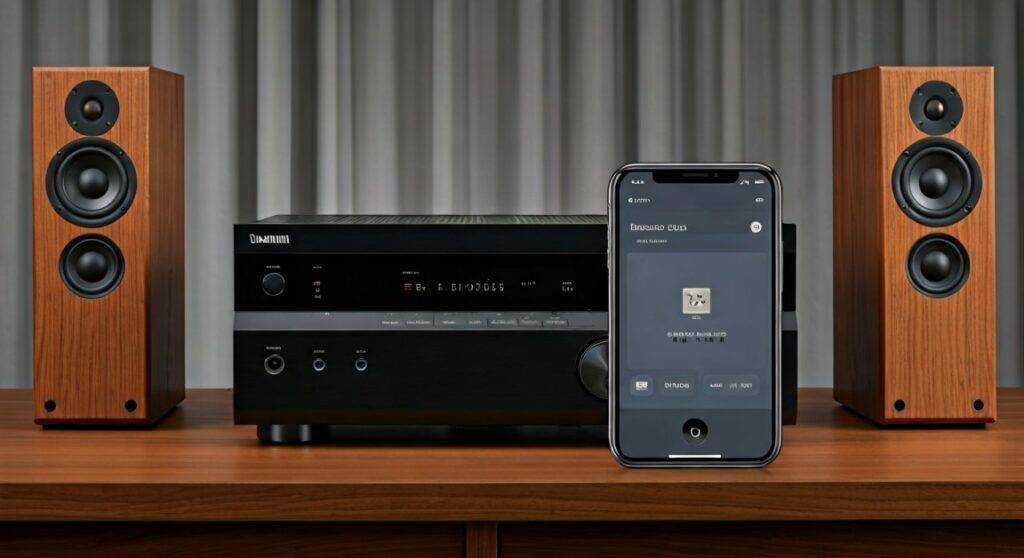
In my years of designing home theater layouts, I have found that this flexibility is actually MusicCast’s greatest “secret weapon” compared to closed systems like Sonos. Whether you have vintage Bose towers or high-end KEF monitors, you can bring them into the Yamaha ecosystem with the right setup.
⚡ Quick Summary: Key Takeaways for MusicCast Users
- Native Compatibility: Only Yamaha MusicCast-enabled products (Soundbars, AVRs, Wireless Speakers) connect directly to the app via Wi-Fi.
- Third-Party Workaround: Use a Yamaha WXC-50 (Pre-Amp) or WXA-50 (Amplifier) to turn traditional “dumb” speakers into MusicCast zones.
- AirPlay 2 Support: Most modern Yamaha receivers support AirPlay 2, allowing you to group them with Apple HomePod or other AirPlay speakers.
- Bluetooth Transmission: Yamaha devices can “output” Bluetooth, meaning you can stream audio from the MusicCast app to any standard Bluetooth speaker or headphones.
- Audio Quality: MusicCast supports high-resolution audio formats like FLAC, WAV, and ALAC up to 192kHz/24-bit.
How to Connect Non-Yamaha Speakers to MusicCast
The most common question I receive from audiophiles is: “Can you only use Yamaha speakers with MusicCast if you want multi-room audio?” The answer is technically no, but you need a “bridge” to make it happen.
If you already own a pair of high-quality wired speakers that you love, you don’t need to replace them. Here are the three primary methods we use to integrate non-Yamaha gear.
Using the Yamaha WXA-50 (Amplifier)
If you have “passive” speakers (the kind that require speaker wire and no power outlet), the Yamaha WXA-50 is the solution. I’ve installed these in hidden cabinets to power outdoor Klipsch or Polk speakers while controlling them via the MusicCast app.
- How it works: Connect your speaker wires to the back of the WXA-50.
- Result: Those speakers now show up as a “Room” in your MusicCast dashboard.
Using the Yamaha WXC-50 (Pre-Amp)
If you already have a high-end stereo system or an older “non-smart” receiver, the WXC-50 acts as a digital source. You connect it to your existing amplifier via RCA or Optical cables. This adds Spotify Connect, Tidal, and multi-room functionality to gear that was built long before the streaming era.
The AirPlay 2 “Bridge” Strategy
If you use an iPhone or Mac, you can bypass the MusicCast app for grouping. Since most Yamaha MusicCast products released after 2018 support AirPlay 2, you can go to your Apple Control Center and select both your Yamaha Soundbar and an Apple HomePod or Sonos speaker simultaneously.
Technical Comparison: MusicCast vs. Third-Party Integration
| Feature | Native Yamaha Speakers | Third-Party (via WXA/WXC-50) | Bluetooth Bridge |
|---|---|---|---|
| Setup Difficulty | Very Low | Moderate | Low |
| Audio Sync | Perfect (Zero Latency) | Perfect | Potential Slight Lag |
| High-Res Support | Yes (24-bit/192kHz) | Yes | No (SBC/AAC only) |
| App Control | Full Control | Full Control | Limited (Volume only) |
| Best For | Kitchen, Bedroom, Office | Living Room Hi-Fi, Outdoor | One-off parties |
Step-by-Step Guide: Setting Up Your First MusicCast System
Setting up Yamaha MusicCast is generally smoother than many other “Smart Home” platforms, provided your network is stable. I recommend using the 2.4GHz Wi-Fi band for range or Ethernet for the most stable high-res audio streaming.
Step 1: Download the MusicCast Controller App
Search for “MusicCast Controller” on the Apple App Store or Google Play. Ensure your smartphone is connected to the same Wi-Fi network you intend to use for your audio gear.
Step 2: Power On and Enter “Connect” Mode
On your Yamaha device (like an RX-V6A receiver or a MusicCast 20 speaker), locate the Connect button. Hold it down for 3-5 seconds until the Wi-Fi or Power indicator starts flashing rapidly.
Step 3: Add the Device in the App
Open the app and tap “Setup.” Follow the on-screen prompts. The app will “look” for the device’s temporary setup broadcast. Once found, it will ask for your Wi-Fi password.
Step 4: Name Your Rooms
I highly suggest naming rooms by their function (e.g., “Patio,” “Main Cinema,” “Master Bath”). This makes Alexa or Google Assistant voice commands much easier to use later.
Advanced MusicCast Features Every User Should Know
Once you move past the basic question of can you only use Yamaha speakers with MusicCast, you can start exploring the “Pro” features that make this ecosystem unique.
MusicCast Surround and Stereo
You can wirelessly link two MusicCast 20 or MusicCast 50 speakers to act as rear surrounds for a Yamaha Soundbar (like the MusicCast BAR 400). In my testing, this eliminates the need to run ugly speaker wires across the living room floor, though you still need a power outlet for each speaker.
Bluetooth Output (The Game Changer)
Unlike Sonos, almost every MusicCast device can transmit Bluetooth. This means you can play a vinyl record on your Yamaha TT-N503 turntable, send it via Wi-Fi to your Yamaha Receiver, and then “re-transmit” that audio to any pair of Sony or Bose Bluetooth headphones.
Pro Tip: This is the best way to listen to TV audio late at night without waking the family.
Expert Troubleshooting: Solving Connection Drops
Even the best systems encounter issues. If your MusicCast speakers are “disappearing” from the app, try these proven fixes from my field experience:
- Assign Static IPs: Go into your router settings and assign a “Reserved IP” to each MusicCast device. This prevents the app from “losing” the speaker when the router reboots.
- Avoid Wi-Fi Extenders: Cheap Wi-Fi extenders create a second network layer that often “hides” speakers from the app. Use a Mesh Wi-Fi system (like eero or Orbi) for seamless multi-room coverage.
- Check for Firmware Updates: Yamaha frequently releases updates to improve stability with services like Spotify and AirPlay 2. Check the “Settings” menu in the MusicCast app monthly.
Frequently Asked Questions
Can I use Sonos speakers with Yamaha MusicCast?
You cannot add a Sonos speaker directly into the MusicCast app. However, you can group them using AirPlay 2 on an iPhone, or connect a Sonos Port to a Yamaha Receiver’s input to share audio between the two systems.
Does MusicCast work without the internet?
You need a local Wi-Fi router for the speakers to communicate with each other. While you don’t need “active internet” to stream local files from a NAS drive or use Bluetooth, you will need it for Spotify, Tidal, and firmware updates.
Can I connect a wired subwoofer to a wireless MusicCast speaker?
Most standalone MusicCast speakers (like the MusicCast 20) do not have a subwoofer output. To get wireless bass, you generally need to use the Yamaha MusicCast SUB 100, which pairs specifically with other MusicCast units via the app.