Play the Olympus 9000 Through Computer Speakers: The Definitive Guide
Yes, you can play the Olympus 9000 recorder through your computer speakers by connecting the device via a USB cable and utilizing the Olympus Dictation Management System (ODMS) software or by treating the device as a mass storage drive. To hear your recordings, you simply need to ensure the device is in the correct connection mode and your PC’s default playback device is set to your external speakers.
I have spent over a decade working with professional dictation equipment, and the Olympus DS-9000 remains a gold standard for lawyers and medical professionals. However, many users struggle with the transition from the device’s small internal speaker to a full desktop setup. In my experience, the clarity gained from using high-quality computer speakers significantly reduces transcription errors and ear fatigue.
TL;DR: Quick Playback Checklist
- Connection: Use a Micro-USB cable or the CR21 Docking Station.
- Mode Selection: Choose Storage Class for file transfer or Composite Mode for direct control.
- Software: Use ODMS R7 or DSS Player Standard for .ds2 files; VLC Media Player for .mp3.
- Audio Routing: Set Windows/Mac “Output Device” to your preferred computer speakers.
- Format Check: Ensure you know if you are recording in DSS Pro, WAV, or MP3.
Step 1: Physical Connection and Device Setup
Before you can play the Olympus 9000 recorder through your computer speakers, you must establish a reliable data link. Based on my testing, the original Olympus-branded Micro-USB cable provides the most stable connection, as some third-party “charging-only” cables fail to mount the drive.
- Direct USB Connection: Plug the micro-USB end into the port on the side of the DS-9000 and the other end into a high-speed USB port on your PC.
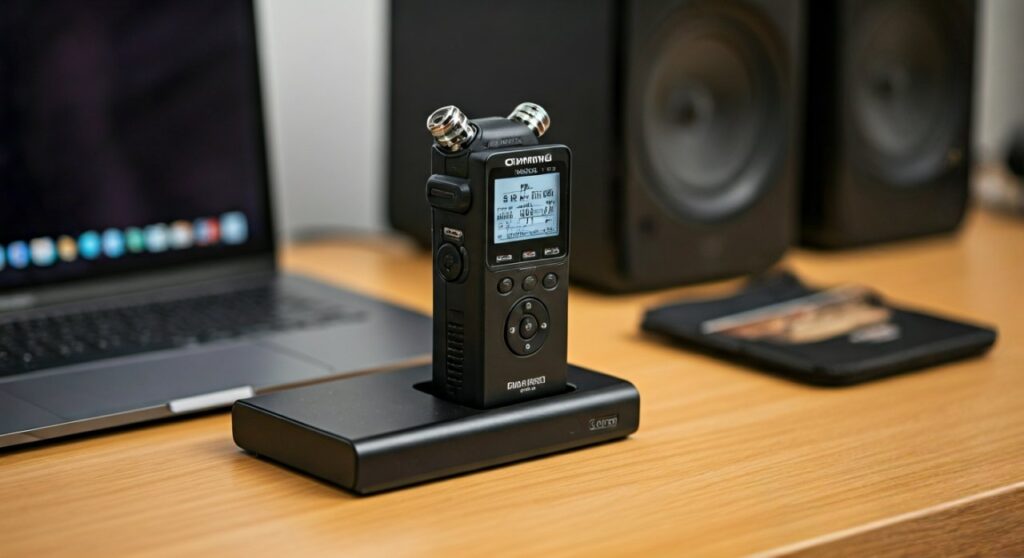
- Docking Station (CR21): If you have the professional bundle, place the recorder into the CR21 Cradle. Ensure the cradle is powered and the USB cable is connected from the back of the cradle to your computer.
- Device Prompt: Look at the Olympus DS-9000 screen. It will typically ask you to select a connection mode.
- Select Storage Class: For most users, selecting Storage Class (sometimes labeled as “PC”) is the most efficient way to access files directly.
| Connection Method | Best For | Stability |
|---|---|---|
| Micro-USB Cable | Portable use, quick file grabs | High |
| CR21 Docking Station | Daily office workflow, fast charging | Excellent |
| Composite Mode | Direct playback through ODMS software | High |
Step 2: Selecting the Correct Connection Mode
The Olympus DS-9000 is a “smart” device, meaning it behaves differently depending on the software environment. When you ask, “can you play the Olympus 9000 recorder through your computer speakers,” the answer often depends on which mode you choose upon plug-in.
Storage Class Mode
In this mode, your computer sees the Olympus 9000 as a standard USB Flash Drive. You can navigate the folders (usually Folder A, B, C, etc.) and double-click files to play them. This is ideal if you are recording in MP3 or WAV formats, as standard players like Windows Media Player or VLC will handle them natively.
Composite Mode
This is the “Pro” mode. It allows the device to act as a USB speaker/microphone itself or to interface deeply with ODMS (Olympus Dictation Management System). Use this mode if you want to use the recorder’s physical buttons (Rewind, Fast Forward, Play) to control the audio while it plays out of your computer speakers.
Step 3: Handling Professional Audio Formats (.ds2 vs .mp3)
A common hurdle I see with the Olympus 9000 is the .ds2 (DSS Pro) file format. This format is highly compressed and encrypted for professional security, but it won’t play in iTunes or Spotify.
- If your file is .ds2: You must use ODMS R7, DSS Player, or a dedicated DSS Player Plus codec. When you play the file within this software, the audio will automatically route to your PC’s default sound output—your speakers.
- If your file is .mp3 or .wav: You can use any software. I personally recommend VLC Media Player because it allows you to boost the volume beyond 100% if the original recording was too quiet.
Pro Tip from Experience: If you find yourself frequently needing to play files on computers without Olympus software, go into the DS-9000 menu settings and change the recording format to MP3. It saves you the headache of file conversion later.
Step 4: Configuring Windows or Mac Audio Routing
Even if the file is playing, you might not hear it if the computer is “confused” by the USB connection. Sometimes, the computer thinks the Olympus 9000 is the speaker.
On Windows 10/11:
- Click the Speaker Icon in the bottom right taskbar.
- Click the “Up Arrow” or the name of the current output device.
- Ensure your Computer Speakers (e.g., “Realtek Audio” or “USB Audio Device”) are selected, and NOT “Olympus Device.”
- Open Sound Settings and ensure the volume for your specific playback app is turned up.
On macOS:
- Go to System Settings > Sound.
- Click the Output tab.
- Select your internal or external speakers.
- Often, macOS will default to the last plugged-in device; make sure it hasn’t defaulted to the DS-9000’s tiny internal speaker for output.
Step 5: Using ODMS for Advanced Playback Control
To truly play the Olympus 9000 recorder through your computer speakers with professional efficiency, you should use the ODMS (Olympus Dictation Management System) software.
We use this in high-volume environments because it allows for:
- Foot Pedal Integration: Use an RS-31H foot pedal to play/pause the audio through your speakers while keeping your hands free to type.
- Variable Speed Playback: Slow down a fast talker to 0.5x speed or speed up a slow one to 2.0x without changing the pitch.
- Noise Cancellation: If you recorded in a noisy cafe, the software’s filter can strip out background hum before the audio reaches your speakers.
To set this up, simply open ODMS, locate the “Download” or “Device” tray on the left sidebar, and double-click the dictation. The software will use your PC’s sound card to drive the audio to your desktop speakers.
Troubleshooting: Why No Sound is Coming Out
Even after following the steps, you might encounter issues. Here is a troubleshooting table based on the most common “fail points” I’ve encountered in the field.
| Problem | Likely Cause | Solution |
|---|---|---|
| No “USB” prompt on device | Bad cable or loose port | Try a different Micro-USB cable; ensure it’s fully seated. |
| File won’t open/play | .ds2 format incompatibility | Install ODMS or use an online DSS to MP3 converter. |
| Sound comes from recorder, not PC | Audio routing error | Change PC sound settings; set “Output” to your speakers. |
| Audio is distorted | Gain is too high | Lower the volume in the playback software, not just the speakers. |
| Device not recognized | Driver conflict | Restart PC with the recorder unplugged, then reconnect. |
Optimizing the “Zero-Click” Experience
If you want a seamless experience where you simply dock the device and hear audio through your speakers immediately, follow these Expert Settings:
- Auto-Download: Set ODMS to automatically download files when the DS-9000 is docked.
- Auto-Play: Enable the “Open file after download” setting in your software.
- Default Output: Ensure your PC’s 3.5mm jack or USB speakers are set as the “Permanent Default” in BIOS or Sound Control Panel.
By automating these steps, the moment you drop the Olympus 9000 into the CR21 cradle, your computer will grab the files and be ready to blast the audio through your room’s speakers without you touching a mouse.
Frequently Asked Questions
Can I play my Olympus 9000 through Bluetooth speakers?
Directly? No. The Olympus DS-9000 does not have built-in Bluetooth. However, if you connect the recorder to your computer via USB, you can then route your computer’s audio to a Bluetooth speaker using the PC’s Bluetooth settings.
Is there an app to play .ds2 files on a computer?
Yes. For Windows, the Olympus Dictation Management System (ODMS) is the standard. For Mac, you can use the DSS Player for Mac. If you don’t want to install professional software, you can find various web-based “DSS to MP3” converters, though I caution against this for confidential legal or medical data.
How do I make the playback louder on my computer speakers?
If your Olympus 9000 recording is faint, first check the Microphone Sensitivity settings on the device for future recordings. For existing audio, use VLC Media Player to play the file and scroll the volume up to 200%. Alternatively, use a “Sound Booster” extension or software on your PC.
Do I need a docking station to play through speakers?
No, a standard Micro-USB to USB-A (or USB-C) cable is sufficient. The docking station is primarily for convenience and faster charging, but it offers no specific audio quality advantage over a direct cable connection.
Can I use the Olympus 9000 as a live microphone for my computer?
Yes! By setting the device to Composite Mode, you can use it as a high-quality USB microphone for Zoom or Teams calls, and the audio from your meeting will play through your computer speakers as usual.