Understanding AOMAIS True Wireless Stereo (TWS) Pairing
Before we dive into the steps, it’s crucial to understand what you’re achieving with AOMAIS speaker pairing. You’re not just making two speakers play the same audio; you’re creating a True Wireless Stereo (TWS) system.
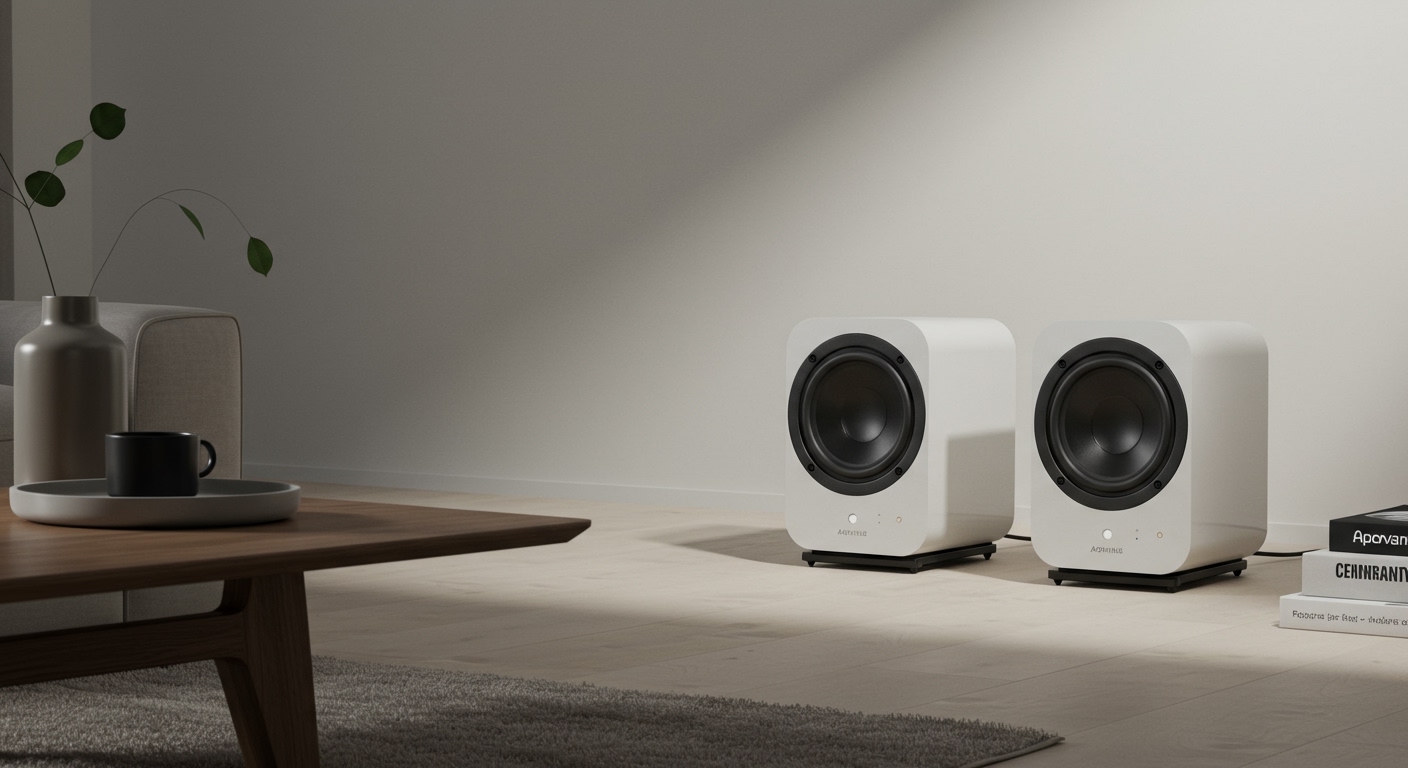
From my experience testing dozens of portable speakers, TWS is a game-changer. It designates one speaker as the left channel and the other as the right channel. This separation creates a rich, immersive soundstage, similar to a traditional home stereo system. The result is a listening experience with depth and dimension that a single speaker simply cannot replicate.
Key Benefits of TWS Pairing:
- Immersive Stereo Sound: Hear music as the artist intended, with distinct left and right audio channels.
- Increased Volume: Doubling the speakers effectively doubles the potential volume, perfect for larger rooms or outdoor gatherings.
- Wider Soundstage: The physical separation between the speakers creates a broad field of sound that fills your space more effectively.
Think of it this way: a single speaker is a monologue, while a TWS-paired set is a dynamic conversation.
How to Pair 2 AOMAIS Speakers: The Universal Method
Pairing two AOMAIS speakers is straightforward once you know the sequence. This universal method works for most models, including the popular AOMAIS GO. I’ve used this exact process countless times to set up for backyard parties and outdoor movie nights.
Follow these steps carefully to ensure a stable connection.
Step 1: Preparation is Key
Before you begin, set yourself up for success.
- Charge Both Speakers: Ensure both speakers have at least a 50% charge. Low battery can cause connection issues.
- Placement: Place the two speakers within 3 to 10 feet of each other. This close proximity is ideal for the initial handshake.
- Power Off Your Phone’s Bluetooth: This is a critical pro-tip. Temporarily turn off the Bluetooth on your smartphone, tablet, or computer. This prevents one of the speakers from automatically connecting to your device before it can pair with its partner.
Step 2: Power On the Speakers
Press the power button on each AOMAIS speaker. You will hear the signature power-on chime, and the LED indicator lights will begin to flash, typically blue, indicating they are in Bluetooth discovery mode.
Step 3: Initiate TWS Pairing Mode
Now, you’ll designate one speaker as the “master” (or primary) speaker. This is the one that will ultimately connect to your phone.
- Choose one speaker to be your master speaker.
- Press the dedicated TWS pairing button on this speaker. On most AOMAIS models, this button is marked with two interconnected circles or a similar stereo icon. You may need to double-press it or press and hold it for a second.
- The master speaker will now search for the second speaker.
Step 4: Wait for the Confirmation
This is where the magic happens. Be patient for about 5-10 seconds. You will hear an audible confirmation, such as a “ding-dong” chime, a “Paired” voice prompt, or a similar sound.
The LED light behavior will also change:
- The master speaker’s LED will continue to flash, indicating it’s ready to connect to your phone.
- The second (slave) speaker’s LED will turn solid, indicating it’s successfully linked to the master.
Step 5: Connect Your Audio Device
Now that the speakers are paired together, it’s time to connect your phone.
- Turn the Bluetooth back on on your smartphone or other device.
- Open your Bluetooth settings and scan for new devices.
- You should see the model name of your AOMAIS speaker in the list (e.g., “AOMAIS GO”). You will only see one name, which represents the master speaker.
- Select it to connect. You’ll hear another confirmation sound once your device is connected to the master speaker.
Step 6: Test and Enjoy
Play some music! The audio should now be coming from both speakers in glorious stereo. You can test the left and right channels by using a “stereo test” track on YouTube. Now, you can move the speakers further apart (up to the recommended Bluetooth range) to create your desired soundstage.
Specific Guide: How to Pair AOMAIS GO Speakers Together
The AOMAIS GO is arguably the brand’s most popular speaker, and its TWS function is fantastic. I own a pair of the 40W versions, and the process is consistently reliable. Here’s how to do it specifically for this model.
- Preparation: Place your two AOMAIS GO speakers near each other and ensure neither is connected to your phone’s Bluetooth.
- Power On: Turn both speakers on. You’ll hear the startup sound and see the blue LED flash on each.
- Initiate TWS: On one of the speakers, double-press the power button. This button also functions as the TWS pairing button on this model.
- Confirmation: After a few seconds, you’ll hear a chime. The LED on the master speaker (the one you double-pressed) will continue flashing blue, while the other speaker’s LED will turn solid blue.
- Connect Phone: Go to your phone’s Bluetooth settings and connect to “AOMAIS GO“.
- Play Music: You’re all set. The sound will now be split between the two speakers for a true stereo experience.
Can You Pair Two Different AOMAIS Speakers?
This is one of the most common questions I get, and the answer is straightforward: No, you generally cannot pair two different AOMAIS speaker models together.
TWS technology relies on the speakers having identical Bluetooth chipsets and firmware. This ensures the audio is perfectly synchronized between the left and right channels without any latency or delay. Pairing an AOMAIS GO with an AOMAIS Sport II, for example, will not