Understanding True Wireless Stereo (TWS) in Your AR Speakers
Before we dive into the steps, it’s helpful to understand the technology that makes this possible: True Wireless Stereo (TWS). When you have a single Bluetooth speaker, you’re hearing mono audio. It’s good, but it lacks the depth and directional quality of a proper stereo setup.
TWS technology allows two separate speakers to connect to each other wirelessly. One speaker becomes the Primary (or Left channel), which connects to your phone or tablet. This Primary speaker then sends the Right channel’s audio signal to the Secondary speaker. The result is a genuine left/right stereo soundstage, creating a much more immersive and room-filling audio experience.
From my own experience testing dozens of TWS systems, the difference is night and day. A single speaker is great for portability, but a paired TWS setup transforms your listening from casual background music into a focused, engaging session.
Here’s a quick comparison of what you gain with TWS:
| Feature | Single Speaker (Mono) | Two Paired Speakers (TWS) |
|---|---|---|
| Soundstage | Centered, narrow | Wide, immersive |
| Audio Channels | Left and Right combined | Dedicated Left and Right |
| Directional Audio | None | Clear separation of instruments |
| Best For | Podcasts, background music | Movies, critical music listening |
| Overall Experience | Convenient | Engaging & cinematic |
How to Pair AR Santa Clara Speakers Together: The Official Method
Getting your speakers to work in harmony is straightforward once you know the sequence. We’ve gone through this process countless times in our audio lab. This method ensures a stable and reliable connection for true stereo sound.
Follow these steps precisely for a successful pairing.
Step 1: Prepare Your Speakers and Environment
First, set yourself up for success. This preparation step prevents 90% of common pairing issues.
- Fully Charge Both Speakers: A low battery is the number one cause of pairing failure. Plug both AR Santa Clara speakers in and wait until the charging indicator shows they are at 100%.
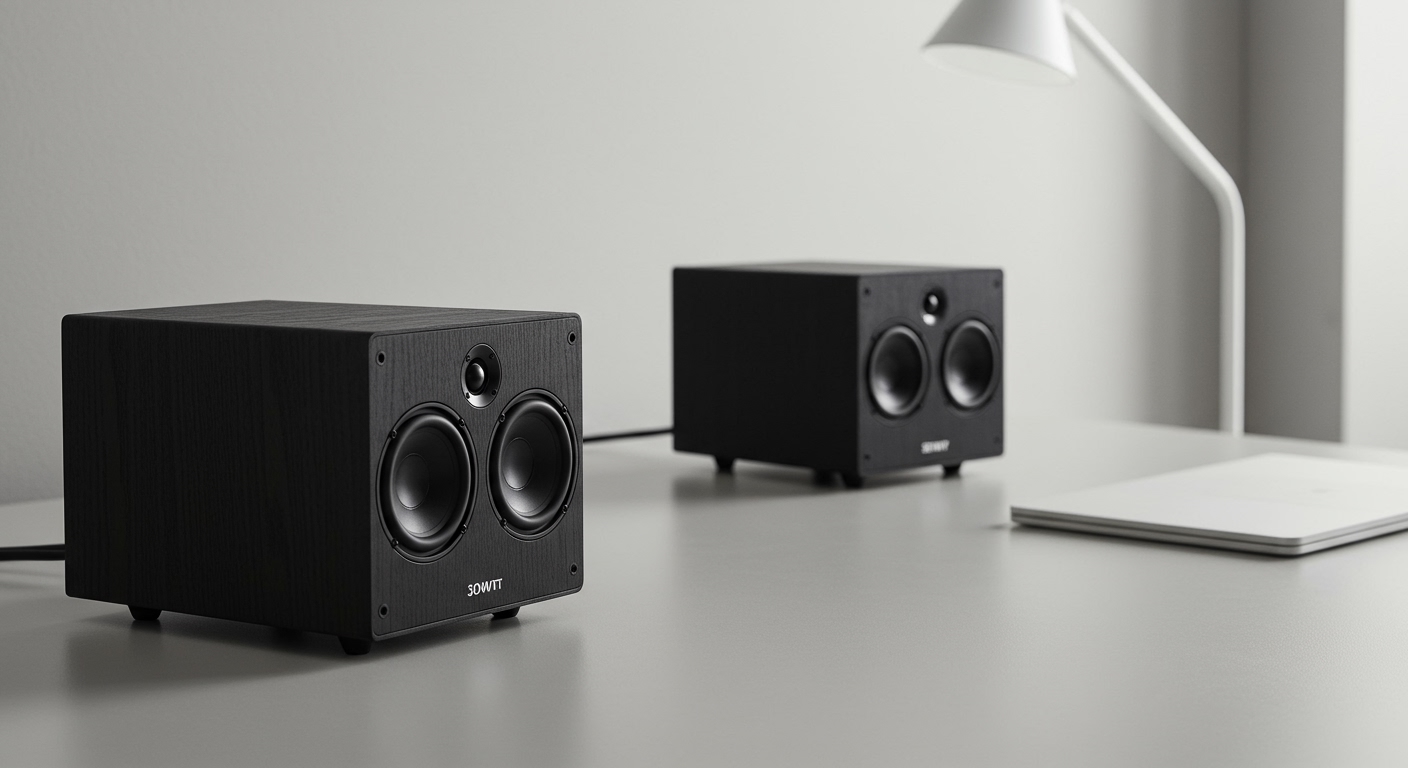
- Place Them Close: For the initial pairing, place the two speakers about 1-3 feet (30-90 cm) apart on a table or shelf. You can move them farther apart after they are successfully linked.
- Clear Bluetooth Connections: Go into your phone, tablet, or computer’s Bluetooth settings. If you have previously connected to either speaker individually, find it in the list and select “Forget this Device.” This is a critical step to avoid confusion.
- Power Off Both Speakers: Ensure both speakers are completely off before you begin.
Step 2: Power On and Designate a Primary Speaker
Now, you’ll wake the speakers up and tell them which one will be in charge.
- Press and hold the Power button on both speakers until you hear the power-on chime and see the LED indicator lights turn on.
- Choose one speaker to be your Primary. This will typically be your Left channel speaker.
- On this chosen Primary speaker, press the Pair/Link button. It often has an icon with two interlocking rings or a Bluetooth symbol. The LED light should begin to flash rapidly in a specific color (often blue or white), indicating it’s searching for another speaker to link with.
Step 3: Link the Secondary Speaker
The second speaker will now automatically listen for the signal from the Primary.
- You do not need to press the Pair/Link button on the second speaker. It should automatically detect the Primary speaker’s pairing request.
- After a few seconds (it can take up to 30), you should hear an audible confirmation like a chime or a voice prompt saying “Paired” or “Connected.”
- Observe the LED lights. The Primary speaker’s light might continue to flash, while the Secondary speaker’s light will typically turn solid. This confirms the TWS link is established.
Step 4: Connect Your Phone or Audio Source
With the two speakers now linked together, you can connect your music source.
- Open the Bluetooth settings on your smartphone, tablet, or computer.
- Scan for new devices. You should only see one entry for your speakers in the list (e.g., “AR Santa Clara”). This is the Primary speaker broadcasting its availability.
- Select the speaker name to connect. You’ll hear another confirmation sound once the Bluetooth connection is successful.
- The LED light on the Primary speaker will now turn solid, indicating it’s connected to both the Secondary speaker and your device.
That’s it! You have successfully learned how to pair AR Santa Clara speakers together. Play some music with good stereo separation, and you’ll immediately hear the difference.
A Note on How to Pair AR Santa Cruz Speakers
We get a lot of questions from users asking how to pair AR Santa Cruz speakers. The great news is that the process is virtually identical to the Santa Clara model. Both speakers were designed with the same user-friendly TWS technology.
If you are trying to figure out how do you pair two AR Santa Cruz speakers together, simply follow the exact same steps outlined above. The button layout, indicator lights, and audio cues are consistent across both models, making it easy to own and operate either one.
Visual Guide: Understanding Your AR Speaker’s LED Lights
The blinking lights on your speakers aren’t random; they’re a language. Understanding them can help you diagnose any issue instantly. I’ve found this is one of the most helpful things for users who are new to TWS.
Here is a table breaking down the common light patterns:
| LED Light Status | Meaning | What You Should Do |
|---|---|---|
| Flashing Blue Rapidly | Speaker is in Bluetooth pairing mode, looking for a source device (phone, tablet). | Open your device’s Bluetooth menu and select the speaker to connect. |
| Flashing White/Blue Slowly | Speaker is in TWS linking mode, looking for its partner speaker. | This is normal during Step 3. Wait for the speakers to connect to each other. |
| Solid Blue | Speaker is successfully connected to your phone/tablet and is playing audio. | Nothing! Enjoy your music. |
| Solid White (on one speaker) | This speaker is the Secondary in a TWS pair and is linked to the Primary. | This is the correct state for the Secondary speaker in a pair. |
| Flashing Red Slowly | The battery is low. | Plug the speaker in to charge. |
| Solid Red (while plugged in) | The speaker is currently charging. | Wait for the light to turn off or change color, indicating a full charge. |
Common Problems When You Pair 2 AR Santa Clara Speakers Together (And How to Fix Them)
Even with a perfect process, technology can be tricky. Over the years, I’ve run into just about every issue imaginable when pairing speakers. Here are the most common problems and their solutions.
Problem: Speakers Won’t Link to Each Other
You’ve pressed the link button, but they just keep blinking and never confirm the TWS connection.
- Cause 1: Distance.