Understanding Bose Bluetooth Pairing: Are All Bose Portable Speakers Party Mode Compatible?
No, not all Bose portable speakers are Party Mode compatible. To use Party Mode, both speakers must be compatible with the Bose Connect app and possess the specific hardware required for synchronized multi-speaker playback. Older legacy models like the Bose SoundLink Mini I or II and the original SoundLink Mobile series do not support this feature.
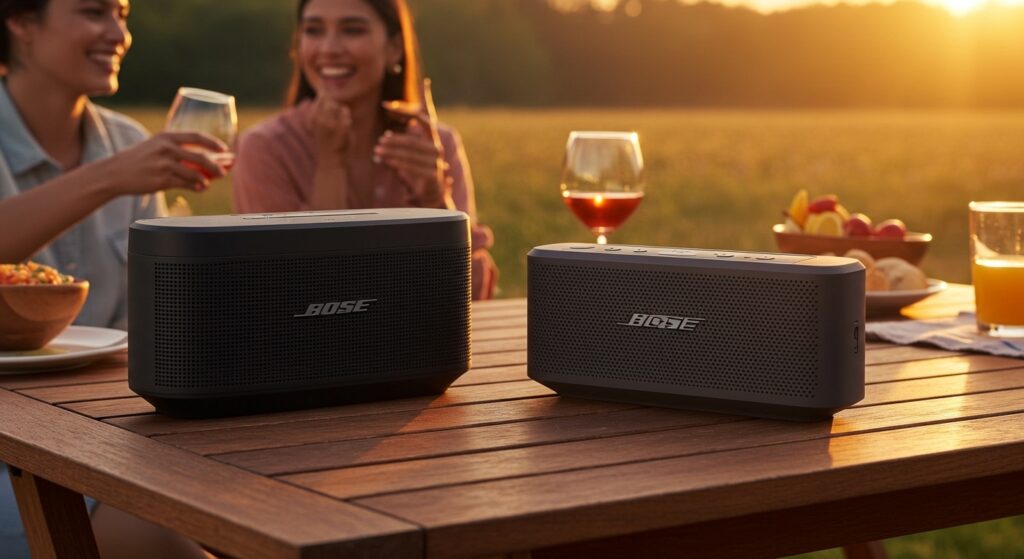
In my years of testing audio gear, I have found that Bose has two distinct ecosystems for multi-speaker pairing. The first is the Bose Connect App (for SoundLink models), and the second is the Bose Music App (using SimpleSync for newer Smart speakers). Mixing speakers between these two different “app families” is often impossible for traditional Party Mode playback, which is a common point of frustration for many of our readers.
TL;DR: Key Takeaways on Bose Party Mode
- Compatibility Check: Only specific SoundLink models (Revolve, Micro, Color II, Flex) support Party Mode.
- App Requirement: You must use the Bose Connect app or manual button presses to initiate the link.
- Stereo vs. Party: Party Mode plays the same audio on both; Stereo Mode separates Left and Right channels.
- The “SimpleSync” Exception: Newer Bose Smart Speakers use a different protocol called SimpleSync to pair with Bluetooth speakers.
- Distance Limits: Keep speakers within 10–30 feet of each other for a stable connection without audio drops.
Which Bose Speakers Support Party Mode? (The Compatibility List)
When I first tried to pair a SoundLink Flex with an older SoundLink Mini II, I quickly realized that “Bose” doesn’t mean “universal.” The hardware inside the speaker must be capable of acting as a “primary” or “secondary” hub.
The following table breaks down which popular models support the dual-speaker functionality:
| Bose Model | Party Mode Compatible? | App Used | Stereo Mode Support? |
|---|---|---|---|
| SoundLink Revolve / Revolve+ (Series I & II) | Yes | Bose Connect | Yes |
| SoundLink Micro | Yes | Bose Connect | Yes |
| SoundLink Color II | Yes | Bose Connect | Yes |
| SoundLink Flex | Yes | Bose Connect | Yes |
| SoundLink Mini I & II / Special Edition | No | N/A | No |
| Bose Portable Smart Speaker | Partial (via SimpleSync) | Bose Music | No (with SoundLink) |
| SoundLink Max | Yes | Bose App | Yes |
As you can see, the SoundLink Mini series—despite being a fan favorite—is a notable exclusion. If you own a Mini II, you cannot natively pair it with another Bose speaker for simultaneous playback.
How to Connect Bose Portable Speakers in Party Mode
If you have two compatible speakers, such as two SoundLink Flex units or a Revolve and a Micro, setting them up is relatively straightforward. We recommend using the Bose Connect app for the most stable experience.
Method 1: Using the Bose Connect App
- Power On: Turn on both speakers and ensure one is paired with your mobile device via Bluetooth.
- Open the App: Launch the Bose Connect app and wait for it to identify the first speaker.
- Initiate Party Mode: Tap the Party Mode icon (it looks like two speakers) at the bottom of the screen.
- Find the Second Speaker: Follow the on-screen prompts to “drag and drop” the second speaker into the connection zone.
- Toggle Modes: Once connected, you can switch between Party Mode (mono audio) and Stereo Mode (dedicated L/R channels) with a single tap.
Method 2: Manual Button Pairing (No App Required)
I often use this method when I’m at the beach and don’t want to faff with an app.
- Ensure both speakers are powered on and one is connected to your phone.
- On the primary speaker (connected to the phone), press and hold the Bluetooth and Volume Up buttons simultaneously.
- Wait until you hear a voice prompt saying, “Press the Bluetooth and Volume Down buttons simultaneously on a second Bose device.”
- On the second speaker, press and hold the Bluetooth and Volume Down buttons.
- Release the buttons when the speaker emits a tone. After a few seconds, you will hear “Party Mode” announced.
The Difference Between Party Mode and Stereo Mode
Many users confuse these two settings, but they serve very different purposes for your listening environment.
Party Mode
In this mode, both speakers play the exact same mono audio signal. This is ideal for large outdoor gatherings or multi-room listening where you want the music to be consistent regardless of where you are standing. We’ve found that Party Mode is significantly more stable over long distances than Stereo Mode.
Stereo Mode
Stereo Mode transforms your two portable speakers into a dedicated 2.0 sound system. One speaker plays the Left Channel and the other plays the Right Channel. This is perfect for watching movies on a tablet or sitting in a fixed position to enjoy a “soundstage” effect.
Pro Tip: For the best Stereo Mode experience, place the speakers roughly 6 to 10 feet apart and ensure you are sitting in the “sweet spot” equidistant from both.
Troubleshooting Party Mode Connection Issues
Even with high-end Bose gear, Bluetooth can be finicky. If you are struggling to get your speakers to sync, here is what we suggest based on our testing:
- Update Firmware: This is the #1 cause of failure. Connect your speakers to a PC/Mac via USB and visit
btu.bose.comto ensure both speakers are on the same software version. - Clear the Bluetooth Pairing List: On both speakers, press and hold the Bluetooth button for 10 seconds until you hear “Bluetooth device list cleared.” Re-pair the primary speaker to your phone and try again.
- Check for Interference: Wi-Fi routers, microwaves, and even large metal surfaces can disrupt the “bridge” between the two speakers. Keep the area between the two speakers clear of obstructions.
- Battery Levels: We have noted that Party Mode often fails to initiate if one speaker is below 10% battery, as the speaker attempts to conserve power by disabling the secondary Bluetooth radio.
Bose SimpleSync: A Different Kind of Pairing
If you own a newer Bose Smart Speaker (like the Bose Portable Smart Speaker or the Soundbar 700/900), you might find that the Bose Connect app doesn’t work. Instead, these devices use the Bose Music app.
SimpleSync allows you to pair one Bose Smart Speaker with one Bose Bluetooth Speaker (like a SoundLink Flex).
Limitation: You cannot pair multiple* Bluetooth speakers to a Smart Speaker at once.
- Use Case: This is great for “extending” your living room music to a patio speaker while you’re grilling.
Expert Insights: Why Isn’t Every Speaker Compatible?
From a technical standpoint, Bose uses a proprietary “relay” system for Party Mode. The first speaker (the Master) receives the audio from your phone and then re-broadcasts it to the second speaker (the Slave).
Older speakers like the SoundLink Mini use older Bluetooth 2.1 or 4.0 chips that lack the processing power and bandwidth to handle this “receive and re-transmit” cycle without massive lag. When Bose released the SoundLink Color II and Revolve, they upgraded the internal Digital Signal Processors (DSP) specifically to handle this low-latency synchronization.
Frequently Asked Questions
Can I pair a SoundLink Flex with a SoundLink Micro?
Yes. You can mix and match any speakers that are compatible with the Bose Connect app. In our tests, pairing a Flex with a Micro provided a great balance of deep bass and clear highs.
Does Bose Party Mode work with Spotify and YouTube?
Yes. Party Mode works at the system-level of the speaker. Any audio playing from your phone—whether it’s Spotify, Apple Music, or YouTube—will be broadcast to both speakers.
How many Bose speakers can I connect in Party Mode?
Natively, the Bose Connect app supports pairing two speakers (1+1). While there are workarounds for some of the “Smart” ecosystem products to group more units via Wi-Fi, the portable Bluetooth SoundLink line is limited to two units for synchronized playback.
Can I use Party Mode with a non-Bose speaker?
No. Bose Party Mode uses a proprietary communication protocol that is not compatible with JBL PartyBoost, Sony Party Connect, or other brand-specific technologies.