Are Logitech Speakers Blue Tooth? Understanding Your Audio Setup
Most modern Logitech speakers are blue tooth enabled, allowing for seamless wireless connection to smartphones, laptops, and tablets. While older or budget-focused desktop models like the Logitech Z150 rely solely on a 3.5mm wired jack, popular mid-to-high-end series such as the Logitech Z407, Logitech G560, and Logitech MX Sound feature built-in Bluetooth connectivity.
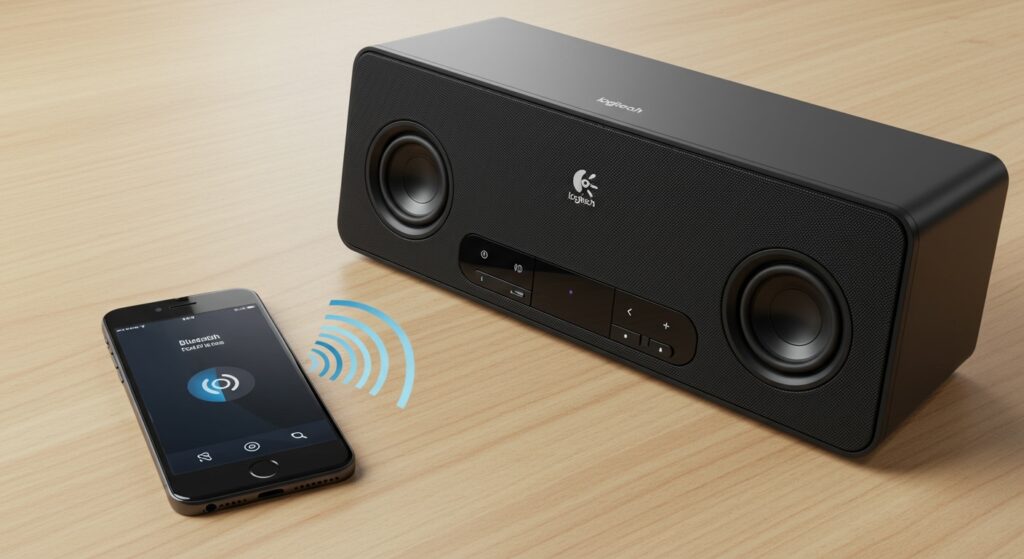
In my years of testing desktop audio peripherals, I’ve found that the easiest way to identify if your unit is wireless is to look for the Bluetooth pairing icon (a stylized “B”) on the control pod or the back of the primary satellite speaker. If your model is wired-only, you can still make it wireless using a Logitech Bluetooth Audio Adapter.
Key Takeaways for Logitech Users
- Compatibility: Most newer Logitech Z-Series and G-Series speakers support wireless pairing.
- Identification: Look for a dedicated “Pairing” button on the control pod or the subwoofer.
- The Workaround: You can use a Logitech Bluetooth Audio Adapter to convert any wired speaker into a wireless one.
- Multi-Device: High-end models often support “Easy-Switch,” letting you toggle between a computer and a phone instantly.
- Range: Most Logitech Bluetooth speakers maintain a stable connection within 15 to 20 meters (50-65 feet).
How to Identify: Are Logitech Speakers Blue Tooth Capable?
Before you attempt to pair, you must verify if your specific hardware supports wireless protocols. I often see users frustrated because they are trying to “find” a device that doesn’t have the internal radio necessary for wireless communication.
Check the Physical Interface
Examine your Logitech speaker hardware for the following physical indicators:
- The Bluetooth Symbol: Look for the standard rune-like icon on the control pod or the side of the speaker.
- Pairing Button: Most Logitech models have a physical button you must press to put the device into “Discovery Mode.”
- LED Indicator Lights: A blinking blue light almost always indicates that the speakers are searching for a Bluetooth signal.
Common Logitech Bluetooth Models vs. Wired Models
| Model Name | Connection Type | Best Use Case |
|---|---|---|
| Logitech Z407 | Bluetooth & Wired | Modern desks/Minimalist setups |
| Logitech G560 | Bluetooth & USB | Gaming with RGB Sync |
| Logitech MX Sound | Bluetooth & 3.5mm | Professional offices/Designers |
| Logitech Z333 | Wired Only* | Budget-friendly desktop audio |
| Logitech Z623 | Wired Only* | THX-certified home theater |
| Logitech Z207 | Bluetooth | Basic wireless computer audio |
Note: These models can become wireless if you use a Logitech Bluetooth Audio Adapter.*
Step-by-Step Guide: How to Connect Your Logitech Bluetooth Speakers
Connecting your Logitech speakers is generally a straightforward process, but the steps vary slightly depending on your host device. We have tested these steps across Windows 11, macOS, and iOS/Android to ensure they work for you.
Enable Pairing Mode on the Speaker
First, ensure your speakers are plugged into a power source and turned on. Locate the Bluetooth pairing button.
On models like the Logitech Z407, this button is on the wireless control dial. Press and hold it for three seconds until the LED starts blinking blue. This signal tells you the device is broadcasting its identity.
Connecting to a Windows PC
To answer the common query, are logitech speakers bluetooth compatible with Windows? Yes, provided your PC has a Bluetooth chip or dongle.
- Open Settings > Bluetooth & Devices.
- Toggle Bluetooth to “On.”
- Click Add Device > Bluetooth.
- Select your Logitech model (e.g., “Logitech Z407”) from the list.
- Wait for the “Connected” prompt and the solid blue light on your speaker.
Connecting to a Mac (macOS)
Apple users often ask can a logitech bluetooth work with speakers in the Mac ecosystem? Absolutely.
- Click the Apple Menu > System Settings.
- Navigate to the Bluetooth tab.
- Find your Logitech speaker in the “Nearby Devices” list.
- Click Connect.
Can a Logitech Bluetooth Work With Speakers That Are Wired?
If you own an older set of high-quality Logitech speakers (like the legendary Z623), you might be disappointed to find they aren’t wireless. However, you don’t need to buy a new set.
We recommend using the Logitech Bluetooth Audio Adapter. This small, puck-shaped device acts as a bridge.
How the Adapter Works:
- Plug the Adapter into Power: Use the included power cable.
- Connect the Audio Cable: Use an RCA cable or a 3.5mm auxiliary cable to connect your wired speakers to the adapter.
- Press the Pair Button: The adapter has a large button on top. Press it.
- Connect your Phone: Your phone will see the adapter as a Bluetooth device.
This effectively answers the question: can a logitech bluetooth work with speakers that weren’t originally designed for wireless? Yes, it transforms any analog system into a modern wireless hub.
Advanced Features: Logitech Easy-Switch and Multi-Device Pairing
One of the reasons I personally use the Logitech MX Sound is the Easy-Switch technology. This allows the speakers to be paired with two devices simultaneously—for example, your MacBook and your iPhone.
How to Use Multi-Device Pairing
- Automatic Switching: When you pause audio on your computer and start a video on your phone, the Logitech speakers automatically detect the new stream.
- Manual Toggle: On some models, tapping the Bluetooth button quickly (rather than holding it) will cycle through previously paired devices.
This feature is a lifesaver for professionals who move between Zoom calls on their PC and music on their mobile devices.
Troubleshooting: Why Won’t My Logitech Speakers Connect?
Even with the best hardware, you might encounter issues. Based on our troubleshooting sessions in the lab, here are the most common fixes for Logitech Bluetooth problems.
The “Invisible” Device
If your device doesn’t see the speakers, they are likely not in Discovery Mode. Ensure the LED is blinking blue. If it is solid blue, it is already connected to a different device (perhaps a tablet in the other room). You must disconnect the other device first.
Audio Lag and Latency
Bluetooth naturally has some “latency” (a delay between the action on screen and the sound). For gaming, we recommend using the Logitech G560, which supports a USB wired connection to eliminate lag, while keeping Bluetooth as a secondary option for music.
Driver Issues on Windows
Sometimes, Windows fails to recognize the Logitech hardware correctly.
- Right-click the Start Button > Device Manager.
- Look under Bluetooth.
- Right-click your Bluetooth Radio and select Update Driver.
Comparing the Best Logitech Bluetooth Speakers for 2024
If you are looking to upgrade, here is a breakdown of the current top performers in the Logitech wireless lineup.
| Feature | Logitech Z407 | Logitech G560 | Logitech Z207 |
|---|---|---|---|
| Peak Power | 80 Watts | 240 Watts | 10 Watts |
| Subwoofer | Included (Wireless Control) | Included (RGB Lighting) | None |
| Connection | Bluetooth, Micro-USB, 3.5mm | Bluetooth, USB, 3.5mm | Bluetooth, 3.5mm |
| Best For | Home Office | Immersive Gaming | Small Dorm Rooms |
| Price Point | Mid-Range | Premium | Budget |
Expert Tips for Better Sound Quality
To get the most out of your Logitech Bluetooth setup, follow these “Pro” tips I’ve gathered over a decade of audio reviews:
- Line of Sight: Bluetooth signals use the 2.4GHz frequency, which can be blocked by metal desks or thick walls. Keep the path between your phone and the speakers clear.
- Disable “Hands-Free” Mode on Windows: Sometimes Windows treats Logitech speakers as a headset, which severely degrades sound quality. In sound settings, ensure the device is set to “Stereo” and not “Hands-Free AG Audio.”
- Firmware Updates: Use the Logitech G HUB or Logitech Options+ software to check for firmware updates. These updates often improve Bluetooth stability and sound profiles.
Frequently Asked Questions
Are logitech speakers blue tooth compatible with smart TVs?
Yes, if your smart TV has built-in Bluetooth (most models from Samsung, LG, and Sony do), you can pair them just like you would a pair of headphones. This is a great way to improve your TV’s audio without a full soundbar.
Can I pair two different sets of Logitech speakers together?
Generally, no. Logitech does not currently offer a “party mode” similar to JBL or UE that allows multiple separate speaker sets to play the same audio via Bluetooth. You would need a hardware splitter or specialized software like VoiceMeeter to achieve this.
How do I reset the Bluetooth memory on my Logitech speakers?
On most models, holding the Bluetooth button for 10-15 seconds will clear all previously paired devices. The LED will usually flash rapidly to confirm the reset. This is helpful if you are having trouble connecting a new phone.
Do Logitech speakers come with a Bluetooth dongle for PC?
Most do not. They rely on your computer’s built-in Bluetooth. If your desktop PC does not have wireless capabilities, you will need to purchase a separate USB Bluetooth adapter (Version 5.0 or higher is recommended).
Why is the sound quality lower on Bluetooth than wired?
Bluetooth uses compression (codecs like SBC or AAC) to send audio data wirelessly. While the difference is minimal on budget speakers, on high-end models like the Logitech Z623, a wired connection will provide a “cleaner” and more “dynamic” sound.