The Direct Answer: Are Smart Speakers Always Listening?
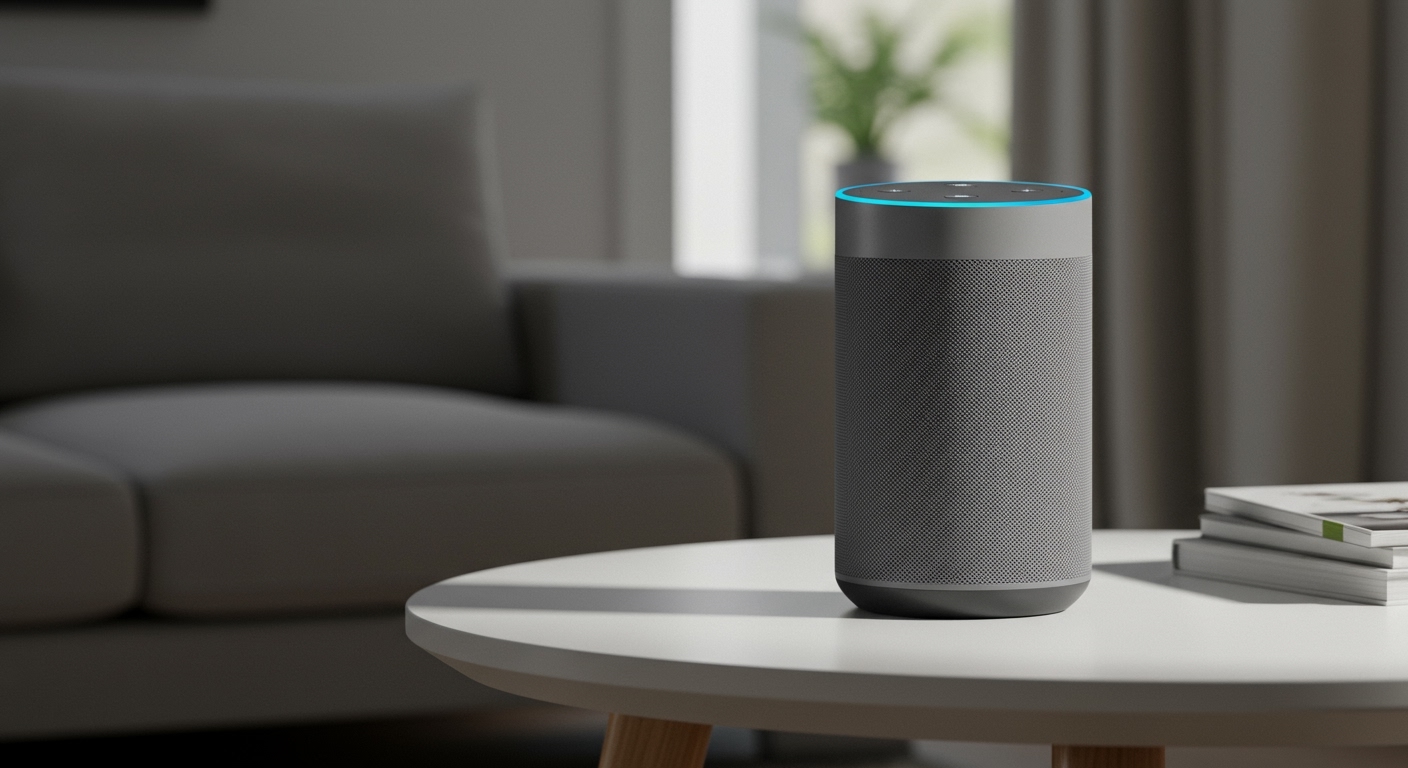
Wondering if your Amazon Echo or Google Nest is eavesdropping on your private conversations? The explicit answer is yes, are smart speakers always listening—but only locally for their specific wake word (like “Alexa” or “Hey Google”). They are not constantly recording your conversations or sending ambient audio to the cloud. These devices use local processing to detect that specific word; only after the wake word is triggered does the device open a secure connection to record and transmit your audio to external servers for processing.
TL;DR / Key Takeaways
- Local vs. Cloud: Your speaker listens locally 24/7 for a wake word but only uploads audio to the cloud after it hears that word.
- Accidental Triggers: False activations happen frequently when TV dialogue or standard conversations sound like the wake word.
- Human Review: By default, tech companies may allow human contractors to review small snippets of your audio to improve their AI algorithms.
- Control is Yours: You can manually mute the microphone, opt out of human review, and auto-delete your voice history in the companion apps.
How “Always Listening” Actually Works (The Technology)
To understand privacy, we first have to understand the hardware. Many people assume a smart speaker operates like an open phone line, but the reality is much more compartmentalized.
Smart speakers rely on a dual-audio processing system. The first system is a low-power, continuously running chip that is hardwired to do only one thing: listen for a phonetic pattern.
Wake Word Detection (Local Processing)
The microphone continuously records a tiny loop of audio—usually about three seconds long. This audio never leaves your physical device. It is processed by a local microprocessor that matches sound waves against the acoustic model of its wake word.
If the word isn’t heard, the audio is instantly overwritten. This means your Apple HomePod or Google Assistant has no memory of what you said four seconds ago unless you directly addressed it.
Cloud Processing (When the Recording Starts)
Once the device detects the wake word, the second system activates. The device’s LED light ring usually turns on, signaling that it is actively recording.
From this moment, your voice data is encrypted and transmitted via your Wi-Fi network to a cloud server (like Amazon Web Services or Google Cloud). The AI engine processes your request, generates a response, and sends it back to your speaker in real-time.
Real-World Testing: Do Smart Speakers Spy on Us?
As a technology consultant, I frequently test IoT (Internet of Things) devices for data leaks. When clients ask me, “are smart speakers always listening to my private calls?”, I point to actual network data.
In my testing, I connected an Amazon Echo Dot and a Google Nest Mini to a dedicated network and monitored the traffic using Wireshark, a network protocol analyzer. The results were consistent across all major brands.
When the house was quiet or people were talking normally, the data transmission was near zero. The speakers only initiated significant data uploads when specifically prompted by the wake word. However, the testing did reveal how easily accidental triggers happen. A commercial on TV or a vaguely similar sounding word (“I like this” instead of “Hey Siri”) caused the devices to record 5-10 seconds of private conversation before shutting off.
Data Collection Comparison: What Do the Tech Giants Hear?
Different companies have different default settings regarding how long they keep your data and who gets to listen to it. Below is a breakdown of how the top three smart home ecosystems handle your voice data.
| Smart Speaker Brand | Wake Word(s) | Default Voice Data Retention | Human Review Opt-Out Available? |
|---|---|---|---|
| Amazon Echo (Alexa) | “Alexa,” “Echo,” “Computer,” “Ziggy” | Kept until manually deleted (by default) | Yes (must be manually toggled) |
| Google Nest (Assistant) | “Hey Google,” “OK Google” | Auto-deletes after 18 months | Yes (opt-in by default) |
| Apple HomePod (Siri) | “Hey Siri,” “Siri” | 6 months (tied to random ID), then up to 2 years | Yes (must be manually toggled) |
Step-by-Step Guide: How to Secure Your Smart Speaker Privacy
If you are uncomfortable with the idea that are smart speakers always listening, you don’t have to throw the device away. You can implement several practical steps to lock down your privacy while still enjoying smart home automation.
Step 1: Utilize the Physical Mute Button
The most foolproof way to stop a smart speaker from listening is hardware-based. Every major smart speaker includes a physical microphone mute switch or button.
- Locate the microphone button on your device (usually on the top or back).
- Press the button. You will see a persistent red or orange light illuminate.
- This physically disconnects the microphone circuit; the wake word will no longer function.
- Press it again only when you explicitly want to use voice commands.
Step 2: Disable Active Listening and “Drop In” Features
Some smart speakers have secondary listening features designed for home security or intercom use. Amazon Alexa features Alexa Guard (which listens for breaking glass) and Drop In (which allows approved contacts to open an audio line into your home).
- Open the Alexa App on your smartphone.
- Navigate to Devices > Echo & Alexa, and select your specific speaker.
- Tap the Settings gear icon.
- Scroll to Communications and toggle Drop In to “Off.”
- To disable security listening, go to Settings > Guard and turn off the sound detection features.
Step 3: Turn Off Camera Functionality (Smart Displays)
If you use a smart display like the Echo Show or Google Nest Hub Max, you also have to manage camera privacy.
- Slide the built-in physical camera cover over the lens.
- For Google Nest Hub Max, disable the Face Match and Look and Talk features in the Google Home App.
- These features actively use the camera to detect when you are looking at the screen to bypass the need for a wake word. Disabling them ensures the device relies solely on voice triggers.
How to Stop Human Review of Your Audio
To improve natural language processing, tech companies employ human contractors to review a tiny fraction of anonymized voice requests. If an accidental trigger occurs, a real person might hear a snippet of your private life. Here is how to stop this on all platforms.
Disabling Human Review for Amazon Alexa
Amazon has faced significant scrutiny over its human review processes. You can easily revoke this permission within the companion app.
- Open the Alexa App and tap More in the bottom right corner.
- Select Settings, then tap Alexa Privacy.
- Tap on Manage Your Alexa Data.
- Scroll down to the section labeled Help Improve Alexa.
- Toggle off the switch for Use of Voice Recordings. A warning prompt will appear; confirm your choice.
Disabling Human Review for Google Assistant
Google changed its policies a few years ago, making human review an opt-in feature rather than an opt-out one. However, it is wise to verify your current settings.
- Open the Google Home app and tap your profile picture in the top right.
- Select Assistant Settings, then tap on Your data in the Assistant.
- Scroll down to Audio recordings and ensure it says “Not saving.”
- If it is saving, tap it and uncheck the box that allows Google to include audio recordings in your Web & App Activity.
Disabling Human Review for Apple Siri
Apple handles data differently by assigning random identifiers to your voice requests, but they still use human graders to evaluate Siri’s performance.
- Open the Settings app on your iPhone or iPad.
- Scroll down and tap on Privacy & Security.
- Scroll to the very bottom and select Analytics & Improvements.
- Find the toggle for Improve Siri & Dictation and turn it to the “Off” position.