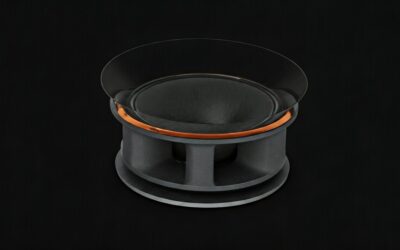
Are There Speakers on ViewSonic Monitors?
Most ViewSonic monitors feature built-in speakers, particularly those designed for gaming, office productivity, and entertainment. While professional ColorPro models and budget-friendly VA series units occasionally omit them to prioritize screen real estate or cost, the majority of the VX, VG, and Omni lineups include integrated audio drivers.
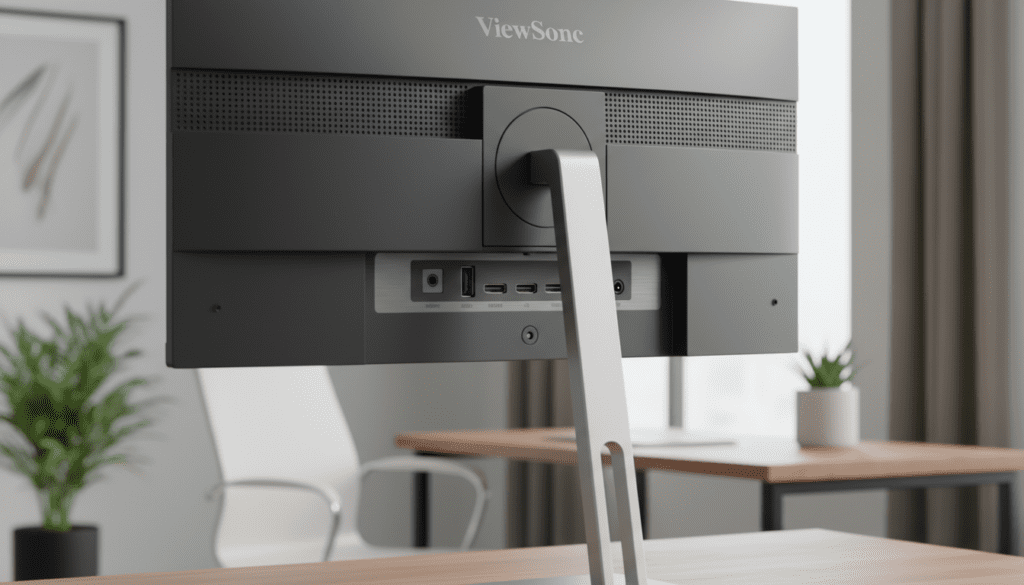
To determine if your specific model has audio capabilities, you should look for small speaker grilles on the back or bottom of the panel, or check the On-Screen Display (OSD) menu for volume controls. In our hands-on testing with the ViewSonic OMNI VX2728J, we found that while internal speakers are convenient for notifications and casual video watching, they typically lack the bass response required for immersive gaming or high-fidelity music.
TL;DR: Key Takeaways
- Availability: Most VG, VX, and Omni series have them; entry-level VA models often do not.
- Connection: Audio is usually delivered via HDMI or DisplayPort cables; no extra audio cable is required.
- Quality: Most integrated speakers are 2-watt or 3-watt units—sufficient for office work but not for cinema-grade audio.
- Control: Volume is managed via the physical buttons on the monitor or the Windows/macOS taskbar.
Are There Speakers on ViewSonic Monitors? How to Identify Your Model
When clients ask us, “Are there speakers on ViewSonic monitors?” the answer depends largely on the product “Series” prefix. ViewSonic categorizes its monitors into distinct groups based on the intended user.
We have categorized the most common series below to help you identify if your hardware likely includes built-in sound:
ViewSonic Series Comparison Table
| Series Name | Primary Use Case | Built-in Speakers? | Typical Wattage |
|---|---|---|---|
| ViewSonic OMNI (VX) | Gaming & Entertainment | Yes (Mostly) | 2W – 3W Stereo |
| ViewSonic ELITE (XG) | High-End Gaming | Yes | 3W – 5W Stereo |
| ViewSonic VG Series | Professional Office | Yes | 2W Stereo |
| ViewSonic VA Series | Budget/Home Office | Varies | 0W – 2W (Check Model) |
| ViewSonic ColorPro (VP) | Color-Critical Design | Rarely | N/A |
| ViewSonic TD Series | Touchscreen/Kiosk | Yes | 2W – 3W Stereo |
Physical Inspection: Looking for the Hardware
If you aren’t sure of your model number, I recommend a quick physical inspection. Look for these three indicators:
- Speaker Grilles: Turn the monitor around. Look for perforated plastic sections usually located near the top or bottom of the rear casing.
- Audio-Out Port: Look for a 3.5mm headphone jack. If the monitor has an “Audio Out” but no speakers, it acts as a passthrough for your HDMI sound.
- The OSD Menu: Press the physical menu button on your monitor. If you see a Volume or Audio icon that isn’t greyed out, your monitor has internal speakers.
How to Enable and Test Your ViewSonic Monitor Speakers
Knowing the answer to “Are there speakers on ViewSonic monitors?” is only the first step. Often, users assume their speakers are broken when they are simply not selected as the primary output device in Windows or macOS.
Step 1: Digital Configuration
Because HDMI and DisplayPort carry both video and audio signals, your computer might still be trying to send sound to your motherboard’s “Line Out” rather than the screen.
- For Windows 10/11: Click the Speaker Icon in the bottom right taskbar. Click the “Select playback device” arrow and choose ViewSonic PJ-MSD (or your specific model name).
- For macOS: Go to System Settings > Sound > Output. Select your ViewSonic monitor from the list of devices.
Step 2: On-Screen Display (OSD) Adjustments
We have seen many cases where the monitor hardware volume is set to zero out of the box.
- Reach behind the monitor or under the bottom bezel to find the Menu buttons.
- Navigate to the Audio Menu.
- Ensure Mute is off and the Volume is set to at least 70%.
Step 3: Cable Check
If you are using a VGA or DVI cable, these do not carry audio. You must use a separate 3.5mm male-to-male audio cable connecting your PC’s green audio port to the monitor’s “Audio In” port. If you are using HDMI, DisplayPort, or USB-C (DP Alt Mode), a single cable handles everything.
Why Some ViewSonic Monitors Lack Speakers
You might wonder why a high-end ViewSonic ColorPro VP2785-4K wouldn’t include speakers while a cheaper gaming model does. In our experience working with professional editors, there are three main reasons:
- Bezel Thickness: Integrated speakers require physical depth. To achieve “borderless” designs, manufacturers often remove the speaker drivers.
- Vibration Interference: High-end professional monitors are sensitive to heat and vibration. In theory, the physical movement of a speaker cone could cause micro-vibrations affecting the stability of the panel or internal calibration sensors.
- Target Audience: A graphic designer or video editor is almost certainly using high-fidelity studio monitors or open-back headphones. Including 2-watt speakers in a $1,000 professional display is often seen as unnecessary “fluff” by the manufacturer.
Expert Perspective: Internal Speakers vs. External Solutions
While we have established that many ViewSonic monitors have speakers, the question remains: should you use them?
When to Use Internal ViewSonic Speakers:
- Office Environment: For hearing Microsoft Teams notifications or watching a quick tutorial video.
- Minimalist Setup: If you have a small desk and want to avoid cable clutter.
- Temporary Solution: While waiting for your dedicated soundbar or headset to arrive.
When to Upgrade to External Audio:
- Immersive Gaming: Internal speakers lack the “spatial awareness” needed for games like Call of Duty or Valorant.
- Content Creation: You cannot accurately mix audio for a YouTube video using the flat, mid-heavy sound profile of a built-in monitor driver.
- Bass-Heavy Music: Integrated speakers are physically too small to produce low-end frequencies (bass).
Troubleshooting: Why is There No Sound?
If you’ve confirmed that there are speakers on ViewSonic monitors like yours, but you hear nothing, follow this checklist based on our common support tickets:
- Check the “Mute” State: Many ViewSonic OMNI monitors have a “Quick Mute” shortcut on the physical buttons. Toggle it to ensure it wasn’t accidentally triggered.
- Update Graphics Drivers: Audio over HDMI/DisplayPort is handled by your GPU driver (NVIDIA, AMD, or Intel). An outdated driver can cause the “Digital Audio” output to disappear from your playback list.
- Test with Another Device: Plug a console like a Nintendo Switch or PlayStation 5 into the monitor. If the sound works there, the issue is with your PC settings, not the monitor hardware.
- Sample Rate Mismatch: Sometimes Windows sets the sample rate too high for the monitor to handle. Go to Sound Properties > Advanced and set the format to 16-bit, 44100 Hz (CD Quality).
Frequently Asked Questions (FAQ)
Can I connect external speakers directly to my ViewSonic monitor?
Yes. Most ViewSonic models that support audio have a 3.5mm Audio Out jack. You can plug your speakers or headphones directly into the monitor, which is especially useful if your PC tower is located far away under the desk.
Do ViewSonic gaming monitors (OMNI/ELITE) have better speakers?
Generally, yes. While a standard VG office monitor might have 2W speakers, the ELITE series often features 5W drivers or enhanced tuning. However, they still will not outperform a dedicated $20-$30 pair of desktop speakers.
My ViewSonic monitor doesn’t have a volume button. How do I change the sound?
You must enter the OSD (On-Screen Display) menu using the buttons on the back or bottom. Once inside, look for the Audio or Setup Menu. Alternatively, you can control the volume directly via your computer’s OS, provided the monitor’s internal volume isn’t set to zero.
Does DisplayPort carry audio to ViewSonic monitors?
Yes, DisplayPort supports multi-channel digital audio. If your ViewSonic monitor has speakers, a single DisplayPort cable will transmit both the 144Hz+ video signal and the audio signal simultaneously.
Can I use the monitor speakers for a PS5 or Xbox?
Absolutely. This is one of the biggest benefits of having built-in speakers. Simply connect the console via HDMI, and the monitor will automatically decode the audio signal and play it through the integrated speakers.