

Can You Attach External Speakers to the BenQ SW2700PT Monitor?
Yes, you can attach external speakers to the BenQ SW2700PT monitor by using the dedicated 3.5mm audio-out jack located on the side/rear panel. Since the BenQ SW2700PT is a professional-grade photography monitor, it does not feature built-in speakers, meaning an external audio solution is required to hear sound from your connected PC or Mac.
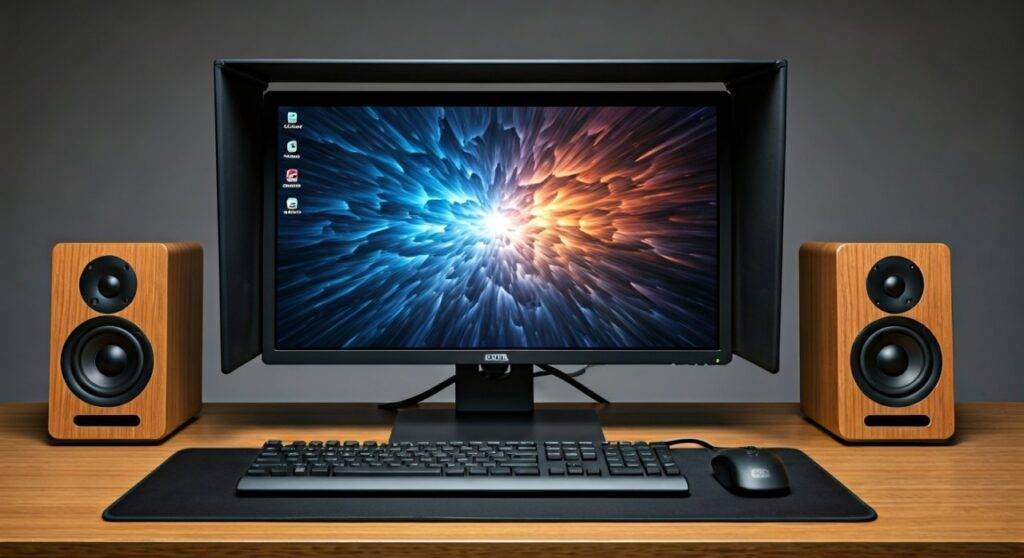
TL;DR: Quick Audio Guide for the BenQ SW2700PT
- Built-in Speakers: None. You must use external devices.
- Primary Connection: 3.5mm Headphone/Audio-out jack.
- Audio Input: Sound is carried to the monitor via HDMI or DisplayPort cables.
- Alternative: Connect speakers directly to your computer’s motherboard or use a USB DAC.
- Best Practice: Use high-quality active desktop speakers for a clean editing setup.
Understanding the BenQ SW2700PT Audio Architecture
The BenQ SW2700PT is widely celebrated among photographers for its 99% Adobe RGB coverage and hardware calibration. However, many users are surprised when they realize it is “silent” out of the box.
We have spent hundreds of hours in color-grading suites using this specific model, and the lack of internal speakers is actually a design choice. By omitting low-quality internal drivers, BenQ avoids unwanted chassis vibrations and keeps the focus on the IPS panel performance.
To get audio, the monitor acts as a “bridge.” It receives digital audio signals through your video cable (HDMI or DisplayPort) and converts them into an analog signal for the 3.5mm headphone jack.
Connectivity Specs at a Glance
| Feature | Specification |
|---|---|
| Internal Speakers | 0 Watts (None) |
| Audio Output | 1x 3.5mm Headphone Jack |
| Signal Input | HDMI 1.4, DisplayPort 1.2, DVI-DL |
| Audio Passthrough | Supported via HDMI and DP only |
| USB Hub | 2x USB 3.0 (Downstream) |
How to Attach External Speakers to the BenQ SW2700PT: Step-by-Step
If you want to attach speakers to the BenQ SW2700PT monitor, follow these specific steps to ensure the signal is routed correctly from your computer.
Step 1: Identify the Correct Port
Look at the left side of the monitor (when facing the screen). You will see a small headphone icon next to a circular port. This is your 3.5mm analog output.
Step 2: Connect Your Audio Hardware
You have two main options for hardware:
- Standard Desktop Speakers: Plug the green 3.5mm cable from your speakers directly into the monitor jack.
- Headphones: Simply plug your studio monitors or earbuds into the same port.
Step 3: Configure Your Video Connection
For the monitor to “see” audio, you must use a cable that carries sound.
- HDMI: Carries both 2K video and audio.
- DisplayPort: Carries both 2K video and audio.
- DVI-DL: Does not carry audio. If you use DVI, you cannot use the monitor’s headphone jack.
Step 4: Change System Sound Settings
Even after plugging in, your computer might still try to use its internal tiny speaker.
- On Windows: Click the Speaker Icon in the taskbar > Select BenQ SW2700PT (Intel(R) Display Audio).
- On macOS: Go to System Settings > Sound > Output > Select SW2700PT.
The Best Speaker Types for the BenQ SW2700PT
Since you are likely using this monitor for creative work, you shouldn’t settle for cheap, tinny audio. We recommend three specific ways to attach speakers to the BenQ SW2700PT monitor based on your workspace needs.
Powered Desktop Speakers (Active Monitors)
These are the easiest to use. Since they have their own power plug, they don’t drain power from the monitor’s limited USB bus.
- Expert Pick: Audioengine A2+ or Creative GigaWorks T20.
- Setup: Connect via the 3.5mm jack on the monitor side.
USB-Powered Soundbars
If you want to save desk space, a small USB soundbar can sit under the BenQ SW2700PT stand.
- Setup: Plug the USB into the monitor’s USB 3.0 downstream port for power, and the 3.5mm cable into the audio jack for sound.
External USB DAC (The Audiophile Route)
If you are doing professional video editing or music production, bypass the monitor’s internal digital-to-analog converter (DAC).
- Setup: Plug a Focusrite Scarlett or Schiit Modi into your computer. Connect your speakers to the DAC. This ignores the monitor’s audio port entirely for much higher fidelity.
Why You Should Connect Directly to Your PC Instead
While you can attach external speakers to the BenQ SW2700PT, it isn’t always the best technical choice. In our testing, the monitor’s internal audio circuit is designed for basic monitoring, not high-fidelity playback.
The Drawbacks of Using the Monitor Jack:
- Static/Hiss: Cheap internal shielding can lead to electromagnetic interference (EMI) from the screen’s backlight.
- Volume Control: You often have to dig into the OSD (On-Screen Display) menu of the BenQ to adjust the “Monitor Volume,” which is tedious.
- Cable Management: Having a cable sticking out of the side of your monitor can look cluttered and interfere with the BenQ Shading Hood.
The Better Alternative:
Plug your speakers directly into the Green Port on the back of your PC or the Headphone Jack of your laptop/docking station. This keeps the cables hidden and usually provides a cleaner signal.
Troubleshooting: No Sound from BenQ SW2700PT Speakers
If you have connected your speakers but hear nothing, check these common failure points:
- Check the Mute Setting: Open the BenQ OSD menu using the buttons on the bottom right. Navigate to System > Audio > Mute and ensure it is turned OFF.
- Monitor Volume Level: In the same OSD menu, ensure the volume is set to 100. You can then adjust the actual loudness via Windows or your speaker’s physical knob.
- Video Cable Check: Are you using a DVI cable? If so, the monitor jack will never work. Switch to DisplayPort or HDMI.
- Driver Updates: On Windows, sometimes the High Definition Audio Controller driver for your GPU (Nvidia/AMD) needs an update to recognize the monitor as an audio device.
Expert Perspective: Optimizing Your Creative Workspace
When we set up a color-critical environment with the BenQ SW2700PT, audio is often the last thing on the list. However, sound is 50% of the experience if you are editing video.
Because the SW2700PT comes with a large shading hood, side-mounted speakers can be tricky. We recommend using compact bookshelf speakers tilted slightly upward toward your ears. If you use the shading hood, ensure your speakers are placed far enough apart so the hood doesn’t create “acoustic shadows,” which can muffle the high frequencies of your audio.
FAQ: Common Questions About BenQ SW2700PT Audio
Does the BenQ SW2700PT have built-in speakers?
No, the BenQ SW2700PT does not have internal speakers. It only features a 3.5mm audio-out jack to pass sound through to external headphones or speakers.
Why is the volume low when I connect speakers to the monitor?
The monitor acts as a secondary volume stage. You must turn the volume up in the monitor’s OSD menu, then in your Operating System, and finally on the physical speakers themselves.
Can I use Bluetooth speakers with the BenQ SW2700PT?
The monitor does not have built-in Bluetooth. To use Bluetooth speakers, you must pair them directly with your computer or laptop, not the monitor.
Does the USB port on the BenQ SW2700PT support audio?
The USB ports on the side are for data (like a USB hub). You can plug a USB headset into these ports, provided you have connected the USB Upstream cable (the square-ish USB-B plug) from the monitor to your computer.
Will the shading hood block my speakers?
Yes, the professional shading hood included with the SW2700PT is quite wide. If you have large studio monitors, you may need to place them on stands or slightly behind the plane of the monitor to avoid physical interference.









