The Ultimate Guide to Connecting Multiple Bluetooth Speakers
Struggling to get that big, room-filling sound by syncing up all your Bluetooth speakers? It’s a common frustration to have great speakers that refuse to play together. The great news is, the answer to is there an app to connect multiple bluetooth speakers is a definitive yes. However, the best method depends entirely on your speaker brands, your phone’s operating system, and your audio quality needs.
This guide is the result of my hands-on testing with dozens of speakers and apps. I’ll show you exactly how to bypass the limitations and get your speakers working in harmony, from official brand apps to clever third-party solutions.
Key Takeaways (TL;DR)
- Best & Easiest Method: Use the official app from your speaker’s manufacturer (e.g., JBL Portable, Bose Connect, Sony Music Center). This offers the most stable, perfectly synced audio.
- Connecting Different Brands: This is the tricky part. A true “universal” Bluetooth app doesn’t exist due to hardware limits. However, apps like AmpMe offer a clever workaround by syncing audio over the internet.
- Native Phone Features: Some phones have built-in solutions. Samsung’s Dual Audio can play sound on two different Bluetooth devices at once, and Apple’s AirPlay 2 can stream to multiple compatible speakers over Wi-Fi.
- The Future is Bright: New technology like Bluetooth Auracast is designed to solve this exact problem, allowing one phone to broadcast to unlimited speakers. It’s not widespread yet, but it’s coming.
Understanding the Challenge: Why Is This So Hard?
Before we dive into the solutions, it helps to understand the root of the problem. A standard Bluetooth connection is like a digital handshake between two devices: your phone and one speaker. It wasn’t originally designed for a one-to-many broadcast.
To get around this, speaker manufacturers developed their own proprietary technologies.
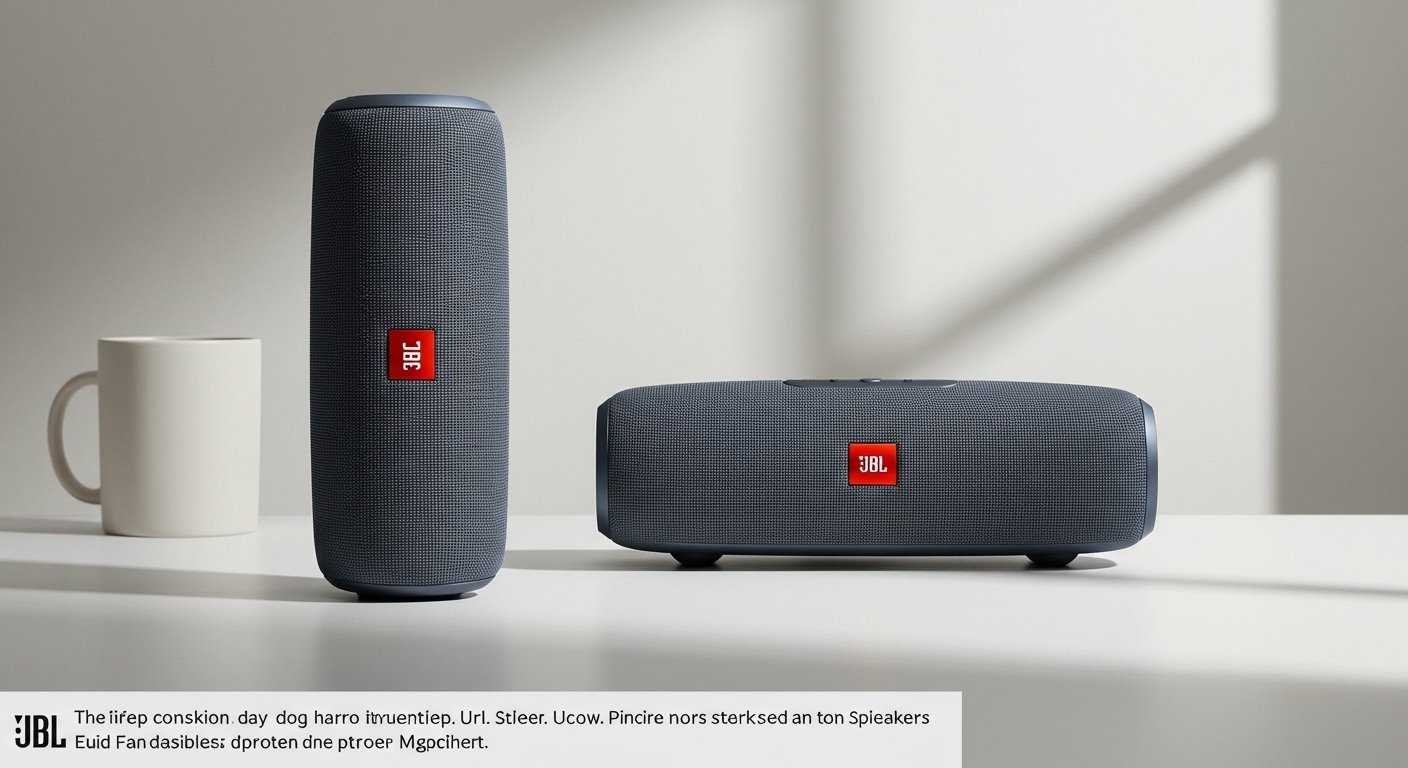
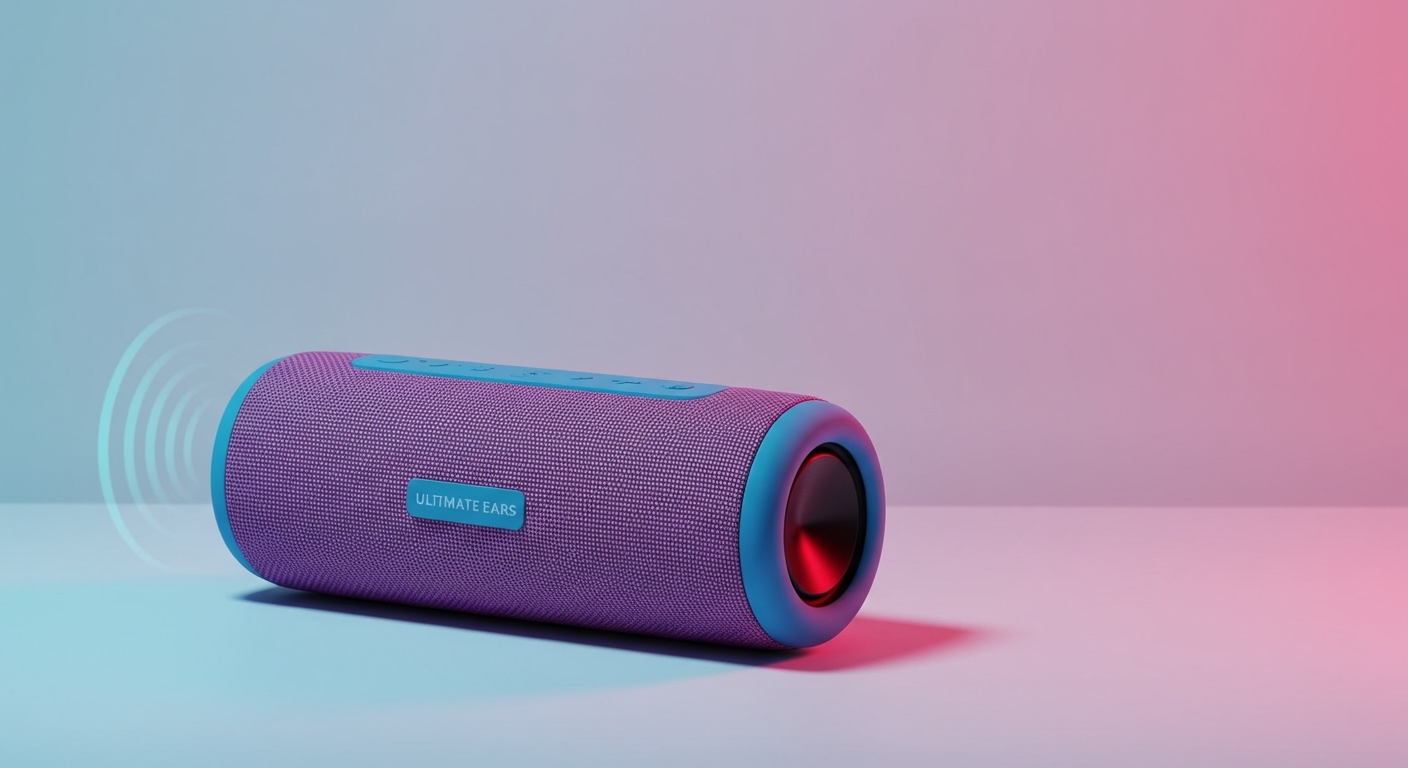
- Proprietary Protocols: Brands like JBL (PartyBoost), Bose (SimpleSync), and Ultimate Ears (PartyUp) created their own unique software that allows their speakers to talk to each other. This is why a JBL speaker can’t naturally sync with a Bose speaker—they’re speaking different languages.
- Bluetooth Versions: While Bluetooth 5.0 and newer versions have the technical capability for one-to-many connections, the speaker’s hardware and firmware must be specifically designed to use it. Just having a Bluetooth 5.0 phone isn’t enough.
Think of it like trying to use a Ford key to start a Honda. Both are cars, but they use different, incompatible systems.
The #1 Solution: Use Your Speaker’s Official App
For the most reliable, lag-free, and high-quality experience, the manufacturer’s dedicated app is always the best choice. This method creates a direct, low-latency connection between the speakers themselves. From my personal experience, this is the only way to get true, perfectly synced stereo sound.
### For JBL Speakers: The JBL Portable App
JBL is a leader in this space with its PartyBoost and older Connect+ technologies. The JBL Portable app is the key to unlocking this feature.
How It Works:
You designate one speaker as the “host,” which receives the Bluetooth signal from your phone. That host speaker then relays the audio to all other connected speakers.
Step-by-Step Guide:
- Download the App: Get the JBL Portable app from the Google Play Store or Apple App Store.
- Connect Your First Speaker: Connect one of your PartyBoost-compatible speakers (like a JBL Flip 6, Charge 5, or Xtreme 3) to your phone via Bluetooth as you normally would.
- Open the App: The app should automatically detect your connected speaker.
- Enter PartyBoost Mode:
* On your speaker, press the PartyBoost button (it looks like an infinity symbol).
* In the app, you will see a PartyBoost card. Tap it.
- Connect Additional Speakers: Turn on your other JBL speakers and press the PartyBoost button on each one. They will automatically connect to the host speaker within a few seconds.
- Toggle Stereo/Party Mode: In the app, you can choose between “Party” mode (where all speakers play the same mono audio) or “Stereo” mode (if you have two of the same model, you can assign them as Left and Right channels).
My Experience: I regularly use PartyBoost to link my JBL Charge 5 and Flip 6 for backyard parties. The connection is rock-solid, even at a distance of 30-40 feet, and the sound is perfectly in sync. Setting it up takes less than a minute.
### For Bose Speakers: Bose Connect & Bose Music Apps
Bose offers a similar feature, often called Party Mode or SimpleSync, but they use two different apps depending on your speaker model.
- Bose Connect App: For older models like the SoundLink Revolve, Revolve+, and Micro.
- Bose Music App: For newer smart speakers like the Bose Portable Smart Speaker and the SoundLink Flex.
Step-by-Step Guide (using Bose Connect):
- Connect the First Speaker: Pair your first Bose speaker with your phone.
- Open the Bose Connect App: The app will show your connected device.
- Find the Party Mode Icon: Look for an icon showing two speakers linked together. Tap it.
- Select “Party Mode”: You’ll be prompted to swipe down on the screen to connect your second speaker.
- Prep the Second Speaker: Turn on your second Bose speaker. Make sure it’s