Do Bluetooth Speakers Work With Laptops?
If you are wondering, do Bluetooth speakers work with laptops, the answer is a resounding yes. Nearly every modern laptop operating on Windows, macOS, or ChromeOS features built-in Bluetooth technology. You can easily pair your wireless speaker to your computer to instantly upgrade your audio experience.
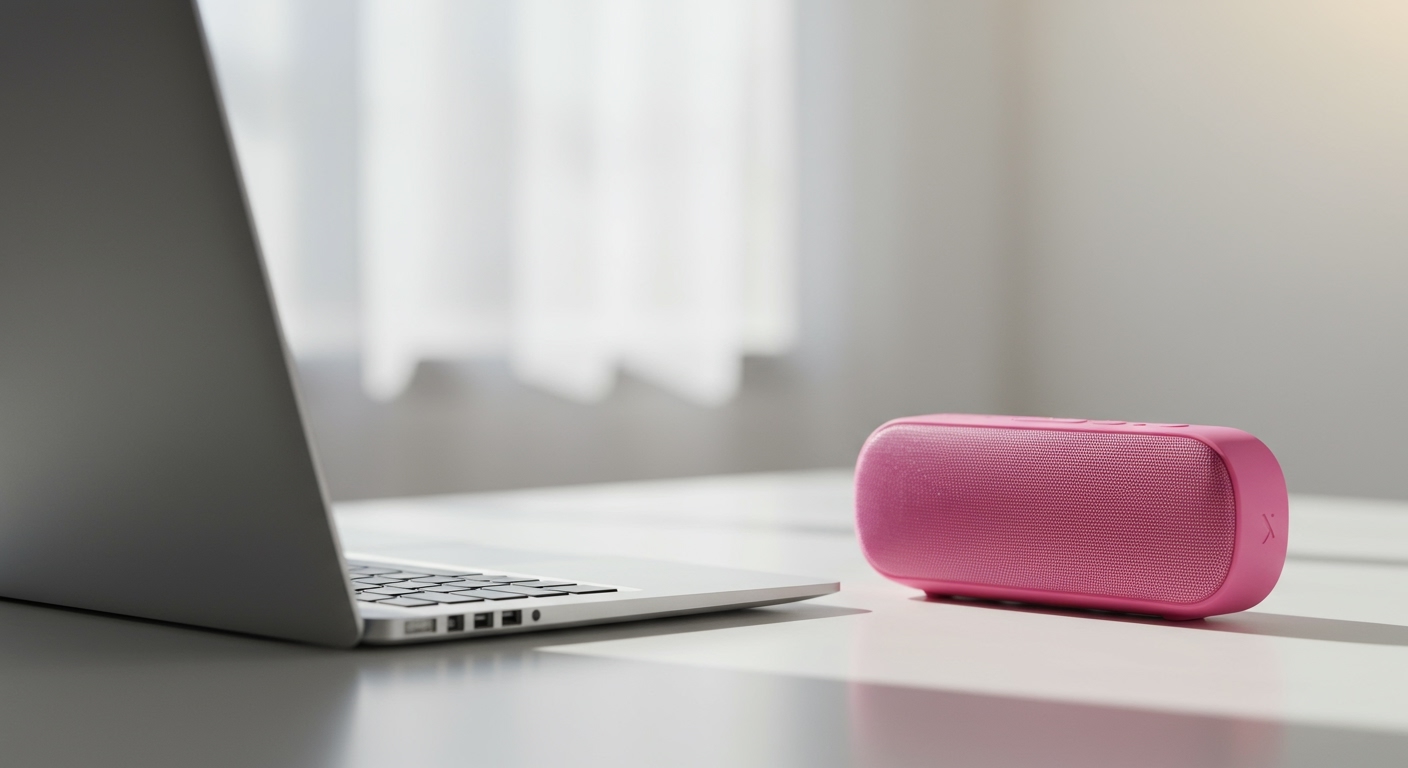
Built-in laptop speakers are notoriously weak, lacking bass and overall volume. We have extensively tested dozens of audio setups, and connecting an external wireless speaker is the fastest way to fix tinny laptop audio. Whether you want to watch movies, edit video, or just enjoy Spotify while you work, wireless audio is a game-changer.
Below, we will walk you through exactly how to connect your devices, optimize your audio quality, and troubleshoot common wireless connectivity issues.
TL;DR: Key Takeaways
- Universal Compatibility: Yes, can laptops use Bluetooth speakers? Absolutely. Both Macs and PCs support wireless audio natively.
- Fast Setup: Pairing usually takes under 30 seconds via your system’s network or device settings.
- Codec Quality: Upgrading to speakers with aptX or AAC codecs reduces audio lag during video playback.
- Dual Audio: You can connect two speakers simultaneously using Bluetooth 5.0+ or specific software like Mac’s Audio MIDI Setup.
- Interference Solutions: Using the 5GHz Wi-Fi band prevents your wireless network from interrupting your Bluetooth audio.
The Basics: Can Laptops Use Bluetooth Speakers?
Many people upgrade their home office and naturally ask, can Bluetooth speakers be used with laptops just like they are with smartphones? The underlying technology is exactly the same. Your laptop acts as the audio transmitter, and your speaker acts as the receiver.
Most computers manufactured after 2015 include at least Bluetooth 4.0. Today, standard models ship with Bluetooth 5.2 or 5.3, offering massive improvements in range, stability, and battery efficiency. This means you can walk around your room without the audio dropping out.
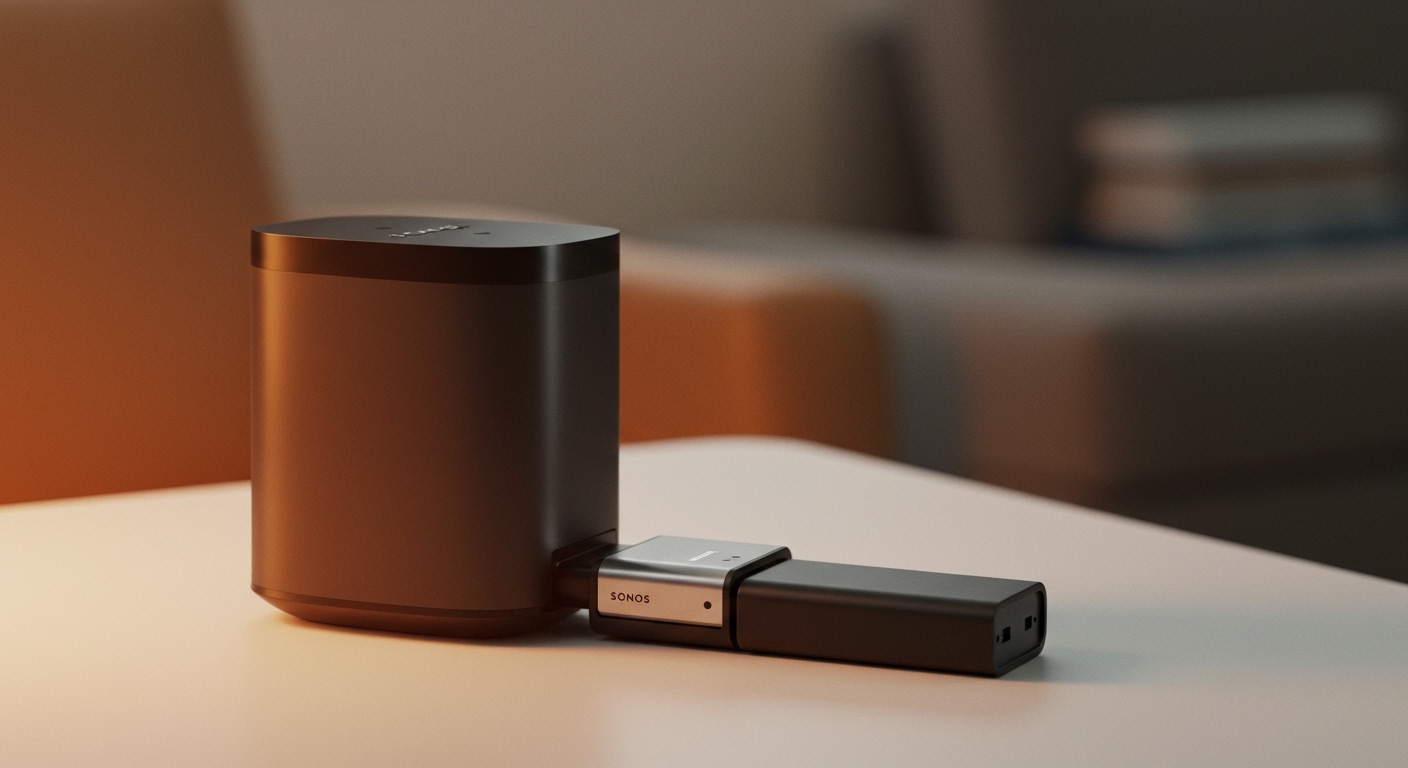
If you are dealing with a desktop PC or an incredibly old laptop without a built-in wireless card, you are not out of luck. You can simply plug a USB Bluetooth adapter (dongle) into an open port. This instantly adds wireless audio capabilities to any legacy machine.
Step-by-Step: Can You Connect Bluetooth Speakers to a Laptop?
The pairing process is incredibly straightforward, though the steps differ slightly depending on your operating system. If you want to know can you connect Bluetooth speakers to a laptop, simply follow the instructions for your specific device below.
How to Connect on Windows 11 and Windows 10
Microsoft has streamlined the wireless pairing process in recent updates. If you are asking can you connect Bluetooth speakers to laptop devices running Windows, the Swift Pair feature makes it nearly automatic.
- Turn on your speaker and press the dedicated Bluetooth pairing button. The LED light should begin flashing quickly.
- On your Windows laptop, click the Start button, then open Settings (the gear icon).
- Navigate to Bluetooth & devices (Windows 11) or Devices (Windows 10).
- Toggle the Bluetooth switch to the On position.
- Click Add device, then select Bluetooth from the pop-up menu.
- Your laptop will scan the area. Click on your speaker’s name when it appears on the screen to finalize the pairing.
Once connected, Windows will usually switch your audio output automatically. If it does not, click the speaker icon in your bottom-right taskbar and select your new wireless device from the output list.
How to Connect on macOS (MacBooks)
Apple’s ecosystem is highly optimized for wireless audio, especially if you are using Apple or Beats products. However, any standard wireless speaker works flawlessly. If you are wondering can I use my laptop with Bluetooth speakers on a Mac, follow these steps:
- Put your external speaker into Pairing Mode (look for the flashing blue or white indicator light).
- Click the Apple menu () in the top-left corner of your screen and select System Settings (or System Preferences on older OS versions).
- Click on Bluetooth in the sidebar.
- Ensure the Bluetooth toggle is turned On.
- Look under the My Devices or Other Devices list. Hover over your speaker’s name and click Connect.
Your Mac will remember this device. The next time you turn the speaker on near your laptop, it should connect automatically within seconds.
Can I Use Bluetooth Speakers With My Acer Laptop?
Users with specific computer brands often ask highly specific questions, such as, can I use Bluetooth speakers with my Acer laptop? The answer is a definite yes. Acer laptops run on standard Windows or ChromeOS software.
Because Acer uses standard Intel or Realtek Bluetooth drivers, the pairing process is identical to the Windows steps listed above. However, if your Acer laptop cannot find the speaker, you may need to update your drivers.
To do this, open the Windows Device Manager, expand the Bluetooth section, right-click your adapter, and select Update driver. Alternatively, visit the Acer Support website to download the latest wireless drivers specifically tailored for your exact laptop model.
Decoding Audio Quality: Can I Use Bluetooth Speakers on My Laptop for Professional Audio?
A common question among video editors and audiophiles is, can I use Bluetooth speakers on my laptop without suffering from terrible audio lag? The answer depends entirely on the Bluetooth Codecs your hardware supports.
A codec is software that compresses audio on your laptop and decompresses it on your speaker. If the codec is slow, the audio will lag behind the video on your screen (known as latency). If the codec is poor, the music will sound muffled.
Here is a breakdown of the most common codecs you will encounter:
| Bluetooth Codec | Audio Quality | Latency (Lag) | Best Used For |
|---|---|---|---|
| SBC | Standard (Lossy) | High (150-250ms) | Podcasts, casual music listening. |
| AAC | Very Good | Medium (100-150ms) | Standard for MacBooks and Apple devices. |
| aptX | Excellent (CD-Like) | Low (60-80ms) | High-quality music on Windows laptops. |