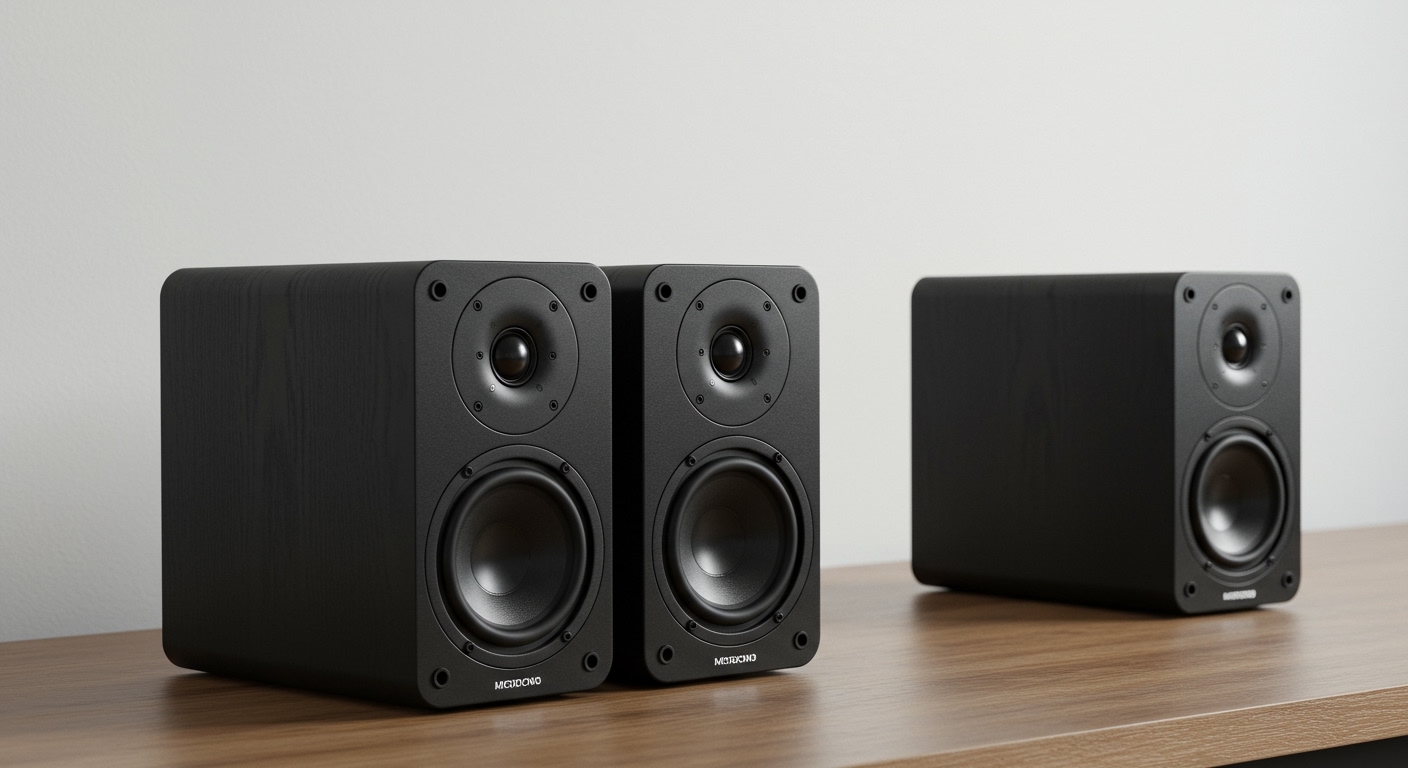
Understanding the Connection: How Your LG Remote Controls a Bose Speaker
Before diving into the steps, it’s crucial to understand the technology that makes this connection possible. Knowing how it works will make troubleshooting much easier if you run into any snags. The magic behind using a single remote is a feature called HDMI-CEC.
HDMI-CEC, which stands for Consumer Electronics Control, is a feature built into most modern HDMI devices. It allows devices connected via HDMI to “talk” to each other. LG has its own brand name for this technology, which you’ll see in your TV’s menu: Simplink.
When you press the volume up button on your LG Magic Remote, Simplink (HDMI-CEC) sends that command through the HDMI cable to your connected Bose speaker, telling it to increase the volume. It also handles power commands, allowing your speaker to turn on and off with your TV automatically.
For this to work seamlessly, we use a specific type of HDMI port called HDMI ARC or its newer, more capable version, eARC.
- ARC (Audio Return Channel): This allows audio to travel “upstream” from the TV to the soundbar or speaker system using the same HDMI cable that sends video to the TV. It simplifies wiring and enables the CEC commands for remote control.
- eARC (Enhanced Audio Return Channel): Found on newer TVs and soundbars, eARC supports higher-quality, uncompressed audio formats like Dolby Atmos and DTS:X. It offers a more robust and reliable connection for CEC control.
In our experience, using an HDMI ARC/eARC connection is the most reliable and user-friendly method. If your devices don’t support it, an Optical connection is a solid backup, though it requires a bit more setup.
Method 1: The Best Way – How to Control Bose Speakers with LG TV Remote via HDMI ARC/eARC
This is the recommended method for the vast majority of modern setups. It provides the best audio quality and the most integrated control over power and volume, truly unifying your system under a single remote.
Prerequisites for HDMI ARC/eARC Setup
Before you begin, make sure you have the following:
- An LG TV with an HDMI ARC or eARC port.
- A Bose soundbar or speaker system with an HDMI ARC or eARC port.
- A High-Speed HDMI cable. For eARC, we strongly recommend an Ultra High-Speed HDMI cable to ensure you have enough bandwidth for high-resolution audio.
Step-by-Step Guide to HDMI ARC/eARC Connection
Follow these steps precisely. I’ve used this exact process countless times to set up home theater systems, and it works flawlessly when done in the correct order.
Step 1: Make the Physical Connection
- Power Down: Turn off both your LG TV and your Bose speaker. While not always necessary, it’s a good practice to prevent any electronic “handshake” issues.
- Locate the ARC/eARC Ports: On the back of your LG TV, look at the HDMI ports. One will be clearly labeled “ARC” or “eARC”. It’s often HDMI 2 or HDMI 3.
- Find the Bose Port: On your Bose soundbar or control console, find the corresponding HDMI port, also labeled “HDMI ARC”, “eARC”, or sometimes “HDMI Out to TV (ARC)”.
- Connect the Cable: Plug one end of your High-Speed HDMI cable into the ARC/eARC port on the LG TV. Plug the other end into the ARC/eARC port on the Bose speaker.
Pro Tip: I’ve seen countless issues caused by old or low-quality HDMI cables. If you’re using the cable that came with an old DVD player, it’s time to upgrade. A certified cable is a small investment for a frustration-free experience.
Step 2: Enable Simplink (HDMI-CEC) on Your LG TV
This is the most critical step. You need to tell your LG TV that it’s allowed to control other devices.
- Turn on your LG TV.
- Press the Settings button (the gear icon) on your LG Magic Remote.
- Navigate to All Settings (often represented by three vertical dots).
- Go to the General menu.
- Select Simplink (HDMI-CEC).
- Toggle the switch to On.
The menu path might vary slightly depending on your WebOS version, but it will always be under a “General” or “Connection” type of menu.
Step 3: Change the Sound Output on Your LG TV
Now, you must tell the TV to send all its audio through the HDMI cable instead of using its own internal speakers.
- Go back to the All Settings menu.
- Select Sound.
- Choose Sound Out.
- Select the option labeled HDMI ARC. You might see other options like “Use Wired Speaker” or similar phrasing. The key is to select the HDMI output.
Once you select this, your TV’s internal speakers should go silent, and you should see a confirmation on the screen that audio is being routed to an external speaker system.
Step 4: Configure CEC on Your Bose Speaker
Most modern Bose systems, especially those using the Bose Music app, have a CEC setting that needs to be enabled or adjusted.
- Open the Bose Music app on your smartphone or tablet.
- Ensure your speaker is connected to the same Wi-Fi network and select it from your list of products.
- Tap the Settings icon (gear shape) in the top-right corner.
- Scroll down and select Technical Info.
- Look for an option called Advanced CEC or HDMI-CEC.
- Make sure it is enabled. Some Bose models offer different CEC settings; the “Default” or “On” option is usually best.
For older Bose SoundTouch or Lifestyle systems, this setting may be automatic or located within the system’s on-screen menu. Refer to your specific product manual if you can’t find it in the app.
Step 5: Test Your Control
This is the moment of truth.
- Volume Control: Use the volume up/down buttons on your LG Magic Remote. You should see the volume indicator on the TV screen, but the sound level of your Bose speaker should change.
- Mute: Press the mute button. The Bose speaker should go silent.
- Power Sync: Turn your LG TV off. After a few seconds, your Bose speaker should also power down. Now, turn the TV back on. The speaker should power on automatically with it.
If all three functions work, congratulations! You have successfully learned **how to control Bose speakers