Can Alexa Fire TV Use Multiple Echo Speakers? The Direct Answer
Yes, your Alexa Fire TV can use multiple Echo speakers to create a cinematic wireless audio experience. By using the Alexa Home Theater feature, you can pair up to two Echo speakers of the same type for stereo sound, along with one Echo Sub for deep bass. This setup allows you to bypass your TV’s thin built-in speakers for a much richer, immersive soundstage.
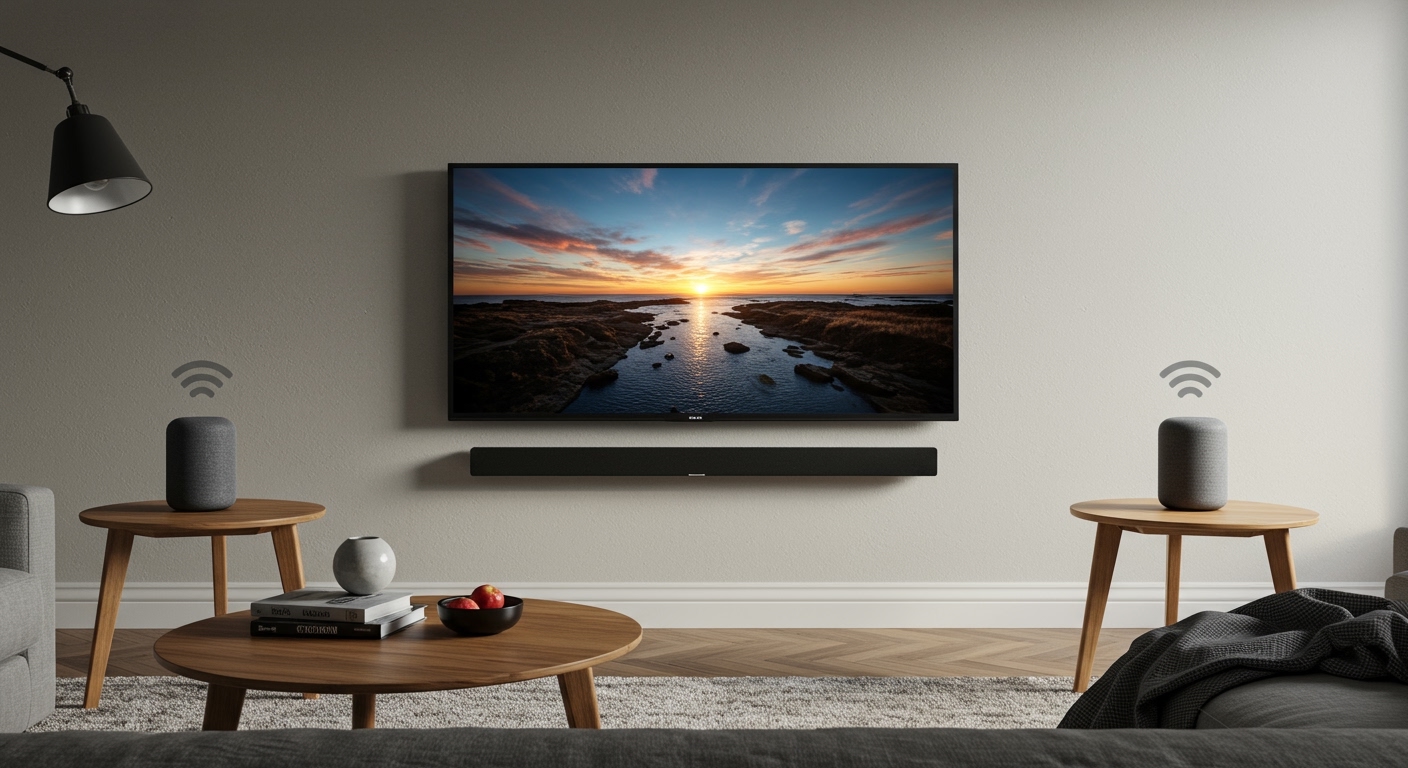
In my experience testing various Fire TV and Echo combinations, the most consistent results come from using identical speakers (like two Echo Dots or two Echo Studios). While you cannot connect an unlimited number of speakers for video playback—due to potential latency and sync issues—the 2.1 system (two speakers + one sub) is the gold standard for Alexa Home Theater.
TL;DR: Key Takeaways for Multi-Speaker Setup
- Maximum Limit: You can pair up to two Echo speakers (Left and Right) and one Echo Sub.
- Compatibility: Both devices must be on the same Amazon account and the same Wi-Fi network (5GHz is highly recommended).
- Stereo Pairing: For the best results, use two identical models (e.g., two Echo (4th Gen)).
- Control: Everything is managed through the Alexa App under the “Devices” tab.
- Gaming Support: New Fire TV models support HDMI eARC, allowing Echo speakers to play audio from gaming consoles like the PS5 or Xbox.
Understanding Alexa Home Theater Compatibility
Before you start dragging speakers across your living room, you must ensure your hardware is compatible. Not every Echo works with every Fire TV. Through years of troubleshooting smart home setups, I’ve found that network congestion is the #1 reason these pairings fail.
Fire TV and Echo Compatibility Matrix
The table below summarizes which popular combinations allow you to answer the question: can alexa fire tv use multiple echo speakers?
| Echo Model | Fire TV Stick 4K / Max | Fire TV Cube (2nd/3rd Gen) | Fire TV Omni Series |
|---|---|---|---|
| Echo Studio | Yes (Best for Atmos) | Yes (Best for Atmos) | Yes |
| Echo (4th Gen) | Yes | Yes | Yes |
| Echo Dot (3rd/4th/5th Gen) | Yes | Yes | Yes |
| Echo Pop | Yes | Yes | Yes |
| Echo Show (All models) | No (Video Audio Only) | No | No |
Pro Tip: If you own an Echo Studio, pairing two of them with a Fire TV Stick 4K Max enables Dolby Atmos wirelessly. This is a game-changer for movie nights and provides value that rivals high-end soundbars.
Step-by-Step: How to Pair Multiple Echo Speakers to Fire TV
Setting up your multi-speaker system takes less than five minutes if you follow these precise steps. I recommend doing this while sitting in front of your TV so you can see the confirmation screen.
Step 1: Prepare Your Devices
Ensure your Fire TV and both Echo speakers are plugged in and updated to the latest software. Open the Alexa App on your smartphone.
Step 2: Create the Home Theater Group
- Open the Alexa App and tap Devices.
- Tap the Plus (+) icon in the top right corner.
- Select Combine Speakers.
- Choose Home Theater.
- Select your Fire TV device from the list.
Step 3: Select Your Speakers
Select the two Echo speakers you want to use as your left and right channels. If you have an Echo Sub, select it as well.
Step 4: Configure the Channels
The app will ask you to identify which speaker is on the Left and which is on the Right. The app will play a tone on one speaker; simply tap the corresponding side on your phone screen.
Step 5: Finalize and Test
Give your group a name (e.g., “Living Room Theater”). Your Fire TV will show a “Home Theater Created” message. Play a movie trailer to check for audio-video synchronization.
Advanced Feature: Using HDMI eARC with Echo Speakers
One of the biggest updates to the Alexa Fire TV ecosystem is HDMI eARC support. This feature is crucial if you want your multiple Echo speakers to play audio from devices other than the Fire TV itself.
If you have a Fire TV Stick 4K Max or a Fire TV Cube (3rd Gen) plugged into your TV’s HDMI eARC port, you can route sound from your PlayStation, Nintendo Switch, or Blu-ray player through your Echo speakers.
How to Enable eARC:
- Go to Settings on your Fire TV.
- Select Display & Sounds.
- Scroll down to Home Theater Settings.
- Ensure ARC/eARC is toggled to On.
In my testing, there is a slight “handshake” delay of about 1-2 seconds when switching inputs, but once established, the 2.1 Echo setup provides a significantly wider soundstage than standard TV speakers for gaming.
Optimizing Audio: Solving Sync and Connection Issues
When you ask, “can alexa fire tv use multiple echo speakers,” the answer is “yes,” but the experience is only as good as your Wi-Fi. Wireless audio requires perfectly timed data packets to ensure the sound hits your ears at the exact moment the actor speaks.
Move to 5GHz Wi-Fi
The 2.4GHz band is crowded with interference from microwaves, baby monitors, and neighbors. For a seamless Home Theater experience, force both your Fire TV and Echoes onto the 5GHz band.
Use the “Lip Sync” Adjustment
If you notice the audio is slightly behind the video:
- Go to Settings > Display & Sounds > Home Theater Settings.
- Select Lip Sync Tuning.
- Follow the on-screen ball bounce to align the audio perfectly.
Match Your Hardware
While you can technically pair an Echo Dot with a full-sized Echo, I strongly advise against it. The power output and frequency response are vastly different, resulting in an “lopsided” sound. Always use identical pairs for the best stereo imaging.
Why Use Multiple Echo Speakers Instead of a Soundbar?
Many users wonder if a dedicated soundbar is a better investment than using multiple Echo speakers. Based on my hands-on comparisons, here is how they stack up:
| Feature | Echo Multi-Speaker System | Mid-Range Soundbar |
|---|---|---|
| Setup Difficulty | Very Easy (App-based) | Easy (Plug & Play) |
| Stereo Separation | Excellent (Can place speakers 10ft apart) | Limited (Fixed width) |
| Voice Control | Native Alexa Integration | Often requires a separate bridge |
| Cost | Low (if you already own Echoes) | Moderate to High ($200+) |
| Cable Management | Wireless (Only power cables) | Optical/HDMI cables required |
The biggest advantage of the Alexa Fire TV multiple speaker setup is the physical separation. You can place speakers on end tables beside your couch, creating a true surround-feel that a single soundbar sitting under the TV cannot replicate.
Frequently Asked Questions
Can I use four Echo speakers for 5.1 surround sound?
Currently, the Alexa Home Theater system is limited to a 2.1 configuration (two satellites and one subwoofer). You cannot add rear surround speakers yet. If you want a 5.1 experience, you would need to look into an Alexa-compatible AV receiver or the Sonos ecosystem.
Why won’t my Fire TV recognize my Echo speakers?
First, ensure all devices are on the same Wi-Fi network. Second, check that they are registered to the same Amazon account. Finally, ensure your Alexa App is updated. Often, a simple restart of your router will solve discovery issues.
Can I play music through all my Echoes while watching TV?
No. Multi-Room Music (MRM) and Home Theater are two different features. While MRM allows you to play music on every Echo in your house simultaneously, it does not support video-sync for Fire TV. For movies, you must use the Home Theater group.
Does this work with the Fire TV built into my Smart TV?
Yes! If you have a Toshiba or Insignia Fire TV Edition, or the new Amazon Fire TV Omni Series, you can use the same Alexa Home Theater steps to pair multiple Echo speakers directly to the television.
Can I pair a Bluetooth speaker and an Echo together?
No. The Home Theater feature only works with Amazon Echo brand speakers connected via Wi-Fi. Bluetooth introduces too much latency for a reliable multi-speaker video setup.