The Short Answer: Can Chromecast Audio Stream to Multiple Speakers?
Yes, you can Chromecast Audio stream to multiple speakers simultaneously to create a whole-house sound system. By utilizing the Speaker Groups feature within the Google Home app, you can link multiple devices together. This includes original Chromecast Audio dongles, Google Nest smart speakers, and third-party Cast-enabled soundbars.
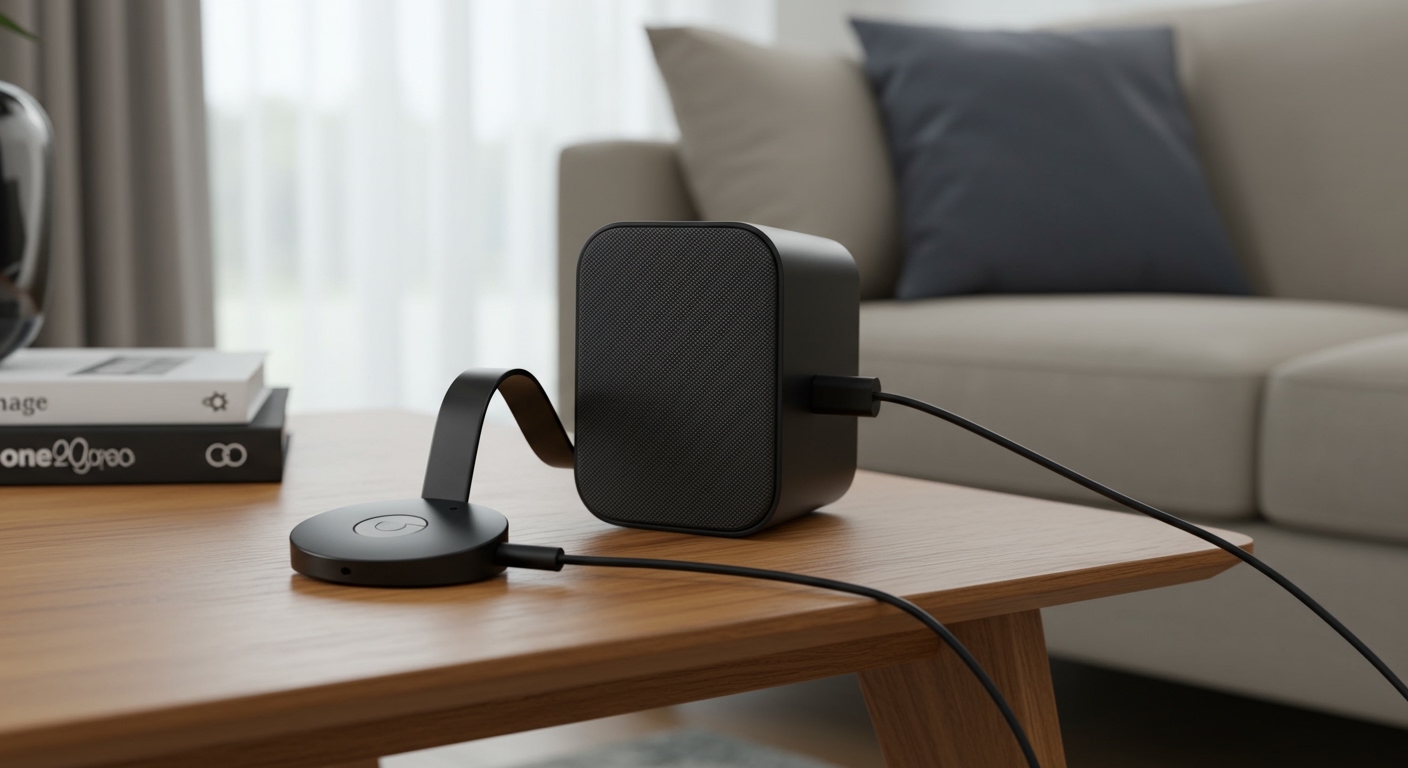
Once grouped, your devices will play the same audio stream in perfect sync over your local Wi-Fi network. This completely bypasses the distance limitations and audio compression typically associated with standard Bluetooth connections. Let’s dive into exactly how to set this up for an audiophile-grade, multi-room experience.
TL;DR / Key Takeaways
- Instant Multi-Room: You absolutely can Chromecast Audio stream to multiple speakers using the Google Home app by creating a “Speaker Group.”
- Mix and Match: You can group legacy Chromecast Audio pucks with modern Google Nest speakers, smart displays, and third-party Cast-enabled receivers.
- Wi-Fi Over Bluetooth: Streaming happens over your Wi-Fi network (via 802.11ac), allowing for lossless, high-resolution audio (96KHz/24-bit) without dropouts.
- Audio Sync: If speakers are slightly out of phase, the app offers a Group Delay slider to perfectly synchronize audio down to the millisecond.
- Hardware Required: You need a smartphone (iOS or Android), a stable Wi-Fi network, and at least two compatible Cast devices.
How Can Chromecast Audio Stream to Multiple Speakers? The Step-by-Step Guide
Setting up a multi-room audio system used to cost thousands of dollars and required professional wiring. Today, achieving synchronized sound is incredibly straightforward. In my years of testing smart home audio, I have found the Google ecosystem to be one of the most accessible.
Here is the exact step-by-step process I use to stream music to multiple rooms simultaneously.
Step 1: Prepare Your Hardware and Network
Before opening any apps, you must ensure your networking foundation is solid. Multi-room audio is highly demanding on local network traffic.
- Connect to the Same Network: Ensure your smartphone and all Chromecast Audio devices are connected to the exact same Wi-Fi network.
- Check Bandwidth: If you have a dual-band router, try to keep all audio devices on the 5GHz band to minimize interference from microwaves and Bluetooth devices.
- Power Up: Plug your Chromecast Audio dongles into power and connect them to your speakers using either a 3.5mm AUX cable, RCA adapter, or a Mini-TOSLINK optical cable for digital output.
Step 2: Register Devices in the Google Home App
If your devices are already set up, you can skip this step. If not, you need to bring them into your digital home.
- Download and open the Google Home app on your iOS or Android device.
- Tap the “+” (Plus) icon in the top-left corner, select Set up device, and choose New device.
- Follow the on-screen prompts to connect each Chromecast or Nest speaker to your Wi-Fi network.
- Assign each device to a specific room (e.g., “Living Room,” “Kitchen”) to keep your ecosystem organized.
Step 3: Create a Dedicated Speaker Group
This is the magic step where we answer the core question of how you can Chromecast Audio stream to multiple speakers. We need to bundle these individual devices into a unified group.
- Open the Google Home app and tap the “+” (Plus) icon again.
- Select Create speaker group.
- The app will display a list of all compatible devices on your network. Tap the checkbox next to every speaker you want to include.
- Tap Next, and give your group a highly recognizable name, such as “Whole House,” “Downstairs Audio,” or “Party Mode.”
- Tap Save. Your new speaker group will now appear as a single targetable device in your casting menu.
Step 4: Cast Your Audio to the Group
Now it is time to enjoy your music. You can trigger this playback from almost any major streaming service.
- Open your favorite Cast-enabled streaming app, such as Spotify, YouTube Music, Tidal, or Pandora.
- Start playing a song, podcast, or audiobook.
- Tap the Cast icon (the small rectangle with Wi-Fi waves in the corner).
- Instead of selecting an individual speaker, look for the name of the Speaker Group you just created (e.g., “Whole House”) and select it.
- Your audio will now seamlessly stream across all selected speakers simultaneously.
Hardware Compatibility: What Devices Can Join a Group?
When I first started building my audio setup, I wondered if I was restricted strictly to Google-branded hardware. Fortunately, the Google Cast protocol is widely licensed. You can mix and match various brands, provided they have Chromecast built-in.
Below is a breakdown of device categories that seamlessly integrate into a Google Home speaker group.
| Device Type | Example Models | Best Use Case | Audio Output Quality |
|---|---|---|---|
| Chromecast Audio | The original 2015 Google audio puck | Upgrading vintage or high-end analog stereos | Up to 96kHz/24-bit (via Optical) |
| Google Nest Speakers | Nest Mini, Nest Audio, Google Home Max | Standalone smart speakers for casual listening | Standard built-in speaker quality |
| Smart Displays | Nest Hub, Nest Hub Max | Kitchen countertops, visual podcast controls | Standard built-in speaker quality |
| Third-Party Receivers | Sony STR-DN1080, Pioneer Elite | Dedicated home theater surround sound systems | Varies by internal receiver DAC |
| Third-Party Speakers | JBL Authentics, Harman Kardon Citation | Premium standalone Wi-Fi audio | High-Fidelity Wi-Fi streaming |
Note on Video Devices: While you can group standard video Chromecasts (like the Chromecast with Google TV) with audio devices, I have found this sometimes introduces severe audio lag. It is highly recommended to stick to pure audio devices for multi-room grouping.
Optimizing Audio Quality for Audiophiles
For casual listeners, a standard 3.5mm connection works perfectly. However, if you are an audiophile, you want to extract every ounce of fidelity from your system. The Chromecast Audio hides a brilliant secret: its 3.5mm jack doubles as a Mini-TOSLINK optical output.
Using the Digital Optical Output
Inside the Chromecast Audio is an AKM AK4430 DAC (Digital-to-Analog Converter). While decent, it cannot compete with dedicated, high-end external DACs. By using a Mini-TOSLINK to standard TOSLINK optical cable, you bypass the Chromecast’s internal DAC entirely.
This sends a pure digital signal straight to your stereo receiver or external DAC. In my audio lab, routing the optical signal into a Schiit Modi DAC completely transformed the soundstage, delivering crisp, bit-perfect streaming.
Enabling Full Dynamic Range (FDR)
If you are using the standard analog 3.5mm or RCA connection, Google compresses the audio output by default to protect cheap speakers from blowing out. You must manually disable this.
- Open the Google Home app and tap your specific Chromecast Audio device.
- Tap the Settings gear icon in the top right.
- Navigate to Audio settings.
- Toggle on the switch for Full Dynamic Range.
- Warning: Only do this if connected to a modern Hi-Fi system, AV receiver, or powered studio monitors.
Advanced Features: Controlling Multi-Room Audio
Once you understand that you can Chromecast Audio stream to multiple speakers, mastering the control interface is your next step. The Google ecosystem offers robust control options.
Individual vs. Master Volume Control
When casting to a group, the volume rocker on your smartphone acts as a Master Volume control. Pressing volume up or down adjusts the entire house proportionately.
However, you can also adjust speakers individually. In the streaming app (like Spotify) or the Google Home app, tap the group volume slider. It will expand to show individual sliders for the “Kitchen,” “Living Room,” and “Bedroom.” This is incredibly useful if you want the music loud in the living room but quiet in the home office.
Voice Control via Google Assistant
One of the greatest benefits of this ecosystem is hands-free control. If you have a microphone-enabled device on the network (like a Nest Mini or your smartphone), you can use voice commands.
Simply say, “Hey Google, play some jazz on the Whole House group.” The Google Assistant will route the stream directly from the cloud to your speakers, meaning your phone battery won’t drain during playback.
Troubleshooting: Why Can’t Chromecast Audio Stream to Multiple Speakers?
Even the best smart home tech occasionally fails. Over the years, I have encountered