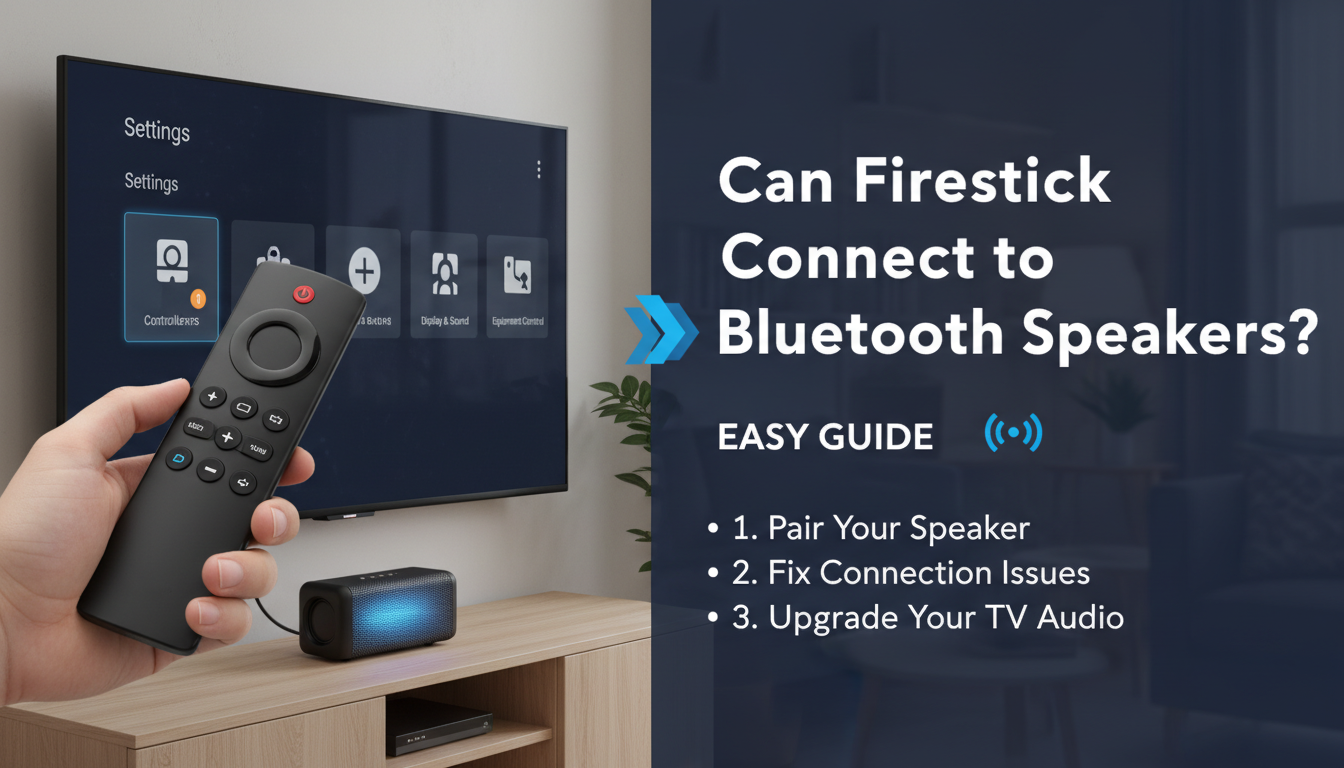
Can a Firestick Connect to Bluetooth Speakers? Yes, Here’s How
Tired of the tinny, underwhelming sound from your TV’s built-in speakers? You’re not alone. It can completely ruin the immersive experience of a great movie or your favorite show. The good news is that you don’t need a complex, expensive sound system to fix it. You can easily upgrade your audio by connecting a Bluetooth speaker you already own directly to your Amazon Fire TV Stick.
Yes, a Firestick can connect to Bluetooth speakers, headphones, and other Bluetooth audio devices. This simple, wireless connection can dramatically improve your audio quality, giving you richer sound, clearer dialogue, and deeper bass for a more cinematic feel. In this guide, I’ll walk you through the exact steps I use to pair my own devices, troubleshoot common issues, and even explore options for connecting multiple speakers.
Key Takeaways: Connecting a Speaker to Firestick
- Direct Pairing: All modern Amazon Fire TV Sticks have built-in Bluetooth and can connect directly to one Bluetooth speaker or a pair of headphones.
- Simple Process: The connection process is managed entirely within the Fire TV’s settings menu and takes less than two minutes.
- How to Connect: Navigate to Settings > Controllers & Bluetooth Devices > Other Bluetooth Devices > Add Bluetooth Devices.
- Multiple Speakers: Natively, a Firestick can only connect to one audio output device at a time. Connecting two or more speakers requires either speakers with a built-in “stereo pair” feature or a separate Bluetooth transmitter.
- Troubleshooting: If your Fire Stick can’t detect your speaker, ensure the speaker is in pairing mode, is close to the Fire Stick, and is not connected to another device like your phone.
How to Connect Bluetooth Speakers to a Fire TV Stick (Step-by-Step)
Connecting your speaker is a straightforward process. I’ve done this with dozens of devices from brands like JBL, Bose, Sony, and Anker, and the steps are always the same.
First, you need to put your Bluetooth speaker into pairing mode. This is the most crucial step.
- How to Activate Pairing Mode: This process varies by brand. Usually, you need to press and hold the Bluetooth button on the speaker for a few seconds. You’ll often hear an audible cue or see a flashing blue or white LED light. If you’re unsure, check your speaker’s user manual.
Once your speaker is discoverable, grab your Fire TV remote and follow these steps on your TV screen.
- Navigate to the Home Screen: Press the “Home” button on your Fire TV remote.
- Open Settings: Go to the far right of the top menu and select the gear icon, which is the Settings menu.
- Select Controllers & Bluetooth Devices: In the Settings menu, find and select Controllers & Bluetooth Devices.
- Choose Other Bluetooth Devices: This is the section for non-remote devices like speakers, headphones, and keyboards.
- Add a New Device: Select Add Bluetooth Devices. Your Fire TV will now begin searching for discoverable Bluetooth devices nearby.
- Select Your Speaker: After a few moments, you should see the name of your Bluetooth speaker appear in the list. Use your remote to select it.
- Confirm Pairing: Your Fire Stick will connect to the speaker. Once paired, you’ll see a confirmation message in the bottom-right corner of the screen, and all audio from your Fire Stick will now play through your connected speaker.
Your Fire Stick will remember this speaker. The next time you turn on your TV and the speaker, it should reconnect automatically.
What to Do If Your Fire Stick Can’t Detect Bluetooth Speakers
Sometimes, technology doesn’t cooperate. If you’re asking, “can a Fire Stick detect Bluetooth speakers?” and yours isn’t showing up, don’t worry. Based on my experience, the problem is almost always one of a few simple things.
Before you get frustrated, run through this quick troubleshooting checklist.
| Potential Problem | Solution | My First-Hand Tip |
|---|---|---|
| Speaker Not in Pairing Mode | The speaker must be actively searching for a connection (usually a flashing light). | This is the #1 issue. Turn the speaker off and on again, then press and hold its Bluetooth button until it beeps or flashes. |
| Interference | Other electronics, Wi-Fi routers, or even physical barriers like walls can weaken the signal. | Move the speaker closer to the Fire Stick (ideally within 10 feet) for the initial pairing process. You can move it back later. |
| Speaker Already Connected | Your speaker can only be actively connected to one source device at a time. | Check your phone, tablet, or laptop and make sure to disconnect the speaker from them in the Bluetooth settings. |
| Fire Stick Glitch | Sometimes the Fire TV’s software just needs a refresh. | Restart your Fire Stick. Go to Settings > My Fire TV > Restart. This solves a surprising number of minor bugs. |
| Low Battery | A speaker with a very low battery may have trouble maintaining a stable pairing signal. | Ensure your Bluetooth speaker is fully charged or plugged into a power source before attempting to pair it. |
If you’ve tried all these steps and it still won’t connect, try pairing the speaker with your phone. If it connects to your phone, the issue is likely with the Fire Stick. If it doesn’t connect to your phone, the issue is with the speaker itself.
How to Connect Two Bluetooth Speakers to a Firestick
This is a common question, and the direct answer is a bit technical. A Fire TV Stick can’t pair with two separate Bluetooth speakers simultaneously through its native settings. The Fire TV operating system is designed to send its audio signal to a single Bluetooth output.
However, I’ve successfully used two key workarounds to achieve a multi-speaker or stereo setup.
Method 1: Use Speakers with a “Stereo Pair” or “Party” Mode
Many modern Bluetooth speakers from brands like Sonos, Bose, JBL (Connect+), and Sony (Party Chain) have a built-in feature to link with each other.
How It Works: In this setup, you first pair the two speakers together* using the manufacturer’s dedicated mobile app or buttons on the speakers. One speaker becomes the “primary” and the other becomes the “secondary.”
- Connecting to the Fire Stick: Your Fire Stick doesn’t see two speakers. It only sees the “primary” speaker. You simply pair your Fire Stick to that primary speaker using the normal steps. The primary speaker then handles splitting the audio and sending the left/right channels to the correct speaker.
This is the cleanest and most reliable method for getting true stereo sound.
Method 2: Use an External Bluetooth Audio Transmitter
If your speakers don’t have a linking feature, you can use a third-party device called a Bluetooth audio transmitter.
- What It Is: This is a small box that plugs into your TV’s audio output port (usually the 3.5mm headphone jack or optical audio out).
- How It Works: The transmitter takes the audio from the TV and broadcasts it via Bluetooth. Many transmitters are specifically designed to connect to two devices (speakers or headphones) at once.
- The Setup:
This method is more universal and works with any brand of speakers, but it does add another device and a few extra cables to your setup.
Frequently Asked Questions (FAQ)
Q1: Can you connect Bluetooth speakers to a Fire Stick and still use the TV speakers?
No, when you connect a Bluetooth audio device, the Fire Stick automatically disables the audio signal going through the HDMI cable to your TV. You can only have one audio output active at a time.
Q2: Will my Fire Stick automatically reconnect to my Bluetooth speaker?
Yes, in most cases. Once paired, your Fire Stick should remember the speaker. When you turn the speaker on, it should automatically reconnect within a few seconds. If it doesn’t, you can manually reconnect by going to Settings > Controllers & Bluetooth Devices > Other Bluetooth Devices, selecting your speaker, and pressing the center button on your remote.
Q3: Does connecting a Bluetooth speaker to a Fire TV cause audio lag?
It can sometimes introduce a slight delay, also known as latency, where the video and audio are not perfectly synchronized. Modern Fire TV devices have a built-in tool to fix this called AV Sync Tuning. You can find it under Settings > Display & Sounds > Audio > AV Sync Tuning. This tool displays a bouncing ball and allows you to adjust the timing until the sound and video match perfectly.
Q4: Can I pair multiple Bluetooth speakers to a Firestick for surround sound?
No, you cannot achieve true 5.1 or 7.1 surround sound by pairing multiple individual Bluetooth speakers. The Fire Stick’s Bluetooth protocol (A2DP) only supports a stereo (left and right channel) signal. For a true surround sound experience, you would need an AV receiver or a dedicated soundbar system like the Amazon Echo Studio paired in a Home Theater Group.