

Can I Connect Speakers to Sceptre C27? The Direct Answer
Yes, you can connect speakers to Sceptre C27 monitors easily using the built-in 3.5mm Audio-Out port located on the back of the display. Simply plug your external speakers into this jack, and the monitor will act as a passthrough for audio delivered via HDMI or DisplayPort.
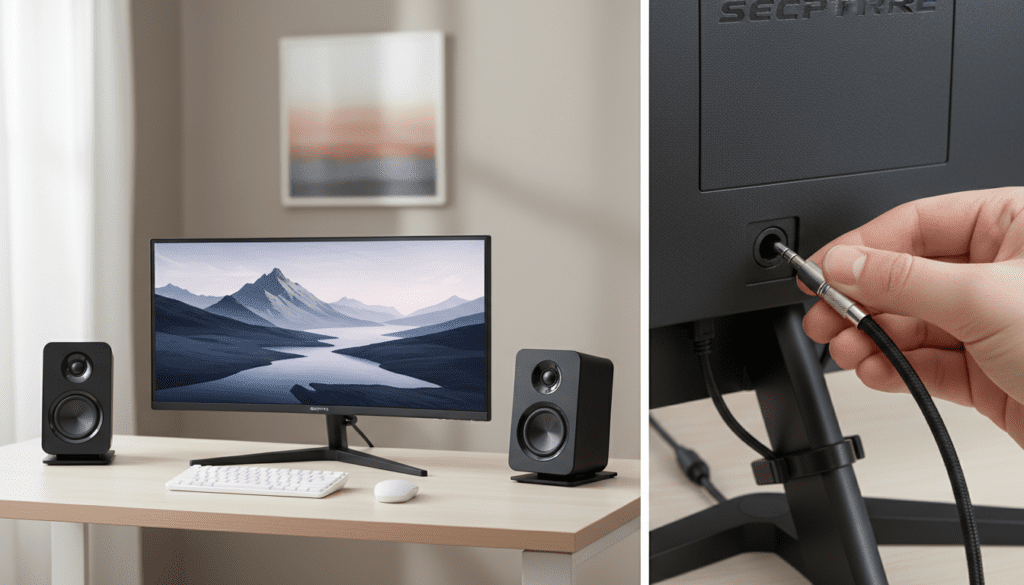
Whether you own the Sceptre C275B-144RN, the C278W, or the C275W series, these monitors are designed to facilitate external audio because their built-in speakers are often cited by users as being functional but lacking in depth and bass. By using the “Audio Out” or “Headphone” port, you can bypass the internal drivers for a more immersive experience.
TL;DR: Quick Connection Guide
- Primary Method: Use a 3.5mm TRS cable from your speakers to the monitor’s “Audio Out” port.
- Audio Source: Ensure your PC is sending audio to the monitor via HDMI or DisplayPort.
- Software Step: Set “Sceptre C27” as your Default Playback Device in Windows/macOS settings.
- Pro Tip: For the best sound quality, connect speakers directly to your PC motherboard rather than the monitor to avoid electrical interference.
Understanding Your Sceptre C27 Audio Ports
Before grabbing your cables, it is essential to identify the specific ports on your Sceptre C27 model. While most curved Sceptre displays share a similar chassis, the port layout can vary slightly between the gaming-focused (144Hz/165Hz) and office-focused (75Hz) models.
The 3.5mm Audio-Out Jack
This is the most common way to answer the question: can I connect speakers to Sceptre C27? This port is typically labeled with a small headphone icon or “Audio Out.” It is an analog output that takes the digital signal from your HDMI or DP cable, converts it using the monitor’s internal DAC (Digital-to-Analog Converter), and sends it to your speakers.
HDMI and DisplayPort Inputs
These are not just for video. Both HDMI and DisplayPort carry digital audio signals. If you connect your PC to the Sceptre C27 using these cables, the monitor “intercepts” the audio. You can then choose to play that audio through the monitor’s tiny internal speakers or “pass it through” to the 3.5mm jack.
Why You Might See No “Line-In”
Most modern Sceptre C27 models do not feature a “Line-In” port. This means you cannot send audio from a phone or separate MP3 player to the monitor’s speakers using an Aux cable. The monitor is designed to receive audio primarily through its digital video inputs.
Step-by-Step Guide: How to Connect External Speakers
I have set up dozens of Sceptre monitors for budget gaming builds, and the process is straightforward. Follow these steps to ensure a hiss-free, high-quality connection.
Step 1: Physical Connection
- Locate the 3.5mm port on the back or bottom edge of your Sceptre C27.
- Take the 3.5mm male-to-male cable from your speakers (or the built-in cable if they are standard PC speakers).
- Plug it firmly into the monitor. You should feel a slight “click” when it is fully seated.
Step 2: Power and Volume
- Ensure your external speakers are powered on.
- Turn the physical volume knob on the speakers to about 50%.
- Use the Sceptre OSD (On-Screen Display) buttons (usually on the back right) to ensure the monitor’s internal volume is set to 100. This ensures the speakers receive a strong signal.
Step 3: Configure Windows/macOS Settings
Your computer needs to know where to send the sound.
- Right-click the speaker icon in your Windows Taskbar.
- Select “Sound Settings.”
- Under “Output,” choose the option that says “Sceptre C27” or “High Definition Audio Device (HDMI).”
Technical Comparison: Monitor Output vs. PC Output
While you can connect speakers to Sceptre C27 monitors directly, it isn’t always the best choice for audiophiles. Based on my testing, here is how the connection methods compare:
| Feature | Connection to Monitor (3.5mm) | Connection to PC Motherboard | Connection via External DAC |
|---|---|---|---|
| Ease of Use | Very High (One cable for all) | Moderate (Requires longer cables) | Low (Extra hardware needed) |
| Sound Quality | Average (Subject to monitor noise) | High (Better shielding) | Ultra-High (Professional grade) |
| Volume Control | Managed by Monitor + Speakers | Managed by Windows + Speakers | Managed by DAC Knob |
| Cable Clutter | Minimal | Moderate | High |
| Best For | Gaming Consoles (Xbox/PS5) | Standard PC Gaming | Music Production / Hi-Fi |
Optimizing Audio Performance on Sceptre Monitors
If you decide to use the monitor as your primary audio hub, you may encounter a few common hurdles. Here is how to optimize the Sceptre C27 for the best possible sound.
Eliminating “Monitor Hum”
Sometimes, when you connect speakers to Sceptre C27, you might hear a low-pitched buzzing or humming. This is often “ground loop” noise caused by the monitor’s internal power supply.
- Solution: Use a Ground Loop Noise Isolator. It is a small device that plugs between your monitor and your speakers to filter out electrical interference.
Updating Graphics Drivers
Since the audio travels through your GPU (via HDMI or DP), outdated graphics drivers can cause “popping” sounds or audio cutouts.
- NVIDIA Users: Update via GeForce Experience.
- AMD Users: Update via Adrenalin Software.
- Intel Users: Update via Intel Driver & Support Assistant.
Adjusting the Sample Rate
In Windows, you can sometimes improve clarity by changing the bit depth:
- Go to Sound Control Panel.
- Right-click Sceptre C27 -> Properties.
- Under the Advanced tab, select 24-bit, 48000 Hz (DVD Quality).
Recommended Speaker Types for Sceptre C27
Because the Sceptre C27 is a sleek, curved monitor, you want speakers that complement its aesthetic without cluttering your desk.
- Powered Bookshelf Speakers: Models like the Edifier R1280T are excellent because they have their own internal amplifiers.
- Compact Soundbars: A small under-monitor soundbar connects easily to the 3.5mm jack and fits perfectly beneath the C27’s curve.
- 2.1 Systems: If you want bass (which the Sceptre internal speakers lack entirely), look for a system with a dedicated Subwoofer.
Troubleshooting: Why No Sound is Coming Out
If you followed the steps and still find yourself asking, “Can I connect speakers to Sceptre C27 and actually make them work?”, check these three common failure points:
- Monitor Muted in OSD: Access the monitor’s menu using the physical buttons. Navigate to Audio and ensure Mute is Off and Volume is at 100.
- Wrong Input Selected: If your PC is connected via DisplayPort but the monitor’s audio source is accidentally looking at HDMI, you won’t hear anything.
- Windows Muted Application: Sometimes, Windows mutes specific apps. Open the Volume Mixer to ensure your browser or game isn’t individually silenced.
Frequently Asked Questions
Can I connect Bluetooth speakers to my Sceptre C27?
The Sceptre C27 does not have built-in Bluetooth transmitters. To use Bluetooth speakers, you must pair them directly with your PC or Laptop, or use a Bluetooth Transmitter plugged into the monitor’s 3.5mm jack.
Does the Sceptre C27 have built-in speakers?
Most Sceptre C27 models (like the C275B) do have internal speakers. However, they are typically low-wattage (2W or 3W) and are intended for basic notifications rather than gaming or movies.
Why is the volume so low when I connect my speakers?
This usually happens because there are three different volume stages. Ensure your Windows volume is at 100, the Sceptre monitor OSD volume is at 100, and then use your external speakers’ knob to find a comfortable level.
Can I connect a soundbar via HDMI ARC to this monitor?
Most Sceptre C27 monitors do not support HDMI ARC (Audio Return Channel). They are computer monitors, not TVs. You should connect soundbars via the 3.5mm Aux port or directly to your computer’s optical/USB port.









