

Can I Get the UR22 to Use Computer Speakers?
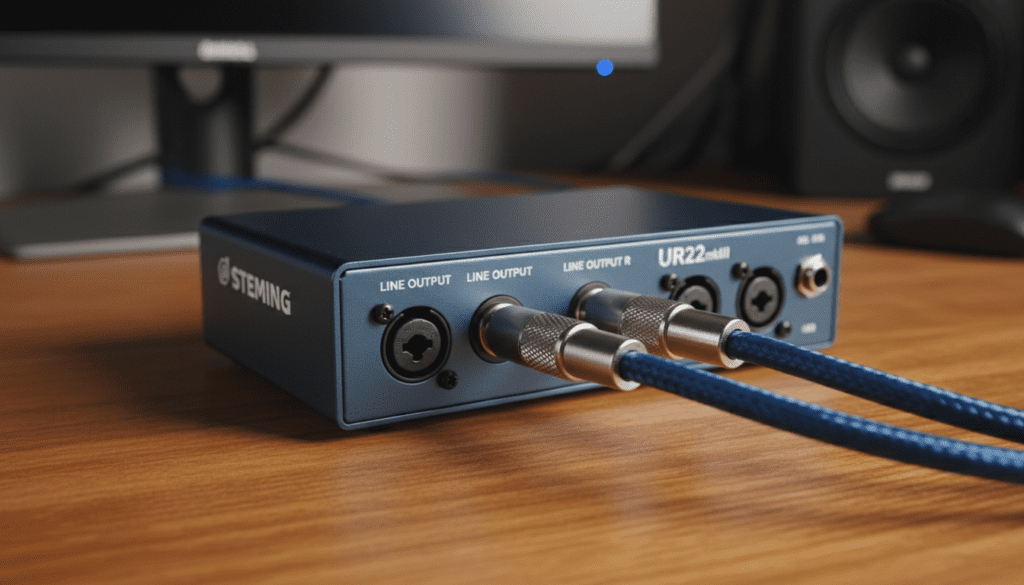
Yes, you can absolutely get the Steinberg UR22 to use computer speakers by connecting them to the Line Output jacks located on the rear of the interface. Because the UR22 uses professional 1/4-inch TRS (Tip-Ring-Sleeve) outputs and most computer speakers use a 3.5mm (1/8-inch) mini-jack, you will typically need a dual 1/4″ TS to 3.5mm female adapter or a specific breakout cable. Once physically connected, you simply set the Steinberg UR22 as your default playback device in your Windows or macOS sound settings to enjoy high-fidelity audio.
Quick Summary: Key Takeaways
- Connection Type: Use the two Line Output (L/R) ports on the back of the UR22.
- Required Hardware: Most consumer speakers need a Y-adapter cable (Dual 1/4″ Mono Plugs to Stereo 3.5mm Jack).
- Driver Requirement: You must install the Yamaha Steinberg USB Driver for the computer to recognize the device properly.
- Volume Control: The Output knob on the front of the UR22 will act as your new master volume dial.
- Audio Quality: Using the UR22 provides 24-bit/192kHz resolution, significantly better than standard motherboard audio.
Understanding the Steinberg UR22 Output Logic
In my years of setting up home studios, I’ve found that the Steinberg UR22 is one of the most resilient interfaces for beginners. However, the most common hurdle is the physical mismatch between “Pro Audio” gear and “Consumer” speakers.
The UR22 is designed to send a Line Level signal. This is a much cleaner and stronger signal than the one coming out of your laptop’s headphone jack. When you ask, “can i get the ur22 to use comupter speakers,” you are essentially turning the interface into an external high-end sound card.
Unlike your computer’s built-in ports, the UR22 outputs are “Balanced.” This means they are designed to reject hum and interference. While your standard Logitech or Creative speakers might not be balanced, the interface handles the conversion seamlessly once you have the right cable.
Essential Hardware: Cables and Adapters You Need
You cannot simply plug standard computer speakers into the UR22 without an adapter. Standard computer speakers usually have a single 3.5mm male plug. The UR22 has two separate 1/4-inch female jacks (one for the Left channel and one for the Right).
Required Adapter Options
| Speaker Connection Type | Required Adapter/Cable | Purpose |
|---|---|---|
| 3.5mm Male Jack | Dual 1/4″ TS to 3.5mm Female Y-Adapter | Converts the two mono outputs into one stereo female port. |
| RCA (Red/White) | Dual 1/4″ TS to Dual RCA Cable | Connects the UR22 directly to the back of powered bookshelf speakers. |
| 3.5mm Aux Input | Dual 1/4″ TS to 3.5mm Male TRS Cable | Plugs directly into the “Aux In” port on portable or computer speakers. |
I recommend using shielded cables whenever possible. In my testing, unshielded cheap adapters can introduce a “buzz” when placed near your computer monitor or power strips. Spending an extra $5 on a gold-plated Hosa or UGREEN adapter is a wise investment for long-term clarity.
Step-by-Step Guide: Can I Get the UR22 to Use Comupter Speakers?
Follow these steps to ensure a pop-free and high-quality audio connection.
Step 1: Power Down and Preparation
Before plugging anything in, turn the Output knob on the front of your UR22 all the way to the left (zero). Also, turn off your computer speakers. This prevents “thumps” that can damage speaker tweeters.
Step 2: Physical Connection
- Locate the Line Output section on the back of the UR22.
- Plug the Left (White/Black) 1/4-inch connector into the Output L jack.
- Plug the Right (Red) 1/4-inch connector into the Output R jack.
- Connect your computer speakers to the other end of the adapter.
Step 3: Install the Yamaha Steinberg USB Driver
Your computer might “see” the device without drivers, but you won’t get the best performance. Download the latest Yamaha Steinberg USB Driver from the official Steinberg website. This driver enables ASIO support, which is critical for low-latency audio if you plan on recording later.
Step 4: Configure Operating System Settings
For Windows Users:
- Right-click the Speaker Icon in the taskbar.
- Select Sound Settings.
- Under Output, select Steinberg UR22 (or Line Out Steinberg UR22).
For Mac Users:
- Go to System Settings > Sound.
- Select the Output tab.
- Click on Steinberg UR22.
The Importance of the “Mix” Knob Settings
One “pro tip” I always give to new UR22 owners involves the Mix knob on the front panel. This knob controls the balance between your Inputs (microphones/guitars) and the Daw (the computer’s audio).
If you are just listening to music or gaming, keep this knob turned all the way to the DAW side. If it is stuck in the middle, you might hear a slight “hiss” from the empty microphone inputs. By turning it fully to the right, you ensure 100% of the signal coming to your computer speakers is from your OS or music player.
Troubleshooting Common Setup Issues
Even with the right cables, you might encounter a few hiccups. Here is how I solve them in the field.
No Sound Coming Out
First, check the USB Light on the front of the UR22. If it is blinking, the interface isn’t receiving enough power or isn’t communicating with the driver. Try a different USB port, preferably a USB 2.0 port directly on the motherboard rather than a hub.
Audio Only From One Speaker
This usually happens if the 1/4-inch plugs aren’t pushed all the way into the UR22. These jacks are tight. Give them a firm push until you feel a “click.” If the problem persists, your Y-adapter might be a “Mono” splitter rather than a “Stereo” breakout.
Static or Crackling Noises
If you hear crackling when you move your mouse or when the CPU is under load, you are likely experiencing EM interference. Ensure your speaker cables aren’t draped over power bricks. Also, check your Buffer Size in the Yamaha Steinberg USB Driver control panel. Setting it to 512 samples usually clears up most “digital” crackle.
Why You Should Use the UR22 Instead of the Headphone Jack
You might wonder if the effort is worth it. In my experience, the Yamaha D-PRE preamps and the internal Digital-to-Analog Converters (DAC) in the UR22 are far superior to the $0.50 chips used in most laptop motherboards.
- Higher Dynamic Range: You will hear “details” in your music that were previously buried.
- Lower Noise Floor: You won’t hear that constant “hiss” when no music is playing.
- Physical Control: Having a dedicated Output knob on your desk is much faster than fumbling with Windows volume sliders during a loud video.
FAQ: Can I Get the UR22 to Use Comupter Speakers?
Can I use the headphone jack on the front for my speakers?
Yes, you can plug your computer speakers into the Phones jack using a 3.5mm to 1/4-inch adapter. However, this is not ideal because the headphone amp is tuned for high-impedance ears, not powered speakers. Using the rear Line Outputs provides a cleaner signal path.
Do I need to keep my computer speakers’ volume high?
I recommend setting your computer speakers to about 70% volume and using the UR22 Output knob to control your daily listening level. This provides the best signal-to-noise ratio.
Does the UR22 need an external power supply for speakers?
If you are using it with a PC/Mac, it draws power via USB. However, if you are using it with an iPad, you must plug a Micro-USB power supply into the 5V DC port on the back to ensure the outputs have enough “juice” to drive the signal.
Will this setup work for gaming and Discord?
Absolutely. Once the UR22 is set as your default device, all system audio—including Discord, YouTube, and Games—will flow through your computer speakers connected to the interface.
Can I use “Passive” speakers with the UR22?
No. The UR22 does not have a built-in power amplifier for speakers. You must use Active (powered) computer speakers or connect the UR22 to an external amplifier that then powers the passive speakers.









