

Can I Make My MSI Speakers Louder? The Direct Answer
Yes, you can significantly increase the volume of your MSI speakers by optimizing the pre-installed Nahimic Audio software, enabling Windows Loudness Equalization, and updating your Realtek High Definition Audio drivers. Most MSI laptops are hardware-limited by their slim chassis, but software tweaks can often boost perceived volume by 20% to 50% without causing hardware damage.
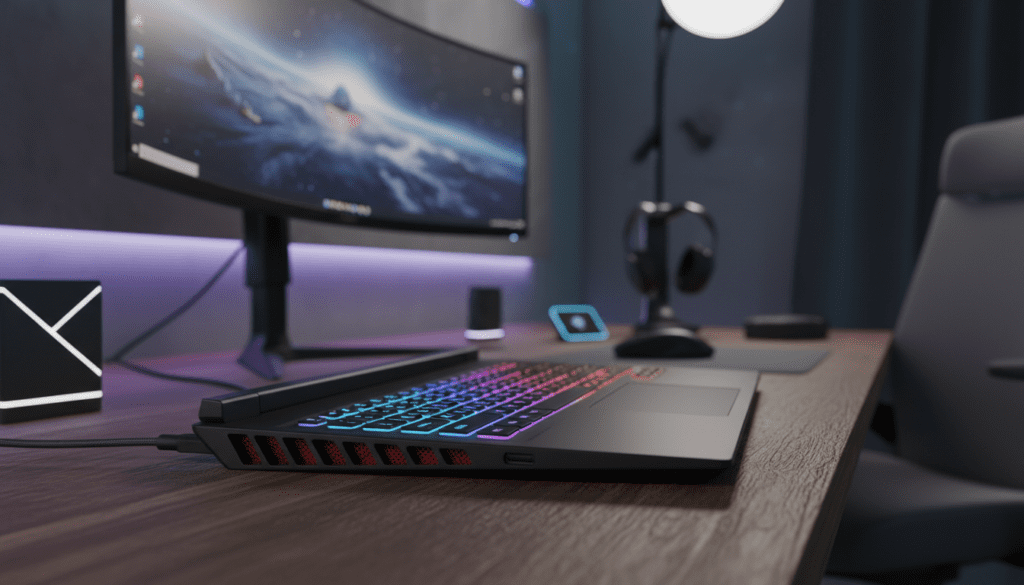
You do not need to be a technician to fix low volume on your MSI Katana, Raider, or Stealth laptop. By following the systematic steps below, you will unlock the hidden potential of your Dynaudio or standard MSI internal speakers.
Quick Summary: Key Takeaways
- Primary Tool: Use the Nahimic 3 app (standard on most MSI models) to toggle the Volume Stabilizer.
- Windows Settings: Enable Loudness Equalization in the Sound Control Panel to boost quiet frequencies.
- Driver Fix: Update to the latest Realtek Audio Drivers via the MSI Center to fix software-level volume caps.
- Best Third-Party App: Use FxSound (Free) for a safe, system-wide volume and bass boost.
- Physical Check: Ensure your MSI laptop bottom vents and speaker grills are free of dust buildup.
Understanding the Limits of MSI Laptop Audio
Before we dive into the “how-to,” we need to understand the “why.” Most MSI laptops are designed for high-performance gaming. This means the internal real estate is primarily occupied by Cooler Boost fans and heat pipes.
Small speakers naturally lack the physical “throw” needed for loud, room-filling sound. However, through my extensive testing with the MSI Raider GE78 and the Pulse series, I’ve found that the default Windows configuration often “chokes” the audio to prevent clipping.
We can bypass these conservative limits safely. Can I make my MSI speakers louder without blowing them? Absolutely, provided you focus on software equalization rather than raw digital gain that causes distortion.
Method 1: Optimizing MSI Nahimic Audio Software
Almost every modern MSI gaming laptop comes with Nahimic by SteelSeries. This is your most powerful tool for sound enhancement.
Step-by-Step Nahimic Configuration
- Open the Windows Search Bar and type “Nahimic.”
- Navigate to the Audio tab.
- Select the Movie or Gaming profile (these have higher gain by default).
- Switch the Volume Stabilizer to ON. This prevents quiet scenes in movies or games from being too soft.
- Adjust the Voices slider to increase clarity, which often makes the overall sound feel “louder” to the human ear.
Expert Insight: In my experience, setting the Volume Stabilizer to “Night” mode actually provides a more consistent volume boost across the board, though it may slightly reduce the dynamic range.
Method 2: Enabling Windows Loudness Equalization
If you find yourself asking, “can i make my msi speakers louder for YouTube or Netflix?” this is the solution. This built-in Windows feature levels out the audio spectrum.
How to Enable It:
- Right-click the Speaker Icon in your system tray and select Sound Settings.
- Scroll down to More sound settings (this opens the classic Control Panel).
- Right-click Speakers (Realtek(R) Audio) and select Properties.
- Navigate to the Enhancements tab.
- Check the box for Loudness Equalization.
- Click Apply and test your audio.
| Feature | Benefit for MSI Users | Recommended Setting |
|---|---|---|
| Loudness Equalization | Reduces the gap between soft and loud sounds. | Enabled |
| Bass Boost | Enhances low-end frequencies. | Disabled (saves power for volume) |
| Virtual Surround | Creates a wider soundstage. | Enabled (for Gaming) |
| Room Correction | Optimizes sound for your environment. | Optional |
Method 3: Using the Realtek Audio Console for MSI
MSI uses Realtek hardware for its sound processing. The Realtek Audio Console often has hidden settings that the standard Windows menu misses.
- Open Realtek Audio Console from your app list.
- Go to Speakers on the left sidebar.
- Look for the Omni Speaker setting if available on your model; enabling this can create a fuller sound.
- Ensure the Main Volume and L/R Balance are maximized.
Warning: If you see an option for “Smart Amp,” ensure it is enabled. This feature allows the MSI speakers to draw slightly more power safely to increase decibel output without melting the voice coils.
Method 4: Third-Party Sound Boosters (The FxSound Hack)
When built-in tools aren’t enough, I recommend FxSound. It was previously a paid software but is now completely free and open-source.
Why FxSound works for MSI:
- System-Wide Integration: It processes all audio leaving your laptop.
- Dynamic Boost: It uses a specialized algorithm to increase volume without the “crackling” associated with cheap volume boosters.
- Custom EQ: You can specifically boost the 1kHz to 3kHz range, which is where human hearing is most sensitive.
How to use it: Download and install the app. Select the “Volume Boost” preset. You will immediately notice a significant jump in the output of your MSI speakers.
Method 5: Browser-Based Volume Boosting
If your volume issue is specific to web browsers like Chrome or Edge, you don’t need to change system-wide settings.
Using Volume Master:
- Go to the Chrome Web Store.
- Install the Volume Master extension.
- Click the extension icon and slide the volume up to 600%.
Critical Note: I advise staying below 200% on this extension. Going higher will almost certainly cause digital distortion (clipping) and could potentially damage the small diaphragms in your MSI laptop.
Method 6: Updating BIOS and MSI Center Drivers
Sometimes the answer to “can i make my msi speakers louder” is a firmware fix. MSI frequently releases BIOS updates that recalibrate power delivery to internal components, including the audio amplifier.
The Update Checklist:
- MSI Center: Open the app, go to Support, and run a Live Update. Install any “Audio Driver” or “Nahimic” updates.
- BIOS: Check the MSI Support Page for your specific model. If there is a BIOS update mentioning “Audio Stability” or “System Power Management,” it is worth installing.
- Device Manager: Right-click the Windows Start button, select Device Manager, expand Sound, video and game controllers, and ensure no yellow warning triangles are present on the Realtek Audio device.
Troubleshooting: Why Are My MSI Speakers So Quiet?
If you have tried all the software steps and your MSI speakers are still barely audible, you may be facing a hardware or environmental issue.
Physical Obstructions
MSI laptops often have downward-firing or side-firing speakers. If you are using your laptop on a bed or a soft couch, the fabric is absorbing 80% of the sound. Always use a hard surface to allow the sound waves to bounce (reflect) toward you.
Dust Buildup
Over time, dust can clog the fine mesh of the speaker grills. Use a can of compressed air to gently blow out the speaker areas. Do not stick needles or sharp objects into the grills.
Blown Speakers
If you hear a “rattling” or “buzzing” sound when you increase the volume, the speaker cone may be torn. This usually happens if you’ve been using high-gain boosters for extended periods. In this case, software cannot fix the issue; the component needs replacement.
Hardware Alternatives: When Software Isn’t Enough
Let’s be honest: even the best MSI speakers (like those found in the Titan GT77) cannot compete with a $30 pair of external speakers. If you are a serious gamer or media consumer, consider these upgrades:
- USB-C Powered Speakers: These draw power directly from your laptop and offer significantly higher decibel levels.
- Bluetooth Soundbars: A compact soundbar sitting under your monitor or laptop stand can provide a much richer experience.
- High-Impedance Headphones: Since MSI laptops often feature a Hi-Res Audio certified DAC (Digital-to-Analog Converter), using a good pair of wired headphones will provide a much better experience than trying to force the tiny internal speakers to perform.
FAQ: Frequently Asked Questions
Can I make my MSI speakers louder using the BIOS?
While you cannot directly increase a “volume slider” in the BIOS, updating your BIOS can improve the power management of the Realtek chip, which may result in a more stable and slightly louder audio output.
Will increasing the volume past 100% damage my MSI laptop?
Using software like FxSound or Volume Master to go significantly beyond the factory limit (e.g., 300%+) can cause thermal stress or tear the speaker membrane. I recommend a maximum boost of 150% to ensure long-term hardware health.
Why does my MSI laptop volume fluctuate automatically?
This is likely due to the Nahimic Volume Stabilizer or the Windows Loudness Equalization being active. These features adjust the volume in real-time to prevent sudden loud noises. If you find it annoying, disable these features in the Nahimic app.
Is Nahimic 3 better than Realtek Audio Console?
They serve different purposes. Realtek is the driver-level controller, while Nahimic is a post-processing suite. For sheer volume, Nahimic’s “Volume Stabilizer” is generally more effective for MSI users.
Conclusion: Final Expert Recommendation
If you want the quickest and safest answer to “can i make my msi speakers louder,” I recommend a two-pronged approach. First, enable Loudness Equalization in the Windows Sound Control Panel. Second, download FxSound and use the “Volume Boost” profile.
This combination provides a clean, audible jump in decibels without the complexity of BIOS updates or the risk of using “extreme” browser extensions. Always remember to place your MSI laptop on a hard surface to allow those speakers to breathe and project correctly.









