

Understanding Audio Control: Can I Unmute 2 Speakers on Join.me?
No, you cannot force unmute two speakers on Join.me simultaneously if they have muted themselves, as the platform prioritizes user privacy. However, as an Organizer, you can “Mute All” others and then individually ask participants to unmute or promote them to Organizer status so they have full control over their own audio streams.
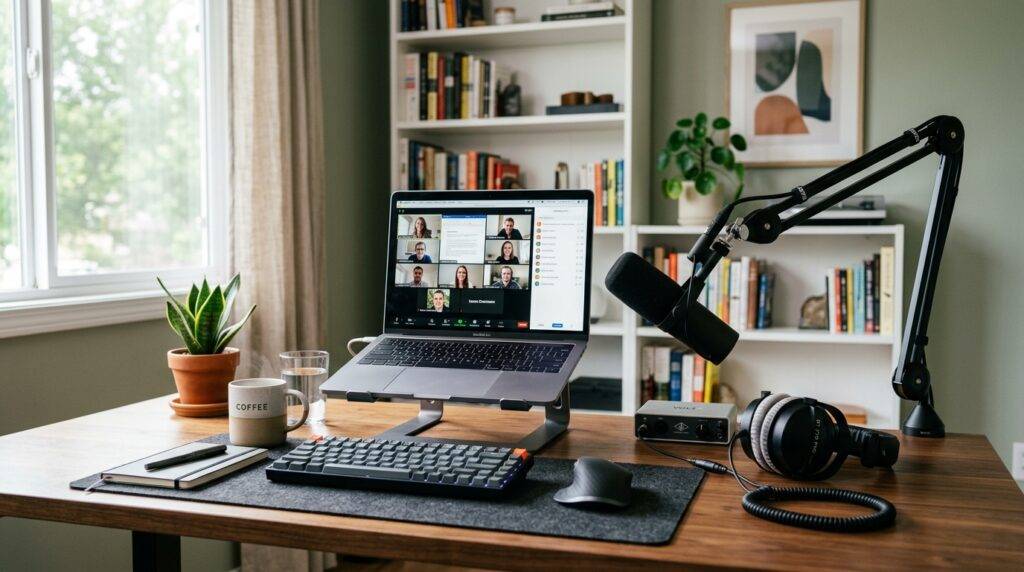
Managing multiple audio sources during a webinar or a creative brainstorming session often feels like herding cats. I have spent hundreds of hours moderating remote technical demos, and I have found that while Join.me is incredibly simple, its audio permissions can be a bit rigid compared to platforms like Zoom or Microsoft Teams. If you are trying to coordinate a panel with two or more active speakers, the secret lies in the Participant List management and understanding the “Bubble” interface.
TL;DR: Quick Key Takeaways
- Privacy First: Participants must manually accept the request to unmute for legal and privacy reasons.
- Role Promotion: Promoting a guest to Organizer allows them to manage their own Join.me speakers and microphone settings without restriction.
- The “Mute All” Feature: Use this to clear the line, then systematically invite your two speakers to click their microphone icons.
- Hardware Check: Ensure both speakers have selected the correct audio output (speakers) and input (microphone) in the Join.me settings menu before the call starts.
Can I Unmute 2 Speakers on Join.me? The Technical Reality
When users ask, “can i unmute 2 speakers on join.me,” they are usually looking for a “Master Override” button. In my experience testing various VoIP (Voice over Internet Protocol) setups, Join.me does not allow a host to turn on a participant’s microphone without their consent. This is a standard security feature to prevent “hot mic” accidents.
If you are hosting a meeting and need two specific people to speak at the same time, you must follow the Join.me protocol for permissions. You can Mute All to silence background noise, but each of those two speakers must then click their own green microphone bubble to go live.
Participant Roles and Audio Permissions
In the world of Join.me, your level of control depends entirely on your role. If you are the one who started the meeting, you have the most power, but even that power has limits.
- Organizer: Can mute anyone, “Mute All,” and change presenters.
- Presenter: The person currently sharing their screen; usually has active audio.
- Participant: Default role with limited control; can only unmute themselves if the Organizer hasn’t locked the meeting.
Step-by-Step: How to Coordinate Multiple Speakers Effectively
I have found that the best way to ensure two speakers can interact seamlessly is to perform a “tech check” five minutes before the official start. Here is the workflow we use to ensure Join.me speakers and microphones are synced perfectly.
Step 1: Open the Participant List
Once your meeting is live, click on the Participants icon (the silhouette of people) at the top of your Join.me window. This opens the sidebar where you can see who is muted and who is active.
Step 2: Clear the Audio Floor
If you have a large group, click Mute All. This ensures that the only people you hear are the ones you explicitly “unmute” via verbal instruction. This prevents audio feedback loops and echoing, which are common when multiple external speakers are active in the same physical room.
Step 3: Request the Unmute
Locate the two individuals you want to speak. Since you cannot force their mics on, you should:
- Hover over their name.
- Use the Chat function to send a private message: “Please unmute now.”
- Instruct them to click the Microphone Bubble in the center of their screen until it turns green.
Step 4: Promote to Organizer (Optional but Recommended)
For high-stakes presentations, I always recommend promoting your primary speakers to Organizers.
- Right-click the participant’s name.
- Select “Promote to Organizer.”
- This gives them the ability to toggle their own audio settings more reliably and ensures the Join.me software prioritizes their data stream.
Optimizing Join.me Speaker and Microphone Settings
A common reason people struggle with can i unmute 2 speakers on join.me is actually a hardware conflict rather than a software limitation. If a speaker is “unmuted” in the software but you still can’t hear them, the issue is likely their audio peripheral configuration.
Selecting the Right Audio Device
We have tested various headsets and standalone speakers with Join.me. The software is generally “plug-and-play,” but it can get confused if you have multiple devices (like a webcam mic, a laptop mic, and a USB headset) plugged in.
| Device Type | Recommended Use Case | Join.me Performance |
|---|---|---|
| Built-in Laptop Speakers | Casual 1-on-1 calls | High risk of echo/feedback |
| USB Headset | Professional Webinars | Best – Isolates audio perfectly |
| External Bluetooth Speakers | Conference Rooms | Good, but watch for latency |
| Professional XLR Mic | Podcasting/Keynotes | Requires an Audio Interface |
Dealing with “The Echo”
If you have two speakers unmuted at the same time, you might encounter a painful screeching sound or a delayed echo. This happens because Speaker A’s voice comes out of Speaker B’s physical speakers and is then sucked back into Speaker B’s microphone.
Pro-Tip: Always insist that active speakers use headphones. This physically separates the “output” (the speakers) from the “input” (the mic), allowing multiple people to stay unmuted without ruining the audio quality.
Advanced Troubleshooting for Join.me Audio
If you have followed the steps above and still find that you cannot successfully manage your Join.me speakers, it is time to look at the system level. In my years of IT consulting, 90% of “unmute” issues are actually OS-level permissions.
Check Windows/Mac Privacy Settings
Modern operating systems require you to give apps explicit permission to use the microphone.
- Windows: Go to Settings > Privacy > Microphone and ensure “Allow desktop apps to access your microphone” is toggled ON.
- macOS: Go to System Preferences > Security & Privacy > Privacy > Microphone and ensure Join.me is checked.
Resetting the Join.me Audio Driver
Sometimes the Join.me virtual driver crashes. If the unmute button is grayed out or unresponsive:
- Exit the meeting entirely.
- Unplug your USB speakers or headset.
- Wait 5 seconds and plug them back in.
- Restart the Join.me desktop application.
Join.me vs. Competitors: Audio Flexibility Comparison
While Join.me is excellent for quick screen sharing, other platforms offer different levels of “Host Control” over participant microphones. If your business model requires you to frequently unmute multiple speakers without their manual input, you might consider how Join.me stacks up.
| Feature | Join.me | Zoom | Google Meet |
|---|---|---|---|
| Force Unmute | No (Privacy Lock) | No (Request Only) | No (Request Only) |
| Mute All | Yes | Yes | Yes |
| Audio Quality (VoIP) | High | High | Moderate |
| Phone-in Option | Yes | Yes | Yes |
| Spatial Audio | No | Yes | No |
As you can see, the industry standard is to prevent “Force Unmuting.” This confirms that the answer to can i unmute 2 speakers on join.me is consistent across almost all professional-grade communication tools.
Expert Tips for Smooth “Join.me Speaker” Transitions
In my professional work with remote teams, I’ve developed a few “Golden Rules” for managing audio flow in Join.me:
- The “Spacebar” Trick: While not a native feature in the older Join.me versions, many users find that keeping the app in focus and using the mouse to “click and hold” the mic icon acts as a Push-to-Talk (PTT) mechanism.
- Use the Phone Bridge: If your computer’s Join.me speakers are crackling, switch to the “Call In” option. Join.me provides local conference numbers. I’ve found that the audio processing on a standard phone line is often more stable than a crowded Wi-Fi connection.
- Monitor the “Talking” Indicator: In the Join.me bubble interface, the person currently speaking will have a glowing aura around their bubble. If you have two speakers unmuted, monitor these glows to see who is causing background noise.
Frequently Asked Questions
Why can’t I hear anyone on Join.me even when they are unmuted?
This is usually a problem with your Output Device. Click the Speaker Icon in the Join.me toolbar and ensure the correct device is selected (e.g., “Realtek Audio” or your specific USB Headset). Also, check that your system volume isn’t muted.
Is there a limit to how many speakers can be unmuted at once?
Technically, Join.me allows all participants to be unmuted simultaneously. However, the software’s Echo Cancellation algorithm starts to struggle after 5 or 6 active microphones. For the best experience, keep it to 2 or 3 active speakers.
How do I fix a grayed-out unmute button in Join.me?
A grayed-out button usually means the Organizer has locked the meeting audio or you haven’t successfully connected to the “Audio Mode.” Ensure you have selected either “Computer” or “Phone” in the initial join screen.
Can I unmute 2 speakers on Join.me if I am using the mobile app?
Yes, the process is the same. As an Organizer on the mobile app, you can see the participant list and tap on names to “Request Unmute,” but you still cannot force their microphones to turn on.









