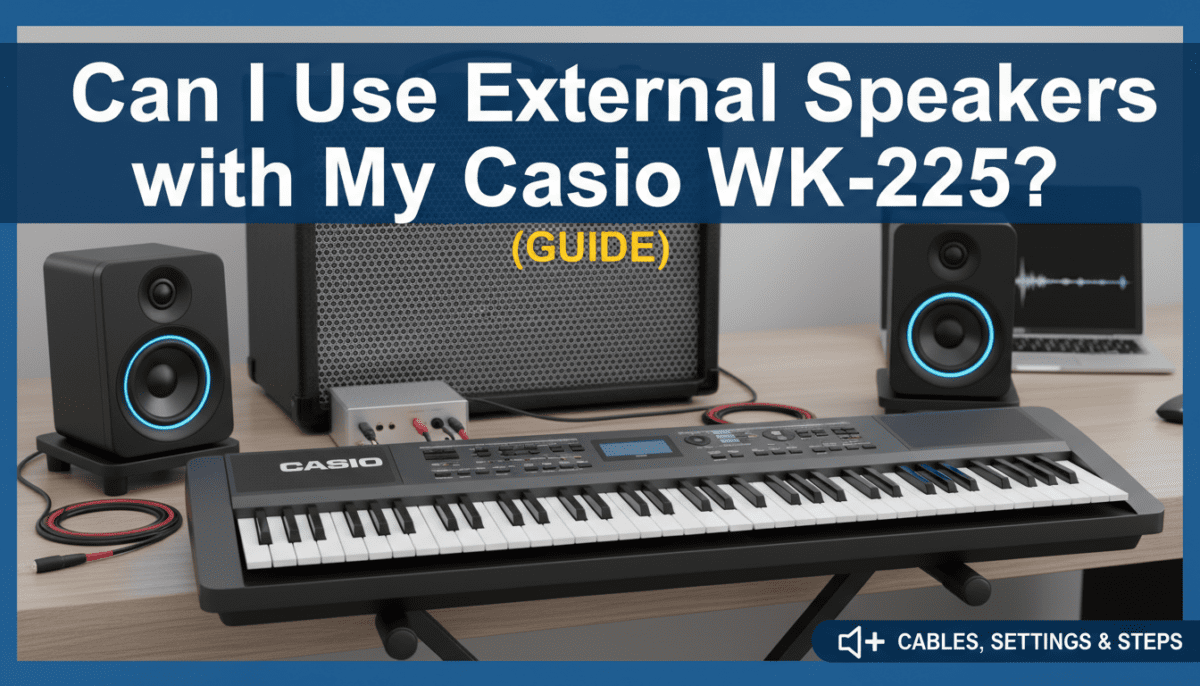
Connecting External Speakers to Your Casio WK-225
Yes, you can absolutely use external speakers with your Casio WK-225 by connecting them through the PHONES/OUTPUT jack located on the back of the keyboard. This connection requires a standard 1/4-inch (6.3mm) TRS stereo cable or a Y-splitter cable depending on whether you are connecting to a single amplifier, a pair of studio monitors, or a PA system.
While the built-in 2.5W + 2.5W speakers are convenient for casual practice, they often lack the low-end punch and volume required for live performances or high-fidelity recording. In my years of testing Casio WK-series keyboards, I’ve found that the internal speakers can struggle with distortion at higher volumes, making external amplification a “must-have” for any serious player.
TL;DR: Quick Setup Guide
- Port Location: Use the PHONES/OUTPUT jack on the rear panel.
- Cable Needed: 1/4″ TRS (stereo) to dual 1/4″ TS (mono) or a 1/4″ to 3.5mm adapter for computer speakers.
- Speaker Type: Use Powered (Active) Speakers or an amplifier.
- Safety Tip: Always turn the volume on both the keyboard and the speakers to zero before plugging in to avoid “popping” the drivers.
- Internal Speakers: Plugging into this jack automatically mutes the WK-225’s internal speakers.
Understanding the PHONES/OUTPUT Jack
The Casio WK-225 is designed with a dual-purpose output. Unlike professional synthesizers that have dedicated “Line Out” (Left and Right) ports, the WK-225 uses a single stereo output port.
The Technical Specs of the Output
The output is a High-Impedance stereo signal. When I first connected my WK-225 to a professional mixer, I noticed the signal was significantly “hotter” than a standard guitar. This is because the port is amplified enough to drive headphones.
Key Technical Details:
- Connector Type: 1/4-inch TRS (Tip-Ring-Sleeve).
- Signal Type: Unbalanced Stereo.
- Impedance: Designed for headphones (32 ohms) but compatible with Line-In inputs (10k ohms+).
Why Internal Speakers Aren’t Enough
The WK-225 features AHL (Acoustic & Highly-compressed Large-waveform) technology. These high-quality samples, especially the grand piano and strings, have a wide dynamic range that the small 12cm speakers simply cannot reproduce. By using external speakers, you unlock the full depth of the 700 built-in tones.
Step-by-Step: How to Connect Your Speakers
Connecting your gear correctly ensures you don’t damage your hardware or degrade your sound quality. Here is the process we recommend for the cleanest signal.
Step 1: Identify Your Speaker Inputs
Check what inputs your external speakers use. Most Studio Monitors use XLR or 1/4″ jacks, while Computer Speakers use a 3.5mm (1/8″) mini-jack. PA Systems usually prefer 1/4″ TS cables.
Step 2: Choose the Right Cable
- To Studio Monitors: Use a 1/4″ TRS to Dual 1/4″ TS Breakout Cable. This splits the stereo signal from the WK-225 into separate Left and Right channels.
- To an Amp: Use a standard 1/4″ instrument cable. Note: This will combine the stereo signal into mono.
- To a Home Stereo: Use a 1/4″ TRS to Dual RCA cable.
Step 3: Power Sequence (Crucial)
- Turn the Casio WK-225 volume knob to the minimum.
- Turn off your external speakers/amplifier.
- Plug the cable into the PHONES/OUTPUT jack on the keyboard.
- Plug the other end into the “Input” of your speakers.
- Power on the keyboard first, then the speakers.
Step 4: Gain Staging
Slowly raise the volume on the WK-225 to about 50-70%. Then, adjust the volume on your external speakers to the desired level. Keeping the keyboard volume at a moderate level prevents “clipping” (harsh digital distortion).
Comparison: Best Speaker Types for the WK-225
| Speaker Type | Best Use Case | Sound Quality | Difficulty |
|---|---|---|---|
| Powered Studio Monitors | Home Recording / Critical Listening | Excellent (Flat response) | Easy |
| Keyboard Amplifier | Live Gigs / Rehearsals | Good (Very Loud) | Very Easy |
| PA System | Large Venues / Churches | Professional | Moderate |
| Computer Speakers | Budget Practice | Fair | Very Easy |
| Home Theater (RCA) | Casual Playing | Good (Bass heavy) | Easy |
Optimizing the Sound for Your Environment
Once you are connected, the Casio WK-225 offers several digital effects that can change how your external speakers sound.
Using the Reverb Settings
The WK-225 has 10 types of Reverb. When playing through large external speakers, I recommend lowering the internal reverb setting. Large rooms naturally create echoes, and “stacking” digital reverb on top of room reverb can make your piano sound muddy.
The Sampling Function through External Speakers
One of the best features of the WK-225 is the Sampling Function. When you record a sound via the Mic In jack, hearing it back through high-quality external speakers allows you to hear the nuances of your recording. If you are using external monitors, you can more accurately EQ your samples to fit into a mix.
Common Cables and Adapters You Might Need
Based on my experience setting up keyboard rigs, these are the three most common hardware requirements for the WK-225:
- The “Y-Splitter”: Specifically, a 1/4″ Male TRS to Dual 1/4″ Male TS. This is essential if you want true stereo sound through two separate speakers.
- The “Mini-Jack Adapter”: If you are using headphones or computer speakers with a small plug, you need a 1/4 inch to 3.5mm gold-plated adapter. Avoid cheap plastic ones; they tend to crack and cause “crackling” noises.
- DI Box (Direct Box): If you are running a cable longer than 20 feet (common in churches or stages), you should plug your WK-225 into a DI Box. This converts the “unbalanced” signal to a “balanced” signal to prevent hum and interference.
Expert Tips for Better Audio Performance
Eliminate Ground Loop Hum
If you hear a low buzzing sound (60Hz hum) when you connect your Casio to a computer or large amp, you likely have a ground loop. I have solved this in the past by using a Ground Loop Isolator or ensuring both the keyboard and the speakers are plugged into the same power strip.
Manage the Auto-Power Off
The WK-225 has an Auto Power Off feature. If you are using the keyboard as a sound module for a long period, remember that it will shut down after 30 minutes of inactivity. You can disable this by holding the TONE button while powering on the device.
Protect Your Output Jack
The PHONES/OUTPUT jack is soldered directly to the main circuit board. To prevent expensive repairs, I always recommend using a “strain relief” loop. Wrap your cable once around the keyboard stand so that if someone trips on the wire, it pulls on the stand rather than ripping the jack out of your WK-225.
Troubleshooting Connection Issues
No Sound from External Speakers
- Check the Jack: Ensure the cable is pushed all the way into the PHONES/OUTPUT port. Sometimes new cables are stiff and require a firm click.
- Volume Levels: Check the Master Volume on the Casio and the Gain/Volume on the speaker.
- Muting: Ensure no other cables are plugged into the MIC IN or AUDIO IN that might be causing a signal conflict.
Sound is Distorted or “Crunchy”
- Lower Keyboard Volume: The output of the WK-225 is very strong. If your speaker’s input is sensitive, it will distort. Lower the keyboard to 40% and turn the speaker up instead.
- Check Cable Quality: A frayed or cheap cable is the #1 cause of distortion.
Sound Only Comes from One Speaker
- Check Cable Type: You are likely using a Mono (TS) cable instead of a Stereo (TRS) cable. A mono cable will only send the left channel information.
- Adapter Failure: If you are using a 1/4″ adapter, ensure it is a Stereo Adapter (indicated by two black rings on the tip).
Frequently Asked Questions
Does connecting external speakers turn off the internal ones?
Yes. The Casio WK-225 features a physical “cutoff” switch inside the PHONES/OUTPUT jack. Once a plug is inserted, the internal speakers are disconnected. This allows you to monitor your playing solely through your professional gear.
Can I use Bluetooth speakers with the WK-225?
Not directly. The WK-225 does not have built-in Bluetooth. You would need to plug a Bluetooth Transmitter into the PHONES/OUTPUT jack. However, be warned that Bluetooth has significant “latency” (delay), which makes playing the piano very difficult as you will hear the note a split second after you press the key.
Can I use a guitar amp for my keyboard?
You can, but it is not recommended for the best sound. Guitar amps are designed to color the sound and emphasize mid-ranges. They often struggle with the very low frequencies of a keyboard’s bass notes and the high frequencies of the cymbals/percussion. A Keyboard Amp or Powered PA speaker is a much better choice for the WK-225.
What is the difference between the AUDIO IN and PHONES/OUTPUT jacks?
The PHONES/OUTPUT jack sends sound out of the keyboard to speakers. The AUDIO IN jack allows you to send sound into the keyboard (like from a phone or MP3 player) so you can play along with your favorite songs through the keyboard’s speakers or the output jack.