Yes, you can use wireless speakers with your surround sound receiver, but it depends entirely on your receiver’s built-in technology or the addition of an aftermarket wireless adapter. If you want to eliminate messy speaker wires running across your living room floor, you are in the right place. Most modern smart receivers have proprietary Wi-Fi ecosystems built directly into them, while older receivers require a dedicated radio frequency (RF) wireless transmitter kit to bridge the gap.
In this guide, I will walk you through exactly how to pair wireless speakers to your existing setup. We will cover everything from native Wi-Fi ecosystems to retrofit adapter kits, ensuring you get a seamless, lag-free cinematic audio experience.
📌 TL;DR / Key Takeaways
- Built-in Wi-Fi ecosystems are best: Receivers with Yamaha MusicCast, Denon HEOS, or Sony Spatial Sound can connect natively to their brand’s wireless speakers.
- Older receivers need adapter kits: You can make any passive speaker “wireless” using a 2.4GHz or 5.8GHz RF wireless speaker kit (like the Rocketfish Wireless Rear Speaker Kit).
- Bluetooth is a bad idea for surround sound: Due to latency delays (lip-sync issues) ranging from 150ms to 250ms, standard Bluetooth cannot process multi-channel surround sound accurately.
- “Wireless” still means a power cord: True battery-powered surround speakers are rare; your wireless rear speakers will still need to be plugged into a standard wall electrical outlet.
The Short Answer: Can I Use Wireless Speakers With My Surround Sound Receiver?
Many clients ask me, “Can I use wireless speakers with my surround sound receiver?” The definitive answer is yes. However, you cannot simply pair a random smart speaker (like an Amazon Echo or standard JBL Bluetooth speaker) to an AV receiver and expect it to play the left-rear channel of a movie.
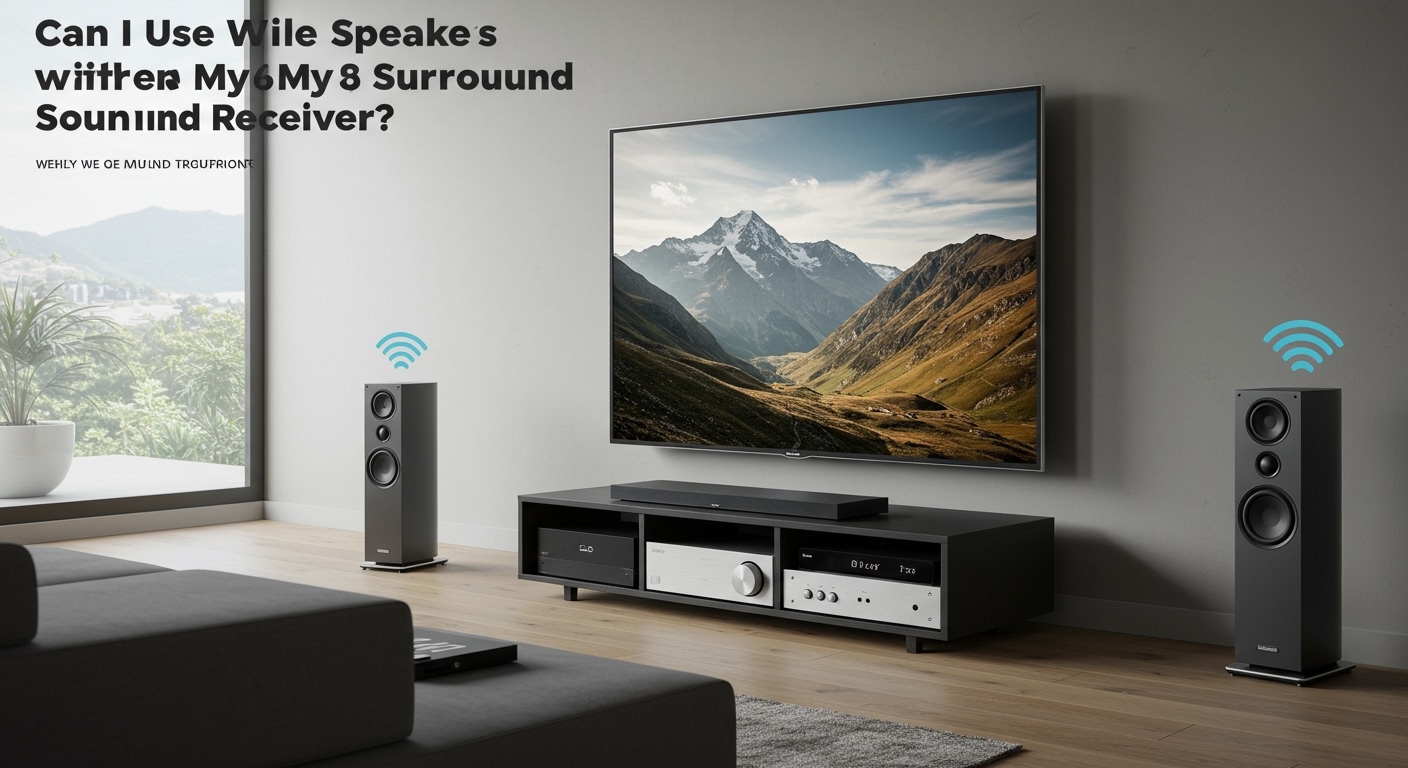
Surround sound requires split-second synchronization. To achieve this, you must use speakers that share the same low-latency communication protocol as your receiver. If your AV receiver does not have this capability built-in, you must manually add it using hardware transmitters connected to your receiver’s speaker terminals.
Understanding How “Wireless” Surround Sound Actually Works
Before diving into the step-by-step installation, it is crucial to understand the terminology. A massive misconception in the home theater space is that wireless speakers require zero cables.
In reality, wireless surround sound only replaces the long audio wire that traditionally runs from the front of your room (the receiver) to the back of your room (the speakers). You are eliminating the speaker wire, but you are not eliminating power cables.
Because speakers require amplification to produce sound, wireless speakers either have a built-in amplifier or connect to a localized wireless receiver box. Both of these solutions require AC power. You will need a wall outlet near your rear seating area for any of these methods to work.
Method 1: Using Proprietary Wi-Fi Ecosystems (The Ideal Solution)
If you have purchased a mid-range or high-end receiver in the last five years, you likely have a proprietary multi-room audio system built inside. This is the absolute best way to achieve wireless surround sound because the digital-to-analog conversion is handled seamlessly by the manufacturer’s internal software.
Yamaha MusicCast Surround
If you own a modern Yamaha AV Receiver (like the RX-V4A or RX-V6A), it likely supports MusicCast Surround. This feature allows you to use Yamaha MusicCast 20 or MusicCast 50 wireless speakers as your dedicated rear surround channels.
- Connect your Yamaha receiver and MusicCast speakers to the same home Wi-Fi network.
- Open the Yamaha MusicCast Controller app on your smartphone.
- Select your main AV receiver room.
- Tap “Setup” and follow the prompts to assign the wireless speakers as “Surround L” and “Surround R”.
Denon and Marantz HEOS
Denon and Marantz share the HEOS (Home Entertainment Operating System) platform. If you have a compatible receiver, you can use Denon Home 150, 250, or 350 speakers as your wireless rears.
- Plug in your Denon Home speakers in the rear of your room.
- Open the HEOS app and add the speakers to your network.
- In the app, group the wireless speakers with your HEOS-enabled AV receiver.
- The app will prompt you to configure them as dedicated surround channels.
Sony Spatial Sound Mapping
Select Sony receivers (like the STR-AN1000) allow you to pair proprietary Sony wireless speakers (like the SA-RS3S or SA-RS5) directly to the unit. Sony’s ecosystem is incredibly stable and uses dedicated wireless frequencies to eliminate Wi-Fi router congestion.
Method 2: Adding a Wireless Speaker Kit to an Older Receiver
What if you have a fantastic, high-end older receiver that lacks Wi-Fi? You can use wireless speakers with your surround sound receiver by using a Wireless Speaker Kit.
These kits come in two pieces: a transmitter and a receiver. The transmitter connects to the physical speaker outputs on the back of your AV receiver. It then beams the audio signal across the room via a 2.4GHz or 5.8GHz RF signal to the receiving unit.
Step-by-Step: How to Connect an RF Wireless Speaker Kit
I have installed dozens of these kits (the Rocketfish Wireless Home Theater Speaker Kit is my go-to recommendation). Here is the exact process I use in the field:
Step 1: Prep the AV Receiver
Turn off your AV receiver completely. Locate the terminal outputs on the back labeled “Surround Left” and “Surround Right”.
Step 2: Wire the Transmitter
Using standard speaker wire (16-gauge is fine), connect the “Surround L/R” outputs on your AV receiver to the inputs on the wireless transmitter box. Plug the transmitter’s power adapter into a wall outlet or surge protector.
Step 3: Place the Wireless Receiver in the Rear
Move to the back of your room where you want your rear speakers. Place the wireless receiver box near a wall outlet and plug it into power.
Step 4: Connect Your Passive Speakers
Using short runs of speaker wire, connect your passive surround sound speakers to the speaker terminals on the wireless receiver box.
Step 5: Pair and Calibrate
Turn on your main AV receiver. Most wireless kits auto-pair instantly. Play a test tone through your AV receiver’s setup menu to ensure audio is passing through the rear speakers cleanly.
Method 3: Can I Use Bluetooth Speakers for Surround Sound?
You might be wondering if you can just use that pair of Bluetooth speakers you already own. As an audio professional, I strongly advise against this. While some modern receivers can transmit a Bluetooth signal, it is virtually impossible to use standard Bluetooth for a surround sound home theater.
The primary issue is latency. Bluetooth audio processing typically introduces a delay of 150 to 250 milliseconds. While a quarter of a second doesn’t sound like much, it ruins the movie-watching experience.
When an explosion happens on screen, you will see the fireball, hear the front speakers, and then hear the rear explosion a fraction of a second later. This creates an awful, echo-like “stadium effect.” Furthermore, Bluetooth does not support uncompressed multi-channel audio formats like Dolby Digital or DTS:X.
Comparing Wireless Surround Sound Solutions
To help you choose the best route for your specific home theater, I have compiled this comparison table based on my field testing of different technologies.
| Technology Type | Latency/Delay | Audio Quality | Ease of Setup | Best Use Case |
|---|---|---|---|---|
| Built-in Wi-Fi (HEOS/MusicCast) | Near Zero (Sub 5ms) | Excellent (Lossless) | Very Easy (App-based) | New smart receivers |
| 5.8 GHz RF Wireless Kits | Very Low (10-20ms) | Great (CD Quality) | Moderate (Requires wiring) | Older/Traditional receivers |
| Apple AirPlay 2 | Low (Varies by network) | Great | Moderate | Whole-home music |
| Standard Bluetooth | High (150-250ms) | Poor to Average | Easy | Casual music listening (Not Movies) |
Calibrating Your Receiver for Wireless Speakers
Adding wireless speakers changes the acoustic dynamics of your room. Because the audio signal is traveling through the air and going through a secondary amplifier (either inside a smart speaker or a wireless kit receiver), a microscopic delay is introduced.
While an RF kit delay is only about 10 to 20 milliseconds, your receiver needs to account for it. If you do not calibrate your system, your surround stage will sound muddy.
How to Run Room Correction
- Plug your receiver’s calibration microphone (like Audyssey MultEQ, YPAO, or Dirac Live) into the front port.
- Place the microphone exactly at ear level in your primary seating position.
- Start the calibration process in the receiver’s on-screen menu.
- The receiver will play loud “chirping” test tones. It will detect the slight delay from the wireless connection and automatically adjust the digital timing of the front speakers to perfectly match the wireless rear speakers.
My First-Hand Experience: Troubleshooting Wireless Interference
In my 10+ years of designing home theaters, wireless interference is the number one complaint I encounter when people mix wireless speakers with a surround sound receiver. If your wireless rear speakers are popping, crackling, or dropping out entirely, you are likely experiencing radio frequency congestion.
Most wireless speaker kits and Wi-Fi systems operate on the crowded 2.4GHz frequency band. This is the same frequency used by your Wi-Fi router, microwave oven, baby monitors, and smart home devices