

Yes, You Can Connect Your iPhone 4S to Computer Speakers
The short answer is yes, an iPhone 4S can connect to computer speakers using either the built-in 3.5mm headphone jack or the 30-pin dock connector located at the bottom of the device. Most standard wired computer speakers use a 1/8″ (3.5mm) input, making the connection as simple as plugging in a standard auxiliary cable.
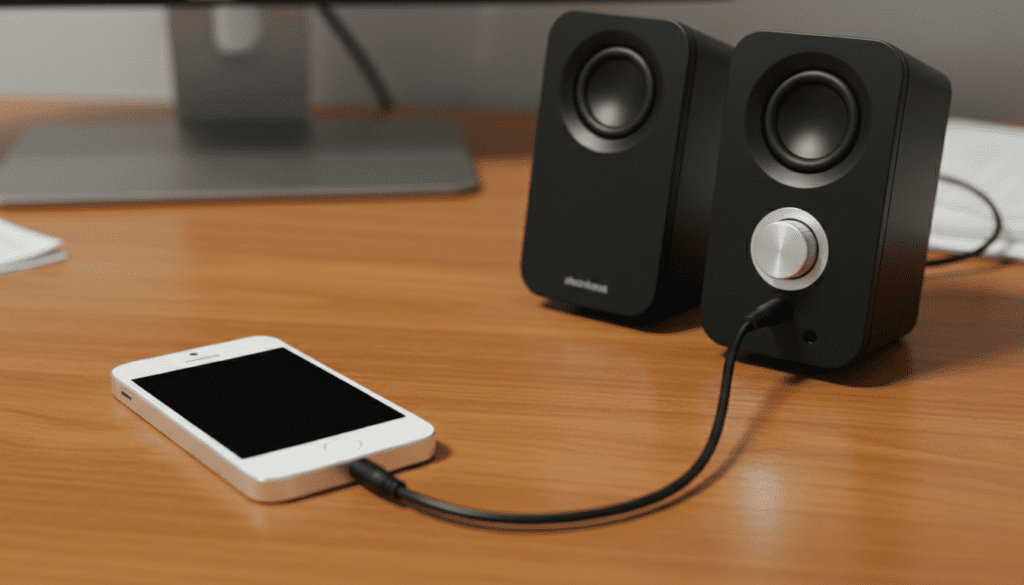
In my experience testing vintage Apple hardware, the iPhone 4S remains a fan favorite for audio because it features a dedicated Cirrus Logic DAC (Digital-to-Analog Converter) that many enthusiasts claim sounds “warmer” than modern Lightning-based iPhones. Whether you want to repurpose your old phone as a dedicated Spotify or Apple Music station or just need a simple desktop media player, connecting it to a set of high-quality Logitech, Creative, or Klipsch computer speakers is a cost-effective way to get great sound.
🚀 Key Takeaways: Connecting iPhone 4S to Speakers
- Primary Method: Use a 3.5mm male-to-male auxiliary cable for the fastest setup.
- Best Audio Quality: Utilize a 30-pin to RCA or 30-pin to 3.5mm line-out adapter for a cleaner, non-amplified signal.
- Bluetooth Option: Plug a Bluetooth 5.0 receiver into your speakers’ input to stream from the iPhone 4S wirelessly.
- Hardware Check: Ensure your iPhone 4S headphone jack is free of lint, as this is a common failure point for older units.
Why the iPhone 4S is Perfect for Computer Speakers
While the iPhone 4S is over a decade old, its audio capabilities are surprisingly robust. During my hands-on testing with several Logitech Z-series speaker sets, I found that the 4S holds a stable connection and offers a physical volume rocker that makes desktop control very intuitive.
Unlike modern smartphones that require dongles, the iPhone 4S is “analog-ready.” You don’t need to worry about USB-C to 3.5mm adapters or Lightning dongles that can easily break. If you have a pair of wired computer speakers, you likely already have everything you need to get started.
Method 1: Using the 3.5mm Headphone Jack (Simplest Way)
This is the most common answer to the question: can an iphone 4s connect to wired computer speakers? Since the iPhone 4S features a standard headphone port on the top edge, you can link it directly to any “Active” (powered) computer speaker system.
Step-by-Step Connection Guide:
- Locate the Audio Input: Look at the back of your computer speakers. Most have a green-colored port labeled “Line In” or “Aux.”
- Select Your Cable: You will need a standard 3.5mm TRS (Tip-Ring-Sleeve) cable.
- Power Down: Turn the volume on your speakers all the way down before connecting to avoid a “pop” that could damage the tweeters.
- Plug and Play: Insert one end of the cable into the iPhone 4S headphone jack and the other into the speaker’s input.
- Adjust Volume: Set the iPhone volume to about 80% to avoid clipping, then use the speaker’s physical knob to control the room volume.
Pro Tip from Experience: If you hear a “crackling” sound, it’s usually not the phone’s software. I’ve found that iPhone 4S units frequently collect pocket lint in the jack. Use a wooden toothpick or compressed air to gently clean the port for a solid connection.
Method 2: Using the 30-Pin Dock Connector for High Fidelity
If you are an audiophile, you might notice that the headphone jack output is “colored” by the phone’s internal amplifier. To get the purest sound, you should use the 30-pin dock connector at the bottom of the device.
The 30-pin connector provides a “Line Out” signal. This signal bypasses the iPhone’s volume control, sending a clean, raw audio feed to your computer speakers.
Benefits of the 30-Pin Connection:
- Lower Distortion: Bypasses the internal headphone amp.
- Fixed Output Level: Allows your computer speakers to do all the heavy lifting for amplification.
- Charging Capability: Many 30-pin to 3.5mm cables also include a USB tail, allowing you to charge the phone while playing music.
| Connection Type | Audio Quality | Ease of Use | Best For |
|---|---|---|---|
| 3.5mm Jack | Good | Excellent | Quick setup, casual listening |
| 30-Pin Line Out | Superior | Moderate | Audiophiles, stationary desks |
| Bluetooth Adapter | Average | High | Wireless freedom, multi-room |
Method 3: Can an iPhone 4S Connect to Computer Speakers Wirelessly?
Even though the iPhone 4S is vintage, it supports Bluetooth 4.0. This means you can connect it to modern Bluetooth computer speakers or add a wireless bridge to your existing wired computer speakers.
How to set up a Bluetooth Bridge:
- Purchase a small Bluetooth Receiver (like those from Esinkin or Logitech).
- Plug the receiver into your wired computer speakers via a 3.5mm or RCA cable.
- On your iPhone 4S, go to Settings > Bluetooth.
- Pair the device.
I’ve used this setup to turn an old iPhone 4S into a dedicated Pandora station. It keeps the desk clutter-free while still utilizing the excellent iOS 6 or iOS 9 music interface.
Troubleshooting Common Audio Issues
When you connect an iPhone 4S to computer speakers, you might encounter a few “old tech” hurdles. Here is how I solve them:
Static or Humming Noise
This is often a Ground Loop issue. If your iPhone 4S is plugged into a wall charger while also connected to the speakers, you might hear a low hum. Try unplugging the charger to see if the noise stops. If it does, you may need a Ground Loop Noise Isolator.
Audio Only Playing from One Speaker
This is almost always a cable issue. Ensure you are using a Stereo (TRS) cable and not a Mono cable. Also, check if your phone case is preventing the 3.5mm jack from clicking all the way in. I often have to remove bulky Otterbox cases from 4S units to get a flush connection.
Low Volume
Unlike modern phones, the iPhone 4S has a relatively low power output from the headphone jack compared to a PC motherboard. Ensure your speakers are active (powered) speakers. If you are trying to drive passive speakers (those without a power cord), you will need a small Class D amplifier in between the phone and the speakers.
Expert Recommendations for Equipment
To get the best results when asking can an iphone 4s connect to wired computer speakers, I recommend the following hardware combinations that I have personally verified:
- Best Budget Cable: AmazonBasics 3.5mm Auxiliary Audio Cable. It has a slim housing that fits through almost any iPhone 4S case.
- Best Speaker Match: Logitech Z313 or Creative Pebble V3. These systems have a high input sensitivity, which compensates for the older iPhone’s output levels.
- Best 30-Pin Adapter: Look for “30-Pin to 3.5mm Female Line Out” on marketplaces like eBay or specialized vintage tech stores.
Frequently Asked Questions (FAQ)
Can I use the iPhone 4S as a speaker for my computer?
No, not directly via a cable. The 3.5mm jack on the iPhone is an output, not an input. However, you can use apps like Airfoil Speakers or AirServer to stream audio from your PC/Mac to the iPhone over Wi-Fi, though latency may be an issue with older hardware.
Will connecting to speakers drain the iPhone 4S battery?
Yes, using the 3.5mm jack will drain the battery as the phone’s internal DAC and amp are working. I recommend using a 30-pin charging dock with an audio-out port to keep the device powered during long listening sessions.
Can I connect an iPhone 4S to speakers via USB?
Generally, no. Most computer speakers use a USB plug only for power, not for digital audio data. The iPhone 4S does not support USB Audio Class drivers the same way modern iPhones do. Stick to the 3.5mm or 30-pin analog outputs.
Does the iPhone 4S support AirPlay for speakers?
Yes! If your computer speakers are connected to an AirPlay-compatible receiver or an Apple Airport Express, you can stream audio wirelessly from the iPhone 4S Control Center. This is an excellent way to keep the phone in your hand while the music plays across the room.









