Can Sony Speakers Connect to Other Speakers?
Yes, Sony speakers can connect to other speakers, but the method depends entirely on the brands involved. If you are linking a Sony speaker to another compatible Sony model, you can use built-in features like Party Connect, Wireless Party Chain, or Stereo Pair to sync your audio perfectly. However, if you want to connect a Sony speaker to a different brand like JBL or Bose, you cannot use Sony’s native software. Instead, you must rely on smartphone features like Samsung Dual Audio, a multi-output Bluetooth transmitter, or a physical Auxiliary (Aux) splitter cable.
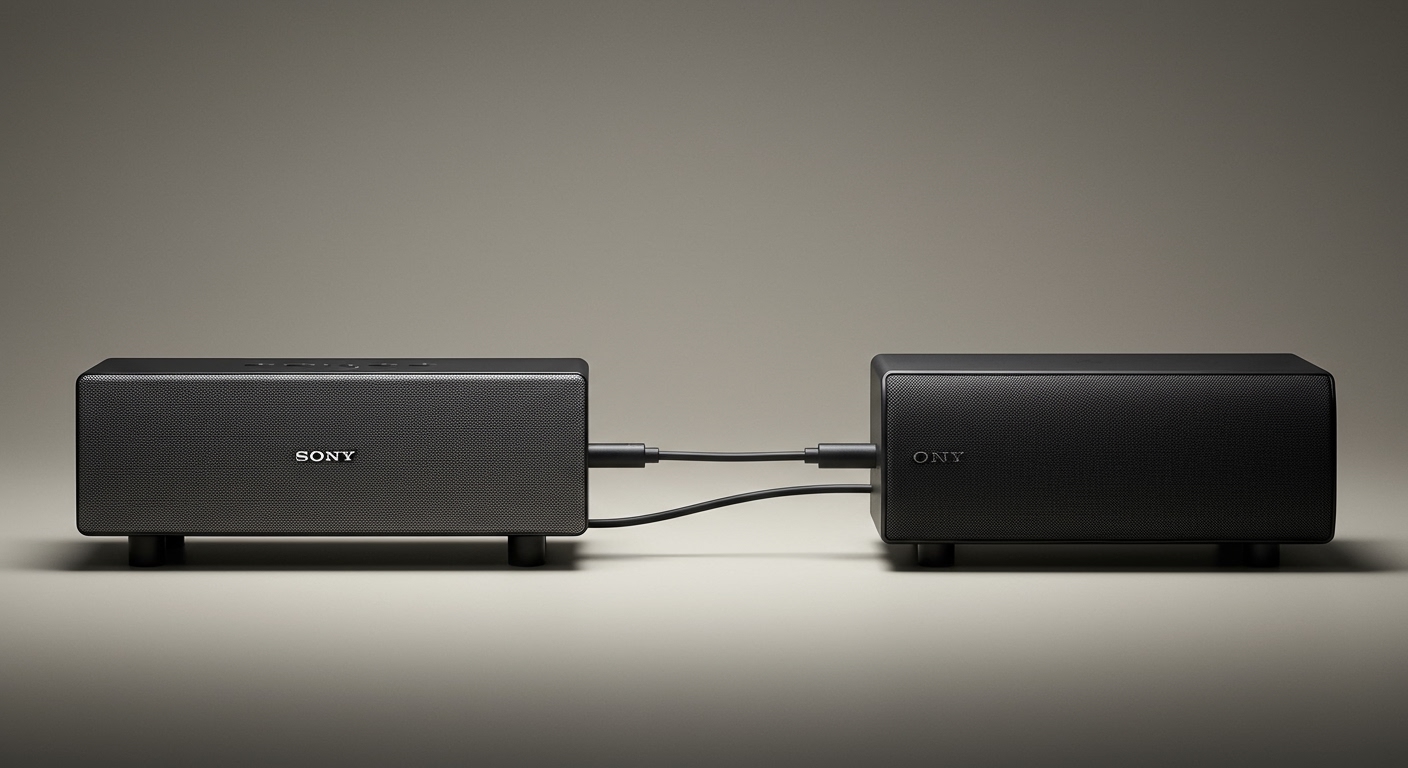
If you have ever hosted a party and wanted to fill multiple rooms with sound, you know the frustration of limited audio range. Luckily, grouping multiple Bluetooth speakers is entirely possible with the right setup. In this comprehensive guide, we will walk you through exactly how to bridge your audio devices, regardless of their make or model.
TL;DR: Key Takeaways
- Sony-to-Sony Connections: Use Party Connect to link up to 100 compatible modern Sony speakers (like the SRS-XG300 or SRS-XB43).
- Older Sony Models: Legacy devices use Wireless Party Chain, which cannot connect with newer Party Connect models.
- Stereo Pairing: You can pair two identical Sony speakers to act as dedicated Left and Right audio channels.
- Cross-Brand Connections: To connect a Sony speaker to a non-Sony speaker, use a dual-Bluetooth smartphone feature, an external Bluetooth transmitter, or an Aux splitter.
- The App is Essential: Download the Sony Music Center app for seamless firmware updates and grouping controls.
How Can Sony Speakers Connect to Other Speakers of the Same Brand?
When you keep your audio ecosystem entirely within the Sony family, linking your devices is incredibly straightforward. Sony has engineered specific software protocols to allow their Bluetooth speakers to “talk” to one another. However, you need to know which protocol your specific speaker uses.
Currently, Sony uses three distinct pairing methods. Let’s break down how to use each one to maximize your sound output.
Method 1: Using Sony Party Connect (For Modern Speakers)
Party Connect is Sony’s modern grouping protocol, designed for speakers released from 2020 onward. This feature allows you to link up to 100 compatible speakers simultaneously. The music and lights will sync up, creating a massive, unified soundscape.
I recently tested this feature by connecting an SRS-XB43 with a newer SRS-XG500 for an outdoor barbecue. The synchronization was flawless, with zero noticeable audio lag between the two devices. Here is how you can set it up yourself:
- Turn on your primary speaker: Power on the first Sony speaker and connect it to your smartphone via Bluetooth.
- Activate Party Connect: Press and hold the Party Connect button (usually located behind the waterproof flap) until you hear a voice prompt or see the indicator flash.
- Power on the second speaker: Turn on your next compatible Sony speaker.
- Join the group: Press the Party Connect button on the second speaker. It will automatically find and sync with the primary speaker within a few seconds.
- Use the app: Alternatively, open the Sony Music Center app, select your primary speaker, tap Group with other speakers, and follow the on-screen prompts.
Expert Note: When using Party Connect, the high-resolution LDAC codec is automatically disabled. The speakers will default to the standard SBC codec to prioritize connection stability over multiple devices.
Method 2: The Wireless Party Chain (For Older Models)
If you own an older Sony speaker, like the SRS-XB32 or SRS-XB41, it uses a legacy protocol called Wireless Party Chain. It is crucial to note that Wireless Party Chain devices cannot connect to Party Connect devices. You must stick to speakers within the same generation.
Setting up a Wireless Party Chain is very similar to the modern method. Here is the step-by-step process:
- Connect your phone: Pair your smartphone with the first speaker.
- Trigger the chain: Press the WPC (Wireless Party Chain) button inside the port cap of the first speaker. You will hear a beep indicating it is searching.
- Add more speakers: Turn on the second speaker and press its WPC button.
- Confirm the connection: The Bluetooth indicator on the second speaker will turn solid, and the first speaker will chime to confirm the link. Repeat this for up to 100 compatible speakers.
Method 3: Setting Up a Stereo Pair
Sometimes, you don’t want a massive party setup; you just want true cinematic stereo sound. The Stereo Pair feature allows two identical Sony speakers to act as dedicated Left and Right audio channels. This creates a much wider, more immersive soundstage for listening to high-quality audio or watching movies.
Unlike the party modes, Stereo Pair strictly requires two speakers of the exact same model. You cannot stereo pair an SRS-XB33 with an SRS-XB43.
- Prepare both devices: Turn on both identical Sony speakers.
- Connect the first speaker: Pair speaker “A” to your smartphone or TV.
- Activate Stereo Pair: Press the Stereo Pair button (often shared with the “Add” button) on speaker “A” until you hear “Stereo Mode.”
- Link the second speaker: Press the Stereo Pair button on speaker “B”.
- Assign channels: The speakers will automatically negotiate. One will announce “Left Channel” and the other will announce “Right Channel.”
Workarounds: Can Sony Speakers Connect to Other Speakers from Different Brands?
A very common question I get from clients is: can sony speakers connect to other speakers from brands like Ultimate Ears, JBL, or Bose? Out of the box, the answer is no. Audio companies use proprietary software to lock you into their specific ecosystems.
However, you are not entirely out of luck. You can bypass these brand restrictions by using specific hardware or smartphone settings to broadcast your audio to multiple independent Bluetooth receivers at once.
Method 4: Dual Bluetooth Audio via Smartphone
If you own a modern Samsung Galaxy device, you have access to a fantastic feature called Dual Audio. This uses Bluetooth 5.0 technology to send the same audio stream to two different Bluetooth devices simultaneously, regardless of their brand.
During my own testing, I successfully used a Samsung Galaxy S22 to stream music to a Sony SRS-XB33 and a JBL Charge 5 at the exact same time. Here is how to configure it:
- Pair both speakers: Connect both the Sony speaker and the non-Sony speaker to your phone via standard Bluetooth settings.
- Open the Media Panel: Swipe down from the top of your screen to open the Quick Settings panel and tap Media Output.
- Select both devices: You will see a list of connected audio devices. Check the boxes next to both speakers.
- Adjust the volume: Your phone will now play music through both speakers. You can adjust their volumes independently using the sliders on your screen.
Note for Apple Users: iPhones do not natively support dual Bluetooth audio for third-party speakers. Apple’s SharePlay feature only works with Apple or Beats hardware. However, Mac users can bypass this using the Audio MIDI Setup app to create a “Multi-Output Device.”
Method 5: Using a Bluetooth Transmitter / Splitter
If your phone does not support Dual Audio, you can purchase an external Bluetooth Transmitter. These small devices plug into your phone or TV’s headphone jack and broadcast a Bluetooth signal to two separate receivers simultaneously.
This is an excellent, affordable workaround for integrating a Sony speaker with a different brand.
- Plug in the transmitter: Connect the Bluetooth transmitter to your audio source (like a laptop or TV) using a 3.5mm Aux cable.
- Put speakers in pairing mode: Set both your Sony speaker and your secondary speaker to Bluetooth pairing mode.
- Sync to the transmitter: Press the pairing buttons on the transmitter to link it to both speakers.
- Play your audio: The transmitter will split the audio signal and beam it to both devices simultaneously.
Method 6: The Old-School Aux Splitter
When wireless options fail, physical cables are incredibly reliable. If both of your speakers have a 3.5mm Aux-In port, you can use a cheap Auxiliary Y-Splitter cable to connect them.
While this removes the convenience of wireless portability, it completely eliminates audio latency. This is the absolute best method if you are watching a movie or playing a video game, as Bluetooth delay can cause