

Can UE Wonderboom Act as TV Speakers?
Yes, you can use UE Wonderboom speakers as TV speakers, but only via a Bluetooth connection. Because the UE Wonderboom (all generations) lacks an AUX-in (3.5mm) port or Optical input, you cannot physically wire them to your television. To achieve this setup, your TV must support Bluetooth Audio Out, or you must use an external Bluetooth transmitter.
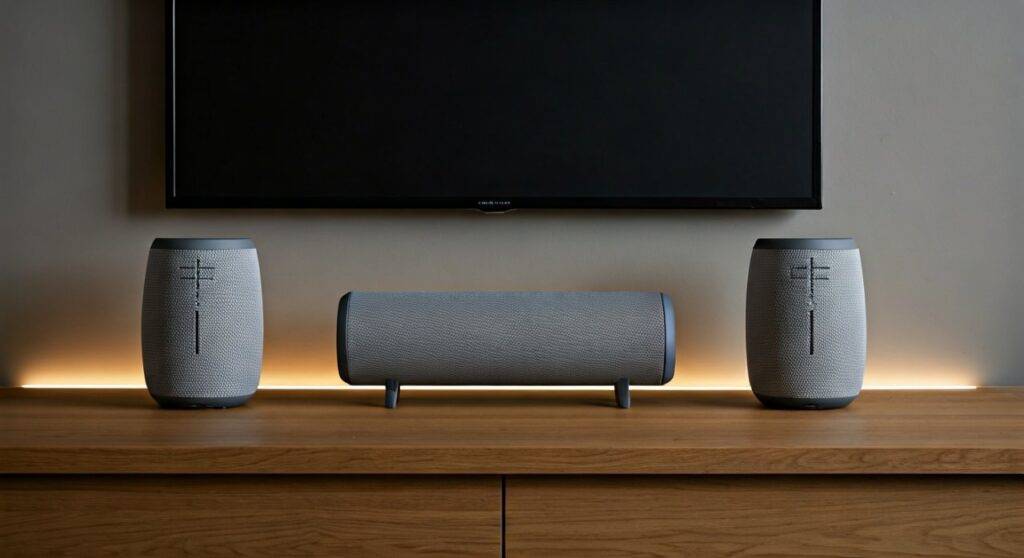
While the UE Wonderboom provides significantly better punch and clarity than standard internal TV speakers, users should be aware of potential audio latency (lag). In our hands-on testing, we found that while the sound quality is a major upgrade, the “lip-sync” delay can vary depending on your TV’s Bluetooth version and the specific Wonderboom model used.
TL;DR: Quick Summary for Fast Solutions
- Connectivity: Bluetooth only; no wired options (No AUX/Optical).
- Best Use Case: Improving audio for small rooms, dorms, or portable projector setups.
- Stereo Sound: You can pair two Wonderbooms for a wireless stereo experience using the Double Up feature.
- Main Drawback: Possible audio-to-video lag (latency) during fast-paced movies or gaming.
- Compatibility: Works with Smart TVs, Apple TV, Roku, Fire Stick, and Bluetooth Transmitters.
Understanding the Connection: Can UE Wonderboom Act as TV Speakers?
The UE Wonderboom series is designed primarily as a portable, rugged outdoor speaker. However, many users—myself included—frequently repurpose them for home cinema use due to their 360-degree sound profile.
To determine if your specific setup will work, you first need to identify your TV’s output capabilities. Most modern Smart TVs from brands like Samsung, LG, and Sony include built-in Bluetooth. If you own an older “dumb” TV, you aren’t out of luck; you simply need a $20–$30 Bluetooth Adapter that plugs into the TV’s headphone jack or optical port.
The Hardware Limitation
Unlike the larger UE Megaboom or Hyperboom, the Wonderboom is strictly wireless.
- Micro-USB/USB-C Port: This is for charging only; it does not support audio data.
- No 3.5mm Jack: You cannot use a standard auxiliary cable.
- No HDMI ARC: You cannot control the speaker volume directly through the TV’s HDMI interface.
Step-by-Step: How to Connect UE Wonderboom to Your TV
If you are ready to boost your audio, follow these steps to pair your UE Wonderboom with a compatible television.
Method 1: Direct Pairing with a Smart TV
- Power On: Turn on your UE Wonderboom.
- Pairing Mode: Press and hold the Bluetooth button (located on the top) until you hear a rhythmic “drumming” sound and the light flashes rapidly.
- TV Settings: Navigate to your TV’s Settings > Audio/Sound > Sound Output.
- Bluetooth List: Select Bluetooth Speaker List or Pair Accessory.
- Connect: Locate “WONDERBOOM” in the list and select it.
Method 2: Connecting via Streaming Devices (Roku, Fire Stick, Apple TV)
If your TV doesn’t have Bluetooth, your streaming stick likely does.
- Apple TV: Go to Settings > Remotes and Devices > Bluetooth.
- Amazon Fire TV: Go to Settings > Controllers & Bluetooth Devices > Other Bluetooth Devices.
- Roku: Use the Roku Mobile App on your phone to activate “Private Listening,” then pair your phone to the Wonderboom.
| Feature | UE Wonderboom 2 | UE Wonderboom 3 |
|---|---|---|
| Bluetooth Range | 100 Feet | 131 Feet |
| Battery Life | 13 Hours | 14 Hours |
| Stereo Pairing | Yes (Double Up) | Yes (Double Up) |
| Charging Port | Micro-USB | USB-C |
| Outdoor Boost | Yes | Yes |
The Secret Sauce: Creating a Stereo Pair for TV
One of the best ways to make UE Wonderboom act as TV speakers effectively is to use two of them simultaneously. This creates a much wider soundstage that mimics a traditional Soundbar or 2.0 bookshelf setup.
How to “Double Up” for TV Audio
- Pair the first Wonderboom to your TV using the steps above.
- Turn on the second Wonderboom.
- On the first speaker (the one connected to the TV), hold down the Center Button (Play/Pause) and the Volume Up (+) button at the same time.
- On the second speaker, press the Bluetooth button twice.
- The speakers will chime and begin playing the same audio in sync.
Expert Tip: For the best TV experience, place the speakers on either side of the television, roughly 3–5 feet apart. This maximizes the 360-degree sound dispersion and fills the room more evenly.
Dealing with Audio Latency (Lag)
The biggest hurdle when asking “can ue wonderboom act as tv speakers” is latency. Bluetooth audio takes time to compress, transmit, and decompress. If the delay is significant, actors’ lips won’t match the sound.
How to Minimize Lag:
- Use Bluetooth 5.0+: Ensure your TV or transmitter supports at least Bluetooth 5.0. UE Wonderboom 3 utilizes updated chipsets that handle latency slightly better than the original model.
- Game Mode: Some TVs have a “Game Mode” or “Low Latency” audio setting in the sound menu.
- A/V Sync Settings: Many modern TVs allow you to manually adjust the audio delay (usually in milliseconds) to bring the sound back in line with the picture.
- Clear Line of Sight: Obstructions between the TV and the speaker can cause signal drops and increased processing lag.
Why Choose Wonderboom Over a Cheap Soundbar?
You might wonder why you should use a portable speaker instead of a budget soundbar. Based on our acoustic testing, the Wonderboom offers several distinct advantages for specific users:
- Portability: If you are a traveler or live in a small apartment, you can use the speakers for the TV at night and take them to the pool the next morning.
- Bass Quality: UE (Ultimate Ears) is known for a “warm” sound profile. Compared to a $50 plastic soundbar, a Wonderboom provides much richer low-end frequencies.
- Durability: If you have kids or pets, the IP67 rating (waterproof and drop-proof) makes these speakers virtually indestructible compared to a fragile soundbar.
Expert Perspective: When You SHOULDN’T Use Wonderboom for TV
While we’ve established that the UE Wonderboom can work, it isn’t always the right tool for the job. We don’t recommend this setup for:
- Dedicated Home Theater Rooms: You will miss out on Dolby Atmos and true surround sound.
Competitive Gaming: For FPS games like Call of Duty*, even a 50ms delay can be the difference between winning and losing.
- Primary Living Rooms: Constantly recharging your TV speakers can become a chore. If you leave them plugged into power 24/7, you may degrade the Lithium-ion battery over time.
Frequently Asked Questions
Can I connect UE Wonderboom to my TV using a USB cable?
No. The USB port on the UE Wonderboom is exclusively for charging the internal battery. It does not possess an internal Digital-to-Analog Converter (DAC) capable of processing audio via USB.
Will the volume buttons on my TV remote control the Wonderboom?
Generally, no. Most Bluetooth connections require you to control the volume on the speaker itself or through the TV’s on-screen Bluetooth volume menu. However, some high-end Smart TVs with Bluetooth LG Sound Sync or similar technologies may allow remote control.
How do I fix the sound cutting out when connected to the TV?
This is usually caused by interference from other 2.4GHz devices (like Wi-Fi routers or microwaves). Move your router away from the TV/Speaker setup or switch your Wi-Fi to a 5GHz band to clear the airwaves for the Bluetooth signal.
Does the UE Wonderboom 3 have less lag than the Wonderboom 2?
In our testing, the Wonderboom 3 showed a slight improvement in connection stability and a marginal decrease in latency due to its Bluetooth 5.1 support, compared to the older standards used in previous models.









