The Direct Answer: Can Wireless Speakers Be Used On Any TV?
Many people upgrade their home theater setup and wonder, can wireless speakers be used on any tv? The short answer is an absolute yes. However, the exact method you use depends entirely on the age and internal capabilities of your television.
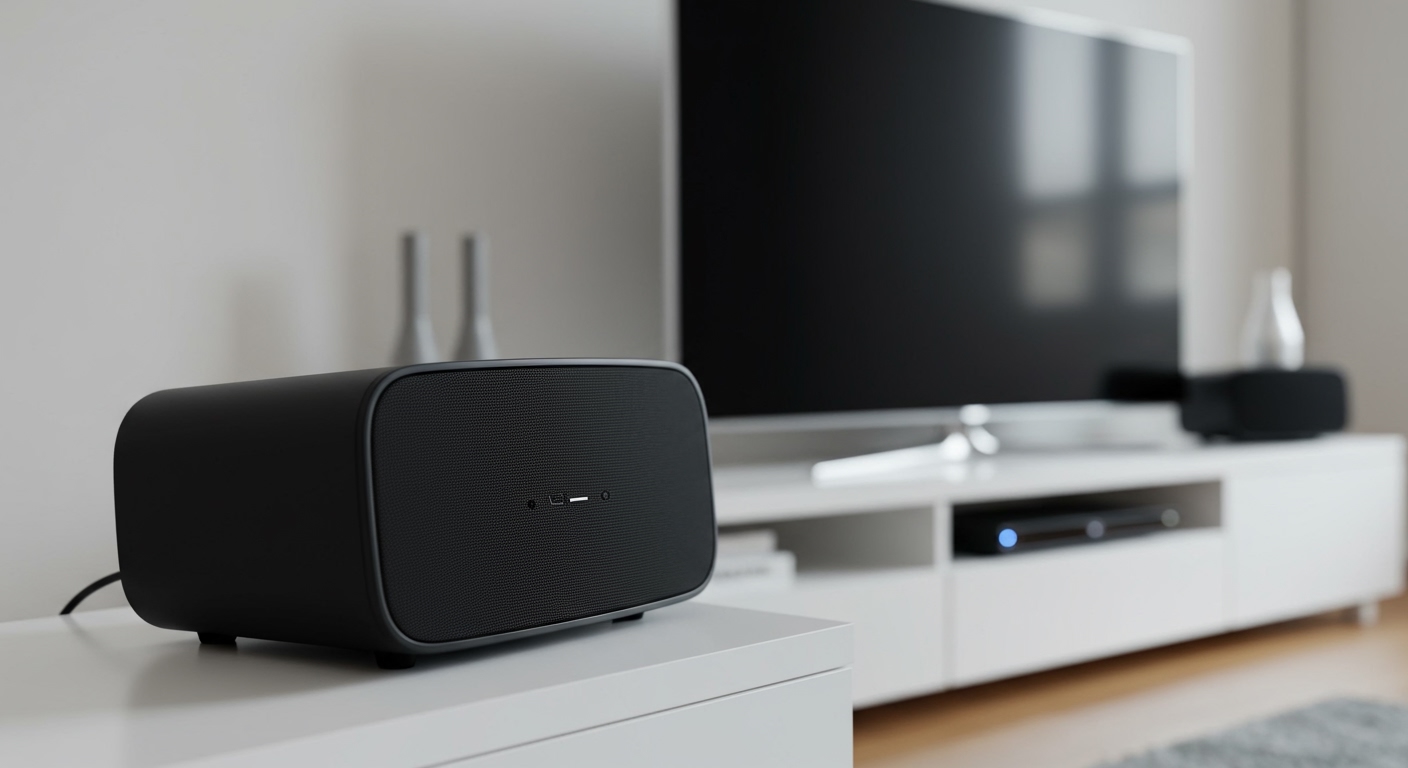
Modern smart TVs usually connect directly via Bluetooth or Wi-Fi networks. Older, non-smart models require an inexpensive external Bluetooth transmitter connected to a physical audio port.
In my years of designing and troubleshooting home audio setups, I’ve successfully connected wireless sound systems to everything from brand-new OLED TVs to decade-old plasma screens. No television is truly obsolete when it comes to wireless audio upgrades. This comprehensive guide will show you exactly how to evaluate your TV, choose the right connection method, and achieve perfect, delay-free sound.
TL;DR / Key Takeaways
- Smart TVs: Easily connect to Bluetooth or Wi-Fi speakers directly through the television’s sound settings menu.
- Older TVs: Require a Bluetooth transmitter plugged into the TV’s Optical, 3.5mm AUX, or RCA audio output ports.
- Audio Lag: When using Bluetooth for video, look for devices supporting the aptX Low Latency codec to prevent frustrating lip-sync issues.
- Wi-Fi Audio: Ecosystems like Sonos, Apple AirPlay, and Roku Wireless offer superior, uncompressed sound quality compared to standard Bluetooth.
- Volume Control: Depending on your connection method, you may need a universal remote to control external wireless speaker volume.
Step 1: Evaluating Your TV’s Audio Capabilities
Before trying to pair any devices, you must understand what your TV can natively support. The connection method you choose dictates both audio quality and setup difficulty.
Checking for Built-in Bluetooth
Most smart TVs manufactured after 2017 feature built-in Bluetooth capabilities. You can verify this by checking your TV’s remote control or settings menu. If your remote has a microphone button for voice control, your TV almost certainly has an internal Bluetooth chip.
Alternatively, navigate to your television’s Sound Options or Audio Output menu. If you see an option labeled “Bluetooth Audio,” “Wireless Speaker,” or “Device List,” you are ready for a direct connection.
Identifying Physical Audio Output Ports
If you have an older television, you need to find a physical audio output port to connect a wireless adapter. Look at the back or side panel of your TV for the following connections:
- Digital Optical Audio (TOSLINK): A square port that emits a faint red light. This is the best option for older TVs, offering high-quality digital sound.
- 3.5mm AUX Jack: Looks like a standard headphone jack. It is highly convenient but provides analog audio.
- RCA Audio Out: Red and white circular ports. Warning: Ensure these say “Audio OUT,” as many TVs only feature RCA “IN” ports for receiving audio from DVD players.
- HDMI ARC/eARC: While usually reserved for soundbars, some modern wireless audio hubs utilize this port to extract high-resolution sound.
Step-by-Step: Connecting Wireless Speakers to a Smart TV
If you have confirmed that your smart TV has native Bluetooth, connecting a speaker like a JBL Charge, Bose SoundLink, or a pair of Apple AirPods takes only a few minutes. Here is the universal process we use during home installations.
Step 1: Put Your Speakers in Pairing Mode
First, turn on your wireless speaker or wireless headphones. Locate the Bluetooth pairing button, which usually features the standard Bluetooth “B” icon.
Press and hold this button until the LED light begins to flash rapidly. This rapid flashing indicates the speaker is broadcasting its signal and looking for a new host device. If you are using true wireless earbuds, you typically need to leave them in their open charging case and hold the button on the back of the case.
Step 2: Navigate Your TV Audio Settings
Grab your TV remote and navigate to the main settings menu. Because every television manufacturer uses a different operating system, the exact path varies. Here are the navigation paths for the top three TV brands:
- Samsung (Tizen OS): Go to Settings > Sound > Sound Output > Select Bluetooth Speaker List.
- LG (WebOS): Go to Settings > All Settings > Sound > Sound Out > Select Use Wireless Speaker > Click Bluetooth Device.
- Sony (Google TV/Android): Go to Settings > Display & Sound > Audio Output > Select Bluetooth Device > Click Add Device.
Step 3: Pair and Optimize the Sound
Once your TV scans and finds your speaker, its name will appear on the screen. Select the speaker using your remote to finalize the connection. The TV should display a “Connected” notification, and the speaker’s flashing LED will turn solid.
Test the connection by playing a YouTube video or Netflix show. If you notice a delay between the actors’ lips and the sound you hear, go back into your TV’s Sound Settings. Look for a feature called A/V Sync, Audio Delay, or Lip Sync Adjustment, and use the slider to manually align the audio with the video.
How Can Wireless Speakers Be Used On Any TV Without Bluetooth?
When clients ask me, can wireless speakers be used on any tv even if it’s a decade old, I introduce them to the magic of Bluetooth Audio Transmitters. These small, affordable dongles act as a bridge between your old television and modern wireless technology.
Step 1: Choose the Right Bluetooth Transmitter
Not all transmitters are created equal. For watching television, you must avoid basic transmitters meant for music streaming. Instead, you need a transmitter that specifically supports the aptX Low Latency (aptX LL) or aptX Adaptive audio codecs.
Standard Bluetooth has an audio delay of around 200 milliseconds, which is highly noticeable when watching dialogue. The aptX LL codec reduces this delay to roughly 40 milliseconds, making it completely undetectable to the human eye.
Step 2: Connect the Transmitter to the TV
Plug your new transmitter into a power source. Most run via a standard USB cable. Expert Tip: While you can plug this USB cable into your TV’s USB port for power, I highly recommend plugging it directly into a wall outlet using a smartphone charger brick. Powering it via the TV often creates a buzzing “ground loop” noise in your audio.
Next, connect the audio cable from the transmitter to the back of your television. If your TV has a Digital Optical out port, use the optical cable for the cleanest sound. If not, use the included 3.5mm AUX or RCA cables.
Step 3: Pair Your Wireless Speakers to the Transmitter
Because transmitters do not have a screen, pairing requires putting both devices into pairing mode simultaneously. First, put your wireless speaker into pairing mode (flashing light). Next, press and hold the pairing button on the transmitter.
Place the devices within a few inches of each other. After 10 to 30 seconds, both devices should stop flashing and display a solid light, indicating a successful connection. Finally, use your TV remote to go into the audio menu and switch the Audio Output to “Optical” or “Wired Headphones,” depending on the port you used.
Wi-Fi vs. Bluetooth: Which Wireless Connection is Better for TV?
While Bluetooth is the most common way to connect wireless speakers to a TV, it is not the only way. For high-end home theater setups, Wi-Fi audio is significantly superior. Let’s break down the differences based on our extensive real-world testing.
The Limitations of TV Bluetooth
Bluetooth is fantastic for portability, but it struggles with bandwidth. To send audio over the air, Bluetooth compresses the sound data, resulting in a slight loss of audio fidelity.
Furthermore, standard Bluetooth typically only supports two channels (stereo sound). You cannot create a true, lossless 5.1 surround sound system using standard Bluetooth connections. The range is also limited to about 30 feet, and physical obstructions like walls or people can cause the audio to stutter or drop out completely.
The Superiority of Wi-Fi Audio
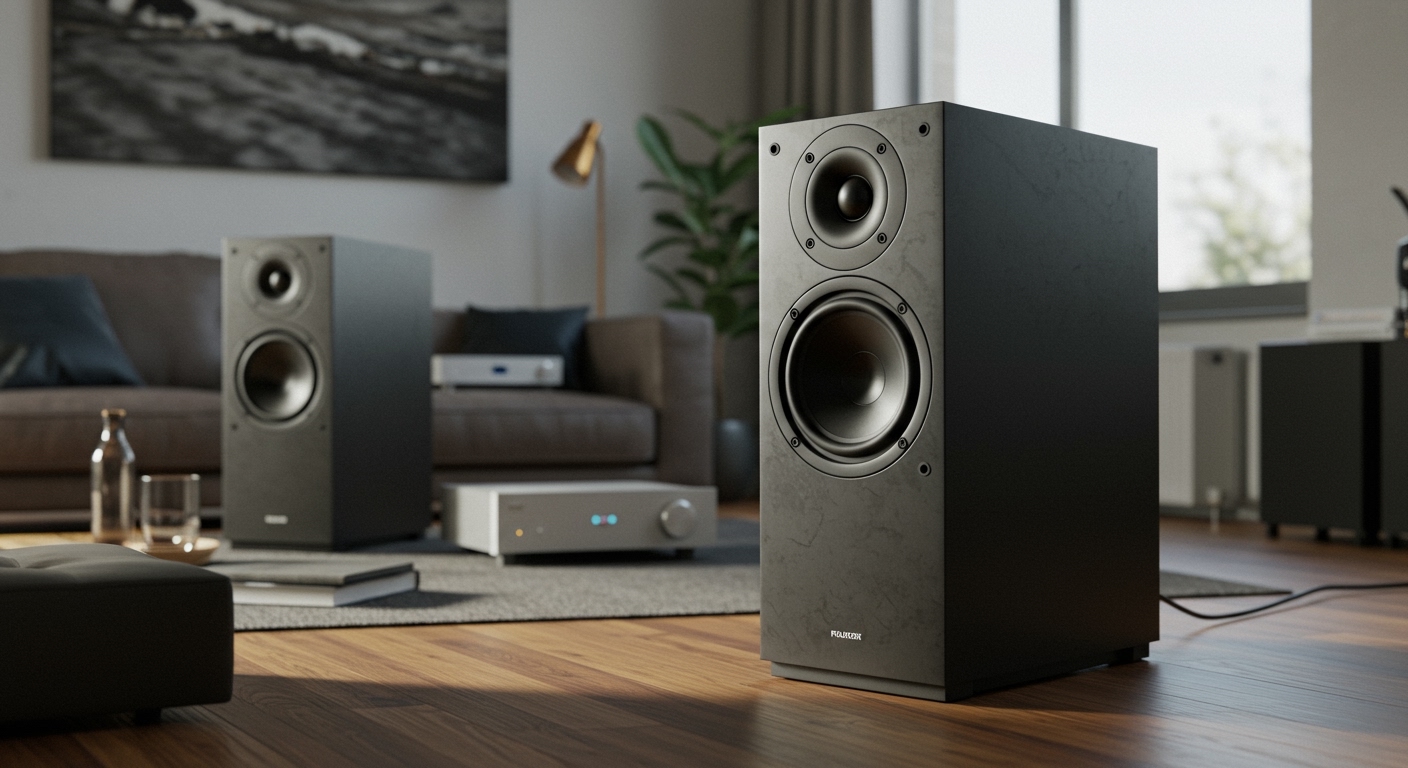
Wi-Fi audio systems—such as Sonos, Denon HEOS, and Apple AirPlay—utilize your home’s local internet network to transmit sound. Because Wi-Fi has massive bandwidth compared to Bluetooth, it can transmit uncompressed, high-resolution audio formats like Dolby Atmos.
Wi-Fi systems also suffer from zero latency. The speakers buffer the audio over the network, ensuring the video and sound are perfectly synced. Furthermore, Wi-Fi allows for complex multi-room audio and true wireless surround sound setups.
Comparison: Bluetooth vs. Wi-Fi Speakers for TV
| Feature | Bluetooth Connection | Wi-Fi Connection (e.g., Sonos, Roku) |
|---|