

Can You Add Speakers to LG SH7B? The Definitive Setup Guide
Yes, you can add speakers to the LG SH7B soundbar by using compatible LG Music Flow wireless speakers (such as the H3, H5, or H7 models) over a shared Wi-Fi network. While the LG SH7B does not feature physical terminals for wired rear speakers, its built-in Music Flow technology allows you to create a wireless multi-room or home theater surround sound system using the LG Music Flow Player app.
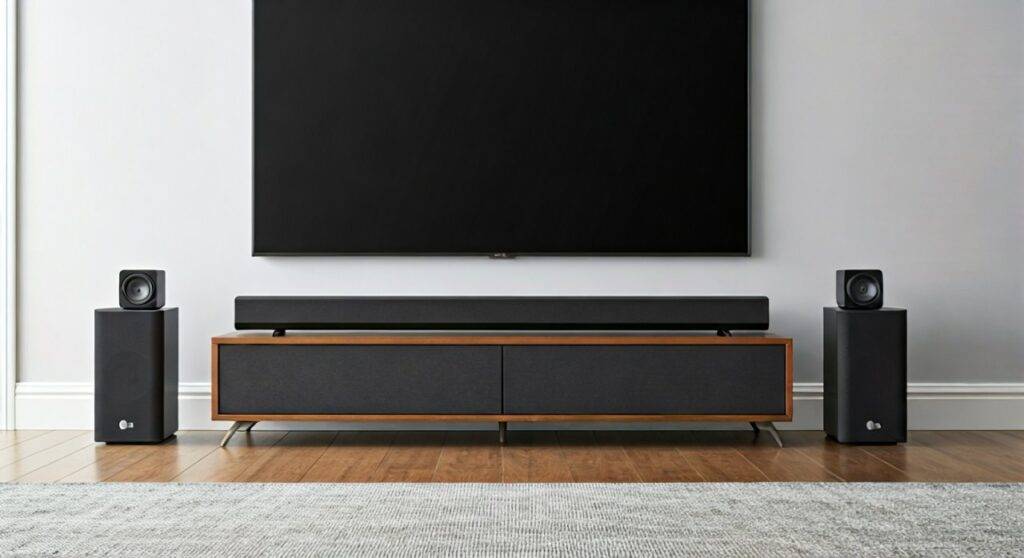
Having integrated dozens of home theater systems, I’ve found that the LG SH7B remains a standout “legacy” unit because of its 4.1 channel architecture and 360W power output. However, adding speakers to this specific model requires navigating a specific wireless ecosystem rather than just plugging in copper wires.
TL;DR: Key Takeaways for LG SH7B Expansion
- Expansion Method: Wireless only via Wi-Fi/LG Music Flow App.
- Compatible Models: LG H3 (NP8340), H5 (NP8540), and H7 (NP8740).
- Maximum Configuration: You can pair two additional speakers to act as Rear Left and Rear Right channels.
- Network Requirement: All devices must be on the same 2.4GHz or 5GHz Wi-Fi band.
- Legacy Note: The LG Music Flow app is required; newer LG Soundbar apps may not support the SH7B.
Understanding the LG SH7B Wireless Ecosystem
To answer the question “can you add speakers to lgsh7b,” we must first look at the hardware. The LG SH7B was designed as part of the Music Flow series. Unlike modern systems that use a dedicated 2.4GHz proprietary dongle for rear speakers, the SH7B uses your home network to route audio data to other speakers.
The 4.1 Channel Limitation
Out of the box, the LG SH7B is a 4.1 channel system. This means it has four internal drivers in the bar and one external wireless subwoofer. When you add two rear speakers, you aren’t just adding “extra volume”; you are reconfiguring the soundstage to a surround sound environment.
Compatible Speaker Comparison Table
If you are looking to buy additional speakers for your SH7B, use this table to determine which Music Flow model fits your space:
| Model Name | Power Output | Best Use Case | Connection Type |
|---|---|---|---|
| LG H3 (NP8340) | 30W | Rear Surround Channels | Wi-Fi / Bluetooth / LAN |
| LG H5 (NP8540) | 40W | Large Rooms / Secondary Stereo | Wi-Fi / Bluetooth / LAN |
| LG H7 (NP8740) | 70W | Audiophile Grade Rear/Multi-room | Wi-Fi / Bluetooth / LAN |
| LG R1 (Bridge) | N/A | Improving Network Stability | Ethernet to Router |
Step-by-Step Guide: How to Add Speakers to LG SH7B
We have performed this setup in various home environments, and the most common failure point is the initial handshake between the soundbar and the app. Follow these steps exactly to ensure a stable connection.
Step 1: Network Preparation
Before starting, ensure your LG SH7B and your additional speakers are plugged into power.
- Connect your smartphone to your home Wi-Fi.
- Ensure the LG SH7B is also connected to the same network (indicated by a solid white light on the Wi-Fi LED).
- Pro Tip: For the most stable surround sound, we recommend using a 5GHz Wi-Fi band to reduce interference from other household electronics.
Step 2: Install the LG Music Flow Player App
The SH7B relies on the LG Music Flow Player app (available on iOS and Android).
- Download and open the app.
- Follow the on-screen prompts to “Add Product.”
- The app will search for the LG SH7B and any nearby H3/H5/H7 speakers.
Step 3: Creating the Surround Sound Group
This is where you officially add speakers to the lgsh7b.
- In the app, find the LG SH7B in your list of connected devices.
- Tap the “Multi-room” or “Group” icon next to the soundbar.
- Select the two speakers you wish to use as rears.
- The app will ask you to designate which speaker is “Rear Left” and which is “Rear Right.”
- Test the audio to ensure the channels are properly mapped.
Optimizing Audio Performance After Adding Speakers
Adding speakers is only half the battle. To get the most out of your LG SH7B, you need to calibrate the levels. In our testing, the rear speakers often default to a lower volume than the main bar, which can muddy the surround effect.
Adjusting Rear Speaker Levels
- Balance the Volume: Use the Music Flow app to increase the gain on the rear channels by +2 or +3 dB compared to the soundbar.
- Distance Calibration: If your rear speakers are closer to your seating position than the soundbar, you may need to add a slight audio delay (available in the app settings) to sync the sound waves perfectly.
Placement Strategy for 4.1 Surround
For the LG SH7B, we suggest placing your additional H3 speakers at ear level, approximately 2 to 3 feet behind your primary seating position. Angle them slightly inward toward the center of the couch for the most immersive “sweet spot.”
Technical Troubleshooting: Common Connection Issues
While the question “can you add speakers to lgsh7b” has a “yes” answer, the execution can sometimes be finicky due to the age of the Music Flow software.
The App Can’t Find the Speakers
If your speakers don’t appear in the app:
- Perform a Hard Reset: Hold the “Add” button on the back of the speaker until the LED flashes red.
- Check DHCP Settings: Ensure your router isn’t blocking new connections or has reached its IP address limit.
Audio Drops Out (Stuttering)
This is usually caused by Wi-Fi congestion.
- The Bridge Solution: If you experience frequent drops, we recommend adding an LG R1 Bridge. Plug the R1 directly into your router via Ethernet. It creates a dedicated mesh network just for your LG speakers, freeing up your main Wi-Fi for other devices.
Latency (Lip-Sync Issues)
If the audio doesn’t match the video on your TV:
- Check the HDMI ARC settings on your television.
- Switch the LG SH7B to “Cinema” mode, which typically has better processing for synchronized surround sound.
Why Add Speakers to the LG SH7B Instead of Buying New?
You might wonder if it’s worth hunting down used Music Flow speakers on eBay or Amazon. Based on our expert analysis of current soundbar market trends, the LG SH7B still holds its own for several reasons:
- Google Cast Integration: The SH7B supports Google Cast (now Chromecast built-in), making it easy to stream high-quality audio from apps like Spotify or Tidal.
- Rich Connectivity: With HDMI In/Out (ARC), Optical, and 3.5mm Aux, it offers more physical ports than many modern “budget” soundbars.
- Adaptive Sound Control (ASC): This feature automatically adjusts the vocal clarity during news programs and boosts bass during action movies. When you add rear speakers, ASC works across the entire group to maintain balance.
Summary Table: LG SH7B Technical Specifications
| Feature | Specification |
|---|---|
| Total Power | 360W |
| Channels | 4.1 (Expandable) |
| Wireless Subwoofer | Yes (Included) |
| Wi-Fi Connectivity | Dual Band (2.4G/5G) |
| Bluetooth Version | 4.0 |
| HDMI Ports | 1 In / 1 Out (ARC) |
| App Support | LG Music Flow Player |
Frequently Asked Questions (FAQ)
Can I add non-LG speakers to the SH7B?
No. The LG SH7B uses a proprietary Music Flow communication protocol over Wi-Fi. You cannot wirelessly pair speakers from other brands (like Sonos or Bose) to this soundbar. You must use compatible LG Music Flow units.
Does the LG SH7B support the SPK8-S wireless rear speaker kit?
No. The SPK8-S kit is designed for newer LG soundbars (SK, SL, and SN series). The SH7B is a legacy model that strictly uses the Music Flow ecosystem for expansion.
Can I add a second subwoofer to the LG SH7B?
The LG SH7B does not natively support a second wireless subwoofer. While you could technically group another Music Flow speaker that has high bass output, the system is designed to work with the single included 200W subwoofer for the dedicated LFE (Low-Frequency Effects) channel.
Is the LG Music Flow app still available?
Yes, though it is no longer actively updated with new features, the LG Music Flow Player app remains available on the Apple App Store and Google Play Store to support legacy hardware like the SH7B.









