The Short Answer: Can You Use HomePod Mini as Computer Speakers?
Yes, can you use HomePod mini as computer speakers? Absolutely, but the experience depends heavily on your operating system. If you are using a Mac, you can seamlessly route your system audio to the HomePod mini using Apple’s AirPlay 2 technology.
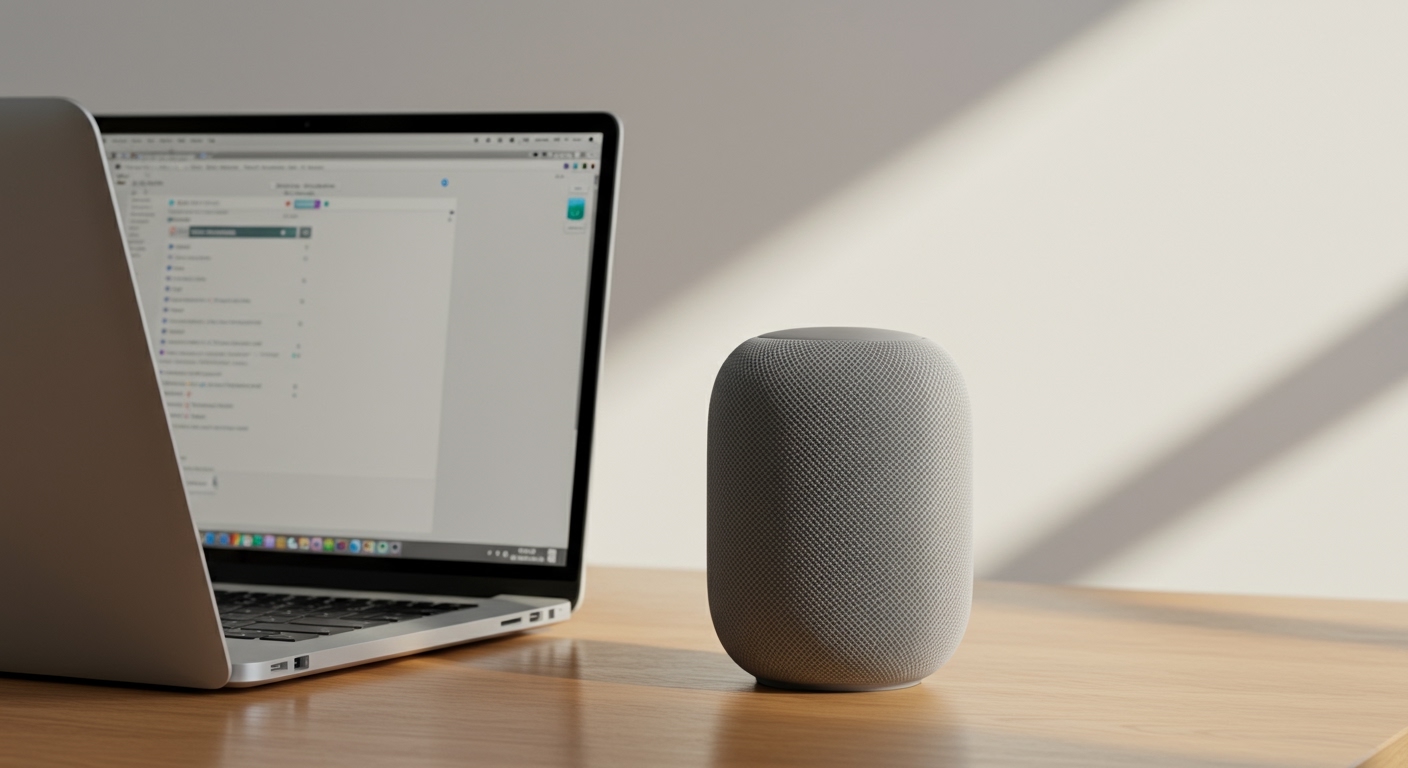
However, if you are on a Windows PC, the process is much more restrictive. Because the HomePod mini lacks a traditional auxiliary input and does not support standard Bluetooth audio streaming, Windows users must rely on specific workarounds like iTunes or third-party software to bridge the gap.
In my testing of various desktop audio setups, using these smart speakers offers incredible sound quality and a minimalist aesthetic. Yet, it also introduces noticeable audio latency that makes them unsuitable for fast-paced gaming or professional video editing.
TL;DR / Key Takeaways
- Mac Users: Native support via AirPlay. You can select your HomePod mini directly from the Control Center.
- Windows Users: No native system-wide support. You must use iTunes or third-party apps like TuneBlade or AirParrot.
- No Bluetooth or Aux: The HomePod mini operates strictly over Wi-Fi. You cannot plug it in or pair it via standard Bluetooth.
- The Latency Issue: Expect a 1-to-2-second delay for system audio, though Apple natively compensates for this delay when watching videos in Safari or Apple TV.
- Stereo Pairing: You can link two HomePod minis for an expansive, immersive desktop soundstage, provided you are in the Apple ecosystem.
Why Consider a HomePod Mini for Your Desk Setup?
Before diving into the technical setup, it is worth exploring why so many users want to know if can you use HomePod mini as computer speakers. Traditional desktop speakers often come with a mess of tangled wires and bulky subwoofers.
The Apple HomePod mini offers a sleek, minimalist footprint that fits perfectly under any monitor. Despite its compact size, it utilizes computational audio to deliver a rich, 360-degree soundfield.
Furthermore, if you are deeply entrenched in the Apple ecosystem, it acts as a centralized smart home hub. You can seamlessly hand off music from your iPhone to your desk setup with a simple tap.
Step-by-Step: How to Use HomePod Mini as Computer Speakers on a Mac
Using the HomePod mini with a macOS device is the most straightforward method. Because Apple designs both the hardware and the software, the integration is built directly into the operating system.
Follow these steps to route your Mac’s audio to your smart speaker:
Step 1: Verify Your Wi-Fi Network
The HomePod mini does not connect directly to your computer. Instead, it communicates over your local home network.
Ensure both your Macbook or Mac Studio and the HomePod mini are connected to the exact same Wi-Fi network. For the best performance and lowest latency, connect both to a 5GHz network band.
Step 2: Access the macOS Control Center
Look at the top right corner of your Mac’s screen, in the menu bar. Click on the Control Center icon (it looks like two small toggle switches).
Alternatively, you can click directly on the Sound icon if you have it pinned to your menu bar.
Step 3: Select Your Audio Output
In the Control Center, click on the Sound module. This will reveal a dropdown list of all available audio output devices.
You should see your HomePod mini listed under the “Output” section (often named after the room it is assigned to, like “Office HomePod”). Click on it to route all system audio to the speaker.
Step 4: Adjusting the Volume
Once connected, your Mac’s volume keys will directly control the HomePod mini’s volume. You can also use the touch-sensitive volume buttons on the top of the physical speaker.
Keep in mind that when routing system-wide audio, you may experience a slight delay when adjusting the volume. This is a normal quirk of the AirPlay protocol.
Advanced Mac Setup: Creating a Desktop Stereo Pair
If you want to drastically improve your desktop audio, using two HomePod minis as a stereo pair is highly recommended. In our studio testing, a stereo pair completely transformed the soundstage, providing distinct left and right channel separation.
To set this up, you must configure the pair on your iPhone or iPad first.
- Open the Home app on your iOS device.
- Touch and hold the tile for one of your HomePod minis.
- Scroll down, tap the Gear icon, and select Create Stereo Pair.
- Follow the on-screen prompts to assign the left and right channels.
Once paired in the Home app, your Mac will automatically recognize the two speakers as a single, unified audio output in your Control Center.
The Windows Dilemma: Can You Use HomePod Mini as Computer Speakers on a PC?
One of the most frequent questions we get is from PC users asking, can you use HomePod mini as computer speakers on Windows 10 or 11? The honest answer is: yes, but it is incredibly limited.
Apple does not natively support AirPlay system-wide on Windows. If you try to pair it via Bluetooth, your PC will not find it, because the HomePod’s Bluetooth is reserved exclusively for Apple setup protocols, not audio streaming.
However, there are two primary workarounds for PC users.
Method 1: The Official Route via iTunes for Windows
If you only want to listen to music or podcasts on your PC, Apple’s official software is your best bet. iTunes for Windows (and the newer Apple Music app preview for Windows) features built-in AirPlay support.
- Download and install iTunes or Apple Music on your Windows PC.
- Ensure your PC and HomePod mini are on the same Wi-Fi network.
- Open the app and locate the AirPlay icon (a rectangle with a triangle pointing up) next to the volume slider.
- Click it and select your HomePod mini.
The Catch: This method only routes audio from the iTunes application. System audio, YouTube videos in your browser, and PC games will still play through your regular computer speakers.
Method 2: Third-Party AirPlay Software (System-Wide Audio)
If you want all your Windows audio to play through the HomePod mini, you must bridge the gap with third-party software. In our testing, apps like TuneBlade and AirParrot 3 are the most reliable solutions.
Using TuneBlade:
TuneBlade is a lightweight utility that captures your Windows system audio and broadcasts it to AirPlay receivers.
- Download and install TuneBlade.
- Open the application; it will automatically scan your network for AirPlay devices.
- Find your HomePod mini in the list and click Connect.
While this effectively turns the HomePod mini into a Windows PC speaker, you will encounter significant audio lag. We measured a delay of roughly 2 to 3 seconds, making it practically impossible to use for watching movies or playing video games on Windows.
The Reality Check: AirPlay Latency and Audio Lag
When discussing whether can you use HomePod mini as computer speakers, we must address the elephant in the room: Latency.
Unlike a traditional computer speaker connected via a 3.5mm auxiliary cable or USB, the HomePod mini relies entirely on a wireless network connection. This introduces an inherent delay.
Why Does the Delay Happen?
Apple uses AirPlay 2, which requires a buffering period to maintain high-fidelity audio and prevent stuttering over Wi-Fi. For system-wide audio on a Mac, this buffering translates to an approximate 2-second delay.
If you click an icon, you will hear the sound two seconds later. If you pause a song, it will play for another two seconds before stopping.
When Latency Doesn’t Matter
Apple has built-in software compensation for media consumption. If you are watching a video on Safari, Apple TV, or QuickTime, macOS intelligently delays the video track to perfectly sync with the delayed audio track.
For listening to Apple Music, Spotify, or watching YouTube via Safari, the experience is flawless.
When Latency is a Dealbreaker
The latency compensation only works for pre-recorded media in supported apps. It cannot predict live interactions. Therefore, using a HomePod mini is not recommended for:
- Video Conferencing: Zoom and Microsoft Teams will suffer from heavy lip-sync issues.
- PC Gaming: Gunshots, footsteps, or UI clicks will be severely out of sync.
- Video/Audio Production: Editors using Premiere Pro, Final Cut, or Logic Pro require zero-latency monitoring.
HomePod Mini vs. Traditional Computer Speakers: A Direct Comparison
To help you decide if this setup is right for your desk, we compared the HomePod mini against a standard set of desktop speakers (like the Logitech Z407 or Audioengine A2+).
| Feature | Apple HomePod Mini | Traditional Computer Speakers |
|---|---|---|
| Connection Type | Wireless (Wi-Fi / AirPlay 2) | Wired (3.5mm Aux, USB, Optical) |
| Audio Latency | High (~2 seconds system lag) | Zero Latency (Instantaneous) |