Understanding How to Connect Cassette Deck to Speakers
To learn how to connect cassette deck to speakers, you simply need to route the RCA Line Output from your deck into the Line Input (often labeled AUX, Tape In, or CD) of an integrated amplifier or a pair of powered speakers. Because cassette decks produce a “Line Level” signal, they do not require a dedicated preamp like a turntable, but they do need an external power source to drive passive speakers.
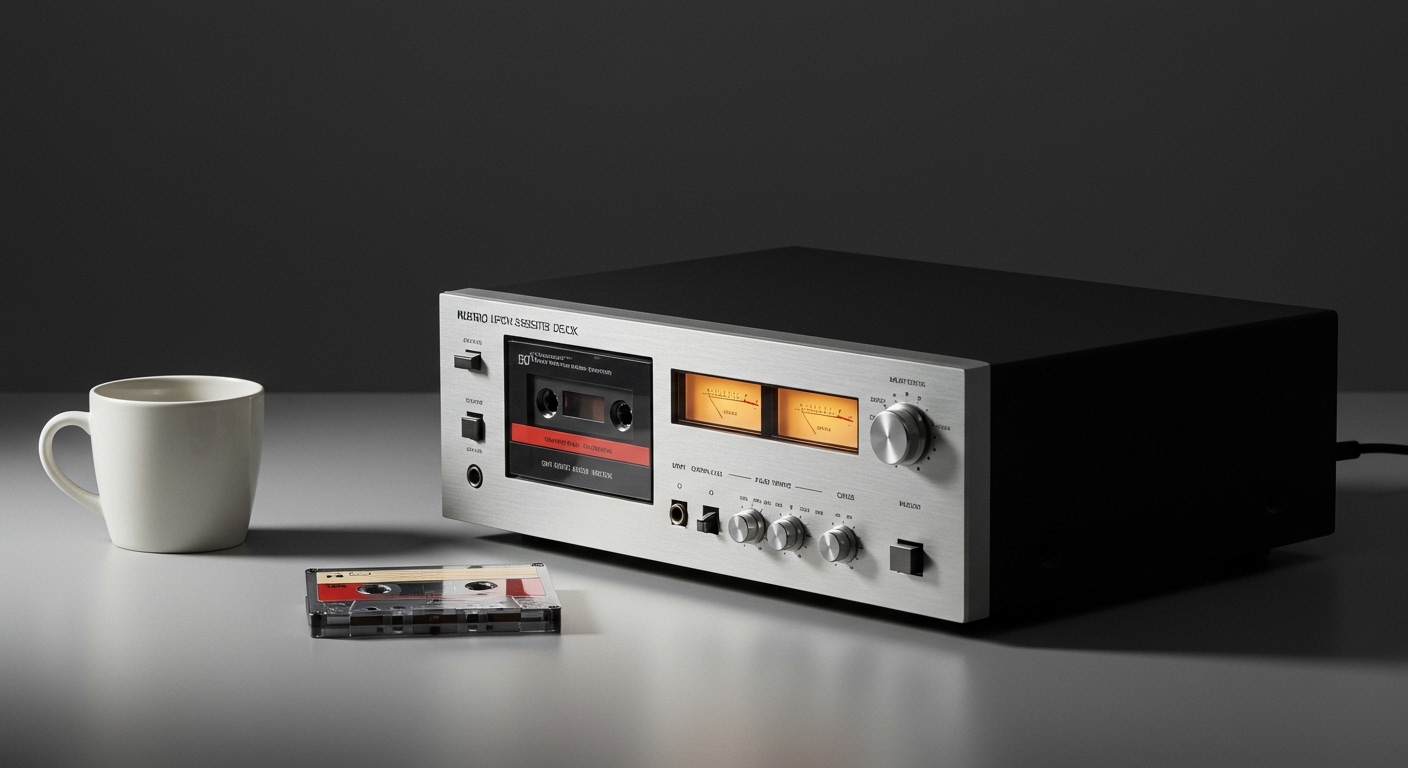
In my years of restoring vintage Nakamichi and Akai decks, I’ve found that the biggest hurdle for beginners is distinguishing between Passive and Active setups. If you have traditional bookshelf speakers with raw wire clips, you must use an amplifier or stereo receiver as the middleman. If your speakers have their own power cord, you can often connect the deck directly using a simple RCA-to-RCA or RCA-to-3.5mm cable.
Quick Setup Summary: Key Takeaways
- Cable Requirement: Most setups use standard dual-RCA cables (Red for Right, White for Left).
- Signal Type: Cassette decks output a Line Level signal; do not plug them into a “Phono” input, as this will cause heavy distortion.
- Power Needs: Passive speakers require an amplifier; active (powered) speakers connect directly to the deck.
- Optimal Path: For the cleanest sound, use the shortest possible cable runs to avoid signal degradation and “hum.”
- Pro Tip: Always turn off your equipment before plugging or unplugging cables to avoid voltage spikes that can damage your tweeters.
Essential Gear for Your Cassette Audio Chain
Before you start plugging things in, you need to audit your gear. I’ve seen many enthusiasts struggle simply because they were missing a specific adapter or didn’t realize their speakers were passive.
The Cassette Deck (The Source)
Your deck is the heart of the system. Whether it’s a high-end three-head deck or a basic dual-well recorder, the rear panel will almost always feature RCA jacks. Look for the section labeled “Line Out” or “Playback.”
The Integrated Amplifier or Receiver
Unless you are using powered monitors, you need an amplifier. This device takes the weak signal from the tape and boosts it to a level that can physically move the speaker cones. Look for an older “Silverface” receiver from the 70s or 80s for that authentic analog warmth.
Cables and Interconnects
Don’t settle for the thin, “throwaway” cables that come in the box. I recommend using shielded RCA cables to prevent electromagnetic interference (EMI) from your nearby smartphone or Wi-Fi router. If you are connecting to modern desktop speakers, you may need an RCA-to-3.5mm (AUX) adapter.
The Speakers
- Passive Speakers: These have no power button and connect via speaker wire.
- Active (Powered) Speakers: These have a built-in amp, a volume knob, and a power plug. These are common in home studios (e.g., PreSonus, KRK, or Audioengine).
Step-by-Step: How to Connect Cassette Deck to Speakers (Passive Setup)
This is the most common “Hi-Fi” configuration. It provides the best sound quality because it allows you to use a dedicated power source for your speakers.
Step 1: Identify the Outputs
Locate the Line Out jacks on the back of your cassette deck. These are usually color-coded Red (Right) and White or Black (Left). Ensure you are not using the “Line In” or “Record” jacks, as these are for sending audio to the deck.
Step 2: Connect to the Amplifier
Plug one end of your RCA cable into the deck’s Line Out. Plug the other end into an available input on your amplifier.
- Best Options: Labeled “Tape,” “AUX,” “CD,” or “Tuner.”
- Avoid: The Phono input. The Phono stage has a specialized RIAA equalization curve that will make your tapes sound incredibly bright, thin, and distorted.
Step 3: Connect Speakers to the Amplifier
Use 16-gauge or 14-gauge speaker wire to connect the amplifier’s output terminals to your speakers. Ensure the Polarity is correct: connect the Positive (+) red terminal on the amp to the Positive (+) red terminal on the speaker. Reversing these will result in “out-of-phase” audio, which kills your bass response.
Step 4: Power On and Test
- Set the amplifier volume to zero.
- Turn on the deck and the amplifier.
- Select the corresponding Input Source on the amp (e.g., “Tape”).
- Press Play on the deck and slowly raise the volume.
How to Connect Cassette Deck Directly to Powered Speakers
If you are using a compact setup, such as a desktop or a small apartment rig, you likely have powered speakers. Here is how to bypass the need for a bulky receiver.
Step 1: Check the Input Type
Powered speakers usually have one of three input types:
- Dual RCA Inputs (Best for decks)
- 3.5mm AUX Input (Common on portable speakers)
- XLR or TRS Balanced Inputs (Common on pro studio monitors)
Step 2: Choose Your Cable
- For RCA Inputs: Use a standard Male-to-Male RCA cable.
- For 3.5mm Inputs: Use an RCA-to-3.5mm Stereo Breakout cable.
- For Studio Monitors: You will likely need an RCA-to-1/4″ TS (Mono) cable for each speaker.
Step 3: Connection Logic
Connect the Line Out of the cassette deck directly to the input of the primary speaker (the one with the power cord). If the speakers are “Master/Slave” units, use the included speaker wire to link the second speaker to the first.
Step 4: Volume Management
When connecting directly, the output level of the deck is fixed. You must use the volume control on the speakers themselves to adjust the loudness. I’ve found that setting the speaker volume to 50% first and then adjusting is the safest way to avoid blowing a fuse.
Comparing Setup Options
| Feature | Passive Setup (Amp + Speakers) | Active Setup (Powered Speakers) |
|---|---|---|
| Sound Quality | Generally Higher (Audiophile Grade) | Clean and Direct |
| Complexity | High (Requires more wiring) | Low (Plug and Play) |
| Space Required | Large (Requires shelf for Amp) | Minimal (Desktop friendly) |
| Expandability | Easy to add Turntables/CD Players | Limited to 1 or 2 inputs |
| Cost | Usually more expensive | More affordable options available |
Optimizing Your Cassette Sound Quality
Simply connecting the wires isn’t enough to get that “magical” analog sound. In my experience, 90% of “bad-sounding” tape decks are simply poorly calibrated or dirty.
Cleaning the Tape Path
Before playing your favorite Maxell XLII or TDK SA tape, clean the Tape Heads, Capstan, and Pinch Roller.
- Use 99% Isopropyl Alcohol and a lint-free cotton swab.
- Gently rub the playback head (the shiny metal part) to remove iron oxide buildup.
- Clean the rubber pinch roller until it no longer leaves brown residue on the swab.
Understanding the “Tape Monitor” Function
Many vintage receivers have a Tape Monitor switch. This was designed for Three-Head Decks to allow you to hear the recording in real-time. If you aren’t hearing sound even though everything is plugged in, check if your Tape Monitor or Source/Tape switch is in the wrong position.
Calibrating Output Levels
Some high-end decks (like the Sony ES series or Pioneer Elite) have an Output Level knob on the front panel.
- Set this to the “12 o’clock” position or the “Cal” detent.
- If the output is too low, you’ll hear more tape hiss as you turn up your amp.
- If it’s too high, you might clip the input stage of your amplifier.
Dealing with Ground Hum
If you hear a persistent low-frequency buzz, it’s likely a Ground Loop. Ensure all your audio equipment is plugged into the same power strip or surge protector. This keeps the “ground potential” the same across all devices.
Advanced Connectivity: Recording and External Gear
If you plan on recording tapes from digital sources or using external noise reduction, the setup gets slightly more complex.
Using an External Equalizer
If you want to tweak the frequency response of your tapes, you can loop an Equalizer between the deck and the amp.
- Amp “Tape Out” -> EQ “Input”
- EQ “Output” -> Deck “Line In”
- Deck “Line Out” -> Amp “Tape In”
This creates a “processing loop” that allows you to EQ the signal before it hits the tape and also EQ the playback.
Connecting to a Computer (Digitizing Tapes)
To save your old mixtapes as MP3 or FLAC files, you need an Audio Interface (like a Focusrite Scarlett).
- Connect the Cassette Line Out to the Interface Inputs.
- Set the gain levels so the peaks hit around -6dB in your recording software (like Audacity).
- This ensures you have enough headroom to avoid digital clipping.
Expert Insights: Why Your Tape Type Matters
When setting up your deck, the “Setup” isn’t just about wires; it’s about the Tape Selector switch. During my testing of various Type II (Chrome) and Type IV (Metal) tapes, I’ve found that using the wrong bias setting during playback can dull the high frequencies.
- Type I (Normal Position): Standard brown tape. Best for voice or lo-fi music.
- Type II (High/Chrome): Better frequency response. Requires “70µs” equalization.
- Type IV (Metal): The holy grail of cassettes. Offers the highest Signal-to-Noise Ratio and incredible bass.
Ensure your deck is set to the correct type for the tape you are playing. Most modern decks from the 90s have Auto Tape Sensing (look for small holes in the top of the cassette shell), but older decks require manual switching.
Troubleshooting Common Setup Issues
“I hear sound, but it’s very quiet and muffled.”
- The Cause: You likely plugged the deck into the Phono input, or your Tape Heads are extremely dirty.
- The Fix: Move the RCA cables to an AUX input and clean the heads with Isopropyl alcohol.
“I only hear sound from one speaker.”
- The Cause: A loose RCA connection or a broken “Lead Wire” inside the cassette shell.
- The Fix: Swap the Red and White RCA cables. If the problem stays in the same speaker, it’s a speaker/amp issue. If the problem moves to the other speaker, the issue is the cable or the deck.
“There is a loud buzzing sound whenever I touch the deck.”
- The Cause: A grounding issue or a “floating” chassis.
- The Fix: Ensure the deck’s power cord is fully seated. If the deck has a GND screw, you can run a thin copper wire from that screw to the GND screw on your amplifier.
“The tape speed sounds like Mickey Mouse (too fast) or a dirge (too slow).”
- The Cause: Worn-out drive belts or a motor that needs calibration.
- The Fix: Most decks have a small “trim pot” on the back of the motor. You can use a tiny screwdriver to adjust the speed while playing a 3kHz calibration tape.
Frequently Asked Questions (FAQ)
Can I connect a cassette deck directly to passive speakers?
No. A cassette deck does not have a built-in power amplifier. If you connect it directly to passive speakers, you will hear nothing (or a very, very faint whisper). You must use an integrated amplifier or receiver to power the speakers.
Do I need a preamp for a cassette deck?
No. Unlike turntables, cassette decks output a Line Level signal. This means they are already “pre-amplified.” You can plug them into any standard input like AUX, CD, or Video.
What is the best cable to use for a cassette deck?
For most users, a high-quality Shielded RCA cable with gold-plated connectors is ideal. This prevents corrosion and minimizes interference. If you are a pro-user with a Tascam 122, you might use XLR cables for a balanced connection.
How do I connect my cassette deck to a Bluetooth speaker?
To do this, you need a Bluetooth Transmitter with RCA inputs. Plug the deck’s Line Out into the transmitter, pair it with your Bluetooth speaker, and you can listen wirelessly. Note that this will convert the analog signal to digital, slightly changing the “analog” character.
Is it okay to leave my cassette deck plugged in all the time?
While it is generally safe, vintage electronics benefit from being unplugged or used with a **power