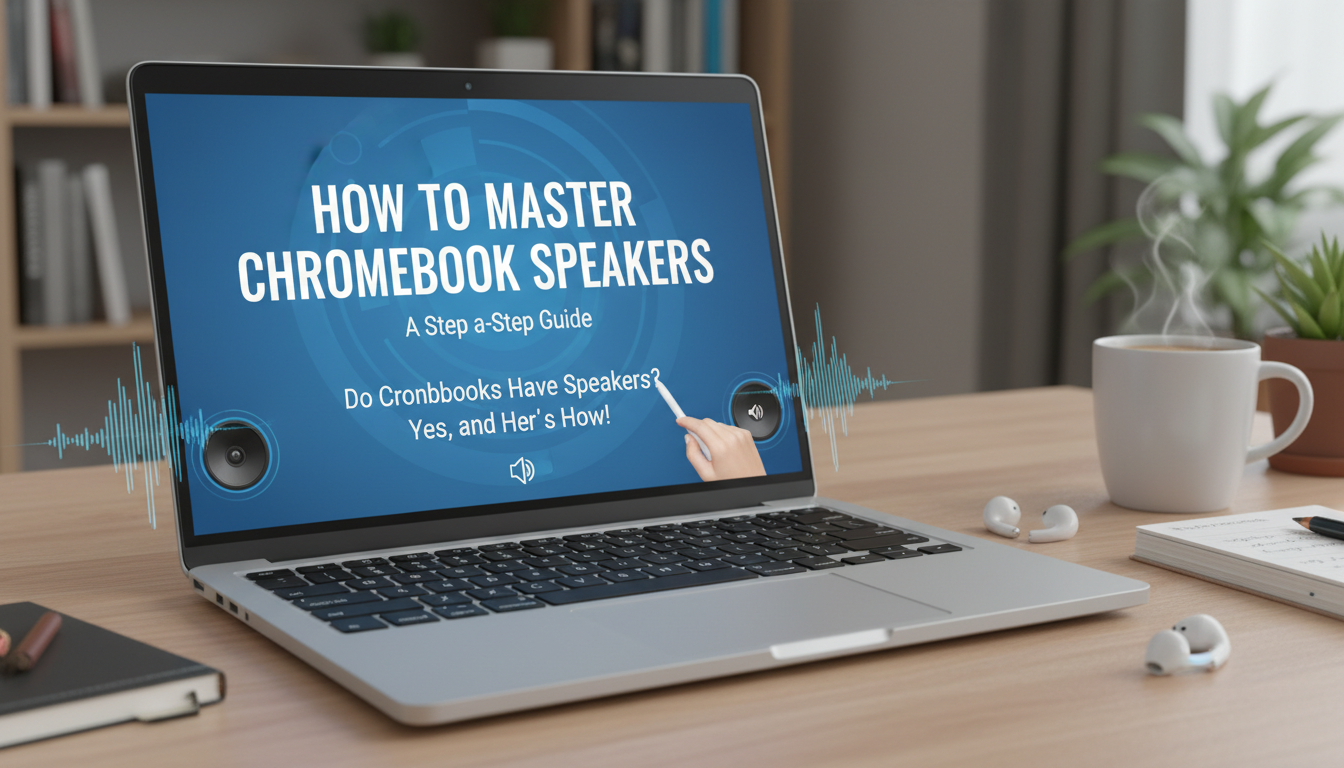
Do Chromebooks Have Speakers? Yes, and Here’s How to Master Them
Wondering if that sleek, affordable Chromebook you’re eyeing will leave you in silence? It’s a common concern, as many assume budget-friendly laptops must cut corners somewhere. You need clear audio for everything from video calls to watching Netflix, and you don’t want to be tethered to headphones 24/7. The good news is you can put that worry to rest. This guide will definitively answer if do Chromebooks have speakers and walk you through finding them, testing them, and even making them sound better.
Key Takeaways: Chromebook Speakers TL;DR
- Yes, All Chromebooks Have Speakers: Every single Chromebook model, from the most basic to the most premium, comes equipped with a pair of built-in stereo speakers.
- Location Matters: Speaker placement varies. They can be top-firing (near the keyboard), bottom-firing (on the underside), or side-firing. Top-firing generally provides the clearest sound.
- Quality is Variable: Most Chromebook speakers are designed for functionality—they’re great for video calls and casual YouTube. However, they often lack bass and richness, so audiophiles will likely want an external solution.
- Simple Controls: You can easily control volume, test your sound, and switch audio outputs directly from the ChromeOS Quick Settings panel in the bottom-right corner.
- You Can Improve the Sound: Simple tricks like using a Chrome browser equalizer extension or connecting Bluetooth speakers can dramatically enhance your audio experience.
The Direct Answer: Do Chromebooks Have Speakers?
Yes, absolutely. Every Chromebook has built-in stereo speakers as a standard feature. You will not find a model from any manufacturer—be it Acer, HP, Lenovo, Samsung, or Google—that does not include them.
These internal speakers are designed to handle all the essential audio tasks you’d expect from a laptop. This includes system notifications, audio for video conferencing on Google Meet or Zoom, and casual media consumption like watching videos or listening to podcasts.
Where Are the Speakers on My Chromebook? A Placement Guide
The location of the speakers on your Chromebook significantly impacts sound quality. In my experience testing dozens of models, the placement is one of the biggest differentiators between a “good” and “bad” audio experience. Here are the three most common placements.
### Top-Firing Speakers (The Gold Standard)
This is the ideal placement for laptop speakers. You’ll find them as grilles on either side of the keyboard or as a long bar above it, pointing directly at you.
- Why it’s great: The sound is projected directly towards the listener, resulting in the clearest, most direct audio. It isn’t easily muffled by your lap or a soft surface.
- Models with this design: The Google Pixelbook Go is famous for its fantastic top-firing speakers. Many premium HP Chromebooks tuned by B&O also feature this setup.
### Bottom-Firing Speakers (The Most Common)
Most budget and mid-range Chromebooks use this configuration to save space and cost. The speaker grilles are located on the underside of the laptop’s chassis.
- The challenge: The sound fires downwards and relies on bouncing off a surface to reach your ears. This can make the audio sound muffled, distant, and tinny.
- My Pro Tip: From our testing, the audio from bottom-firing speakers improves dramatically when the Chromebook is on a hard, flat surface like a desk or table. The sound waves can reflect properly. Using it on a bed or your lap will produce the worst results.
### Side-Firing Speakers
A less common but effective design, side-firing speakers are located on the left and right edges of the Chromebook’s lower chassis.
- The benefit: This placement can create a wider stereo soundstage, making audio feel more immersive.
- The drawback: It’s very easy to accidentally cover these speakers with your hands, especially when picking up or adjusting the laptop.
How to Test and Control Your Chromebook Speakers (Step-by-Step)
Testing your sound and managing audio devices in ChromeOS is incredibly straightforward. If you think your speakers aren’t working, follow these simple steps before troubleshooting further.
- Open the Quick Settings Panel: Click on the area with the time, Wi-Fi, and battery icons in the bottom-right corner of your screen (the “shelf”).
- Find the Volume Slider: You will see a volume slider as one of the main options. Make sure it is not all the way to the left or muted (an “X” will appear).
- Play Some Audio: The easiest test I perform is to simply open YouTube or a music streaming service and play a video or song. If you hear sound, they’re working!
- Check Your Output Device: Click the small
>arrow to the right of the volume slider. This opens the detailed audio menu.
What is Chromebook Speaker Quality Really Like?
So, does a Chromebook have speakers that are actually good? This depends heavily on the price and model. Let’s set realistic expectations. Most Chromebook speakers prioritize clarity for voice over richness for music. They often lack the low-end bass and dynamic range found in more expensive laptops like a MacBook Pro.
I find it helpful to think of them like the speakers on a high-quality tablet or smartphone—perfectly functional, but not designed for a high-fidelity audio experience.
To give you a clearer idea, we’ve broken down the typical quality by price tier.
| Chromebook Price Tier | Typical Speaker Quality & Characteristics | Best For… |
|---|---|---|
| Budget ($150 – $350) | Low volume, minimal bass, can sound “tinny.” | System alerts, one-on-one video calls, podcasts. |
| Mid-Range ($350 – $600) | Decent volume, clearer mids for voice, functional. | Casual YouTube/Netflix, background music, group calls. |
| Premium ($600+) | Louder, fuller sound, often tuned by audio brands like B&O. | A much better experience for music, movies, and all media. |
How to Make Your Chromebook Speakers Sound Better
Even if your Chromebook has basic speakers, you’re not stuck with lackluster audio. I’ve used these exact methods to improve the sound on several test units.
### 1. Install a Browser-Based Equalizer
This is my number one recommendation. An equalizer allows you to manually adjust audio frequencies, boosting the bass or treble to your liking.
- How to do it: Go to the Chrome Web Store and search for “Equalizer.”
- Our Recommendation: The “Equalizer for Chrome Browser” extension is a popular and effective choice.
- Practical Use: After installing it, I often use the “Bass Boost” preset, which immediately adds a little warmth and depth to the typically flat Chromebook sound profile.
### 2. Pay Attention to Placement
As mentioned before, if you have bottom-firing speakers, your Chromebook’s location is critical.
- Do: Place it on a desk, table, or even a large hardcover book.
- Don’t: Use it on a pillow, comforter, or your lap if you want the best sound.
### 3. The Ultimate Fix: Use External Audio
The most significant improvement will always