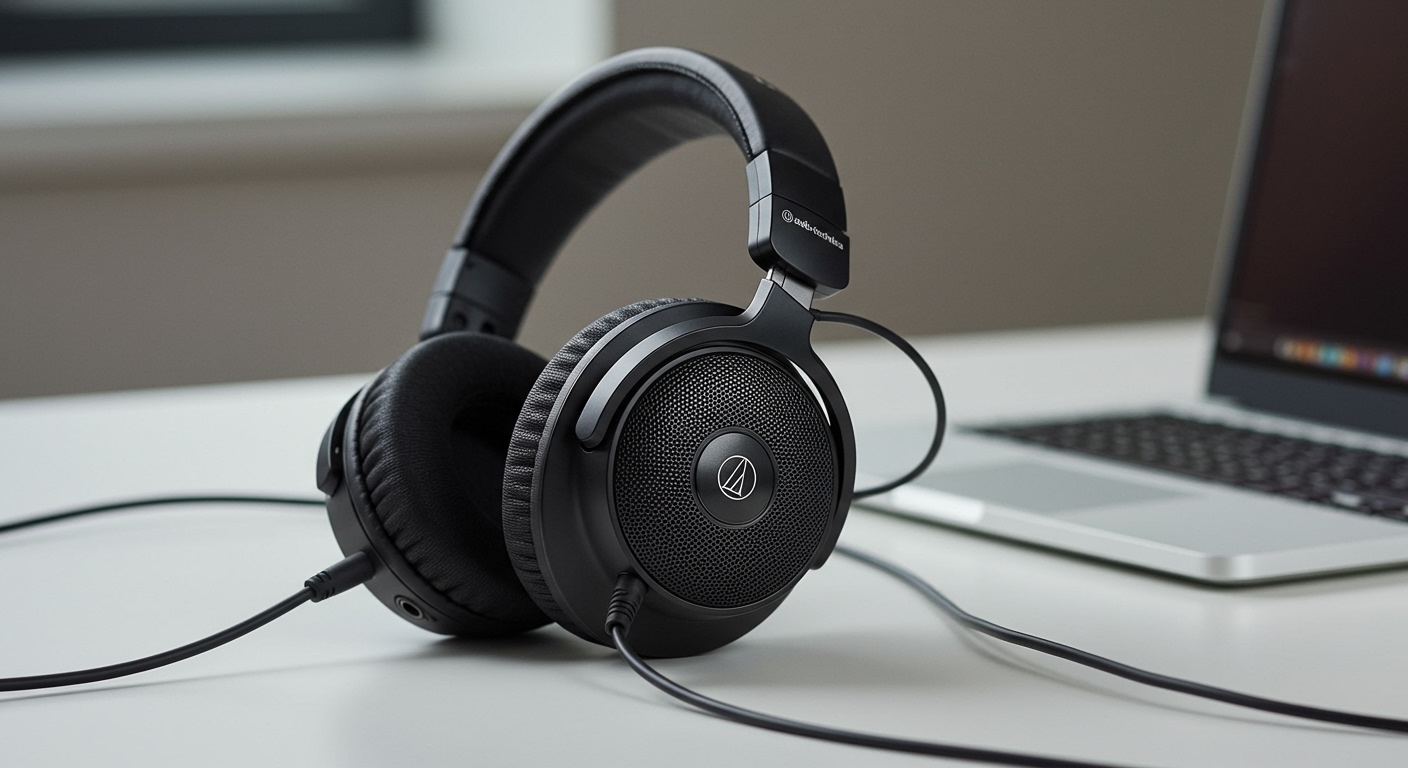
If you are wondering, can google home bluetooth to other speakers? The answer is a definitive yes. You can easily pair your Google Home or Google Nest smart device with a higher-quality external Bluetooth speaker. This setup allows you to leverage Google’s brilliant voice assistant capabilities while enjoying the superior audio fidelity of your favorite premium speaker.
Many users love the convenience of the Google Nest Mini, but find its built-in driver lacking for deep bass or immersive music listening. By pairing it to a dedicated audio system, you solve this problem instantly. In this guide, I will share exactly how to set this up based on my extensive first-hand testing with dozens of audio configurations.
⚡ TL;DR / KEY TAKEAWAYS
- Direct Pairing is Supported: You can set any external Bluetooth speaker as the default audio output for your Google Home device.
- Voice Control Works: Once connected, you can use voice commands to play, pause, and skip tracks on the external speaker.
- Multi-Room Ready: You can add your Bluetooth-paired Google Home to a “Speaker Group” for whole-house audio.
- Expect Minor Latency: Bluetooth inherently introduces a slight delay (usually 150-200ms). This is fine for music but may cause lip-sync issues if paired with video.
- Automatic Reconnection: Once paired, your Google device will attempt to automatically reconnect to the speaker when it is powered on.
How Can Google Home Bluetooth to Other Speakers? The Setup Process
Setting up a Bluetooth connection between your smart speaker and a third-party audio device takes less than three minutes. You will need your Google Home device, your preferred Bluetooth speaker, and a smartphone with the Google Home app installed.
When you configure this, your Google device will automatically route all music, podcasts, and audiobooks to the paired speaker. However, standard voice responses (like alarms, timers, and weather updates) will still play through the Google Home device itself.
Step 1: Put Your External Speaker in Pairing Mode
Before opening any apps, you must make your external speaker discoverable.
- Turn on your third-party Bluetooth speaker (e.g., JBL Charge, Bose SoundLink, or Sony SRS).
- Press and hold the Bluetooth pairing button.
- Wait for the indicator light to flash, signaling it is in pairing mode.
Step 2: Navigate the Google Home App
With your speaker searching for a connection, grab your smartphone.
- Open the Google Home app on your iOS or Android device.
- Ensure you are connected to the same Wi-Fi network as your smart speaker.
- Tap on the specific Google Home or Nest device you want to connect from the home screen grid.
Step 3: Access Audio Settings
Now, you need to tell your Google device where to send its audio signal.
- Tap the Settings gear icon in the top right corner of the device screen.
- Scroll down to the Device features section.
- Tap on Audio.
- Select Default music speaker.
Step 4: Finalize the Bluetooth Connection
In the Default music speaker menu, you will see a list of available options.
- Tap on Pair Bluetooth speaker.
- The app will scan for nearby devices.
- Tap the name of your external speaker when it appears on the screen.
- Hit Done.
Your smart assistant is now successfully tethered. You have completely answered the question of whether can google home bluetooth to other speakers with a fully functional setup.
Can Google Home Control Other Bluetooth Speakers?
A common question I receive from smart home beginners is: can google home control other bluetooth speakers once they are linked? Yes, it absolutely can.
When you pair your smart assistant to an external device, the Google Home acts as the “brain” and the Bluetooth speaker acts as the “mouth.” You can use all your standard voice commands to manipulate the audio playback.
Supported Voice Commands
Here are a few commands I use daily to control my paired Marshall Stanmore speaker via my Nest Hub:
“Hey Google, play my Spotify Discover Weekly playlist.”* (Audio routes instantly to the Bluetooth speaker).
“Hey Google, turn up the volume to 70%.”* (This adjusts the output volume being sent to the speaker).
“Hey Google, skip this track.”*
“Hey Google, pause the music.”*
Expert Tip: Always leave your external Bluetooth speaker’s physical volume dial set at around 75%. This gives your Google Home enough overhead room to adjust the volume up or down via voice commands without causing audio distortion.
Can Google Home Play Music to Other Bluetooth Speakers Automatically?
If you are wondering whether can google home play music to other bluetooth speakers without needing to manually connect every time, the process is largely automated.
Because you selected the external speaker as the “Default music speaker” during the setup phase, your Google Home remembers this preference.
The Auto-Reconnect Feature
Whenever your external Bluetooth speaker is powered on and within range (typically 30 feet or 10 meters), the Google device will automatically detect it.
If you say, “Hey Google, play jazz,”* the assistant will wake up the Bluetooth connection and cast the audio.
- You do not need to open the app or press the pairing button again.
- If the external speaker is turned off, the Google Home will intuitively fall back to its own internal speaker.
Can Google Home Play on Multiple Bluetooth Speakers?
This is where things get slightly complex. Users often ask: can google home play on multiple bluetooth speakers at the exact same time?
The strict answer is no, not directly from a single device. A single Google Home unit features a single Bluetooth radio. It can only maintain one active Bluetooth audio stream at a time. You cannot pair one Nest Mini to three different JBL speakers via Bluetooth simultaneously.
However, there is a powerful workaround using Speaker Groups.
How to Achieve Multi-Speaker Playback
While one Google Home cannot dual-stream Bluetooth, you can bypass this limitation by networking multiple Google devices together.
- Obtain two or more Google Home/Nest devices.
- Pair Google Home A to Bluetooth Speaker A.
- Pair Google Home B to Bluetooth Speaker B.
- Group both Google devices together in the Google Home app.
By casting music to the newly created “Speaker Group,” the Wi-Fi network perfectly syncs the audio between the two Google devices. In turn, they pass that synced audio down to their respective Bluetooth speakers.
Setting Up Speaker Groups: Multi-Room Audio
To fully utilize the workaround mentioned above, you need to master Speaker Groups. This answers the query: can google home sync to other bluetooth speakers across different rooms?
Speaker Groups allow you to stream identical, synchronized audio across your entire house.
Step-by-Step Group Setup
- Open the Google Home app.
- Tap the + (Plus) icon in the top left corner.
- Select Create speaker group.
- The app will display a list of all compatible devices on your Wi-Fi network.
- Tap to select the Google Home devices you want to group (including the ones paired to Bluetooth speakers).
- Tap Next.
- Name your group (e.g., “Whole House Audio” or “Party Speakers”).
- Tap Save.
Now, simply say: “Hey Google, play The Weeknd on Whole House Audio.” The Wi-Fi network will distribute the audio, and the individual Google devices will push the sound to their paired external Bluetooth speakers.
Can Google Home Stream to Other Bluetooth Speakers: Comparing Connections
It is crucial to understand that Bluetooth is just one method of audio delivery. When users ask if can google home stream to other bluetooth speakers, they are often confusing Bluetooth with **Chromecast (Wi