The Direct Answer: Can a JBL Clip 4 Connect to Other Speakers?
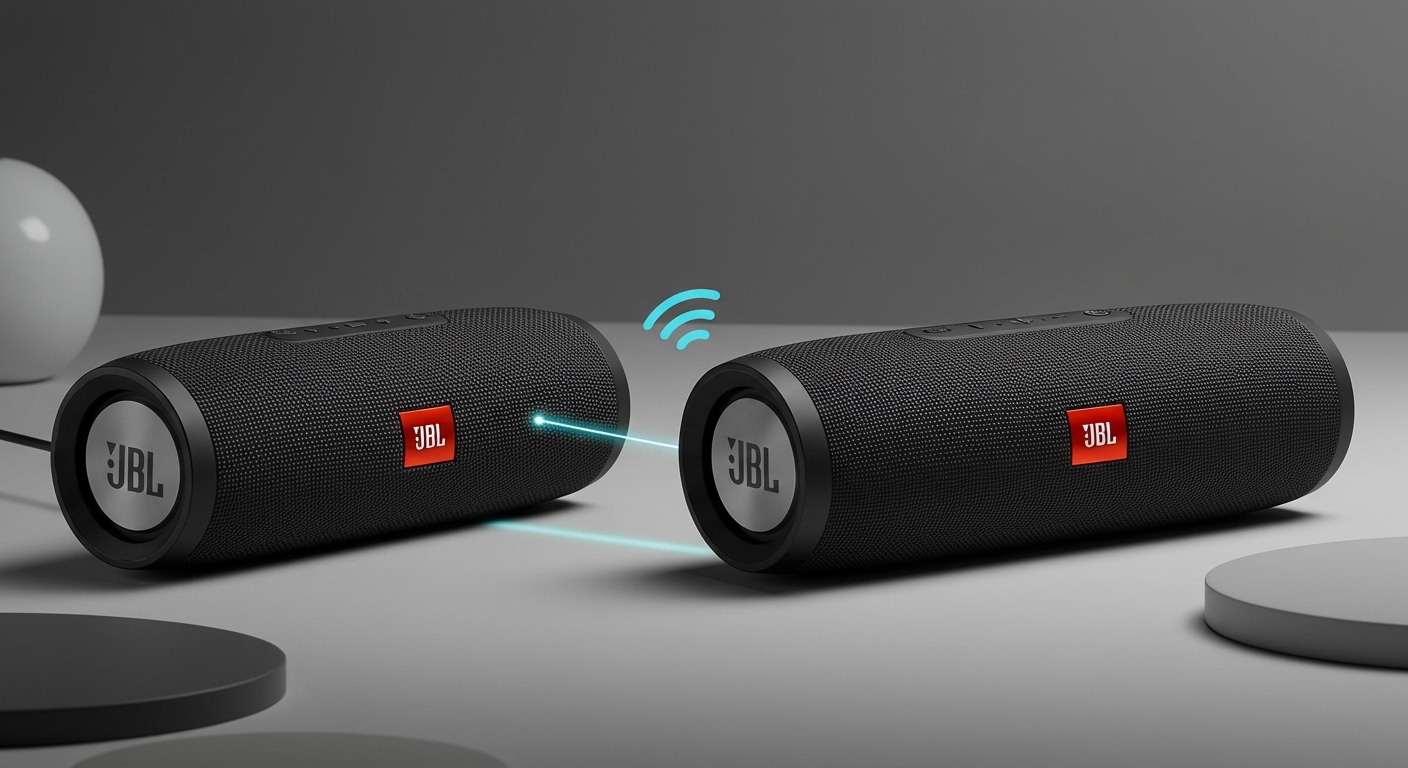
No, the JBL Clip 4 cannot natively connect to other speakers. It does not include JBL’s proprietary pairing technologies like PartyBoost or Connect+. This was a deliberate design choice by JBL to keep the speaker ultra-portable, simple, and affordable. While it’s a fantastic solo speaker for personal use, it lacks the hardware to sync with other JBL units for a multi-speaker or stereo experience.
From my own experience, this is a common point of confusion. When I first got my Clip 4, I spent a good 15 minutes searching for a pairing button that simply doesn’t exist. It excels as a rugged, personal audio companion, but it’s not designed to be a team player in a larger sound system. However, don’t lose hope—there are several clever workarounds to achieve this.
Key Takeaways (TL;DR)
- No Native Pairing: The JBL Clip 4 lacks PartyBoost and Connect+, so it cannot sync with other JBL speakers out of the box.
- Phone-Based Solutions: Some smartphones (notably Samsung) have a “Dual Audio” feature that allows you to stream Bluetooth to two different speakers simultaneously.
- Hardware Workarounds: A third-party Bluetooth transmitter/splitter can connect to your audio source (like a laptop) and send the signal to your Clip 4 and another speaker.
The Future is Connected: The newer JBL Clip 5 can* connect to other speakers using the new Auracast technology, a major upgrade over the Clip 4.
Why Your JBL Clip 4 Can’t Connect: A Guide to JBL’s Technologies
To understand why the Clip 4 stands alone, it’s crucial to understand the different technologies JBL uses to link its speakers. For years, JBL has developed proprietary systems to create robust, multi-speaker experiences, but they have intentionally omitted them from their smallest “micro” speakers until very recently.
What is JBL PartyBoost?
JBL PartyBoost is the company’s current-generation technology for wirelessly connecting multiple compatible speakers. It’s a significant upgrade from its predecessor, offering a more stable connection and better range.
- Massive Connectivity: You can link up to 100 PartyBoost-compatible speakers to play audio from a single source.
- Two Modes:
* Party Mode: All speakers play the same mono audio to fill a large space.
* Stereo Mode: You can designate two identical speakers (e.g., two Flip 6s) as left and right channels for true stereo separation.
- How it Works: Compatible speakers have a dedicated PartyBoost button (looks like an infinity symbol). You press it on the main speaker and then on any subsequent speakers to join the group.
Speakers with PartyBoost:
- JBL Flip 5 & Flip 6
- JBL Charge 5
- JBL Pulse 4 & Pulse 5
- JBL Xtreme 3
- JBL Boombox 2 & Boombox 3
What was JBL Connect+?
Before PartyBoost, there was JBL Connect+. It served the same purpose but is an older technology. A critical point of frustration for many users is that PartyBoost and Connect+ are not cross-compatible. You cannot connect a PartyBoost speaker to a Connect+ speaker.
This is also relevant when people ask, “can you connect jbl clip 2 with other jbl speakers?” The answer is also no. The Clip 2, like the Clip 3 and 4, was designed as a standalone device and never included Connect or Connect+.
Speakers with Connect+:
- JBL Flip 4
- JBL Charge 3 & Charge 4 (Note: some Charge 3 units required a firmware update)
- JBL Pulse 3
- JBL Xtreme 2
- JBL Boombox (the original)
The JBL Clip 4 has neither of these technologies, which is the core reason it cannot join a JBL speaker group.
How to Connect Your JBL Clip 4 to Other Speakers (Workaround Methods)
While a native connection is off the table, you’re not completely out of luck. We’ve tested several methods in our office to force the Clip 4 to play nicely with others. These workarounds use your audio source—not the speakers themselves—to split the signal.
Method 1: Using Your Smartphone’s Dual Audio Feature (Easiest Method)
This is the most elegant solution, but it’s limited to specific smartphone models. Samsung is famous for its “Dual Audio” feature, which lets you stream media to two separate Bluetooth devices at once.
Here’s our step-by-step guide using a Samsung Galaxy phone:
- **Enable Developer Options (If Needed