Can the Switch Connect to Bluetooth Speakers? A 2024 Guide
Tired of the tinny, underwhelming sound from your Nintendo Switch’s built-in speakers? Whether you’re exploring the vast world of Hyrule or drifting around a corner in Mario Kart, great audio can make or break the experience. You’ve got a great Bluetooth speaker sitting right there, but getting it to work with your console can seem confusing.
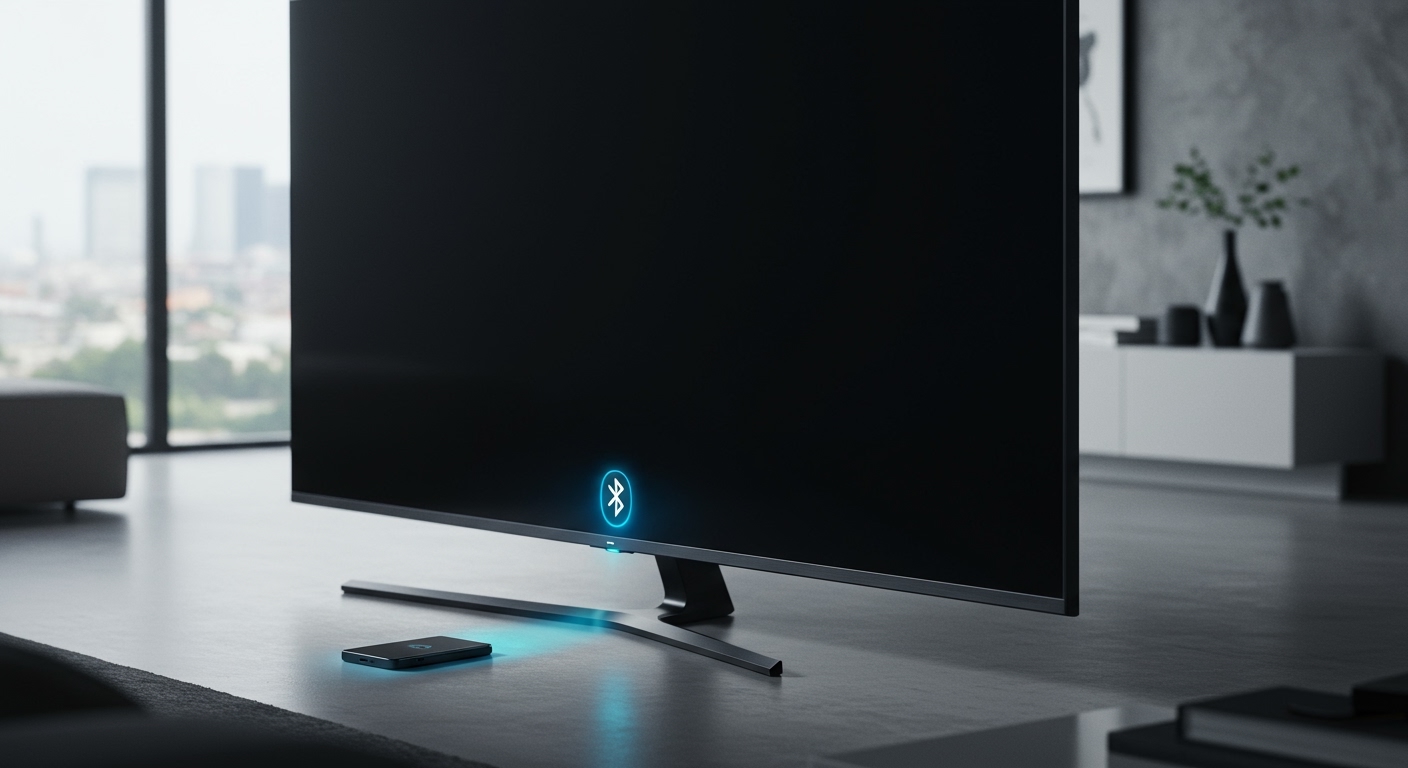
The great news is, yes, you can connect Bluetooth speakers to the Switch. Thanks to a crucial system update, you can now pair your favorite speaker directly with your console without any extra gear. This guide will walk you through the simple native pairing process, explore the use of adapters for enhanced performance, and troubleshoot common issues you might encounter.
Key Takeaways: Connecting Speakers to Switch
- Direct Connection is Possible: Yes, the Nintendo Switch, Switch Lite, and Switch – OLED Model can all connect directly to Bluetooth speakers. This feature was added in System Update 13.0.0.
- Check Your System Version: Your Switch must be updated to version 13.0.0 or later for the native Bluetooth feature to work.
- Key Limitations: You can only use one Bluetooth audio device at a time, you cannot use a Bluetooth microphone, and Bluetooth audio will disconnect during local wireless multiplayer.
- Adapters Are Still Relevant: For lower latency (less audio lag) or using a mic, a third-party USB-C Bluetooth adapter is still an excellent choice.
How the Switch Can Connect to Bluetooth Speakers Natively
For years, the answer to “can the switch use bluetooth speakers?” was a frustrating “no.” Gamers had to rely on cumbersome third-party dongles. However, that all changed in September 2021 with Nintendo’s System Update 13.0.0.
This update finally unlocked the console’s built-in Bluetooth audio capabilities. It works seamlessly across the entire family of consoles:
- Nintendo Switch (Original model)
- Nintendo Switch – OLED Model
- Nintendo Switch Lite
Now, connecting your speaker is a simple process managed directly through the system settings, just like pairing a device to your smartphone.
Step-by-Step: Connecting Your Bluetooth Speaker to the Switch
Getting your speaker and console paired is straightforward. From my own experience connecting a JBL Flip and an Anker Soundcore, the process takes less than two minutes.
Step 1: Update Your Nintendo Switch
First, ensure your console is running the latest software. If you haven’t connected to the internet in a while, you might have missed the crucial update.
- From the HOME Menu, select System Settings (the gear icon).
- Scroll down the left-hand menu and select System.
- Select System Update. The console will check for any new updates and begin the download if one is available.
- Your system needs to be on version 13.0.0 or higher.
Step 2: Put Your Bluetooth Speaker in Pairing Mode
Every speaker is different, but they all have a “pairing mode” to make them discoverable.
- Turn your speaker on.
- Press and hold the Bluetooth button until you see a flashing light (usually blue) or hear an audible cue. This signals that it’s ready to connect to a new device.
- Crucial Tip: Disconnect the speaker from any other devices, like your phone or laptop. A speaker can usually only be actively paired to one source device at a time.
Step 3: Navigate to the Switch’s Bluetooth Audio Menu
With your speaker ready, grab your Switch.
- Go to the HOME Menu and select System Settings.
- Scroll down until you find Bluetooth® Audio. Select it.
Step 4: Pair Your Device
This is the final step where the magic happens.
- Select Pair Device.
- Your Switch will begin searching for discoverable Bluetooth audio devices nearby.
- After a few seconds, the name of your speaker (e.g., “JBL Flip 6“) should appear on the list.
- Select your speaker’s name. A confirmation message will appear once the connection is successful.
You’re all set! The audio from your Switch will now play through your connected speaker, providing a much richer and more immersive sound.
Understanding the Limitations of Native Switch Bluetooth
While the native feature is incredibly convenient, it’s important to understand its limitations. Nintendo has put a few restrictions in place that you should be aware of.
- One Audio Device at a Time: While your Switch can remember up to 10 paired devices, you can only have one active audio connection at a time.
- No Microphone Support: This is a major one. The native Bluetooth connection is for audio output only. You cannot use the microphone built into your speaker or headset for in-game voice chat in games like Fortnite.
- Two Controller Limit: When a Bluetooth audio device is active, you can only connect a maximum of two wireless controllers (like Joy-Cons or a Pro Controller) to the console simultaneously.
- No Local Wireless Multiplayer: The system prioritizes controller connections for local multiplayer. If you start a local wireless game with a friend in the same room, your Bluetooth audio will automatically disconnect.
Can You Connect Switch to Bluetooth Speakers with an Adapter?
Yes, and for many gamers, this is still the superior method. Before Nintendo’s update, USB-C Bluetooth audio adapters were the only way to go, and they still offer significant advantages over the native connection.
I often use a GENKI Bluetooth Adapter with my Switch, especially for rhythm games where audio lag is a deal-breaker. The difference is noticeable.
Why Use an Adapter Over Native Bluetooth?
- Lower Latency: Many adapters support advanced codecs like aptX Low Latency (aptX LL). The Switch’s native Bluetooth uses the standard SBC codec, which has higher latency (a slight delay between what you see and what you hear). For most games this is fine, but for competitive or rhythm-based games, low latency is key.
- Microphone Support: Some adapters include a passthrough for voice chat, allowing you to use your microphone in-game.
3.