Can You Connect Speakers Through USB? (The Direct Answer)
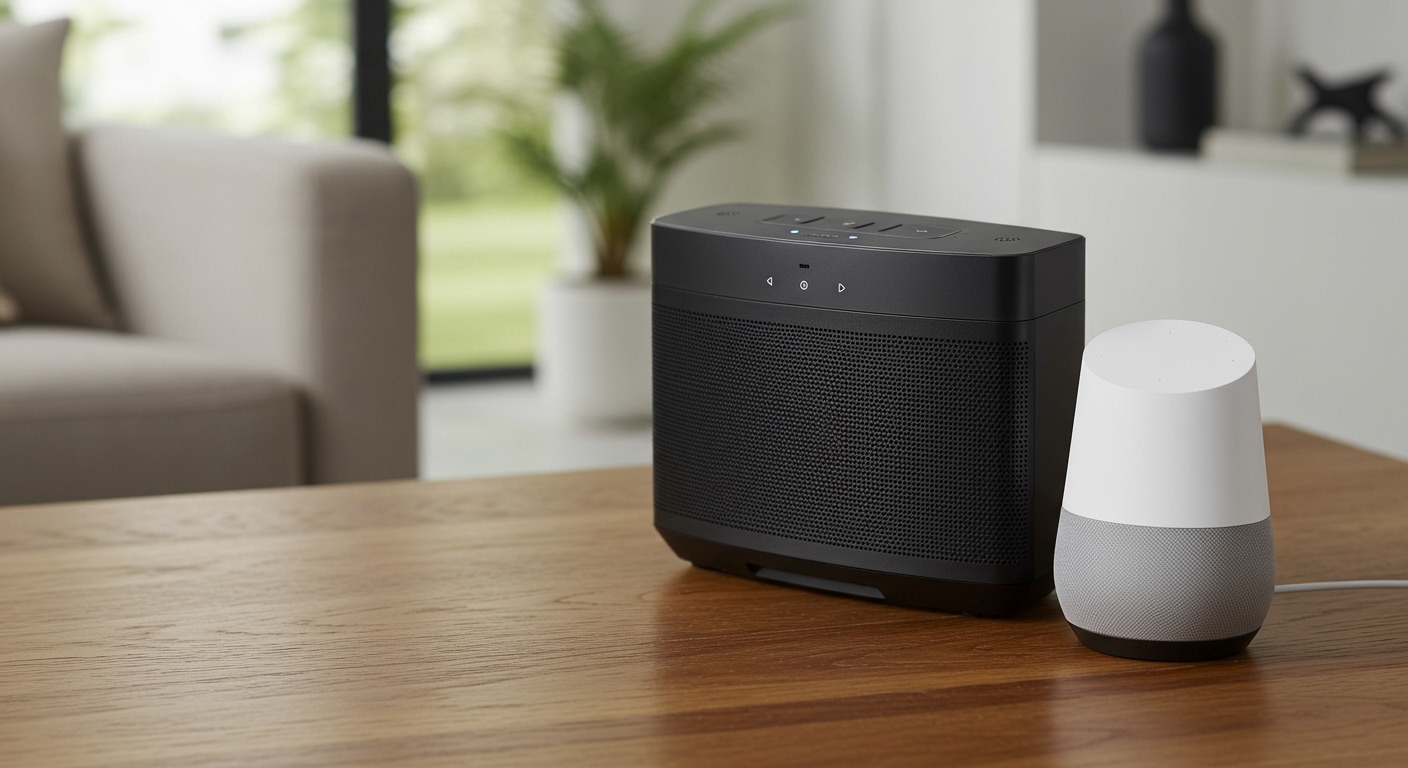
Yes, can you connect speakers through usb directly to your computer? Absolutely. By plugging a USB-compatible speaker system into your device, you transmit a pure digital audio signal that bypasses your computer’s internal (and often noisy) sound card.
The speakers will use their own built-in Digital-to-Analog Converter (DAC) to process the sound. This method typically results in significantly higher audio quality, reduced background static, and easier plug-and-play functionality.
Whether you are setting up a home office or a gaming battle station, USB audio is one of the most reliable connection methods available. In this comprehensive guide, we will break down exactly how to route your audio, configure dual-speaker setups, and troubleshoot common connection issues.
TL;DR: Key Takeaways for USB Speaker Setups
If you are in a rush, here is the executive summary of our USB audio testing:
- Plug and Play: Most modern operating systems will automatically recognize USB speakers within seconds.
- Digital Superiority: USB connections transmit digital data (1s and 0s), making them immune to the analog interference common with standard 3.5mm audio jacks.
- Built-in DACs: USB speakers process audio internally. The quality of your sound depends on the speaker’s hardware, not your PC’s motherboard.
- Multiple Speakers: Connecting multiple USB speakers requires specific software routing (like Voicemeeter for Windows or Audio MIDI Setup for Mac).
- Power Delivery: USB ports provide both data and power. USB-C ports can deliver more power, supporting louder, more robust speaker setups without an external power brick.
How USB Audio Technology Actually Works
Before diving into the step-by-step setup, it helps to understand the mechanics behind the connection. When you plug a standard 3.5mm aux cable into your PC, your computer’s motherboard is doing the heavy lifting.
Motherboards are notoriously noisy environments. The electrical interference from your graphics card, CPU, and cooling fans often leaks into the analog audio signal. This creates that annoying background hiss you hear during quiet moments in songs or games.
USB audio solves this problem completely. When you use a USB cable, your computer sends raw digital data directly to the speaker. The speaker houses its own isolated DAC (Digital-to-Analog Converter) and internal amplifier. Because the audio conversion happens outside the noisy PC case, you get a much cleaner, crisper sound profile.
Step-by-Step: How Can Speakers Hook Up Via USB on PC?
Setting up a single pair of USB speakers is incredibly straightforward. However, to get the best possible sound quality, you need to ensure your operating system settings are optimized.
Here is exactly how can speakers hook up via usb on pc for maximum audio fidelity.
Step 1: The Physical Connection
First, locate an available USB port on your machine. We highly recommend plugging your speakers directly into the rear I/O panel of your motherboard rather than a front-panel case port.
Rear ports are directly soldered to the motherboard, ensuring the lowest latency and most stable power delivery. If your speakers use a USB-C connection, ensure you are plugging into a high-speed port capable of delivering adequate power (usually marked with a lightning bolt or “SS” for SuperSpeed).
Step 2: Configuring Windows 11 / Windows 10
Once plugged in, Windows should automatically install the necessary generic USB audio drivers. However, you need to set the speakers as your default playback device.
- Right-click the Speaker Icon in your bottom-right taskbar tray.
- Select Sound settings from the context menu.
- Under the Output section, click the dropdown menu and select your new USB speakers.
- Scroll down and click More sound settings to open the legacy control panel.
- Right-click your USB speakers in the list and select Set as Default Device.
Step 3: Optimizing Sample Rate and Bit Depth
Out of the box, Windows often defaults to a lower audio quality setting to ensure compatibility. You want to unlock the full potential of your speaker’s DAC.
- In the legacy Sound control panel, right-click your USB speakers and select Properties.
- Navigate to the Advanced tab.
- Look at the Default Format dropdown menu.
- Change this to the highest available setting (typically 24-bit, 48000 Hz (Studio Quality) or higher, depending on your hardware).
- Click Apply and test the sound.
Step 4: Configuring macOS (Apple Devices)
For Mac users, the process is equally simple, as macOS excels at handling core audio devices.
- Click the Apple Menu in the top left corner and open System Settings.
- Navigate to the Sound tab in the left sidebar.
- Click on the Output tab.
- Select your USB speakers from the list of available devices.
- To adjust the sample rate on a Mac, open the Audio MIDI Setup application (found in Applications > Utilities) and adjust the format dropdown for your specific USB device.
Can I Connect Two Speakers Via USB to My PC?
This is one of the most common questions we receive from users trying to build surround sound setups or multi-room audio systems. Can I connect two speakers via usb to my pc simultaneously?
The short answer is yes, but it is not a native “plug-and-play” experience. By design, both Windows and macOS are programmed to send an audio stream to only one active output device at a time. If you plug in two separate USB speakers, your computer will force you to choose between them.
To bypass this limitation, you need to use software audio routing. Here is how we do it in our testing lab.
Method 1: The Windows Solution (Using Voicemeeter)
Windows does not have a native way to aggregate audio devices. To output sound to two different USB speakers simultaneously, you must use a third-party virtual audio mixer. We highly recommend Voicemeeter (the standard or “Banana” version), which is free and incredibly powerful.
- Download and install Voicemeeter from the VB-Audio website.
- Restart your computer to ensure the virtual audio drivers initialize correctly.
- Open the Voicemeeter application.
- In the top right corner, you will see sections labeled A1 and A2 (Hardware Out).
- Click A1 and select your first USB speaker (choose the WDM driver option for lowest latency).
- Click A2 and select your second USB speaker.
- Finally, go to your Windows Sound Settings and set Voicemeeter Input as your primary default output device.
Now, Windows sends all system audio to the Voicemeeter virtual mixer, which then perfectly clones and routes that audio to both USB speakers simultaneously.
Method 2: The macOS Solution (Aggregate Devices)
Mac users have a massive advantage here. Apple includes a native tool that allows you to combine multiple audio interfaces into a single virtual device.
- Plug in both sets of USB speakers.
- Open Audio MIDI Setup (press Cmd + Space and type “Audio MIDI Setup”).
- Click the “+” (plus) icon in the bottom-left corner of the window.
- Select Create Multi-Output Device.
- In the right-hand panel, check the boxes next to both of your USB speakers.
- Check the Drift Correction box for the secondary speaker to ensure the audio stays perfectly in sync and doesn’t echo over time.
- Go to your Mac’s System Settings > Sound and select your new “Multi-Output Device” as your primary output.
Hardware Workarounds: Using USB Hubs
If your laptop is short on USB ports, you might wonder if you can plug multiple speakers into a single USB hub. While possible, we advise caution based on extensive hardware testing.
USB audio requires continuous, uninterrupted data packets (isochronous data transfer). If you plug a high-resolution USB speaker into an unpowered USB hub alongside a webcam, external hard drive, and mouse, you will likely experience audio dropouts, stuttering, or robotic artifacts.
If you absolutely must use a hub for USB speakers:
- Always use a Powered USB Hub (one that plugs into a wall outlet).
- Ensure the hub is rated for USB 3.0 or higher to provide sufficient data bandwidth.
- Avoid plugging high-bandwidth devices (like 4K webcams or video capture cards) into the same hub as your audio gear.
The Power Factor: USB-A vs. USB-C Speakers
When deciding whether can you connect speakers through usb, you must consider the power limitations of the specific USB port. USB ports handle both the digital data transfer and the electrical power needed to drive the speaker’s amplifier.